
Picture a monthly reporting workbook that arrives with the same familiar problems: several exported files, inconsistent dates, blank rows, awkward column names, and a deadline that does not move. You may already have a VBA macro that formats the finished report, emails it, or saves copies for different teams.
Then someone asks whether the macro can also clean all the incoming data. It can—but that does not automatically mean it should. Excel has another tool designed specifically for bringing in and reshaping data: Power Query.
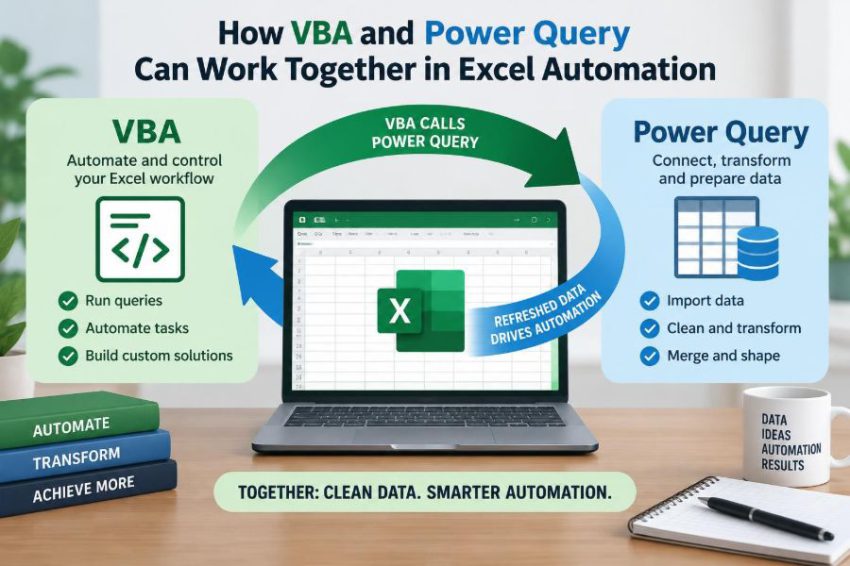
When VBA and Power Query are used as rivals, an automation project can become unnecessarily complicated. When they are assigned different jobs, they form a practical workflow: Power Query prepares data, while VBA controls the workbook experience and the surrounding process.
This combination is especially useful for students learning Excel automation and professionals maintaining reports that must be repeatable, reviewable, and less dependent on manual cleanup.
🧩 Two tools with different strengths
VBA is Excel’s programming language. It is well suited to actions: opening files, responding to buttons, copying sheets, applying workbook settings, creating PDFs, and guiding a user through a process.
Power Query is Excel’s data transformation tool. It connects to sources, applies a sequence of cleaning steps, combines files, changes data types, and loads a prepared result into a worksheet or the Data Model.
The distinction is simple: Power Query describes how data should be transformed; VBA describes what Excel should do before, after, or around that transformation.
🔄 Why combining them helps
Many recurring Excel tasks have two layers. First, raw data must be imported and made consistent. Second, the finished result must be presented, distributed, archived, or used in a wider business process.
Power Query handles the first layer without requiring cell-by-cell macro code. VBA can handle the second layer without forcing Power Query to manage workbook windows, message boxes, filenames, or email applications.
This division often makes an automation easier to maintain because each tool is solving the kind of problem it was built to solve.
🧹 What Power Query does best
Power Query is particularly useful when source data has a repeatable structure but arrives in inconvenient forms. Its interface records transformation steps, and those steps can be reviewed later in the Query Editor.
- Importing CSV, text, Excel, folder, database, and web-supported sources
- Removing unwanted columns and rows
- Splitting, merging, or renaming columns
- Filtering records and replacing values
- Appending similar tables or merging related tables
- Setting reliable data types for dates, numbers, and text
For example, a folder query can combine one weekly export from each branch office. When a new file is placed in the folder, a refresh can include it without someone copying and pasting its rows into a master sheet.
⚙️ What VBA does best
VBA is strongest where the task depends on workbook behavior, user choices, or applications outside the query itself. A macro can react to a button click and use Excel objects such as workbooks, worksheets, ranges, charts, and PivotTables.
- Refresh queries at a chosen point in a workflow
- Validate whether required files or cells exist
- Apply a report layout, print setup, or conditional formatting
- Create a dated output folder and save a copy
- Export selected sheets as PDF
- Prompt users for a period, location, or file path
VBA can also provide a controlled front door for people who should not need to understand the query design.
🧠 Think in stages, not one giant macro
A useful automation design treats a workbook as a pipeline. Each stage has a clear input and output, which makes failures easier to locate.
- Raw files arrive in an agreed location.
- Power Query imports and standardizes them.
- Tables, formulas, PivotTables, or charts use the cleaned data.
- VBA refreshes, checks, formats, exports, and communicates the result.
If a total looks wrong, you can first inspect the query result. If the data is correct but the PDF is wrong, the likely issue is in the VBA or report layout rather than the import logic.
📥 A realistic monthly reporting example
Imagine a finance team receives sales exports from several systems. The files contain different date formats, unnecessary notes columns, and occasional empty lines. A manager needs a summary workbook and separate PDFs for regional leads.
Power Query can combine the exported files, remove irrelevant fields, convert dates and amounts, and append a region identifier based on the source file. It loads one clean table named, for example, tblSalesClean.
VBA can then refresh the workbook, update PivotTables built from that table, place the reporting month in a title cell, export each region’s report, and save the output with an agreed filename. The example is hypothetical, but the division of work is common and practical.
🗺️ Start by mapping the data journey
Before writing code or adding query steps, write down where the data starts, what it should look like, and where it must end. This prevents a common mistake: automating a confusing manual process without improving it.
Ask specific questions. Which folder is authoritative? Are source columns stable? What should happen when an expected file is missing? Which transformations are business rules, and who approves them?
A short process map also helps identify which operations belong in Power Query and which belong in VBA.
📁 Keep source files separate from outputs
A robust design usually separates incoming data, the automation workbook, and generated reports. If outputs are stored in the same folder that Power Query scans, a folder query may accidentally import its own exported workbook or PDF-related files.
Use clearly named locations such as a source folder, an archive folder, and an output folder. Where possible, set the query filter to include only the intended extension and naming pattern.
This is not just housekeeping. It prevents refresh results from changing because an unrelated file was dropped into the wrong location.
🧱 Build the query before writing the macro
Create and test the Power Query transformation manually first. Confirm that it handles normal source files and that its final output has sensible column names and data types.
It is tempting to begin with a button and add the data logic later. That approach makes diagnosis harder because a failed button could mean a source problem, a query problem, a refresh problem, or a VBA problem.
Once the query refreshes reliably on its own, VBA can become a thin and understandable orchestration layer.
🏷️ Give queries and tables stable names
Names such as Query1 and Table2 make later maintenance difficult. Use names that describe purpose, such as qry_CombinedSales, qry_CleanCustomers, and tblSalesClean.
Stable names matter because VBA may refer to workbook connections, tables, worksheets, or PivotTables by name. A descriptive naming convention also helps a colleague understand what must not be renamed casually.
Keep naming simple and consistent. Spaces may work in many places, but predictable identifiers reduce quoting and reference mistakes in code.
🔌 Understand connections and query loads
A Power Query query can load to an Excel table, to the Data Model, as a connection only, or to more than one destination. The chosen load location affects what VBA and downstream reports can use.
If formulas or a PivotTable need visible rows on a worksheet, loading to a table is often convenient. If the query is an intermediate staging step used only by another query, connection-only loading may keep the workbook cleaner.
Do not assume every query needs a worksheet tab. Load only what users or the model actually need.
▶️ Refresh all queries from VBA
The most direct way to start a workbook-wide refresh is often:
Sub RefreshReport()
    ThisWorkbook.RefreshAll
End Sub
RefreshAll asks Excel to refresh workbook connections and related data. It is useful when the workbook has a small, coordinated set of queries and data connections.
However, a refresh request is not always the same as waiting for every operation to finish. If the macro immediately exports a report, it may run before data and dependent calculations are ready.
⏳ Manage refresh timing carefully
Refresh behavior can be affected by connection settings, background refresh, source type, and workbook dependencies. A macro that refreshes and instantly creates a PDF may occasionally produce an output based on old values.
Where appropriate, use Excel’s refresh completion support and ensure calculations have finished before the next task. A commonly used instruction is:
ThisWorkbook.RefreshAll
Application.CalculateUntilAsyncQueriesDone
Application.Calculate
This does not remove every possible external-source issue, but it expresses the right intent: refresh first, wait for asynchronous query work where supported, then calculate before reading report values.
🧪 Check that the refresh produced usable data
Waiting is not validation. A source file could be absent, a column could have changed, or a query could load zero rows without the final report looking obviously broken.
After refresh, VBA can inspect a known output table. For example, it can verify that the table exists and contains at least one data row before continuing.
Dim lo As ListObject
Set lo = Worksheets("Data").ListObjects("tblSalesClean")

If lo.DataBodyRange Is Nothing Then
    MsgBox "No cleaned data was loaded. Check the source files.", vbExclamation
    Exit Sub
End If
For a real process, choose a validation rule that fits the data. A zero-row result is valid for some periods, so do not treat it as an error unless the business process truly requires records.
✅ Add checks that reflect business rules
Technical checks confirm that Excel completed an action. Business checks ask whether the outcome makes sense. Both are useful.
- Is the reporting period present in the cleaned data?
- Are required fields populated after transformation?
- Are numeric amounts actually numeric rather than text?
- Does a key count or total fall outside a reasonable review range?
- Did every expected region appear?
A macro should not silently “fix” a surprising total. It can stop the export, highlight the issue, and tell the user what to review.
📊 Refresh PivotTables and report calculations
Query output is often only the beginning. PivotTables, formulas, charts, and named ranges may depend on the loaded table. Plan their refresh sequence explicitly.
For example, after the query data is available, VBA can refresh a PivotTable and calculate the report sheet:
Worksheets("Summary").PivotTables("ptSales").RefreshTable
Worksheets("Summary").Calculate
Use direct references when possible. They make the dependency clear and avoid refreshing unrelated objects unnecessarily in a large workbook.
🎛️ Use VBA as a simple user interface
A well-designed macro can turn a technical workbook into a repeatable process. A button named “Refresh and Create Reports” is friendlier than asking users to open the Queries & Connections pane and remember several manual steps.
The macro can confirm the selected reporting period, check that a source folder is available, refresh data, and state when the output is ready. The goal is not to hide every detail; it is to reduce avoidable variation in routine work.
Keep the interface honest. If refresh can take time, say so. If a person must review exceptions, make that step visible rather than pretending the process is fully automatic.
📤 Export only after the report is ready
PDF creation, workbook copies, and email drafts belong after validation and report refresh. This order protects users from distributing incomplete or stale reports.
A typical export step might use a controlled filename based on a validated period stored in a worksheet cell. Avoid building filenames directly from unverified user text, because characters such as slashes can be invalid in file names.
It is also wise to save the workbook before exporting when the process depends on its current state. Decide whether users should overwrite a standard output or create dated versions, and make that policy consistent.
🪄 Let Power Query handle transformations, not formatting
Power Query can alter values and column structure, but it is usually not the right place for report presentation. Currency formats, print areas, column widths, logos, and chart placement are workbook concerns better handled by Excel formatting or VBA.
Similarly, avoid using VBA to loop through thousands of raw rows merely to remove columns, trim text, or combine files. Power Query’s step-based transformations are generally clearer for that type of work.
A useful boundary is data shape versus report shape. Power Query produces a reliable data shape; Excel and VBA produce the report shape people consume.
🧾 Preserve a raw-to-clean audit trail
For important reporting, it helps to retain enough traceability to answer basic questions: Which source files were used? Which query steps changed the data? When was the report refreshed?
Power Query’s Applied Steps list provides a readable transformation trail. You can complement it with a VBA log sheet that records the refresh date and time, user name where appropriate, reporting period, and whether the process completed.
Do not present a simple log as proof that data is correct. It is an operational record, not a substitute for reviewing transformations and source quality.
🛠️ Use error handling for expected failures
Missing files, unavailable network folders, changed source layouts, and permission problems are normal operational risks. VBA should provide a useful message rather than leave Excel in a confusing half-finished state.
On Error GoTo HandleError

ThisWorkbook.RefreshAll
Application.CalculateUntilAsyncQueriesDone

MsgBox "Refresh completed.", vbInformation
Exit Sub

HandleError:
    MsgBox "The report could not be refreshed: " & Err.Description, vbExclamation
This is a starting pattern, not complete production error handling. In a more mature workbook, you may restore screen updating, close opened files safely, write a log entry, and identify the stage that failed.
🚫 Avoid hiding errors with broad suppression
On Error Resume Next can be useful for a very narrow, expected operation, but broad use is risky. It allows code to continue after a failure, which can create a polished-looking report with missing data.
If you use it, turn it off immediately after the specific statement and test the result. In most refresh workflows, a visible failure is safer than silently continuing to export.
The same principle applies to query errors. Do not design a process that treats every error as an empty result without alerting the user.
🔐 Consider security and access boundaries
Macros and external data connections both have security implications. Users may see macro warnings, and organizations may restrict access to network folders, databases, or email automation.
Store files in approved locations, avoid embedding credentials in VBA code, and use the organization’s supported connection and authentication methods. A macro password is not a strong security control for protecting sensitive logic or data.
Test the workbook with an ordinary user account, not only the developer’s account. A process that works because the creator has broader access is not yet ready for routine use.
👥 Design for the person who inherits it
Automation is rarely maintained forever by its original author. Add a brief instructions sheet explaining source locations, refresh steps, expected outputs, and what to do when a validation warning appears.
Comment VBA procedures where the intent is not obvious, especially around refresh timing and business-rule checks. In Power Query, rename steps meaningfully instead of leaving generic labels such as “Changed Type1.”
Readable automation is not just a courtesy. It reduces the chance that an urgent future edit breaks an assumption nobody documented.
🧱 Keep dependencies deliberate
Complex workbooks can contain chains: a folder query feeds a staging query, which feeds a clean table, which feeds a PivotTable, which feeds a dashboard, which is exported by VBA. That structure can work well, but only if it is understandable.
Avoid duplicate transformations in formulas, VBA, and Power Query. If dates are standardized in Power Query, do not also apply a conflicting VBA date cleanup later. One authoritative location for each rule makes discrepancies easier to resolve.
Document key dependencies when the workbook has multiple queries or report tabs.
⚖️ Know when VBA is not needed
Not every query requires a macro. If a user only needs to click Excel’s Refresh All and read a table, adding VBA may increase maintenance and security friction without delivering much value.
Power Query alone is often enough for repeatable imports, transformations, and refreshable analysis. VBA earns its place when there are repeated workbook actions, controlled user workflows, file management, output generation, or integration tasks around the query.
Choose the smallest solution that reliably solves the actual problem.
📈 Know when Power Query is not the right engine
Power Query is excellent for repeatable data preparation, but it is not ideal for every Excel calculation or interaction. A highly interactive model may need worksheet formulas, PivotTables, Power Pivot measures, or a database-side solution.
Very large data volumes, slow network sources, and unstable source schemas may require changes beyond the workbook. Refreshing in Excel does not automatically make a poorly governed data process reliable.
Likewise, Power Query transformations use the M language behind the scenes; some advanced cases benefit from understanding or editing M, but many routine workflows can remain readable in the interface.
🧩 A practical responsibility checklist
| Task | Usually best handled by | Why |
|---|---|---|
| Combine monthly CSV exports | Power Query | Repeatable import and append steps |
| Convert text dates to date values | Power Query | Transformation is visible and refreshable |
| Prompt for a reporting month | VBA | User interaction and workbook control |
| Check that the final table has rows | VBA | Workflow decision after refresh |
| Build a printable management sheet | Excel formatting and VBA | Presentation and export control |
| Export region-specific PDFs | VBA | File creation and repeatable output actions |
This table is a guide rather than a rigid rule. The best choice depends on the source, workbook design, and skills of the people who will maintain the solution.
🧭 A sensible build order
Building in a disciplined order reduces rework. Start with one source and one clean output table before attempting a dashboard, multiple exports, or elaborate user prompts.
- Define the source folder, required fields, and expected output.
- Build and test the Power Query transformation.
- Load the clean result to a deliberately named destination.
- Build report formulas, PivotTables, or charts from that output.
- Add VBA refresh, wait, validation, and export steps.
- Test normal, empty, missing-file, and changed-column scenarios.
- Document routine use and recovery steps.
This order keeps the data foundation stable before automation starts acting on it.
🧪 Test the awkward cases, not just the happy path
A workbook can appear successful with one perfect sample file and fail on the first real exception. Test a file with an extra blank row, a missing optional value, an unexpected new category, and a date that uses a different locale format.
Also test what happens when the source folder is empty, a file is open elsewhere, a user lacks access, or the output file already exists. Decide whether the automation should stop, overwrite, save a new version, or ask the user.
Testing these cases turns assumptions into explicit design choices.
🎯 The core principle: separate preparation from control
The strongest pattern is not “put everything in VBA” or “put everything in Power Query.” It is to give each tool a clear responsibility and keep the boundary visible.
Let Power Query perform consistent, refreshable data preparation. Let VBA coordinate actions, validate the workflow, update the user-facing report, and produce outputs once the data is ready.
That separation creates a workbook that is easier to explain, troubleshoot, and adapt when next month’s source file or reporting requirement changes.
Use Power Query to make data dependable, and use VBA to make the process dependable. Together, they can turn a fragile sequence of manual Excel steps into a clearer, repeatable automation workflow. 🔄📊