
You press a button to refresh a report. Excel freezes, the status bar barely moves, and a task that feels simple takes long enough for someone to make coffee.
The VBA code may not look complicated. Perhaps it loops through rows, checks a condition, calculates a value, and writes an answer beside each record. Yet it can become painfully slow as the worksheet grows.
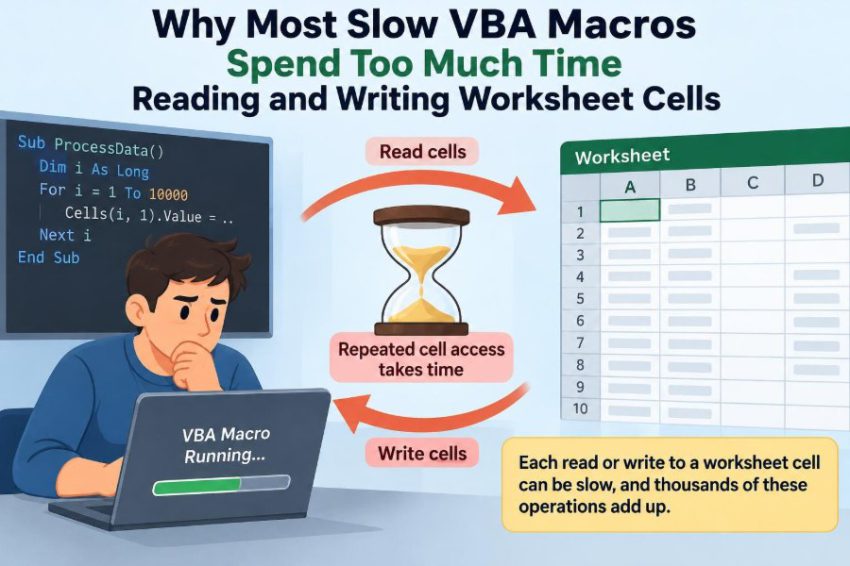
The usual suspect is not the For loop itself. It is the repeated travel between VBA and the Excel worksheet: reading one cell, writing one cell, then doing it again thousands of times.
Once you understand that boundary, macro performance becomes much less mysterious. Many slow procedures can be improved without clever tricks—simply by moving data in batches and doing more work in memory.
🧭 The Real Bottleneck Is Often the Worksheet Boundary
VBA runs as code, while a worksheet is part of Excel’s object model. Each expression such as Cells(r, 3).Value asks VBA to communicate with that model, locate an object, and retrieve or change a property.
One request is trivial. Tens of thousands of individual requests are not. The accumulated overhead can outweigh the actual comparison, arithmetic, or string processing your macro performs.
Think of it as repeatedly walking to a filing cabinet for one sheet of paper instead of bringing the whole relevant folder to your desk.
🔁 Why Cell-by-Cell Code Adds Up So Quickly
A loop that processes 20,000 rows may read several cells and write one or more results per row. That can mean well over 100,000 separate interactions with the worksheet.
The work inside the loop may be as small as If amount > 0 Then, but every .Cells, .Range, .Value, .Interior, or .Font access has a cost. Performance problems commonly come from the number of worksheet calls, not from the visible loop syntax.
📦 Ranges Can Transfer Data in One Operation
Excel can transfer a rectangular range to VBA in a single assignment. The result is normally a two-dimensional Variant array, where the first index represents the row and the second index represents the column.
Dim data As Variant
Dim lastRow As Long

lastRow = Cells(Rows.Count, "A").End(xlUp).Row
data = Range("A2:D" & lastRow).Value2
After that assignment, reading data(r, 2) uses memory rather than making another trip to the worksheet. You can later write the completed array back with one range assignment.
🧠 In-Memory Work Is Usually Cheap
Arrays hold data in memory while VBA is running. Accessing an element by index is generally much lighter than resolving a worksheet cell reference repeatedly.
This does not mean all array code is automatically fast. Poor algorithms can still be slow. But when the same logical work is done, processing an array usually removes a major source of unnecessary overhead.
🪟 A Simple Before-and-After Example
Imagine a hypothetical sales worksheet where column B holds quantities and column C needs a label. A direct approach reads and writes cells during every iteration.
For r = 2 To lastRow
    If Cells(r, "B").Value > 0 Then
        Cells(r, "C").Value = "Active"
    Else
        Cells(r, "C").Value = "Inactive"
    End If
Next r
The same logic can work with arrays:
Dim qty As Variant, result() As Variant
Dim i As Long, n As Long

qty = Range("B2:B" & lastRow).Value2
n = UBound(qty, 1)
ReDim result(1 To n, 1 To 1)

For i = 1 To n
    If qty(i, 1) > 0 Then
        result(i, 1) = "Active"
    Else
        result(i, 1) = "Inactive"
    End If
Next i

Range("C2").Resize(n, 1).Value = result
The decision is unchanged. What changes is that the code performs two bulk worksheet transfers instead of interacting with cells on every pass.
🧮 Use Value2 When You Need Underlying Values
Range.Value2 is often a sensible default for data transfer. It avoids certain conversions associated with Value, notably Currency and Date handling, and returns the underlying Excel values.
That distinction matters when formatting, dates, or currency are part of the task. Value2 does not preserve a cell’s display format; it retrieves the stored value. If your logic depends on how Excel displays a value, you need to handle that requirement deliberately.
🗺️ Define the Data Range Precisely
Bulk processing is most useful when the range is real and bounded. Reading entire columns such as Range("A:A") can move far more cells than the macro needs.
Find the relevant last row using a column that reliably contains data, then construct a specific range. Be cautious with UsedRange: it may include cells that were previously formatted or edited even when they appear empty.
A good range definition improves both speed and correctness.
📏 Understand Array Dimensions Before Looping
When a multi-cell range is assigned to a Variant, Excel returns a two-dimensional array even when the range is only one column wide. Use LBound and UBound rather than assuming that the first element is always 1.
For r = LBound(data, 1) To UBound(data, 1)
    For c = LBound(data, 2) To UBound(data, 2)
        'Process data(r, c)
    Next c
Next r
This makes the routine more resilient if its source range changes. It also avoids confusion with manually created arrays, whose bounds may differ.
⚠️ A One-Cell Range Is a Special Case
Assigning a multi-cell range to a Variant gives an array. Assigning a single cell may give a scalar value instead. Code that immediately calls UBound can therefore fail when the data set happens to contain only one record.
You can handle this explicitly, ensure that the source range always has multiple cells, or write a small helper routine that normalizes the input. Edge cases like this are not performance issues, but they matter when converting an existing macro to array-based processing.
✍️ Write Results Back in a Single Block
Reading in bulk but writing one result at a time only solves half the problem. Build an output array and assign it to a destination range that has matching dimensions.
Range("F2").Resize(UBound(output, 1), UBound(output, 2)).Value = outputThe upper-left cell identifies the destination; Resize expands it to fit the array. Make sure the output does not overwrite source data unless that is intentional.
🧱 Separate Input, Logic, and Output
A faster macro is also easier to reason about when it follows three stages: read the required range, transform data in memory, and write the final result.
- Input: gather the values the logic needs.
- Logic: validate, compare, calculate, classify, or reorganize those values.
- Output: place finished results into a defined destination.
This structure makes worksheet access visible. If Cells references start appearing throughout the logic stage, that is a useful signal to reconsider the design.
🔎 Repeated Lookups Can Create a Second Bottleneck
Even after moving the main table into an array, a macro may repeatedly use WorksheetFunction.VLookup, Range.Find, or cell formulas inside a loop. Those calls can reintroduce worksheet interaction or expensive repeated searches.
For repeated lookups against a reference table, load that table once and consider a Dictionary keyed by an ID. This is particularly effective when thousands of records must be matched to the same list of codes, prices, or categories.
📚 Arrays Are Not Always the Best Lookup Structure
An array is excellent for ordered, rectangular data. It is less convenient when you need to find a record by a unique identifier over and over.
A dictionary is designed for key-based retrieval. A collection can be useful for ordered objects or values. The best choice depends on the operation: sequential processing favors arrays; repeated key lookups often favor dictionaries.
Choosing an appropriate data structure prevents a fast cell-transfer strategy from being undermined by inefficient searching.
🧹 Do Not Clean Cells One by One
Formatting and clearing operations also cross the worksheet boundary. This pattern is costly on a large range:
For r = 2 To lastRow
    Cells(r, "G").ClearContents
Next r
When the whole target area needs the same action, operate on it once:
Range("G2:G" & lastRow).ClearContentsThe same principle applies to setting number formats, filling colors, applying borders, or changing alignment. Prefer a range-level operation when every cell receives the same treatment.
🎨 Formatting Has Its Own Performance Cost
Cell values and cell formatting are different kinds of work. Writing values in one batch does not mean you should create a unique format for every row.
Use conditional formatting when a visual rule belongs in the workbook and should continue responding to changed data. Use a single range format when all target cells share a style. Reserve per-cell formatting for genuinely different visual outcomes.
🖥️ Screen Updating Helps, but It Is Not the Main Fix
Turning off screen updating prevents Excel from redrawing the interface after many changes:
Application.ScreenUpdating = FalseThis can help, especially during formatting or sheet manipulation. However, it does not remove the cost of thousands of cell property reads and writes. A macro may still be slow if its fundamental design remains cell-by-cell.
Use screen updating as supporting housekeeping, not as a substitute for reducing worksheet calls.
🧮 Calculation Settings Need Careful Handling
Writing cells can trigger formula recalculation, which may be a significant part of a macro’s runtime. Temporarily setting calculation to manual can be appropriate for a controlled procedure.
Dim oldCalc As XlCalculation
oldCalc = Application.Calculation
Application.Calculation = xlCalculationManual
But calculation is an application-level setting. Always restore the original state, including when an error occurs. A workbook left in manual calculation can quietly produce stale-looking results and confuse its users.
📣 Events Can Trigger Hidden Work
Worksheet change events may run automatically when your macro writes data. If an event procedure validates entries, refreshes data, or updates other sheets, every write can trigger additional work.
For a controlled batch operation, temporarily disabling events can prevent unintended recursion or repeated actions. As with calculation, save the old setting and restore it reliably.
Application.EnableEvents = False
'Write the batch
Application.EnableEvents = True
Do not disable events casually if the workbook relies on them for essential business logic.
🛡️ Always Restore Application Settings After Errors
The safest performance code has a cleanup path. If an unexpected error occurs after disabling screen updates, events, or automatic calculation, the procedure should restore every altered setting before it exits.
On Error GoTo CleanUp

'Change application settings and run work here

CleanUp:
Application.ScreenUpdating = True
Application.EnableEvents = True
Application.Calculation = oldCalc
If Err.Number <> 0 Then Err.Raise Err.Number
In production code, store each original setting rather than assuming a particular default. The exact error-handling design can vary, but leaving Excel in a changed application state is an avoidable risk.
🧪 Measure the Slow Part Before Rewriting Everything
Macros can feel slow for several reasons: data transfer, calculation, external queries, workbook opening, filtering, chart refreshes, or inefficient algorithms. Time the main stages separately before making large changes.
A simple elapsed-time check around the read, processing, and write stages can reveal where the delay actually occurs. This is more useful than guessing based on the length of the code.
Performance tuning works best when it addresses an observed bottleneck.
⏱️ Test With Representative Data, Not a Tiny Sample
A macro that seems instant with fifty rows may expose a poor design with fifty thousand. Test with a copy of a realistic workbook and data volume that resembles normal use.
Also test the awkward cases: blank rows, a one-record data set, errors in input cells, duplicate keys, and formulas that return empty strings. Fast code that silently mishandles ordinary exceptions is not a reliable improvement.
🧾 Formulas May Be Better Than VBA for Some Tasks
If the goal is a calculation that should update whenever users edit source data, worksheet formulas may be a better fit than a macro that writes static answers. Modern Excel functions can often express sorting, filtering, lookups, and conditional calculations clearly.
VBA is valuable when a workflow needs procedural steps, workbook control, validation, imports, exports, or transformations that formulas do not express well. The choice is not formulas versus VBA in every case; it is about assigning work to the right tool.
🗂️ Database-Style Tools Can Suit Very Large Transformations
For some large, structured data tasks, Power Query, a database query, or another data-processing tool may be more suitable than a long VBA loop. These tools can be especially useful for combining files, filtering records, and repeatable imports.
This does not make VBA obsolete. VBA can orchestrate a workflow and handle Excel-specific actions well. It simply has practical limits when asked to behave like a high-volume data engine.
🚫 Avoid Select and Activate in Data Loops
Recorded macros frequently select a cell, activate a sheet, and then act on the selection. This creates extra interface work and makes code dependent on the active workbook and sheet.
Use fully qualified object references instead:
ws.Range("A2:A" & lastRow).Value2 = dataAvoiding selection improves reliability first and may improve speed as a welcome side effect. It is not a replacement for bulk transfer, but it belongs in clean VBA.
🏷️ Qualify Worksheets and Workbooks Explicitly
Unqualified references such as Cells, Range, and Rows.Count refer to whichever sheet is active. That can produce wrong results when a user clicks elsewhere, an event runs, or another workbook becomes active.
Assign worksheet variables early:
Dim ws As Worksheet
Set ws = ThisWorkbook.Worksheets("Sales")
Then use ws.Cells and ws.Range. Correctly scoped references make the source and destination of bulk operations unambiguous.
🧩 Handle Errors and Empty Values Intentionally
Worksheet data can contain true blanks, empty strings, error values, dates, numbers stored as text, and formulas. When those values enter an array, they retain meaningful differences.
Before comparing or converting a value, decide what the business rule should do with each case. For example, calling numeric conversion on an error value will fail unless you test it first. Fast processing should not bypass data validation.
🔐 Preserve Formulas When You Only Mean to Change Values
Writing an array to a range replaces the contents of every target cell. If the destination contains formulas that should remain, a bulk write can accidentally destroy them.
Choose a dedicated output area, write only to known value columns, or build logic that respects formula cells. Test on a copy before replacing a broad range, particularly in shared reporting workbooks.
📊 A Practical Decision Guide
| Situation | Usually appropriate approach |
|---|---|
| Process every row and write a result | Read range to array, process, write output array once |
| Apply identical format to many cells | Format the entire target range once |
| Repeated match by customer or product ID | Load reference data and use a dictionary where suitable |
| Live calculation after ordinary user edits | Consider worksheet formulas or conditional formatting |
| Large repeatable file imports and shaping | Consider Power Query or a database-style process |
The table is a guide rather than a rigid rule. Workbook design, formula dependencies, and maintainability all affect the best solution.
🪜 Improve Existing Macros in Small Steps
You do not need to rewrite a large procedure all at once. First identify the inner loop with the most worksheet reads or writes. Move its inputs into an array, build an output array, and compare the results with the original version.
- Make a backup and define the expected output.
- Replace repeated reads with one bulk read.
- Replace repeated writes with one bulk write.
- Test correctness, then measure runtime.
- Only then examine calculation, events, formatting, and lookups.
This incremental approach limits risk and makes each performance gain easier to verify.
🎯 The Core Principle: Minimize Trips, Not Just Lines of Code
Short VBA code is not necessarily fast, and long VBA code is not necessarily slow. The key question is: how often does the procedure cross from VBA into Excel’s worksheet object model?
Read the data you need in a small number of transfers, perform ordinary logic in memory, and write completed results back in blocks. Then address other real costs—calculation, events, formatting, lookups, and external operations—based on measurement.
The most dependable VBA performance habit is to treat worksheet access as expensive and batch it whenever the task allows. That principle produces faster macros while also encouraging clearer, more testable program structure.
When a macro slows down, look first for repeated cell reads and writes—not merely for loops—and move as much routine work as possible into memory. ⚙️📈