
A finance analyst receives the same five workbooks every Monday. They copy figures into a master file, remove blank rows, check account codes, refresh a report, save a PDF, and email it to managers. None of those steps is difficult on its own. Together, they consume hours and create plenty of opportunities for small mistakes.
New tools promise a different future: cloud spreadsheets, Power Query, Power Automate, Python, AI assistants, and dashboards that refresh themselves. It is reasonable to ask whether manual Excel work is finally disappearing—and whether VBA should disappear with it.
The practical answer is more nuanced. Technology can eliminate a remarkable amount of repetitive work, but replacing a manual workflow is not the same as replacing every VBA macro. Many organizations still have Excel-based processes where VBA is the most direct way to apply business rules, control a workbook, or support people who work inside Excel all day.
The better question is not “Which tool wins?” It is: which parts of this workflow should be automated by which technology, and where does VBA still add real value?
🧭 Start by Separating Manual Work from VBA
Manual Excel work means a person repeatedly clicks, types, copies, filters, formats, and checks data. VBA is not manual work; it is a programming language built into desktop Excel that can automate those actions and implement decisions.
This distinction matters because a team may successfully remove manual steps while retaining VBA for the last mile. For example, Power Query can collect and clean source files, while a VBA button can produce a controlled monthly workbook for reviewers.
🧱 Why Manual Workflows Persist
Manual processes usually survive because they grew gradually. A spreadsheet started as a quick calculation, then acquired extra tabs, exception rules, copied formulas, and a reporting routine known only to its owner.
People also keep manual steps when inputs are inconsistent. If suppliers send differently structured files each month, an employee may visually repair them because the rules have never been written down clearly enough to automate.
🔍 Find the Workflow Before Choosing a Tool
Do not begin with a tool list. Begin by mapping what actually happens from the arrival of data to the final decision or report.
For each step, record the input, action, output, owner, frequency, and exceptions. “Copy sales data” is too vague. “Append the latest CSV, ignore test orders, map product codes, and flag unknown codes” is specific enough to automate.
- Which steps are repeated in the same order?
- Which steps require a judgment call?
- Which files, systems, or people provide the input?
- What must be checked before an output is trusted?
⏱️ Repetition Is the First Automation Signal
A task is a strong automation candidate when it happens often, follows stable rules, and produces a predictable output. Renaming files, importing standard exports, applying the same formatting, and generating recurring reports fit this pattern.
A task is less suitable when every case is genuinely different. Automation can still assist, but forcing a rigid process onto variable work may create errors that are harder to notice than the original manual effort.
🧠 Rules, Judgment, and the Gray Area
Computers handle explicit rules well: if an invoice is overdue by more than 30 days, flag it. Humans remain necessary where context changes the answer: decide whether a delayed payment reflects a disputed charge, a strategic customer, or an input error.
The useful design is often automation for preparation, people for judgment, and automation again for delivery. A workflow can assemble exceptions into a review sheet, let a manager decide, then produce the finalized output.
📥 Power Query Changes Data Preparation
Power Query is Excel’s data transformation tool. It can connect to files, folders, databases, and other sources; then filter, reshape, combine, and load the results. Its steps are recorded as a repeatable query rather than performed through worksheet clicks.
For recurring imports, it often replaces brittle copy-and-paste routines and many VBA data-cleaning macros. If every monthly CSV has the same columns, a query can combine files from a folder and apply the same cleanup on refresh.
🔄 Where Power Query Has Boundaries
Power Query is designed primarily for obtaining and transforming data. It is not a general substitute for every worksheet action. It does not naturally manage interactive forms, guide a user through a series of choices, or format a bespoke report in the way VBA can.
It also depends on stable source assumptions. A renamed column, changed file layout, or inaccessible network location can break a query. That is not a reason to avoid it; it is a reason to document assumptions and test failure cases.
📊 Data Models Reduce Formula Sprawl
When workbooks contain large, related tables, the Excel Data Model and Power Pivot can centralize relationships and calculations. Instead of copying lookup formulas across multiple sheets, a model can link tables such as sales, products, and calendar dates.
This approach is especially useful for reporting, where pivot tables summarize a consistent model. It can reduce workbook complexity, although it requires users to learn concepts such as relationships and measures.
☁️ Cloud Collaboration Solves a Different Problem
Microsoft 365, SharePoint, OneDrive, and Excel for the web improve version control, access, and collaboration. They reduce the familiar confusion of files named “Final,” “Final2,” and “Final_ReallyFinal.”
However, collaboration platforms do not automatically recreate desktop VBA behavior. Excel for the web does not run VBA macros in the same way as desktop Excel. A move to cloud-based work therefore requires an explicit compatibility review, not an assumption that every workbook will behave unchanged.
🔗 Power Automate Connects Systems
Power Automate is useful when the workflow crosses applications. A flow can react when a file arrives, request approval, send a reminder, create a task, or place an attachment in a controlled location.
Consider a purchase-request process. Instead of someone watching an inbox and forwarding files, an automated flow can route a submission for approval and record its status. VBA may still generate an Excel summary, but it no longer needs to act as the mailbox or workflow engine.
🤖 AI Helps with Drafting, Not Unchecked Control
AI features can help users explain formulas, summarize text, suggest classifications, or draft VBA code. They are especially helpful when a person understands the business goal but needs help expressing it in spreadsheet terms.
They should not be treated as an unattended controller of financial, operational, or compliance-sensitive work. AI-generated logic can misunderstand context, use the wrong assumption, or produce code that runs without doing the intended thing. Review remains essential.
🐍 Python Is Powerful but Adds Operational Work
Python can be excellent for larger data processing, statistical analysis, file handling, APIs, and reusable applications. It can outperform VBA in some data-intensive or integration-heavy tasks, particularly when work needs to run outside Excel.
But Python brings its own requirements: environments, packages, permissions, deployment, support, and colleagues who can maintain the solution. A technically elegant script is not automatically a practical replacement for a macro used by a small Excel-focused team.
🖥️ Desktop Automation Can Be Fragile
Robotic process automation, often called RPA, can imitate user actions across desktop applications. It is valuable where no proper system connection exists and a task is highly repetitive.
Its weakness is dependence on screens, buttons, timings, and layouts. A dialog box, window change, or interface redesign can interrupt the robot. Where possible, direct data connections and application interfaces are generally more reliable than simulated clicking.
⚖️ Compare Tools by Job, Not Fashion
| Need | Often a good fit | Where VBA may remain useful |
|---|---|---|
| Combine and clean recurring files | Power Query | Custom validation or workbook-specific finish |
| Send approvals and notifications | Power Automate | Preparing an Excel-based output |
| Interactive worksheet controls | Excel formulas, forms, VBA | Buttons, user prompts, controlled actions |
| Large-scale analysis or external APIs | Python or a managed data platform | Launching or presenting results in Excel |
| Shared reporting | Data Model, Power BI, cloud tools | Specialized local reporting packs |
The table is a starting point, not a rulebook. Tool selection should reflect the data volume, users, security environment, maintenance skills, and consequences of an error.
🧩 VBA Still Excels at Excel-Centric Interaction
VBA remains strong when a user needs a tailored experience inside a desktop workbook. It can validate entries, hide implementation details, control workbook events, create sheets, apply consistent layouts, and guide users through a defined process.
A budgeting template is a typical example. A macro can check that required assumptions are present, protect formula areas, create department worksheets, and prepare a submission package. Rebuilding that experience outside Excel may cost more than improving the macro.
🧮 Complex Business Rules May Belong Near the Workbook
Some business logic is highly specific and changes with internal policy. A macro may encode allocation rules, report exceptions, or apply a sequence of checks that users already understand through the workbook.
That does not mean all rules should live in VBA forever. If rules serve many systems or need enterprise-wide governance, a database, business application, or central service may be better. The point is that local, workbook-specific logic can still be appropriate.
🛠️ The Best Design Is Often Hybrid
A hybrid workflow uses each tool where it is strongest. This is more realistic than attempting to force an entire process into one platform.
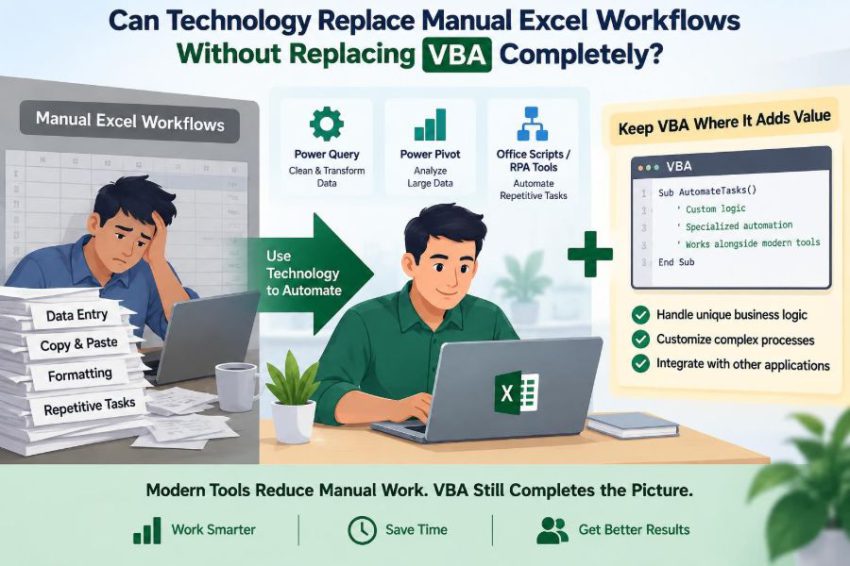
For instance, Power Query can ingest a folder of operational exports. A data model can summarize the cleaned tables. VBA can create a manager-ready report pack and enforce a final validation. Power Automate can distribute the approved output and notify recipients.
📐 Build Clear Boundaries Between Components
Hybrid solutions become confusing when every tool modifies the same cells without a plan. Assign clear responsibilities: one component retrieves data, another transforms it, another calculates, and another publishes.
Use recognizable input and output locations. A macro should not quietly overwrite a query output, and users should not type directly into a table that is replaced on refresh. Good boundaries make failures easier to diagnose.
🧪 Test Exceptions, Not Just Happy Paths
A workflow that succeeds with one clean sample file has not been proven reliable. Test blank files, duplicate records, missing columns, unexpected dates, invalid codes, locked workbooks, and incomplete approvals.
Also decide what should happen when a check fails. The safest response is often to stop, show a clear message, and preserve the input for review—not to guess silently and continue.
🛡️ Macro Security Is a Design Requirement
VBA can perform powerful actions, including changing files and interacting with other applications. For that reason, many organizations restrict macros, especially files received by email or downloaded from external sources.
Responsible VBA development includes using trusted storage locations where permitted, code signing where organizational policy supports it, restricting access, and avoiding unnecessary permissions. Never ask users to bypass security warnings merely to make a workbook work.
📁 Version Control Prevents Invisible Drift
Spreadsheet automation often fails because people edit formulas, query steps, or VBA code directly in production files without a record. Later, nobody knows why two versions of “the same” report disagree.
Maintain a controlled master workbook, a change log, and copies for testing. For larger VBA projects, exporting modules and tracking them in a version-control system can make differences visible and reversible.
👥 Maintenance Is More Than Writing Code
Every automation has an owner, whether or not that ownership is documented. If the original author leaves, someone must understand the process, fix failures, and decide whether changing business rules require updates.
Choose tools that fit the team’s realistic support capacity. A small team with strong Excel skills may sustain well-documented VBA more successfully than a complicated platform nobody can administer.
📚 Documentation Turns a Personal File into a Process
Useful documentation explains the purpose, inputs, outputs, assumptions, refresh steps, error messages, and owner. It should also state what users must not change, such as required table names or protected calculation cells.
For VBA, comments should explain why a rule exists, not merely restate what a line of code does. “Exclude intercompany accounts because the management report is external-only” is more valuable than “filter account column.”
🚩 Avoid Automating a Broken Process
Automation makes a process faster; it does not automatically make it sensible. If three departments manually reconcile the same data because definitions differ, a faster reconciliation macro may hide the underlying governance problem.
Before automating, remove duplicate approvals, clarify definitions, standardize input formats, and decide which report is authoritative. Otherwise, technology simply accelerates confusion.
📉 Measure Value Beyond Minutes Saved
Time savings matter, but they are not the only outcome. A good automation can improve consistency, traceability, timeliness, and resilience when a key employee is absent.
It can also introduce costs: development, training, licensing, support, and controls. Evaluate both sides. A task performed twice a year may not justify a complex build unless the risk of error is unusually high.
🧑🏫 Keep Users in the Loop
Automation works best when users understand its purpose and limits. Give them a simple operating guide, explain how to recognize a failed refresh or validation warning, and provide a route for reporting issues.
Do not present a button as magic. Users need to know what the button changes, where the output goes, and whether it is safe to run again. This is particularly important for macros that modify data or send communications.
🔧 A Practical Modernization Sequence
Modernization does not require a dramatic rewrite. Start with the highest-friction, lowest-ambiguity part of a workflow and build confidence from there.
- Map the current process and identify repeated actions.
- Standardize source files and define data ownership.
- Use Power Query or structured tables for repeatable data preparation.
- Move notifications, approvals, or file routing to workflow tools where appropriate.
- Retain, refactor, or replace VBA based on its specific role.
- Test exceptions, document ownership, and review the process periodically.
🧹 Refactor VBA Instead of Defending Old Macros
Keeping VBA does not mean preserving every old macro unchanged. Many workbooks contain recorded code, repeated selections, hard-coded file paths, and logic spread across event procedures.
Refactoring can separate data access, validation, reporting, and user-interface code. Use meaningful procedure names, constants for configurable values, error handling, and small testable routines. Cleaner VBA is easier to keep alongside modern tools.
🚪 Know When VBA Should Be Replaced
VBA is a weaker fit when a process must run reliably without a desktop user, serve many concurrent users, integrate extensively with enterprise systems, or be accessible on mobile and web platforms. It may also be unsuitable where policies prohibit macros.
Replacement should be planned, not assumed. Identify every macro feature, including hidden workbook events and manual workarounds, before migrating. A new solution that misses essential checks is not an improvement simply because it uses newer technology.
🎯 The Core Principle: Automate Work, Not Tools
Technology can replace much of the repetitive work people perform in Excel: importing files, cleaning data, routing approvals, refreshing reports, and distributing outputs. Those gains can reduce error-prone clicking and give people more time for interpretation and decisions.
But VBA is not the enemy of modernization. It remains a practical option for desktop Excel automation, tailored user interactions, and workbook-specific controls. The strongest solution is usually the one with the simplest reliable architecture for the real process—not the one with the newest label.
Replace unnecessary manual effort first, then keep, improve, or retire VBA according to the job it actually performs. A thoughtful hybrid workflow can be both modern and manageable. ⚙️📊✅