
You receive the same spreadsheet every Monday: a sales export with inconsistent headings, blank rows, extra tabs, and a request to email a polished summary before lunch. At first, a few formulas solve the problem. Then the workbook gains more users, more exceptions, and more steps.
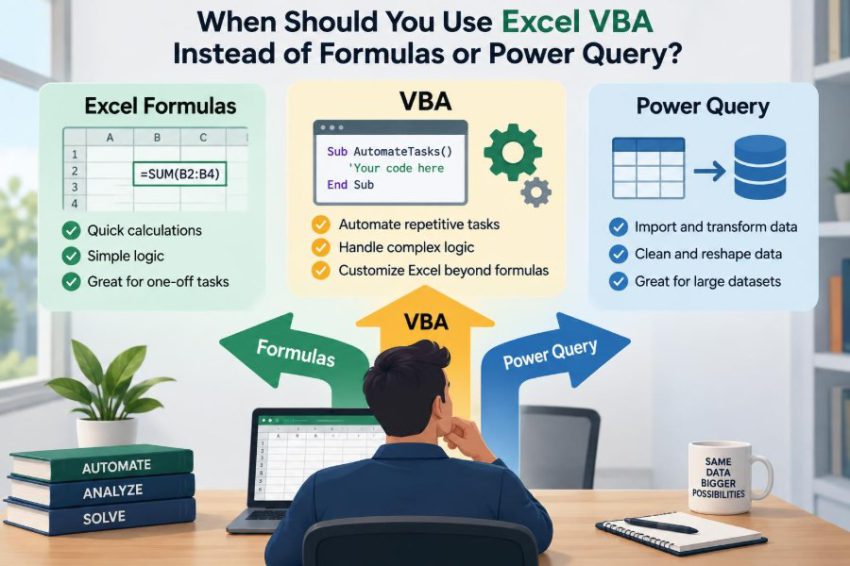
Excel offers several ways to automate work, but they solve different kinds of problems. Formulas calculate values. Power Query prepares and combines data. VBA, short for Visual Basic for Applications, can control Excel itself and automate multi-step tasks.
The difficult part is not learning that these tools exist. It is deciding which one belongs in a particular workbook—and resisting the temptation to use VBA simply because a macro can be written.
A good choice makes a process easier to understand, safer to maintain, and less dependent on one person. A poor choice can leave a workbook slow, fragile, or blocked by an organization’s security settings.
🧭 Start with the job, not the tool
Ask what must actually happen from beginning to end. Is Excel calculating a result from visible inputs? Is it importing and reshaping a recurring data file? Or must it perform actions such as creating sheets, applying approvals, producing PDFs, and sending messages?
Those questions point toward formulas, Power Query, or VBA respectively. The tools can also work together, but each should have a clear responsibility.
🧮 Formulas are Excel’s calculation layer
Formulas are best when a value should update immediately in response to worksheet data. A commission calculation, variance, lookup, running total, or status flag is usually more transparent as a formula than as macro code.
Modern Excel functions such as SUMIFS, XLOOKUP, FILTER, and dynamic arrays handle many tasks that once encouraged people to write VBA. A user can inspect a formula directly in the formula bar and trace its precedents.
🔄 Power Query is Excel’s data-preparation layer
Power Query imports, cleans, combines, and reshapes data through repeatable query steps. It is particularly useful when source files arrive in the same broad structure each week or month.
For example, a finance team can import every CSV file from a folder, remove unwanted columns, standardize date types, append the files, and load a clean table. On the next refresh, the same transformation steps run again.
🤖 VBA is Excel’s action and control layer
VBA is a programming language built into desktop Excel. It can read and write cells, react to workbook events, create workbooks, loop through files, format reports, display forms, call some Office features, and coordinate sequences of actions.
Think of VBA as a capable office assistant following explicit instructions. It is strongest when the work involves doing things in Excel, not merely calculating or transforming a table.
📊 Compare the three approaches before building
| Need | Best first choice | Why |
|---|---|---|
| Calculate values from worksheet inputs | Formulas | Results remain visible and update with data. |
| Clean or combine recurring source data | Power Query | Transformation steps can be refreshed and reviewed. |
| Create, format, export, or coordinate files | VBA | It can automate actions and Excel’s object model. |
| Guide a user through a controlled process | VBA, sometimes with formulas | Buttons, forms, and validation can organize the workflow. |
| Build a reusable analytical model | Formulas and Power Query | They are generally easier for others to audit. |
This is a starting guide, not a rigid rule. A workbook may use Power Query to prepare data, formulas to calculate measures, and VBA to publish a finished report.
✅ Use formulas when the answer belongs in a cell
If a user expects to click a cell and understand where a number came from, use a formula whenever practical. A formula makes the relationship between inputs and outputs visible.
For instance, an inventory alert can use a formula that compares stock on hand with reorder level. Writing a macro that loops through every row to place “Reorder” in a cell adds code without adding value.
👀 Favor formulas for live, interactive models
Budget models, pricing tools, schedules, and scenario analyses often need immediate recalculation when a user changes an assumption. Formulas are built for this interaction.
A VBA procedure runs at a particular time, then leaves results behind. That can be appropriate for a controlled batch process, but it is less natural when users need to experiment continuously with inputs.
🧹 Use Power Query for repeatable cleaning
Choose Power Query when the recurring challenge is data hygiene: splitting a column, removing top rows, changing data types, unpivoting month columns, joining tables, or appending files.
These tasks are vulnerable to manual copy-and-paste errors. A query records its transformations as steps, which gives the next user a practical trail to inspect and modify.
🗂️ Use Power Query for folders and multiple sources
Suppose a team receives one regional sales file per branch every month. Power Query can connect to the folder and combine compatible files into one table. A refresh is usually more reliable than opening each file, copying ranges, and hoping nobody changed the paste location.
VBA can perform file loops too, but it is often unnecessary when the goal is simply to ingest and transform consistently structured data.
⚙️ Use VBA when the process includes Excel actions
VBA becomes a strong candidate when the process is a sequence of actions rather than a data transformation. It can create a new worksheet for each department, copy a report layout, populate it, set print areas, save PDFs, and archive outputs with consistent names.
Power Query loads data; it is not designed as a general report-publishing workflow. Formulas calculate; they do not naturally create a set of documents on command.
🖱️ Use VBA for guided button-driven workflows
A well-designed macro can turn a fragile procedure into a clear action: “Import file,” “Validate entries,” or “Create monthly pack.” This is useful when occasional Excel users should not need to know every technical step.
The button should not hide essential business logic without explanation. Give users feedback, validate inputs first, and state what the macro will create or change.
📋 Use VBA when rules are procedural and conditional
Some workflows depend on a sequence of decisions. For example, a macro may check whether a customer record has a required identifier, route incomplete records to an exceptions sheet, generate separate documents only for approved records, and log the run date.
Nested formulas can sometimes reproduce this logic, but they may become difficult to read. VBA can make a multi-stage process clearer when it is structured into small, named procedures.
📁 Use VBA to create and manage workbooks
VBA is appropriate when one source workbook must generate many destination workbooks or worksheets. A hypothetical HR reporting process might create one protected workbook per manager, containing only that manager’s team data and a standard cover sheet.
That work involves files, sheet names, layouts, and saving conventions—areas where VBA has direct control. The underlying calculations can still remain as formulas or values in the generated files.
🖨️ Use VBA for repetitive presentation and export
Formatting can be more than cosmetic when a deliverable must follow a consistent layout. VBA can apply page settings, hide helper columns, set a print area, update a title with the reporting period, and export a worksheet to PDF.
Use this carefully. If every report is heavily formatted by code, small layout changes may require code maintenance. Keep formatting rules centralized and avoid selecting cells or relying on whichever sheet happens to be active.
🔁 Let the tools work together
The best solution is frequently a pipeline. Power Query brings in and standardizes source data. Formulas or PivotTables summarize the clean table. VBA runs final checks and produces distribution-ready files.
This division prevents a common mistake: using a macro to reproduce work that Power Query refreshes more transparently, or embedding complicated calculations in code where worksheet formulas would be easier to verify.
🧱 Do not write VBA to replace a simple formula
A macro that writes =B2*C2 down a column is rarely an improvement over entering a structured table formula once. It creates an extra run step and can leave stale results if someone forgets to run the macro.
Likewise, using VBA to find a matching product code is usually less readable than a lookup formula unless the task is part of a larger procedural workflow.
🚫 Do not use VBA just to clean routine data
Recorded macros are often used to delete columns, split text, filter records, and paste results. They can work, but recordings tend to depend on fixed cell addresses, selections, and the exact workbook state.
For recurring data cleaning, Power Query generally expresses the intent more clearly: remove this column, keep these rows, convert this field to a date. That makes changes easier to diagnose when a source file evolves.
🧠 Consider auditability before automation
Auditability means another person can understand how an output was produced. Formulas are often easiest to inspect cell by cell. Power Query shows transformation steps. VBA requires readers to open the editor and understand code.
This does not make VBA unsuitable for controlled work. It means the code needs stronger documentation, clear names, comments where decisions are non-obvious, and tests for important paths.
🔐 Account for macro security and trust
Many organizations restrict macros because malicious files can use them to perform harmful actions. A workbook may open with macros disabled, blocked because it came from an untrusted location, or subject to internal security policies.
Before making VBA central to a business process, confirm that intended users can run it appropriately. Never tell users to bypass security warnings casually; use approved storage, signing, and distribution practices where available.
💻 Remember the platform limits
VBA is primarily associated with desktop Excel. Users working in Excel for the web cannot rely on traditional VBA macros running there. Cross-platform behavior can also vary, especially when code depends on Windows-specific features or other desktop applications.
If a process must be used broadly in a browser or across mixed devices, formulas and Power Query features supported in the target environment may be more practical. Test in the actual environment rather than assuming compatibility.
🐢 Avoid slow cell-by-cell macros
A common performance problem is looping through thousands of cells and reading or writing each one individually. Each interaction with the worksheet has overhead, so a macro can become unexpectedly slow.
When VBA is necessary, read a range into an array, process the values in memory where possible, and write results back in a batch. Also avoid unnecessary screen updates and recalculations during a controlled procedure, restoring application settings even if an error occurs.
🧯 Build validation into VBA workflows
Automation should not make bad inputs travel faster. Before a macro creates reports or overwrites files, check for expected headers, required fields, valid dates, duplicate keys, and sensible output locations.
When a check fails, stop safely and explain the issue in plain language. “Column ‘Employee ID’ is missing from the imported file” is much more useful than a generic runtime error.
🧾 Handle errors without hiding them
Errors can arise from missing files, protected sheets, unexpected data, permission problems, or an interrupted process. VBA error handling should clean up safely and report what happened; it should not silently ignore failures.
A useful pattern is to record the procedure name, the action being attempted, and a meaningful message. For critical workflows, preserve a simple log so a later reviewer can see when the process ran and whether it completed.
🧪 Test with realistic awkward cases
A macro that works on one neat sample may fail on a real export containing blanks, duplicate names, a missing sheet, text where a date is expected, or an empty file. Test those conditions deliberately.
Also test whether running the macro twice causes duplicate output. Repeatability matters: a reliable process should either produce the same correct result or clearly prevent a second run from damaging it.
🏷️ Make VBA maintainable for the next person
Use meaningful procedure and variable names, such as CreateDepartmentReports rather than Macro1. Separate distinct tasks into small routines: import, validate, transform, publish, and log.
A short instruction sheet should state what the macro expects, what it changes, where outputs appear, and who should maintain it. Code is part of the workbook’s operating process, not a secret shortcut.
🧑💼 Match the solution to the users
A financial analyst comfortable tracing formulas may prefer an interactive model with visible assumptions. A team that receives standardized files but has limited Excel confidence may benefit from a simple Power Query refresh. A coordinator producing fifty standardized reports may benefit from one carefully tested VBA button.
The technically cleverest solution is not automatically the best one. Choose the approach that the real users can operate, check, and recover when something changes.
📈 Decide whether the task is recurring enough
Automation has a setup and maintenance cost. If a task happens once, clear manual steps may be safer than a rushed macro. If it happens frequently, takes many repetitive actions, and follows stable rules, automation becomes more compelling.
Frequency alone is not enough. A monthly process with constantly changing source structures may need a flexible review step rather than full automation.
🧩 Recognize the limits of each option
Formulas can become dense, especially when many business rules are packed into one expression. Power Query is not ideal for every interactive worksheet calculation or presentation task. VBA can be difficult to secure, debug, deploy, and maintain.
Knowing these limits prevents tool loyalty. The goal is not to prove that one feature is superior; it is to create a process with the least avoidable complexity.
🛠️ A practical decision sequence
- Describe the current process in plain language, including inputs, outputs, decisions, and manual actions.
- Use formulas first for calculations that should remain live in the worksheet.
- Use Power Query first for recurring import, combination, and cleanup of data.
- Use VBA when you must orchestrate actions, files, user interaction, or controlled publishing.
- Check security, platform support, ownership, testing, and recovery before deployment.
This sequence avoids building code merely because the task feels repetitive. It also highlights opportunities to combine tools deliberately.
🧭 The core principle: use the simplest reliable layer
Use formulas when the work is a visible calculation. Use Power Query when the work is repeatable data preparation. Use VBA when the work requires Excel to carry out a controlled sequence of actions that the other two tools do not handle naturally.
“Simplest” does not mean smallest number of clicks today. It means the solution remains understandable, dependable, and supportable when the workbook is opened by someone else next month.
Choose VBA for orchestration, not as a default replacement for formulas or Power Query; the right tool is the one that makes the workflow clear and reliable for its real users. ⚙️📊✅