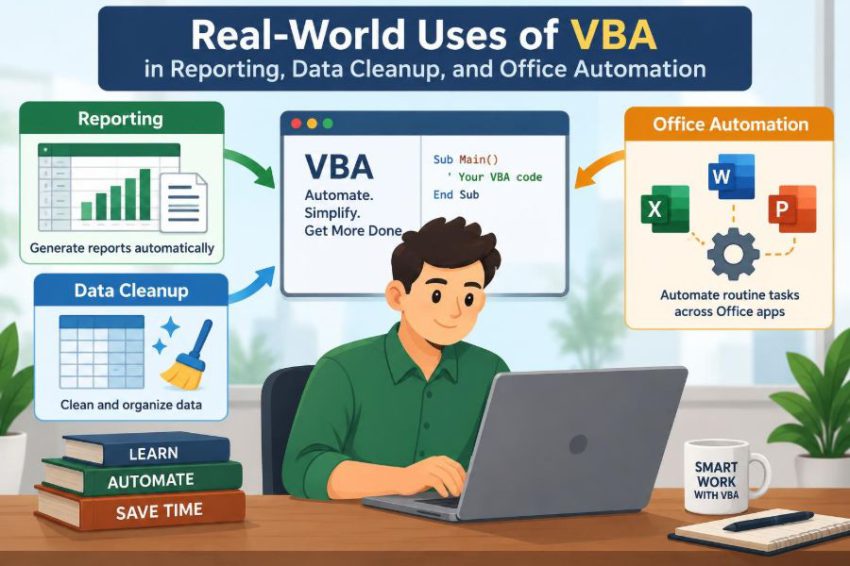

It is 4:30 on a Friday, and a familiar request arrives: update the weekly report, reconcile the latest export, produce separate files for each manager, and send them before close of business. None of the individual tasks is difficult. The problem is that each one involves the same sequence of clicks, copy-and-paste steps, and checks performed every week.
This is where VBA often earns its place. VBA, short for Visual Basic for Applications, is the programming language built into many Microsoft Office desktop applications. It lets a workbook, document, or database carry out a repeatable process instead of asking a person to repeat it manually.
VBA is not a replacement for judgment, sound data practices, or modern data platforms. It is a practical tool for the work that lives inside Excel, Word, Outlook, Access, and PowerPoint—especially when a process is stable, repetitive, and still relies on Office files.
The real value is not simply saving clicks. Well-designed automation makes a process more consistent, easier to review, and less dependent on someone remembering every small step.
🧭 Where VBA Fits in Everyday Office Work
VBA runs inside a host application such as Excel or Word. A VBA procedure can read cells, change formatting, create worksheets, filter records, generate documents, or prepare an Outlook email.
Think of it as a set of instructions attached to an Office workflow. A user may run a macro with a button, a keyboard shortcut, or a controlled event such as opening a workbook.
It works best when the task has clear inputs, predictable rules, and a useful output. “Turn this raw export into the standard monthly report” is a better automation candidate than “interpret unusual customer comments.”
🔁 The Repetition Test for Automation
Before writing code, ask whether the job is genuinely repetitive. A task repeated daily, weekly, or for every incoming file may justify a macro even if each run takes only a few minutes.
Look for steps that are performed in the same order: importing a file, deleting unwanted columns, standardizing dates, applying formulas, refreshing a pivot table, and exporting a PDF. These patterns are often more valuable than a flashy one-off automation.
- The source data follows a reasonably consistent structure.
- The rules can be stated clearly enough for someone else to follow.
- Manual errors have meaningful consequences.
- The process has a named owner who can test and maintain it.
If every input arrives in a different shape or the rules change without warning, improve the process first. VBA cannot make an unclear workflow clear.
📊 Building Repeatable Excel Reports
Reporting is one of the most common uses of VBA because reports often combine mechanical steps with a fixed presentation standard. A macro can open a source workbook, copy selected fields into a template, calculate totals, apply formats, and save the result with a date-based filename.
For example, a finance team may receive a transaction export each month. A report macro can remove unused fields, map account codes to categories, update a summary sheet, refresh charts, and create a review-ready workbook.
The output should still be reviewed. Automation can apply a rule consistently, but it cannot tell whether a surprisingly large total is a genuine business event or a source-system problem.
🗂️ Consolidating Files Without Copy-and-Paste
Many teams receive one workbook per region, store, project, or department. VBA can loop through a folder, open each eligible file, and append its rows to a central table.
A reliable consolidation macro records where each row came from. Adding columns such as source filename, import date, and source sheet name makes later troubleshooting much easier.
For Each fileItem In folder.Files
    If LCase(Right(fileItem.Name, 5)) = ".xlsx" Then
        'Open file, read rows, append to master table
    End If
Next fileItem
The code above illustrates the idea rather than a complete production routine. In practice, the macro also needs checks for headers, empty files, protected workbooks, and duplicate imports.
🧹 Removing the Mess From Raw Data
Data cleanup is usually not about making a spreadsheet look tidy. It is about making values reliable enough to sort, filter, calculate, join, and report.
Common problems include extra spaces, inconsistent capitalization, blank rows inside a dataset, numbers stored as text, and dates interpreted differently across files. VBA can apply the same cleaning rules across thousands of rows.
For instance, Trim removes leading and trailing spaces, while a conversion routine can turn recognized numeric text into numbers. However, a macro should flag values it cannot confidently interpret rather than silently guessing.
🔤 Standardizing Text Fields Carefully
Names, product codes, locations, and status labels often vary in ways that prevent accurate grouping. “North region,” “NORTH REGION,” and “North Region ” may represent the same category to a person but different values to Excel.
A cleanup macro can standardize case, remove invisible spaces, and replace approved variations using a mapping table. A mapping table is safer than scattering replacements throughout the code because business users can review the intended rules.
Be cautious with aggressive changes. Converting a person’s name to a standard format may be harmless, but altering a product identifier can destroy a meaningful distinction. Preserve the original field when the cleaned value has reporting consequences.
📅 Repairing Dates and Numbers
Date handling is a frequent source of spreadsheet errors. A value such as 03/04/2025 can mean different things depending on regional settings and the source system. VBA should not assume an ambiguous text date has one universal meaning.
A stronger approach is to receive dates in an unambiguous format where possible, validate them before conversion, and log rejected values. The same principle applies to numbers with commas, decimal points, currency symbols, or parentheses for negative amounts.
When a macro converts values, it should distinguish between a legitimate zero, a blank value, and an invalid value. Treating all three as zero can produce a polished but misleading report.
🔎 Finding Duplicates With Business Rules
Duplicate detection is rarely as simple as finding identical rows. Two records may be duplicates if they share an invoice number; in another process, a duplicate might mean the same customer, date, and amount appearing twice.
VBA can create a composite key—a combined value built from fields that identify a record—and use it to flag repeats. For example, an order key might combine order number and line number.
Flagging is usually safer than automatic deletion. A duplicate may represent a correction, a split shipment, or a legitimate repeated payment. Let the report show the candidate records and the rule that identified them.
🧮 Replacing Fragile Formula Chains
Long formula chains can be difficult to audit, especially when users copy them down manually or alter one cell in a report. VBA can calculate values directly, fill a controlled formula into a defined table, or convert reviewed results to values when a static deliverable is needed.
This does not mean formulas are inferior. Formulas are transparent and useful when users need to inspect and adjust logic on the sheet. VBA is more suitable when the same transformations must run consistently across many files.
A balanced design often uses both: VBA prepares and validates the data, while visible formulas provide calculations that report users can inspect.
📈 Refreshing Pivot Tables and Dashboards
A dashboard is only useful if it reflects the current data. VBA can refresh queries, refresh pivot tables, update a reporting period label, and save a dated copy after the refresh succeeds.
Refresh order matters. If a pivot table depends on a query or data model, the macro must wait for the underlying data to finish updating before creating the output. Otherwise, the workbook may contain a mixture of old and new figures.
Build an explicit “last refreshed” indicator and validate basic row counts or dates. Those checks help reviewers identify a failed or incomplete refresh quickly.
📄 Generating PDFs for Distribution
Teams frequently need the same report in Excel for analysis and in PDF for distribution. A macro can set a print area, apply page setup, export selected sheets to PDF, and name the file according to a reporting convention.
For example, a project workbook might export one PDF per project manager after filtering a table to that manager’s records. The macro can restore the original view afterward so the master workbook remains usable.
Test printed output, not just screen output. Page breaks, scaling, hidden columns, and repeated header rows can all make a correct worksheet produce an unusable PDF.
✉️ Preparing Outlook Email Workflows
VBA can work with Outlook desktop automation to draft emails, attach files, and populate consistent subject lines or message text. This is useful for routine distribution, such as sending each account lead their own report.
Drafting messages for user review is often safer than sending them automatically. It gives a person a final chance to verify recipients, attachments, and sensitive information.
Automatic sending may be appropriate for a tightly controlled internal process, but it needs careful testing. A single wrong filter can send a confidential report to the wrong person.
🔐 Protecting Sensitive Information During Automation
Automation can multiply both efficiency and mistakes. If a workbook contains personal, payroll, health, customer, or commercially sensitive data, design the macro around least access and deliberate distribution.
Use controlled folders, avoid storing passwords directly in code, and limit generated files to the fields each recipient needs. A macro should not create temporary copies in an unsecured location simply because that is convenient.
Protection is not only technical. Clear ownership, access reviews, and a review step before external distribution are part of a responsible VBA process.
📝 Creating Word Documents From Structured Data
VBA is useful when a spreadsheet holds structured facts but the final deliverable is a Word document. Examples include confirmation letters, project summaries, meeting packs, certificates, and standardized client forms.
A macro can read each row, open a Word template, replace placeholders such as [ClientName], save a new document, and optionally export it as PDF. This reduces the risk of leaving the previous client’s name in a copied document.
Templates should contain stable placeholders and be version-controlled. If users edit the wording or remove a placeholder without notice, the automation can fail or create incomplete documents.
📬 Using Mail Merge and VBA Together
Word mail merge already handles many document-generation needs without custom code. When its built-in features fit the job, mail merge may be simpler for colleagues to understand and maintain.
VBA becomes useful around the edges: preparing the source data, checking required fields, generating separate PDFs, organizing output folders, or applying special rules that the standard merge cannot express cleanly.
The practical question is not “Can VBA do this?” It is “What is the simplest reliable approach for this team?” Choosing built-in functionality first often lowers maintenance effort.
🗃️ Automating Access Database Tasks
Microsoft Access combines tables, queries, forms, and reports in one desktop database application. VBA in Access can automate imports, run parameterized queries, create reports, and manage form behavior.
For a small operational database, an import routine might validate a spreadsheet, load acceptable rows into a staging table, identify exceptions, and then append approved records to production tables.
Database automation needs stronger safeguards than worksheet automation because an incorrect append or update can change many records. Test against copies of data, use transactions where appropriate, and keep backup and recovery procedures.
🧾 Designing an Import Staging Area
A staging area is a temporary table or worksheet where incoming data is placed before it affects the main dataset. It gives the automation a place to validate headers, data types, required fields, and duplicate keys.
For example, rather than importing sales data directly into the reporting table, load it into Import_Staging. The macro can then produce an exception list for missing order IDs or invalid dates before approved rows move onward.
This design makes failures visible. It also preserves a trail of what arrived, which is useful when someone asks why a record was excluded from a report.
🧠 Turning Business Rules Into Readable Code
The strongest VBA projects capture rules that are already understood by the business. A rule such as “exclude cancelled orders, unless they have a completed shipment date” should be confirmed in plain language before it is encoded.
Use meaningful names such as lastDataRow, reportMonth, and isValidRecord. Short names may save keystrokes, but clear names reduce mistakes when another person must maintain the macro.
Comments should explain the reason for a non-obvious decision, not narrate every line. “Use posted date because invoice date can be blank during migration” is more useful than “set date value.”
🧩 Breaking a Macro Into Maintainable Procedures
A single macro that imports data, cleans it, builds a report, exports a PDF, and sends emails can work, but it is difficult to test when everything is mixed together. Divide the workflow into focused procedures.
A typical structure might include ValidateSource, CleanData, BuildSummary, ExportReport, and PrepareEmails. A main procedure calls them in sequence and stops when a critical stage fails.
This structure is not just a programming preference. It makes it easier to rerun one stage, identify where an error occurred, and change a reporting rule without disturbing unrelated tasks.
⚡ Improving Performance on Large Workbooks
VBA can become slow when code selects cells repeatedly or reads and writes one cell at a time. Moving data between a worksheet and a VBA array is often much faster because the macro works in memory before returning results in a single operation.
Other common performance controls include temporarily disabling screen updating, calculation, and events. They must be restored even if the macro fails; otherwise, the workbook may appear unresponsive or stop recalculating.
Application.ScreenUpdating = False
On Error GoTo CleanUp
'Run processing steps
CleanUp:
Application.ScreenUpdating = True
Speed should not remove validation. A fast process that silently mishandles data is worse than a slower process with clear checks.
🛑 Adding Error Handling and Safe Exit Paths
Errors are normal: a file can be missing, a worksheet can be renamed, a user can leave a required field blank, or a network folder can be unavailable. Error handling lets the macro stop safely and explain what needs attention.
A useful message identifies the stage that failed and the corrective action, such as “Source file does not contain a ‘Transactions’ sheet.” Avoid vague messages that merely display an internal error number to an end user.
Safe exit paths also restore application settings, close files opened by the macro, and avoid leaving a report half-generated. For important workflows, write errors to a log sheet with the date, user, file name, and process stage.
✅ Validating Outputs Before They Leave the Workbook
A macro should check more than whether it completed without an error. It should verify that the result is plausible according to the process.
- Does the imported row count match the source count within expected exclusions?
- Does the reporting period match the selected file?
- Are required categories present in the summary?
- Are there unexpected blanks, negative values, or duplicate identifiers?
- Was the output file created in the intended location?
These are not universal checks; they depend on the business process. The key is to convert known review habits into explicit controls rather than relying on someone to remember them under time pressure.
🧪 Testing With Realistic Edge Cases
Testing only the perfect sample file creates false confidence. Good tests include an empty dataset, a file with extra columns, a missing required header, unusual characters, a large row count, duplicate identifiers, and unexpected blank values.
Keep a small set of approved test files separate from live production files. Each should represent a known scenario and expected outcome, making it easier to test changes after the macro evolves.
When possible, compare a macro result with a manually verified result. The goal is not to prove that code never fails; it is to understand what it does when inputs are imperfect.
🧷 Avoiding Select, Activate, and ActiveWorkbook Traps
Recorded macros often rely on Select, Activate, ActiveSheet, or ActiveWorkbook. These commands depend on what happens to be selected at runtime, which makes code fragile when a user clicks elsewhere or another workbook opens.
Instead, reference objects directly: identify the workbook, worksheet, table, range, or chart that the code should use. Direct references make the intent clearer and reduce accidental changes to the wrong file.
The macro recorder is useful for discovering Excel commands, but its output is a starting point rather than a finished solution.
📦 Managing Macro-Enabled Files and Versions
Excel workbooks containing VBA must normally be saved in a macro-enabled format such as .xlsm, while a standard .xlsx file cannot retain VBA code. This matters when distributing templates or saving automated outputs.
Keep a clear version number, a change log, and a designated source copy. If multiple people modify separate copies of a macro, the team can quickly lose track of which version generated a report.
For shared processes, document the required Office version, expected folder structure, source file format, and recovery steps. The code alone is not the complete system.
🛡️ Understanding Macro Security and Trust
Macros can perform powerful actions, which is why organizations often restrict them. Users may see security warnings, blocked files, or policies that prevent macros from running from untrusted locations.
Never tell users to enable every macro indiscriminately. They should run code only from a known, trusted source and follow their organization’s security rules. Code signing and trusted locations may be part of an approved deployment approach, depending on local policy.
Security restrictions can feel inconvenient, but they address a real risk: malicious Office files can use macros to perform unwanted actions.
⚖️ Knowing When VBA Is Not the Best Tool
VBA is a strong fit for desktop Office automation, but it has limits. It may be the wrong choice for a process requiring web-scale reliability, simultaneous multi-user editing, centralized scheduling, complex API integrations, or a highly governed production system.
Power Query may be better for repeatable data transformation; Power Automate may suit cloud-based workflows; SQL may be more appropriate for large relational data; Python or another language may suit broader system integration. The best choice depends on the environment, skills, support model, and risk.
Choosing something other than VBA is not a failure. It is good technical judgment when the process has outgrown a workbook.
🤝 Making Automation Usable for Other People
A useful macro should not require its author to be present every time it runs. Give users a clear entry point, such as a labeled button or a short instruction sheet, and avoid making them edit code for routine use.
Explain required inputs, what the macro will change, where outputs appear, and what to do if validation fails. A concise runbook is especially valuable during absences, handovers, and audits.
Consider the user experience: status messages, a confirmation before overwriting files, and an exception report can make automation feel dependable rather than mysterious.
🚀 A Sensible First VBA Project
Start with a small, visible problem. A good first project might clean a downloaded CSV file, format a weekly report, or create PDFs from a validated template. Avoid beginning with a business-critical workflow that sends external emails or changes a database.
- Write the manual process as numbered steps.
- Identify inputs, outputs, rules, and exceptions.
- Record or code one small step at a time.
- Test with both normal and imperfect files.
- Add validation, error messages, and documentation.
- Ask a colleague to run it using the instructions.
This approach teaches more than VBA syntax. It builds the habit of designing an automation that survives real working conditions.
🎯 The Core Principle: Automate the Process, Not the Chaos
VBA is most valuable when it turns a known, repeatable Office task into a controlled workflow. Reporting becomes more consistent, data cleanup becomes more traceable, and document production becomes less dependent on manual copying.
The code is only one part of the solution. Reliable automation also requires defined business rules, trustworthy inputs, validation checks, security awareness, testing, and an owner who understands the process.
Start with a process people already perform well but too often. Then automate the stable steps, keep human review where judgment matters, and improve the design as exceptions reveal what the workflow really needs.
The best VBA automation does not merely run faster—it makes routine Office work easier to repeat, review, and trust. ⚙️📊✨