
A monthly tracker can work perfectly until someone types a date in the wrong format, deletes a formula, or forgets to refresh a summary. You can add instructions, colour-code cells, and create buttons—but spreadsheets still depend on people remembering what to do.
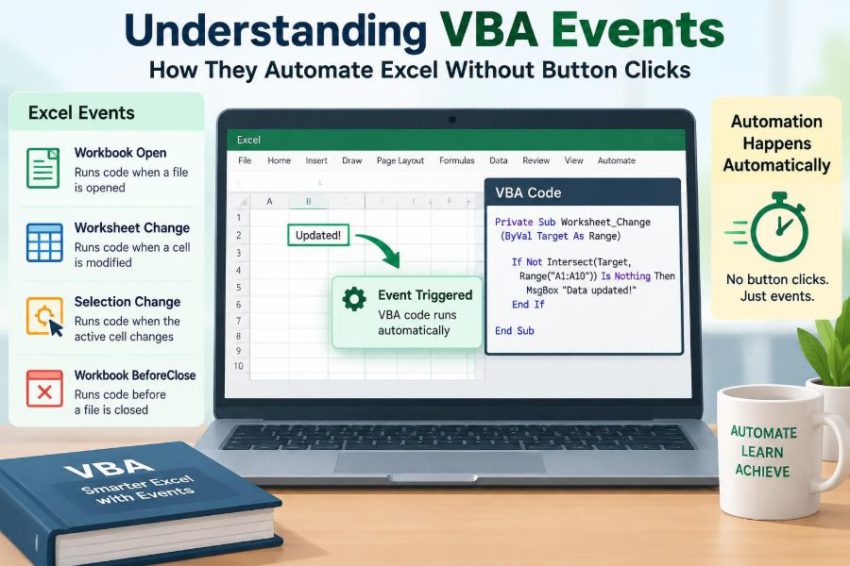
VBA events offer a different approach. Instead of waiting for someone to click a macro button, Excel can run a procedure when something happens: a workbook opens, a value changes, a sheet is activated, or a cell is double-clicked.
This makes automation feel less like a separate task and more like part of the workbook’s behaviour. A well-designed event can validate an entry immediately, update a timestamp, protect a calculation area, or prepare a report as soon as the file opens.
The key is understanding that events are powerful because they are automatic—and risky for exactly the same reason. This guide explains how VBA events work, where their code belongs, and how to use them without creating confusing or unstable workbooks.
⚡ What a VBA Event Actually Is
An event is an action Excel recognizes, such as opening a workbook, changing a cell, selecting a range, or recalculating a worksheet. VBA can respond to that action by running an event procedure.
Think of an event procedure as a rule attached to a trigger: “When this happens, run this code.” The user does not need to locate a button or choose a macro from a menu.
🔔 Why Event-Driven Automation Feels Different
Ordinary macros are usually started deliberately. A user clicks a button, presses a shortcut, or runs a procedure from the Macro dialog.
Event-driven code starts because Excel detects an action. This is useful when the action itself is the right moment to automate work, such as checking a data entry the instant it is made.
That convenience means an event must be predictable. Hidden automation that changes values unexpectedly can make a workbook harder—not easier—to trust.
🧩 The Trigger, Procedure, and Response Model
Every event solution has three parts: a trigger, an event procedure, and a response. For example, changing cell B2 might trigger Worksheet_Change, which then checks whether B2 contains a valid department code.
The procedure can display a message, format a cell, update another range, call a standard macro, or stop an invalid action where Excel allows it.
🏠 Where Event Code Must Be Stored
Location matters. Excel only recognizes an event procedure when it is placed in the appropriate object module.
| Event scope | Typical location in the VBA editor | Example trigger |
|---|---|---|
| Worksheet | The relevant worksheet code module | A cell changes on that sheet |
| Workbook | ThisWorkbook | The workbook opens or closes |
| Application | A class module set up to receive application events | A workbook opens in Excel |
A procedure named Worksheet_Change inside a standard module will not run automatically. Standard modules are excellent for reusable helper macros, but they do not receive worksheet events directly.
🛠️ Finding the Correct Module
Press Alt + F11 to open the Visual Basic Editor. In Project Explorer, expand your workbook’s project.
Double-click a sheet under “Microsoft Excel Objects” to add worksheet-level code. Double-click ThisWorkbook for workbook-level code. This simple placement rule prevents many early event problems.
📘 The Workbook_Open Event
Workbook_Open runs when the workbook opens and macros are enabled. It is often used to prepare the workbook: refresh a visible status message, navigate to a welcome sheet, or check whether expected sheets exist.
Private Sub Workbook_Open()
    Worksheets("Dashboard").Activate
    Range("B2").Value = "Workbook opened: " & Now
End Sub
This code belongs in ThisWorkbook. In a real workbook, avoid making opening routines slow or disruptive; users should still be able to open the file and begin work promptly.
🚪 The Workbook_BeforeClose Event
Workbook_BeforeClose occurs just before a workbook closes. It can remind users about incomplete work, restore a temporary setting, or save a log.
Its Cancel argument can prevent closing when a condition needs attention. Use that power sparingly. Blocking someone from closing a workbook because of a minor preference can be frustrating, especially when they are trying to exit quickly.
Private Sub Workbook_BeforeClose(Cancel As Boolean)
    If Worksheets("Entry").Range("B2").Value = "" Then
        MsgBox "Please enter the reporting period before closing."
        Cancel = True
    End If
End Sub
✏️ The Worksheet_Change Event
Worksheet_Change is one of the most useful Excel events. It runs after a user or another process changes a cell’s value on that worksheet.
Common uses include validating inputs, converting text to a standard format, adding a timestamp, and updating related fields. It does not run simply because a formula recalculates; it responds to an actual change in cell content.
🎯 Understanding the Target Range
The Target argument represents the cell or cells that changed. Rather than assuming one specific cell changed, event code should examine Target.
Private Sub Worksheet_Change(ByVal Target As Range)
    If Intersect(Target, Range("B2")) Is Nothing Then Exit Sub
    MsgBox "The reporting period was changed."
End Sub
Intersect checks whether the changed range overlaps B2. If it does not, the procedure exits immediately. This keeps the event focused and avoids running unnecessary code for every edit on the sheet.
📋 Handling Changes to a Whole Input Area
Users often paste several values at once. In that case, Target may contain many cells, not one cell. Code that assumes a single address can behave incorrectly.
For an input area such as B2:B100, test the entire range and then loop through only the cells that overlap it.
Private Sub Worksheet_Change(ByVal Target As Range)
    Dim changedCells As Range, cell As Range
    Set changedCells = Intersect(Target, Range("B2:B100"))
    If changedCells Is Nothing Then Exit Sub

    For Each cell In changedCells
        If cell.Value <> "" Then cell.Value = UCase(cell.Value)
    Next cell
End Sub
🔁 The Recursion Problem
A major event trap occurs when event code changes a cell. That change can trigger Worksheet_Change again, which changes a cell again, and so on. This loop is called recursion.
Excel may become slow, repeatedly run code, or eventually display an error. The solution is to temporarily turn off event handling while the procedure writes its own changes.
🛡️ Using EnableEvents Safely
Application.EnableEvents = False tells Excel not to fire events temporarily. Always turn events back on, even when an error occurs.
Private Sub Worksheet_Change(ByVal Target As Range)
    On Error GoTo CleanUp
    If Intersect(Target, Range("B2")) Is Nothing Then Exit Sub

    Application.EnableEvents = False
    Range("C2").Value = Now

CleanUp:
    Application.EnableEvents = True
End Sub
The cleanup label is not decorative. If an error happens after events are disabled, Excel can remain in a state where later events do not fire. A reliable procedure restores the setting before it ends.
🕒 Building a Timestamp That Makes Sense
A timestamp is a practical event example. Suppose column B contains a task status and column C should record when the status was last edited.
The event should be limited to the intended rows and should avoid overwriting timestamps because an unrelated cell changed. Define the business rule first: should C record the first completion, every status change, or only a change to “Complete”?
Private Sub Worksheet_Change(ByVal Target As Range)
    If Intersect(Target, Range("B2:B200")) Is Nothing Then Exit Sub
    On Error GoTo SafeExit
    Application.EnableEvents = False
    Target.Offset(0, 1).Value = Now
SafeExit:
    Application.EnableEvents = True
End Sub
✅ Validating Entries at the Moment of Input
Data validation rules are often the first choice for restricting entries, and they are usually simpler than VBA. Events are useful when the rule depends on several cells, needs a custom message, or must trigger a follow-up action.
For example, an event can detect a negative quantity, clear it, and explain what is expected. Keep the message specific so the user knows how to correct the value.
🎨 Formatting as a Response, Not a Substitute for Data
Events can apply formatting after an entry: highlight overdue dates, color a completed row, or apply a number format. This can make a busy worksheet easier to scan.
However, formatting should support the underlying value rather than hide it. A red cell is helpful, but a clear validation rule or status label is more reliable for filtering, reporting, and accessibility.
🖱️ The Worksheet_SelectionChange Event
Worksheet_SelectionChange runs when the active selection changes. It can show guidance when users enter an input area or update a small help message when a particular region is selected.
Because selection changes constantly during normal work, this event must be lightweight. Avoid lengthy calculations, repeated message boxes, or formatting entire sheets each time someone moves with the arrow keys.
👆 The Worksheet_BeforeDoubleClick Event
Worksheet_BeforeDoubleClick lets you assign a useful meaning to a double-click. For instance, double-clicking a task ID might open a detail sheet or mark a simple checklist item complete.
The event includes Cancel. Set it to True when you want to prevent Excel’s normal double-click behavior, such as entering cell-edit mode.
Private Sub Worksheet_BeforeDoubleClick(ByVal Target As Range, Cancel As Boolean)
    If Intersect(Target, Range("A2:A100")) Is Nothing Then Exit Sub
    Cancel = True
    Target.Offset(0, 1).Value = "Complete"
End Sub
🖱️ The Worksheet_BeforeRightClick Event
Worksheet_BeforeRightClick can provide a shortcut for a focused workflow. A team might right-click a row to flag it for review or insert a standard note.
Be cautious about cancelling the normal context menu. Excel users rely on right-click commands such as Copy, Paste, Filter, and Format Cells. Replace that familiar behavior only when the benefit is clear and the workbook audience understands it.
🧮 The Worksheet_Calculate Event
Worksheet_Calculate occurs when the worksheet recalculates. Unlike Worksheet_Change, it can respond when a formula result changes because a precedent cell elsewhere changed.
This is valuable for watching a calculated result, but it can fire frequently in formula-heavy workbooks. Keep its code small and avoid edits that cause further calculation unless you have carefully tested the result.
📊 The Worksheet_Activate and Deactivate Events
Worksheet_Activate runs when users move to a sheet; Worksheet_Deactivate runs when they leave it. These events can refresh a dashboard label, set a convenient starting selection, or clear temporary instructions.
They are not a replacement for proper navigation. If activating a sheet launches extensive updates, users may experience a delay every time they switch tabs.
🧠 Calling Reusable Procedures from Events
Event procedures should often act as short gatekeepers: identify the trigger, decide whether action is needed, and call a reusable procedure. Put larger pieces of business logic in a standard module.
' In the worksheet module
Private Sub Worksheet_Change(ByVal Target As Range)
    If Intersect(Target, Range("B2:B100")) Is Nothing Then Exit Sub
    UpdateEntryFormatting Target
End Sub

' In a standard module
Public Sub UpdateEntryFormatting(ByVal changedRange As Range)
    changedRange.Font.Bold = True
End Sub
This structure makes the logic easier to test manually and prevents one event procedure from becoming an unmanageable block of code.
🧭 Choosing Worksheet Events or Workbook Events
Choose the narrowest scope that matches the job. If only the “Entry” sheet needs validation, use its worksheet module. If every workbook opening needs the same setup, use ThisWorkbook.
Narrow scope reduces accidental triggers and makes code easier for another person to understand. It also helps prevent a solution meant for one sheet from altering another sheet with a similar layout.
🌐 What Application Events Are For
Application events can monitor actions across Excel itself, such as opening any workbook or creating a new workbook. They are usually used in add-ins, personal automation tools, or carefully managed work environments.
They require a class module and an object declared with WithEvents, so they are a more advanced topic. Their broad reach also makes cleanup essential: code should release the event object when it is no longer needed.
🔐 Macro Security and User Expectations
Events only run when macros are enabled. A workbook should still remain understandable when macros are disabled; essential calculations should not silently disappear because an event did not run.
Do not use events to conceal actions. If opening a workbook refreshes data, changes values, or records activity, make that behavior clear to the people who use it. Transparency is part of dependable automation.
🚦 Keeping Events Fast and Focused
An event may fire far more often than expected. A change event attached to a broad worksheet can run during typing, pasting, clearing, filling, and macro-driven edits.
- Exit early when
Targetis outside the relevant range. - Work with the changed cells instead of repeatedly scanning an entire sheet.
- Avoid selecting or activating cells unless it is genuinely necessary.
- Limit screen updates and calculations only when performance testing justifies it.
Fast, narrow code is less likely to interrupt normal Excel work.
🐛 Debugging an Event That Does Not Fire
When an event appears inactive, check the simple causes first. Is the code in the right module? Are macros enabled? Is Application.EnableEvents currently set to False?
Also confirm that the event matches the action. A formula result changing does not trigger Worksheet_Change; it may trigger calculation instead. Temporary MsgBox statements or breakpoints can confirm whether the procedure begins and which range Excel passes as Target.
⚠️ Recovering When Events Were Left Disabled
If code stops firing after an error, events may have been left off. In the Immediate window of the VBA editor, enter:
Application.EnableEvents = TruePress Enter to restore them. Then improve the procedure’s error handling so it always reaches cleanup. This is a common development issue, not a reason to avoid events altogether.
🧱 Avoiding Fragile References
Event code that relies on ActiveSheet, Selection, or an unqualified Range can act on the wrong place if another workbook becomes active. In a worksheet module, qualify references with Me when appropriate.
If Intersect(Target, Me.Range("B2:B100")) Is Nothing Then Exit SubExplicit references make the code’s destination clear. This becomes especially valuable when a workbook grows beyond a single sheet.
🧪 Testing Real User Actions
Test more than the ideal case. Type a value, paste a block of values, clear cells, undo an entry, edit while filters are active, and try the workbook after reopening it.
Also test errors intentionally: blank entries, unexpected text, protected sheets, and multiple-cell targets. Event code should handle ordinary mistakes calmly instead of assuming every user action follows the developer’s preferred path.
📚 A Practical Design Pattern for Input Sheets
A dependable input-sheet design often combines built-in Excel features with a small amount of VBA. Use data validation for simple allowed values, formulas for visible calculations, conditional formatting for visual cues, and events for actions that truly require code.
For example, a change event might standardize an ID and write a timestamp, while validation restricts status values to a list. Each tool handles the job it is best suited for.
🧯 Common Event Mistakes to Avoid
- Putting event procedures in standard modules and expecting them to trigger.
- Using
Worksheet_Changeto watch formula recalculation. - Disabling events without guaranteed cleanup.
- Showing message boxes for routine actions.
- Applying an event to every cell when only one table needs it.
- Changing cells in an event without considering recursion.
- Using events where a formula, validation rule, or conditional format would be simpler.
The best event automation is usually quiet. It helps users complete work correctly without repeatedly demanding their attention.
🧾 Documenting What Happens Automatically
A workbook with events has behavior that is not visible in a cell formula. Add a short instruction sheet, a note near the input area, or comments in the VBA code explaining the trigger and result.
Documentation is particularly useful when colleagues inherit a workbook. They need to know why a value changed, what macros must be enabled, and where to adjust the rule safely.
🚀 Building Up from One Useful Event
Start with one narrow automation, such as time-stamping a submitted status or checking an ID format. Test it thoroughly before adding more triggers.
As events accumulate, interactions become harder to reason about. A change event may trigger code that affects calculations, activates another sheet, or modifies a range watched by another event. Simple, isolated rules are easier to maintain.
🎯 The Core Principle of Reliable VBA Events
VBA events automate Excel by responding to the moments that matter: an edit, an opening workbook, a recalculation, or a deliberate interaction such as a double-click. They remove routine steps without requiring users to remember a separate macro.
The strongest solutions are narrow in scope, clear about their purpose, safe against recursion, and careful to restore Excel settings after errors. Automation should make the workbook more predictable, not more mysterious.
Use VBA events when an Excel action is the natural trigger for a small, transparent, and well-tested response. Start with one helpful rule, keep the code focused, and let the workbook support its users quietly. ⚙️📊✅