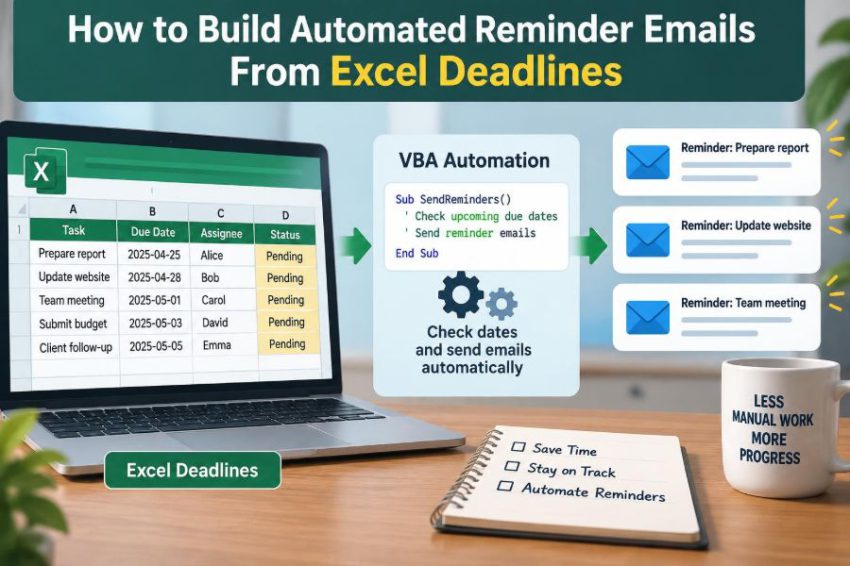

A project tracker can look perfectly organized while deadlines quietly pass. A date sits in an Excel row, a status says “In Progress,” and everyone assumes somebody else will notice when action is needed.
That approach breaks down when a workbook tracks many tasks, owners, renewal dates, approvals, invoices, or training requirements. Manually checking dates is repetitive, easy to postpone, and difficult to do consistently.
Excel VBA can turn a deadline table into a practical reminder system. A macro can inspect each row, decide whether a reminder is due, create an email in Outlook, and record that it acted.
The goal is not to replace thoughtful communication. It is to make routine follow-up reliable, visible, and much less dependent on memory. ⏰
🧭 1. Define the Reminder Problem First
Before writing code, describe the exact event that should trigger an email. “Send reminders for deadlines” is too broad; a useful rule identifies the recipient, timing, message, and exceptions.
For example, a task might send one reminder seven days before its due date, another two days before, and an overdue notice after the date passes. Each rule should be understandable without reading VBA.
- What date controls the reminder?
- Who should receive it?
- Which tasks must be excluded?
- How will the workbook prevent duplicate sends?
📋 2. Create a Consistent Excel Table
Store deadlines in a structured Excel Table rather than scattered cells. Tables make it easier for people to enter rows and for VBA to identify the current data range.
A simple worksheet named Deadlines can hold a table named tblDeadlines. Keep one task per row and one type of information per column.
| Column | Purpose | Example |
|---|---|---|
| Task | What requires action | Submit expense report |
| Owner | Person responsible | Jordan Lee |
| Reminder recipient | jordan@example.com | |
| Due Date | Deadline used by the macro | 15/06/2026 |
| Status | Whether the work remains active | Open |
| Last Reminder | Audit trail for sent mail | 08/06/2026 09:30 |
🗂️ 3. Choose Clear Column Names
Column headings are part of your automation’s interface. Clear names reduce confusion for users and make the code easier to maintain later.
Use headings such as Task, Email, Due Date, Status, and Last Reminder. Avoid vague headings such as “Info,” “Date 2,” or “Done?” when a more specific label is available.
Header names with spaces are acceptable. VBA can access them through the table’s ListColumns collection.
📅 4. Store Real Dates, Not Date-Looking Text
Excel dates are numeric values displayed using a date format. A value that merely looks like a date may actually be text, especially after data is pasted from another system.
VBA date comparisons work reliably only when the Due Date cell contains a genuine date. Test a suspicious value by changing its format to General: a true date normally displays as a number.
Use IsDate in the macro as a safety check. It lets the code skip invalid data instead of producing misleading reminders or an error.
🎯 5. Decide When a Reminder Is Due
The simplest trigger compares the due date with today’s date. VBA’s Date function returns the current date without a time component.
If a deadline is within seven days, the expression below is true. The additional comparison avoids reminding people about dates that are already overdue when you only want advance notices.
If dueDate >= Date And dueDate <= Date + 7 Then
    'The task is due within the next seven days.
End If
For a more focused system, calculate the number of days remaining and apply specific rules to that number.
🔢 6. Calculate Days Remaining Safely
Subtracting one date from another produces the number of days between them. A positive result means the deadline is ahead; zero means it is due today; a negative result means it is overdue.
daysLeft = DateDiff("d", Date, dueDate)DateDiff is readable and useful for this job. Because the interval is "d", the result is based on calendar-day boundaries rather than the time of day.
7means due in seven days.0means due today.-3means three days overdue.
🛎️ 7. Use a Thoughtful Reminder Schedule
Not every task needs daily emails. Too many reminders train recipients to ignore them, while too few reminders offer little help.
A sensible starting schedule might send at 14 days, 7 days, 2 days, and 0 days before a deadline. Overdue tasks can follow a separate rule, such as one reminder every few days.
Select Case daysLeft
    Case 14, 7, 2, 0
        sendReminder = True
End Select
Choose intervals that fit the work. A document approval may need earlier notice than a short internal task.
✅ 8. Exclude Completed and Cancelled Work
A reminder system must respect the task’s current state. Sending a due-date email for completed work makes the automation look unreliable.
Standardize status values in the worksheet, ideally with Data Validation. The macro can then include only rows whose Status is Open or In Progress.
If statusText = "Open" Or statusText = "In Progress" Then
    'Continue checking this row.
End If
Use Trim and case conversion when reading text so that harmless extra spaces or capitalization do not break the rule.
📧 9. Validate Recipient Addresses
An email address should not be assumed to be valid just because a cell is not blank. Full email validation is complex, but a basic check catches many data-entry mistakes.
At minimum, confirm that the value contains an @ symbol and a period after it. More importantly, maintain accurate addresses through normal business processes.
isEmailUsable = InStr(1, recipient, "@") > 1 And _
                InStrRev(recipient, ".") > InStr(1, recipient, "@")
If an address fails the check, log or flag the row rather than trying to send mail.
🔐 10. Understand the Outlook Requirement
This approach automates the Outlook desktop application installed on the same Windows computer as Excel. The user generally needs an Outlook profile configured and available.
It does not turn Excel into a cloud email service, and it does not guarantee delivery. Mail servers, recipient rules, and organizational security policies still control what happens after Outlook sends a message.
Test in your organization’s actual environment. Some managed devices restrict programmatic email behavior or require a user to review messages first.
🧩 11. Choose Late Binding for Portability
VBA can control Outlook through an object reference. Late binding creates that reference at runtime, so the workbook does not need a manually selected Outlook reference in the VBA editor.
The trade-off is that Outlook constants are not automatically available by name. For a reminder macro that creates ordinary mail, this is usually a worthwhile simplicity.
Dim outlookApp As Object
Dim outlookMail As Object

Set outlookApp = CreateObject("Outlook.Application")
Set outlookMail = outlookApp.CreateItem(0)
The value 0 represents a standard mail item in this late-bound example.
🧪 12. Start by Displaying, Not Sending
During development, use .Display instead of .Send. Outlook opens each draft so you can inspect recipients, wording, dates, and formatting before anything leaves the mailbox.
With outlookMail
    .To = recipient
    .Subject = subjectText
    .Body = bodyText
    .Display
End With
Once several test rows behave correctly, change to .Send only if automatic sending is appropriate for your process. This small testing habit prevents avoidable mistakes. 🧪
✉️ 13. Write a Useful Subject Line
A good subject tells the recipient what matters before they open the email. Include the task name and the urgency, but keep it concise.
subjectText = "Reminder: " & taskName & _
              " due " & Format(dueDate, "dd mmm yyyy")
For an overdue item, use different language such as “Overdue:” rather than implying the deadline is still ahead. Accurate wording helps recipients prioritize correctly.
📝 14. Build an Email Body From Row Data
The email body should provide enough context that the recipient can act without searching through the workbook. Include the task, deadline, remaining time, and a clear next step.
bodyText = "Hello " & ownerName & & vbCrLf & vbCrLf & _
           "This is a reminder that the following task is due on " & _
           Format(dueDate, "dd mmm yyyy") & "." & vbCrLf & vbCrLf & _
           "Task: " & taskName & vbCrLf & _
           "Days remaining: " & daysLeft & vbCrLf & vbCrLf & _
           "Please update the tracker when action is complete."
vbCrLf inserts a new line. Plain-text messages are simple and dependable for internal reminders.
🎨 15. Know When HTML Email Is Worth It
Outlook also supports .HTMLBody, which can create headings, bold text, and simple lists. HTML formatting can improve scanning when a message contains several tasks or instructions.
However, plain text is easier to build and less likely to create formatting surprises. Start with .Body unless visual structure genuinely improves the message.
.HTMLBody = "<p>Reminder: <strong>" & taskName & _
            "</strong> is due on " & _
            Format(dueDate, "dd mmm yyyy") & ".</p>"
🧾 16. Record That a Reminder Was Sent
An automated email without an audit trail can send duplicates every time the macro runs. Record a timestamp in a Last Reminder column after a successful send or approved display.
tableRow.Range.Cells(1, lastReminderColumn).Value = NowNow stores both date and time. This record helps users answer questions such as “Was the owner already notified?”
For stronger tracking, add a column such as Last Reminder Type and store “7-day” or “Overdue.”
🚫 17. Prevent Duplicate Emails
A single Last Reminder timestamp is useful, but it does not by itself identify which reminder stage was sent. Without more logic, running the macro twice on the same day may produce two messages.
One simple safeguard is to skip a row if its Last Reminder date is today. This works well when the schedule permits no more than one reminder per task per day.
If IsDate(lastReminder) Then
    If DateValue(lastReminder) = Date Then GoTo NextRow
End If
A more robust design stores separate reminder flags or a log sheet for every event.
🪵 18. Add a Reminder Log Sheet
A log turns the workbook into an auditable system rather than a black box. Create a sheet named Reminder Log with columns for timestamp, task, recipient, due date, reminder type, and result.
Each time the macro processes a valid reminder, append a row. Also log skipped items caused by missing dates or unusable email addresses when that information needs follow-up.
A log is especially helpful when several people maintain the deadline table or when recipients dispute whether they received a reminder.
🛡️ 19. Handle Missing or Bad Data
Real spreadsheets contain blank cells, copied formulas, old rows, and typing errors. A reliable macro checks required values before it calculates dates or creates an Outlook item.
If Len(Trim(taskName)) = 0 Then GoTo NextRow
If Not IsDate(dueDate) Then GoTo NextRow
If Not isEmailUsable Then GoTo NextRow
Skipping a row is safer than guessing what the data means. Pair that behavior with a visible exception list or log so bad data does not remain unnoticed.
⚠️ 20. Use Error Handling Carefully
Error handling should protect the overall run while preserving useful information about failures. It should not silently hide every problem.
On Error GoTo HandleError
'Code that reads rows and creates email items goes here.
Exit Sub

HandleError:
    MsgBox "Reminder process stopped: " & Err.Description
For a production macro, handle errors around individual rows so one problematic record does not stop all other reminders. Record the task and error description in the log.
🧱 21. Build the Main Loop Around Table Rows
A ListObject represents an Excel Table, and its ListRows collection gives VBA a reliable way to loop through data rows. This avoids hard-coding a last row number.
Dim tbl As ListObject
Dim tableRow As ListRow

Set tbl = Worksheets("Deadlines").ListObjects("tblDeadlines")
For Each tableRow In tbl.ListRows
    'Read this row, evaluate it, then act if needed.
Next tableRow
If the table has no data rows, the loop simply does not run. That is safer than assuming there is always data below a particular worksheet cell.
🔍 22. Read Values by Named Columns
Hard-coded column numbers become fragile when someone inserts a new column. Referencing named table columns makes the code clearer and more resilient.
taskName = tableRow.Range.Cells(1, _
    tbl.ListColumns("Task").Index).Value
recipient = tableRow.Range.Cells(1, _
    tbl.ListColumns("Email").Index).Value
dueDate = tableRow.Range.Cells(1, _
    tbl.ListColumns("Due Date").Index).Value
This syntax is longer than Cells(row, 4), but it documents what each value means. It also reduces the risk of reading the wrong field after a layout change.
🧠 23. Put the Core Logic Together
The following compact example shows the central pattern: read a row, validate it, calculate the deadline distance, choose a schedule, create an Outlook message, and record activity.
Sub SendDeadlineReminders()
    Dim tbl As ListObject, tableRow As ListRow
    Dim outlookApp As Object, mailItem As Object
    Dim taskName As String, recipient As String, statusText As String
    Dim dueDate As Variant, daysLeft As Long

    Set tbl = Worksheets("Deadlines").ListObjects("tblDeadlines")
    Set outlookApp = CreateObject("Outlook.Application")

    For Each tableRow In tbl.ListRows
        taskName = tableRow.Range.Cells(1, tbl.ListColumns("Task").Index).Value
        recipient = tableRow.Range.Cells(1, tbl.ListColumns("Email").Index).Value
        dueDate = tableRow.Range.Cells(1, tbl.ListColumns("Due Date").Index).Value
        statusText = Trim(tableRow.Range.Cells(1, tbl.ListColumns("Status").Index).Value)

        If IsDate(dueDate) And InStr(recipient, "@") > 1 Then
            If statusText = "Open" Or statusText = "In Progress" Then
                daysLeft = DateDiff("d", Date, CDate(dueDate))
                If daysLeft = 14 Or daysLeft = 7 Or daysLeft = 2 Or daysLeft = 0 Then
                    Set mailItem = outlookApp.CreateItem(0)
                    mailItem.To = recipient
                    mailItem.Subject = "Reminder: " & taskName
                    mailItem.Body = "Task due: " & Format(dueDate, "dd mmm yyyy")
                    mailItem.Display
                End If
            End If
        End If
    Next tableRow
End Sub
Treat this as a learning template, not a finished enterprise solution. Add duplicate prevention, logging, and error handling before relying on it for important deadlines.
🧷 24. Add the Macro to a Button
A button makes the process approachable for users who do not work in the VBA editor. Insert a Form Control button on the worksheet and assign it to SendDeadlineReminders.
Label it honestly, especially during testing: “Create Reminder Drafts” is clearer than “Send Emails” when the macro uses .Display. A clear label sets the right expectation.
Keep the button near a short instruction explaining the intended schedule, such as “Run each workday after updating task status.”
🕒 25. Plan How the Macro Will Run
VBA does not run by itself merely because a date changes. Someone must open the workbook and run the macro, or you must use an approved scheduling method on a suitable computer.
For many teams, a designated user runs the workbook each morning. This is simple, transparent, and gives them a chance to correct data before drafts are created.
Workbook-open events are possible, but they can surprise users and may run at inconvenient times. Automation should be predictable, not mysterious.
🔒 26. Respect Security and Privacy
Macros can be disabled by Excel security settings, and organizations may require trusted locations, signed code, or other controls. Never advise users to weaken security protections simply to run a workbook.
Deadline tables may contain names, email addresses, client details, or confidential task descriptions. Limit workbook access, avoid placing sensitive information in email subjects, and follow your organization’s data-handling rules.
Also review distribution lists carefully. A reminder should go only to people with a legitimate need to know.
🧰 27. Test With Safe Sample Data
Build a small test table using your own address or a dedicated test mailbox. Include rows due in 14, 7, 2, and 0 days, plus overdue, completed, blank, and invalid-email cases.
Run the macro with .Display and verify each decision. Check that dates appear correctly, status rules work, and no excluded row creates a draft.
- Test a repeated run on the same day.
- Test dates across month and year boundaries.
- Test an empty table.
- Test Outlook closed before Excel starts.
📈 28. Improve the System Gradually
Once the basic process is dependable, add only features that solve a real workflow need. Useful improvements include CC recipients, manager escalation for overdue tasks, custom reminder intervals, and a dashboard of upcoming work.
You might also add a Reminder Enabled column so users can pause notifications for a particular row without changing its status. Small, explicit controls are easier to trust than hidden exceptions.
Keep the reminder logic in one clearly named procedure or function. Centralized rules are much easier to revise when the team’s process changes.
🏁 29. The Core Principle: Automate Decisions, Not Guesswork
A dependable Excel reminder system combines clean data, explicit timing rules, careful Outlook automation, and a record of what happened. The email is only the final step; the quality of the decision before it matters most.
Start with a table that people can maintain, test with displayed drafts, and add safeguards before enabling automatic sends. That approach turns a useful macro into a process colleagues can rely on.
The best automated reminder is timely, relevant, traceable, and sent only when the spreadsheet data clearly supports it. ⏰📧✅