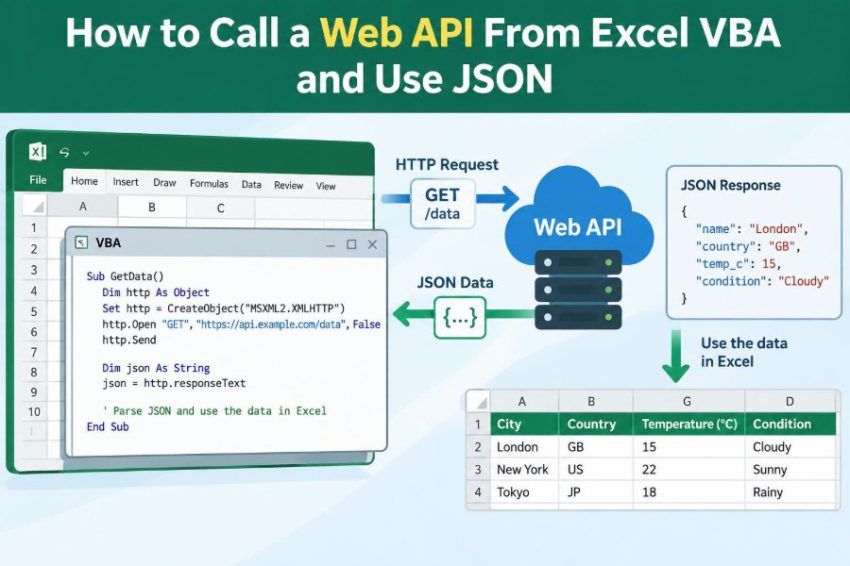

You have a workbook full of product codes, customer IDs, locations, or currency values. The data is useful, but it is incomplete until you compare it with information held somewhere else.
A web API can supply that missing information without requiring someone to copy and paste results from a browser. With VBA, Excel can send a request, receive a response, and place selected results into a worksheet.
The technical challenge is that APIs commonly return JSON, while VBA does not include a built-in JSON parser. Once you understand HTTP requests, status codes, and JSON objects, that gap is manageable.
This article builds a practical pattern you can adapt for public services, internal business systems, and approved third-party APIs. The goal is not merely to make one request work, but to make your Excel automation reliable and safe. 🌐
🧭 1. What You Will Build
We will create a VBA procedure that sends an HTTP request to an API, checks the response, parses JSON, and writes values to a worksheet.
The example uses a public test endpoint because it does not require a key. In a real workbook, replace the URL and field names with those documented by your chosen API.
GET https://jsonplaceholder.typicode.com/users/1This endpoint returns a sample user record as JSON. It is suitable for learning the mechanics, not as a source of live business data.
🔌 2. Understand What an API Is
An application programming interface, or API, is a defined way for software systems to exchange information. A web API is reached through a web address, usually called an endpoint.
Your VBA code acts as the client. It asks for a resource, such as a customer record or exchange rate, and the API server responds with data and an HTTP status code.
- Endpoint: the URL that receives the request.
- Request: what your workbook sends.
- Response: what the server returns.
- JSON: a common text format used in responses.
📨 3. Know the Main HTTP Methods
The HTTP method states what you want to do. APIs document which methods each endpoint accepts.
| Method | Typical purpose | Common VBA use |
|---|---|---|
| GET | Read data | Look up a record or retrieve a list |
| POST | Create or submit data | Send a form, order, or query payload |
| PUT or PATCH | Update data | Change an existing record |
| DELETE | Remove data | Delete a permitted resource |
Start with GET. It is easier to test because it normally does not change data on the server.
🧾 4. Read API Documentation First
Do not guess an endpoint, parameter name, or response field. API documentation tells you the required URL, authentication method, request format, limits, and response structure.
Look especially for the example request and example response. They reveal whether a field is a string, number, object, array, or sometimes absent.
- Required headers and authentication
- Query parameters and URL encoding rules
- Expected success status codes
- Error response format
- Pagination and rate-limit rules
🗂️ 5. Recognize JSON Structures
JSON is text organized into named objects and ordered arrays. It looks similar to a collection of nested dictionaries and lists.
{
  "id": 1,
  "name": "Leanne Graham",
  "address": {
    "city": "Gwenborough"
  }
}
Here, the outer braces represent an object. name is a simple value, while address is another object containing city.
🧩 6. Why VBA Needs a JSON Parser
VBA can hold JSON as plain text in a String, but it cannot natively turn that text into fields you can address by name. You therefore need a parser.
A widely used option is the open-source VBA-JSON module, commonly distributed as JsonConverter.bas. It parses JSON objects into Dictionary objects and arrays into Collection objects.
Review any third-party code before adding it to a business workbook, and obtain it from its maintained project source. Your organization may have an approved process for external VBA modules.
📥 7. Import the JSON Converter Module
Download the parser module according to its project instructions. In the Visual Basic Editor, choose File, then Import File, and select the .bas file.
After import, the Project Explorer should show a module named something like JsonConverter. Its parsing method is usually called ParseJson.
Some versions expose configuration options for large numbers or date handling. Use the module’s own documentation when those cases matter.
🛠️ 8. Open the VBA Editor and Create a Module
Press Alt+F11 in Excel to open the Visual Basic Editor. Select your workbook in Project Explorer, then choose Insert and Module.
Put your procedures in this standard module. Keep API code separate from worksheet event code where possible; it is easier to test and maintain.
Option Explicit

Public Sub GetSampleUser()
    ' API code goes here
End Sub
🖥️ 9. Choose an HTTP Client Object
VBA can create Windows HTTP client objects such as WinHttp.WinHttpRequest.5.1 or MSXML2.XMLHTTP.6.0. Both can send ordinary web requests.
This tutorial uses WinHttpRequest with late binding. Late binding avoids setting a reference manually and can reduce version-related reference problems when a workbook is shared.
Dim http As Object
Set http = CreateObject("WinHttp.WinHttpRequest.5.1")
Availability and security settings can differ across Windows environments. Test on the computers where the workbook will actually run.
🧪 10. Make Your First GET Request
The following procedure sends a synchronous GET request. Synchronous means VBA waits for the server response before continuing.
Public Sub GetSampleUser()
    Dim http As Object
    Dim url As String

    url = "https://jsonplaceholder.typicode.com/users/1"
    Set http = CreateObject("WinHttp.WinHttpRequest.5.1")

    http.Open "GET", url, False
    http.Send

    Debug.Print http.Status
    Debug.Print http.ResponseText
End Sub
Run it with the cursor inside the procedure and press F5. Open the Immediate Window with Ctrl+G to see the status and raw response.
✅ 11. Check the HTTP Status Before Parsing
A response is not automatically a successful response. The status code tells you how the server handled the request.
- 200: a typical successful GET response.
- 201: a resource was typically created successfully.
- 400: the request was invalid.
- 401 or 403: authentication or permission is missing or insufficient.
- 404: the endpoint or requested resource was not found.
- 429: too many requests were sent.
- 500-range: a server-side error occurred.
Only parse the body after you have accepted the status code expected by the API.
🛡️ 12. Add Basic Error Handling
Network operations can fail because of a disconnected network, an invalid certificate, a proxy, an unavailable server, or malformed JSON. Handle errors so users receive a useful message rather than a vague VBA failure.
On Error GoTo HandleError

http.Open "GET", url, False
http.Send

If http.Status <> 200 Then
    Err.Raise vbObjectError + 1000, , _
              "API request failed. HTTP status: " & http.Status
End If

Exit Sub

HandleError:
    MsgBox Err.Description, vbExclamation, "API Request"
For a production process, also consider writing error details, date, endpoint, and status to a protected log sheet.
⏱️ 13. Set Sensible Timeouts
A request that waits indefinitely makes Excel appear frozen. WinHTTP provides a SetTimeouts method for resolving names, connecting, sending, and receiving.
http.SetTimeouts 5000, 5000, 10000, 30000The values are milliseconds. Choose values that match the task and your network conditions; a background data refresh may deserve a different limit from an interactive lookup.
🔍 14. Inspect Raw JSON During Development
Before writing parsing code, print the raw response. This confirms what the server actually returned, which may differ from an example in documentation.
Debug.Print http.ResponseTextCheck whether the response starts with { for an object or [ for an array. Also inspect spelling and capitalization carefully: JSON key names are exact.
🧠 15. Parse a JSON Object
With the converter module imported, pass the response text to JsonConverter.ParseJson. Store the returned object in a variable declared as Object when using late binding.
Dim data As Object

Set data = JsonConverter.ParseJson(http.ResponseText)
Debug.Print data("name")
Debug.Print data("email")
For the sample response, data represents the outer JSON object. Named fields are accessed with parentheses and the field name.
🏙️ 16. Read Values from Nested Objects
Many APIs group related fields inside nested objects. In the sample user response, city is inside the address object.
Dim city As String
city = CStr(data("address")("city"))
Debug.Print city
Read this from left to right: get address from the root object, then get city from that nested object. Check that optional objects exist before assuming this path is always available.
📚 17. Loop Through a JSON Array
An API may return an array of records rather than one record. The parser commonly represents that array as a VBA Collection.
Dim users As Collection
Dim user As Variant

Set users = JsonConverter.ParseJson(http.ResponseText)

For Each user In users
    Debug.Print user("id"), user("name")
Next user
Each item in this example is an object. Use a Variant loop variable because it can hold each returned object.
📊 18. Write One Result to a Worksheet
Keep API retrieval and worksheet output conceptually separate. That makes it easier to change the layout later.
With ThisWorkbook.Worksheets("Results")
    .Range("A2").Value = data("id")
    .Range("B2").Value = data("name")
    .Range("C2").Value = data("email")
    .Range("D2").Value = data("address")("city")
End With
Use a specific workbook and worksheet reference rather than ActiveSheet. Active objects can change when a user clicks elsewhere.
🚀 19. Write Many Results Efficiently
Writing one cell at a time inside a large loop can be slow. Build a two-dimensional array in memory, then assign it to a worksheet range in one operation.
Dim output() As Variant
Dim i As Long

ReDim output(1 To users.Count, 1 To 2)
For i = 1 To users.Count
    output(i, 1) = users(i)("id")
    output(i, 2) = users(i)("name")
Next i

Worksheets("Results").Range("A2").Resize(users.Count, 2).Value = output
This pattern becomes increasingly valuable as response sizes grow. It also gives you one clear place to decide which API fields belong in Excel.
🔤 20. Build Query Strings Safely
Many GET endpoints accept filters in the URL, such as a search term or date. A query string begins after ?, and parameters are separated by &.
url = "https://example.com/api/search?q=" & UrlEncode(searchTerm)Do not simply append user-entered text. Spaces, ampersands, slashes, and non-ASCII characters can change the meaning of a URL unless they are properly URL-encoded.
VBA does not provide one universal built-in URL encoding function for every environment. Use a tested encoding routine appropriate to your approved VBA library, rather than manually replacing only spaces.
🔐 21. Send Headers and API Keys Carefully
Many APIs require an authentication token in a request header. JSON request bodies also normally need a Content-Type header.
http.Open "GET", url, False
http.SetRequestHeader "Accept", "application/json"
http.SetRequestHeader "Authorization", "Bearer " & token
http.Send
Never hard-code a real secret into a workbook that may be emailed, uploaded, or shared. A worksheet cell, VBA module, and hidden sheet are not secure secret stores.
Use your organization’s approved credential approach, such as a secure service, an operating-system credential store, or an authenticated internal gateway. Also avoid printing tokens to the Immediate Window or error logs. 🔒
📤 22. Send JSON with a POST Request
For POST requests, create a JSON body that matches the API specification. JSON strings use double quotes, so VBA requires escaped double quotes written as two double quotes.
Dim body As String
body = "{"name":"Ada","department":"Finance"}"

http.Open "POST", url, False
http.SetRequestHeader "Content-Type", "application/json"
http.SetRequestHeader "Accept", "application/json"
http.Send body
For complex payloads, generate JSON with a trusted serializer rather than assembling long strings by hand. Manual construction is prone to broken quotes and incorrect escaping.
🧯 23. Handle Missing Fields and Null Values
Real API data is often incomplete. A field might be absent, contain JSON null, or have a different type in an edge case.
Dim emailValue As String

If data.Exists("email") Then
    If Not IsNull(data("email")) Then
        emailValue = CStr(data("email"))
    End If
End If
The exact handling of JSON null can depend on the parser and its configuration. Test with representative responses, including error responses and empty results.
📄 24. Manage Pagination
List endpoints frequently return results in pages. This prevents a single request from returning an unmanageably large response.
Documentation may use parameters such as page, limit, offset, or a cursor token. Continue requesting pages until the API indicates there are no more results.
- Append each page to an in-memory output array or a worksheet staging area.
- Respect the documented maximum page size.
- Keep the cursor or next-page URL exactly as returned when the API uses cursors.
- Do not assume that page numbers work if the API documents cursor pagination.
🚦 25. Respect Rate Limits and Retries
APIs may limit how often a client can call them. Sending one request for every worksheet cell can quickly create unnecessary traffic and trigger a rate-limit response.
Where possible, use endpoints that accept batches, cache repeated lookups, and refresh only changed records. If you receive status 429, slow down and follow any retry guidance supplied in the response headers or documentation.
Retries should be cautious. Retrying a failed GET is often simpler than retrying a POST, because repeating a submission can create duplicates unless the API supports idempotency controls.
🧱 26. Create a Reusable Request Function
A reusable function prevents the same status checks and HTTP setup from being copied into every macro. This compact example returns response text for successful GET requests.
Public Function GetApiJson(ByVal url As String) As String
    Dim http As Object

    On Error GoTo Failed
    Set http = CreateObject("WinHttp.WinHttpRequest.5.1")
    http.SetTimeouts 5000, 5000, 10000, 30000
    http.Open "GET", url, False
    http.SetRequestHeader "Accept", "application/json"
    http.Send

    If http.Status <> 200 Then
        Err.Raise vbObjectError + 2000, , _
                  "HTTP " & http.Status & ": " & http.StatusText
    End If

    GetApiJson = http.ResponseText
    Exit Function

Failed:
    Err.Raise Err.Number, "GetApiJson", Err.Description
End Function
You can then parse its output with Set data = JsonConverter.ParseJson(GetApiJson(url)). Extend the function gradually for headers, methods, bodies, and expected status codes.
🧾 27. Complete Example: Request, Parse, and Export
This procedure combines the core steps. It assumes that the JSON converter module has already been imported and a worksheet named Results exists.
Public Sub DownloadSampleUser()
    Dim jsonText As String
    Dim data As Object
    Dim ws As Worksheet

    On Error GoTo HandleError

    jsonText = GetApiJson( _
        "https://jsonplaceholder.typicode.com/users/1")
    Set data = JsonConverter.ParseJson(jsonText)
    Set ws = ThisWorkbook.Worksheets("Results")

    ws.Range("A1:D1").Value = Array("ID", "Name", "Email", "City")
    ws.Range("A2").Value = data("id")
    ws.Range("B2").Value = data("name")
    ws.Range("C2").Value = data("email")
    ws.Range("D2").Value = data("address")("city")

    MsgBox "Data downloaded successfully.", vbInformation
    Exit Sub

HandleError:
    MsgBox "Download failed: " & Err.Description, vbExclamation
End Sub
Run this only after testing the endpoint and response structure. In a business solution, replace the sample URL and worksheet layout with your documented requirements.
🧪 28. Test in Small, Visible Steps
When an API macro fails, isolate the layer that failed. First test the URL in an approved browser or API tool, then inspect the HTTP status in VBA, then print the raw JSON, and finally parse one field.
Use breakpoints and the Immediate Window. Avoid trying to solve authentication, pagination, parsing, and worksheet formatting all at once.
A practical debugging order
- Confirm the endpoint and method in the documentation.
- Confirm that the request returns the expected status.
- Inspect the raw response body.
- Parse one top-level key.
- Handle nested fields or arrays.
- Write the final values to Excel.
🏁 29. The Core Principle: Treat the API as a Contract
The most dependable Excel API automation follows a simple sequence: construct a documented request, check the HTTP response, parse valid JSON, validate the fields you need, and write prepared values to the worksheet.
Do not treat a web request as a guaranteed lookup. Networks fail, permissions change, schemas evolve, and data can be missing. Defensive checks at each stage turn a useful macro into a maintainable process.
When Excel VBA respects the API contract and JSON structure, it can turn web data into a controlled, repeatable part of your workflow. 🌐📊🔐