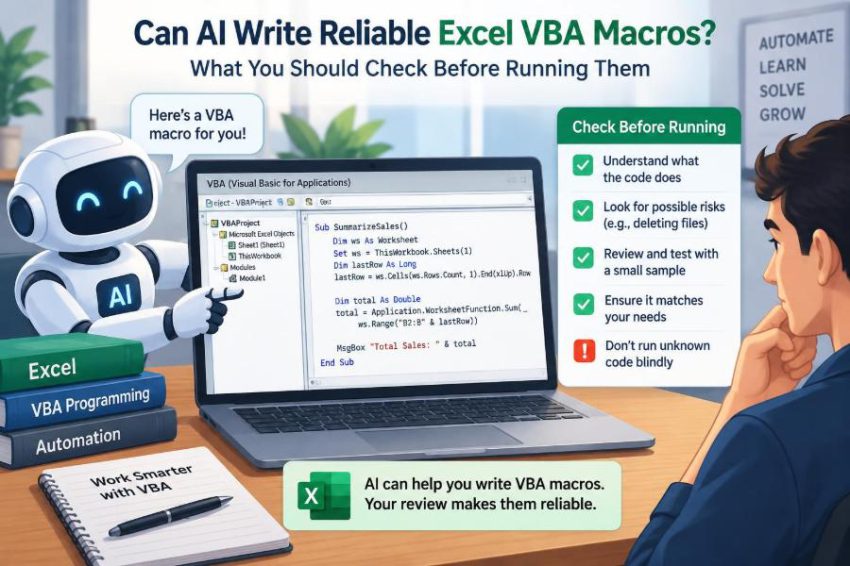

You have a workbook full of monthly sales data, and a repetitive task that should take five minutes somehow takes an hour. You ask an AI tool to write a VBA macro to clean the data, format a report, and save a copy. It returns code in seconds.
The tempting next step is to paste the code into Excel and press Run. Sometimes that works perfectly. Sometimes the macro changes the wrong sheet, deletes values rather than formatting, or quietly saves over the original file.
AI can be a useful assistant for Excel automation, especially when you can describe a task clearly. But a generated macro is not the same thing as a tested solution for your particular workbook.
Reliable VBA comes from combining AI-generated drafts with human review, controlled testing, and a clear understanding of what the code is allowed to change.
🤖 What AI Can and Cannot Do for VBA
AI can turn a plain-language request into VBA code, explain existing procedures, suggest formulas, and help diagnose error messages. This can reduce the time spent looking up syntax or writing repetitive boilerplate.
It cannot see your workbook unless you provide accurate details, and it does not automatically know your business rules. If “inactive customer” means no orders in 90 days in your team, the macro needs that rule stated explicitly.
Treat AI output as a first draft from a fast assistant, not as an approved program. The responsibility for deciding whether it is safe and correct remains with the person running it.
🧩 Why Excel Macros Are Sensitive to Context
VBA macros operate inside a workbook environment where names, positions, formats, and settings matter. A line that refers to Sheets(1) may work in one file but target a completely different worksheet after someone inserts a new tab.
Small context differences can change the outcome. A column that contains dates in one workbook may contain text that looks like dates in another. A report table may begin at row 5 this month and row 8 next month.
That is why a plausible-looking macro can still be wrong. It may be logically sound in general while making assumptions that do not match your file.
📝 Start with a Precise Task Description
Better prompts generally produce better code because VBA needs concrete instructions. Instead of asking AI to “clean my report,” describe the input, the desired result, and the boundaries.
- Name the worksheet or explain how it should be found.
- State where headers are and which columns matter.
- Define the rule, such as “remove rows where Status is Cancelled.”
- Say whether data should be changed, copied, highlighted, or merely reported.
- Specify where the output should go and whether the original must remain untouched.
For example, “copy rows from the Data sheet where column F equals Approved into a new sheet named Approved Orders” is much safer than “filter approved orders.”
🔍 Read the Code Before You Run It
You do not need to understand every VBA keyword immediately, but you should be able to explain the macro’s overall path: what it opens, what it reads, what it changes, and what it saves.
Ask AI to annotate the procedure line by line in plain English. Then compare that explanation with your request. If the explanation reveals an action you did not intend, stop there.
Pay special attention to commands that delete, clear, overwrite, close, save, or send data. Those are not automatically unsafe, but they deserve deliberate review.
🎯 Confirm Which Workbook the Macro Targets
One of the most common VBA hazards is relying on whichever workbook happens to be active. ActiveWorkbook means the workbook currently selected by the user, which may not be the workbook containing the macro.
ThisWorkbook means the workbook where the VBA code is stored. Neither is universally correct; the right choice depends on the task. A macro stored in a personal macro workbook may need to act on the active report, while a macro embedded in a template may need to act on its own workbook.
Reliable code makes that choice intentional. It often assigns a workbook to a variable so the target is visible and consistent throughout the procedure.
📄 Verify Worksheet References
A macro should usually refer to worksheets by stable, meaningful names, such as Worksheets("Sales Data"), rather than by position. Sheet order can change when users add, move, or delete tabs.
Even names need checking. Extra spaces, renamed tabs, and regional variations can cause runtime errors. If a sheet may not exist, good code checks for it and gives a clear message instead of failing halfway through a task.
Also look for unqualified references such as Range("A1"). Without an explicit worksheet, VBA applies that range to the active sheet, which may not be the intended one.
📍 Check Ranges, Rows, and Columns
Range errors are often more dangerous than syntax errors because the macro may run successfully while changing the wrong cells. Review every important range: where it starts, where it ends, and whether it includes headers, totals, or blank rows.
A generated macro may use a fixed range such as A2:G1000. That is acceptable only when the maximum size and layout are genuinely controlled. For growing lists, code often needs to identify the last used row in a known column.
Be cautious with broad commands such as Cells.Clear, Rows.Delete, and Columns("A").Delete. Their scope is much larger than a single visible selection.
🧠 Test the Assumptions Hidden in the Prompt
Every macro rests on assumptions, whether they are written down or not. It may assume there are no blank rows, IDs are unique, headings occur once, or all amounts are numeric.
Write down the assumptions that matter to the result. Then inspect the workbook for exceptions. A single blank cell in a key column can cause some “find last row” approaches to stop too early or produce an incomplete output.
Ask AI directly: “List the assumptions this macro makes about the workbook and identify cases where it could fail.” This is a useful review question because it shifts attention from happy-path code to real data conditions.
🔢 Inspect Data Types, Not Just Cell Appearance
Excel cells can look correct while storing unexpected values. A date can be text, a percentage can be a decimal number with formatting, and a number may contain hidden spaces imported from another system.
VBA comparisons depend on underlying values and types. For example, comparing a text date with a true Excel date can give misleading results, especially when date formats vary between users or systems.
When data arrives from exports, ask whether the macro should validate or convert it before processing. A robust routine handles expected variations and flags unexpected ones rather than silently guessing.
⚠️ Treat Destructive Commands with Extra Care
Some VBA statements alter data immediately and cannot be undone with Excel’s normal Undo command after a macro runs. This is especially relevant for deletion, clearing contents, replacing formulas, and saving a workbook.
Search generated code for terms including Delete, Clear, ClearContents, Replace, Kill, Save, and Close. Understand exactly what object each command acts on.
A safer pattern is often to copy data to a review sheet, apply changes there, and keep the source intact. When deletion is necessary, consider logging what was removed or asking for confirmation before the final action.
💾 Understand SaveAs and File Paths
File operations are a high-risk area because they can overwrite a valuable workbook or create output somewhere users cannot find. A macro using SaveAs needs a carefully reviewed file name, folder path, and file format.
Hard-coded paths may work on the author’s computer but fail for colleagues. Network locations, OneDrive folders, and permissions can vary. A better design may use the current workbook’s folder, request a destination, or validate that the folder exists.
Never assume an AI-generated filename is safe. Check whether it could match the source file or overwrite a previous report without warning.
🔐 Watch for Security and Privacy Boundaries
A macro can access local files, open workbooks, create exports, send email through configured applications, or connect to external data sources when code is written to do so. Review such capabilities more carefully than ordinary formatting code.
Do not paste confidential workbook contents, passwords, personal data, customer records, or proprietary credentials into a public AI service unless your organization has approved that use. The appropriate policy depends on the tool and your workplace rules.
Likewise, do not run code that downloads files, calls unfamiliar web addresses, changes security settings, or uses shell commands unless you understand why it is needed and trust the source.
🧱 Prefer Small Procedures Over One Giant Macro
AI often produces a single long procedure because the request arrives as one paragraph. Long macros are harder to test, explain, and repair when something goes wrong.
Breaking work into smaller procedures creates useful checkpoints. One procedure can validate input, another can transform data, and another can generate a report. Each has a narrower purpose and fewer possible side effects.
This structure also improves prompts. You can ask AI for a focused function, test it, and then build the next piece instead of accepting a large block of code all at once.
🏷️ Require Meaningful Variables and Explicit Declarations
Variables are named containers for values or objects. Names such as lastRow, sourceSheet, and orderTotal make code easier to review than vague names such as x and temp.
Look for Option Explicit at the top of the module. It requires variables to be declared before use, helping catch misspellings that VBA might otherwise treat as new empty variables.
Also review variable types. A row number should normally use a numeric type, while a worksheet reference should be declared as a worksheet object. Clear declarations reduce ambiguity and make errors easier to diagnose.
🧯 Demand Useful Error Handling
Errors are not always signs of bad code. A file may be missing, a worksheet may have been renamed, or a user may enter invalid input. What matters is how the macro responds.
Generated code sometimes uses On Error Resume Next broadly. This tells VBA to continue after errors, which can hide failures and leave the workbook in a partly changed state. It should be used narrowly, briefly, and with a reason.
Better error handling identifies the problem, restores settings if needed, and tells the user what to do next. A clear message such as “The Data sheet was not found” is far more useful than a generic failure.
🚦Restore Excel Settings After a Macro
Macros may temporarily turn off screen updating, automatic calculation, alerts, or events to run faster. Those settings can be reasonable, but they must be restored even if an error occurs.
If a macro leaves calculation set to manual, users may think formulas are broken because results do not refresh. If events remain disabled, other workbook automation may stop responding.
Review code that changes application-level settings and confirm it has a cleanup path. Efficiency should not come at the cost of leaving Excel in an unexpected state.
🧪 Use a Copy and a Controlled Test Case
Never make a first run on the only copy of an important workbook. Save a separate test copy and use a small, representative data set where you already know the expected answer.
A good test file includes ordinary rows and carefully chosen edge cases: blanks, duplicate IDs, zero values, unexpected text, and the last row of the data. These cases reveal whether the logic is truly based on rules rather than accidental layout details.
Keep the test small enough that you can inspect every changed cell. Speed is not the goal of the first run; confidence is.
🔎 Step Through Code in the VBA Editor
The VBA Editor provides practical tools for checking a macro before it touches a full workbook. You can place the cursor in a procedure and use step-by-step execution to run one statement at a time.
Watch the active workbook, active worksheet, variable values, and selected ranges as execution moves. If the macro points to an unexpected sheet or calculates an unexpected last row, you have found the problem before it spreads.
Breakpoints and the Immediate Window are also useful for learning. You do not need advanced debugging skills to benefit from pausing at a risky line and inspecting what VBA believes it is about to change.
✅ Validate the Output, Not Just the Absence of Errors
A macro can finish without an error message and still produce a wrong report. Successful execution only means VBA followed the instructions; it does not prove those instructions represented the business rule correctly.
Compare results against an independent check. For a filtering macro, count the expected qualifying rows manually or with a worksheet formula. For a totals report, compare totals with a pivot table or known sample calculations.
Validation should examine both what changed and what did not change. A correct macro must preserve columns, formulas, formats, and records that are outside its intended scope.
📊 A Practical Review Checklist
Before approving a generated macro, use a consistent review routine. The checklist below focuses attention on the parts most likely to cause a damaging or misleading result.
| Check | Question to answer |
|---|---|
| Purpose | Can you state the intended input, action, and output in one sentence? |
| Targets | Does the code name the correct workbook and worksheets? |
| Scope | Are ranges, rows, and columns limited to the intended data? |
| Data rules | Are dates, blanks, duplicates, and text-versus-number issues handled? |
| Destructive actions | Could anything be deleted, overwritten, or saved unintentionally? |
| Errors | Will failure be visible and leave Excel in a usable state? |
| Testing | Has it been run on a copy with known expected results? |
🗣️ Ask AI for Explanations and Test Cases
AI is often more valuable as a reviewer and tutor than as a one-click code generator. After receiving code, ask it to explain each procedure, identify risky lines, and propose test cases based on your stated workbook structure.
Useful follow-up prompts include:
- “Which lines can modify or delete existing data?”
- “Rewrite this so it does not rely on ActiveSheet or Selection.”
- “What happens if the Data sheet is missing or column F contains blanks?”
- “Add clear error handling and restore application settings on exit.”
- “Create a version that writes results to a new worksheet instead of changing the source.”
These questions make the generated solution more transparent and encourage code that is easier to maintain.
🧭 Know When a Macro Is the Wrong Tool
Not every Excel task needs VBA. A formula, PivotTable, Power Query transformation, built-in filter, or a structured table may solve the problem with less code and less operational risk.
For example, if the task is simply to flag overdue invoices, a formula may be easier for colleagues to audit. If it is a repeatable import-and-clean process, Power Query may provide a visible sequence of steps.
VBA is particularly useful when you need to coordinate multiple Excel actions, respond to user interaction, generate customized outputs, or automate tasks that built-in tools cannot express cleanly. Choose it because it fits the job, not merely because AI can generate it.
👥 Make Automation Maintainable for Others
A macro may outlive the person who requested it. Add a short description of what it does, what it expects, and where it writes results. Comments should explain decisions or business rules, not repeat obvious syntax.
Use descriptive procedure names and avoid embedding unexplained constants throughout the code. If a threshold, folder name, or report period changes regularly, consider placing it in a clearly labeled worksheet cell rather than burying it in VBA.
For team files, document who owns the macro and how a user should report a problem. Reliability includes the ability to understand and safely update automation later.
🧾 Keep a Simple Change Record
When a macro affects recurring reports, record what version was used and what changed between versions. This can be as simple as dated notes in a worksheet or comments at the top of a VBA module.
A change record helps when a result looks different from last month’s output. It separates a genuine data change from a change in the automation logic.
For important workflows, preserve a known-good copy before replacing code with an AI-assisted revision. Being able to return to a working version is practical risk control, not a sign of distrust.
⚖️ Balance Speed Against Review Effort
AI can save substantial drafting time, but there is no fixed amount of review that suits every macro. A formatting helper used on a disposable copy needs less scrutiny than code that updates payroll, financial reporting, regulated records, or customer data.
The potential impact should determine the level of testing. The more irreversible, sensitive, or widely shared the output is, the more valuable independent review and controlled release become.
Automation is worthwhile when it reduces repeatable work without transferring hidden risk to the next person who opens the workbook.
🛠️ A Safer Workflow for AI-Assisted VBA
A practical workflow keeps AI productive while putting safeguards around execution:
- Describe the workbook structure, rule, and desired output precisely.
- Request a small, readable procedure with explicit workbook and sheet references.
- Read the code and identify all changes, deletions, file actions, and assumptions.
- Run it on a saved copy with a controlled test data set.
- Step through key lines and compare results with an independent check.
- Improve error handling, documentation, and cleanup before wider use.
- Keep the tested version and change record for future runs.
This approach may feel slower than pasting and running, but it is usually faster than recovering from a damaged workbook or explaining an inaccurate report.
🌟 The Core Principle: Verify Before You Automate
AI can write useful Excel VBA macros, and it can help learners move from an idea to working code more quickly. Its strongest role is accelerating drafting, explanation, and iteration.
Reliable results come from checking context, scope, assumptions, data types, destructive actions, error handling, and output. A macro earns trust through evidence from review and testing, not because its code looks polished.
The most effective habit is simple: let AI help create the automation, but make sure a human verifies what the automation will do in the real workbook.
Use AI to speed up VBA development, but use careful testing and informed judgment to make the macro reliable. That combination protects your data while preserving the real benefit of automation. 🤖📊✅