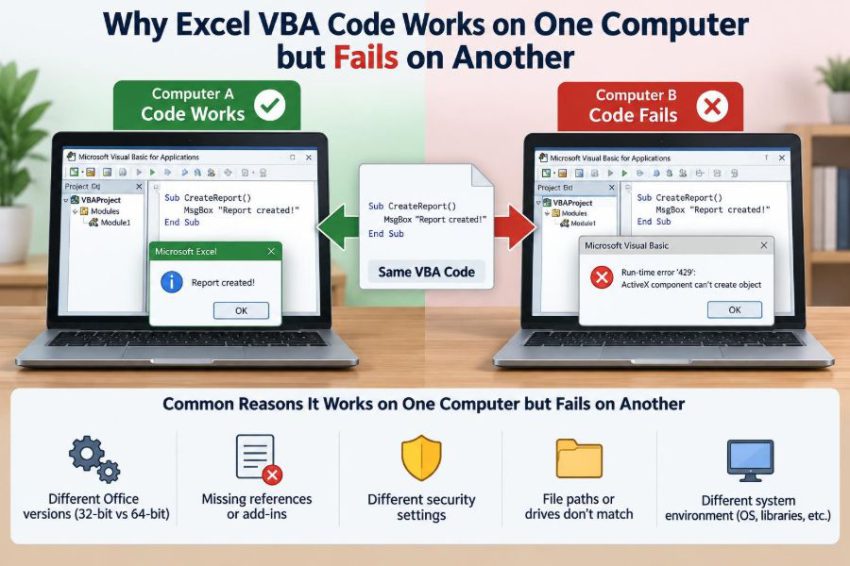

You send a workbook to a colleague, confident that the macro is finished. On your computer, it imports a file, creates a report, and emails the result in seconds. On theirs, it stops with “Object variable or With block variable not set,” “File not found,” or the particularly unhelpful “Error 429.”
This is one of the most frustrating parts of Excel VBA: code can be completely valid and still fail somewhere else. The problem is often not the line that stops. It is the environment surrounding that line.
An Excel workbook is not a sealed application. VBA can depend on Office versions, installed libraries, security rules, file locations, regional settings, user permissions, and other software. Two people may appear to be using “Excel,” while actually running meaningfully different systems.
Once you learn to separate workbook logic from computer-specific dependencies, these failures become much easier to diagnose and prevent.
🧩 The workbook is only part of the program
A macro-enabled workbook contains VBA code, worksheets, forms, and perhaps embedded files. But when it runs, VBA also asks Windows and Office to supply services: open a folder, automate Outlook, use a reference library, or connect to a database.
Think of the workbook as a recipe and each computer as a kitchen. The recipe may be correct, but one kitchen may lack an ingredient, use a different measuring system, or deny access to a cupboard.
Portable VBA starts by recognizing every dependency outside the workbook. A failure on another computer is often evidence of an unstated dependency rather than bad logic.
🖥️ Excel versions do not behave identically
Excel releases share a great deal, but their object models, features, and bug fixes are not identical. A procedure using a newer Excel feature may fail or behave differently in an older desktop version.
For example, code that relies on a newer worksheet function, a newer chart feature, or a newer file format option may not be available everywhere. The macro may compile on the author’s installation because that Excel version recognizes the member being used.
Before distribution, identify the oldest Excel version that must be supported. Then test there, or avoid features introduced after that version. This is especially relevant in organizations where update schedules vary across departments.
🏗️ The 32-bit and 64-bit Office divide
Windows can be 64-bit while Office is 32-bit, or Office itself can be 64-bit. For many ordinary macros, this difference does not matter. It matters sharply when VBA calls Windows API functions through Declare statements.
Memory addresses are larger in 64-bit Office. API declarations written for 32-bit VBA may therefore compile incorrectly or cause errors in 64-bit VBA unless they use appropriate conditional compilation and pointer-safe types.
#If VBA7 Then
    Private Declare PtrSafe Function GetTickCount Lib "kernel32" () As Long
#Else
    Private Declare Function GetTickCount Lib "kernel32" () As Long
#End If
This example is deliberately simple; many APIs also require LongPtr for handles and pointers. Do not copy declarations casually: confirm each parameter and return type against reliable Windows API documentation.
📚 Missing references can break a project before it runs
VBA projects can use references: registered libraries that expose objects, constants, and methods. You can inspect them in the VBA editor through Tools > References. A reference marked MISSING: is a common reason a workbook works for one person and fails for another.
One surprising consequence is that a missing reference can disrupt code that seems unrelated. VBA may be unable to compile the project properly, producing errors in ordinary functions or stopping at a line that was never the real cause.
On the affected computer, first look for missing items in the reference list. Removing or replacing a reference is not automatically safe; understand what the project uses before changing it.
🔗 Early binding makes library versions visible
Early binding means declaring an object with its specific library type. For example, a macro that automates Outlook might declare Dim appOutlook As Outlook.Application. This gives useful autocomplete and compile-time checking while developing.
However, early binding requires a compatible Outlook object library reference. If the library is unavailable, registered differently, or a required component is absent, the workbook may not compile on the recipient’s computer.
Early binding is often a good choice for internal tools deployed to a known, managed environment. Its weakness is not that it is “wrong”; it is that it makes an external dependency explicit and mandatory.
🔓 Late binding can reduce deployment friction
Late binding creates an external object at runtime, often with CreateObject, and stores it in a generic Object variable. This can avoid a version-specific reference.
Dim appOutlook As Object
Set appOutlook = CreateObject("Outlook.Application")
The trade-off is that VBA cannot offer the same autocomplete or validate method names during compilation. Constants belonging to that library may also need numeric values or locally defined equivalents.
Late binding does not install Outlook, grant permissions, or make an unavailable application appear. It simply reduces coupling to a particular registered library version. Use it deliberately, and test the runtime behavior you still depend on.
📋 Choosing a binding strategy
| Approach | Useful when | Main limitation |
|---|---|---|
| Early binding | Developing, or deploying to standardized computers | Requires a compatible reference |
| Late binding | Sharing with varied Office installations | Less compile-time help and fewer named constants |
| No external automation | A workbook can accomplish the task internally | May not meet integration requirements |
The best choice depends on who will run the workbook. A finance team using an organization-managed Microsoft 365 setup has different needs from a template sent to external clients.
Whichever approach you choose, document the required applications and test the failure path. A clear message such as “Outlook desktop could not be started” is much better than an unexplained runtime error.
🔐 Macro security can stop code before debugging begins
A recipient may never reach your first line of code. Excel can disable macros based on Trust Center settings, organizational policy, file origin, or the location where the workbook was saved.
Files obtained from email, downloads, collaboration platforms, or network locations can be treated differently from files created locally. In managed workplaces, administrators may set rules that users cannot override.
Do not instruct users to weaken security broadly just to run one workbook. Better options include an approved trusted location, an organization-approved signing process, or redesigning the workflow so users can perform the task safely without enabling unknown macros.
✍️ Digital signatures establish publisher trust
A digital signature can help recipients and administrators identify who published a VBA project and detect whether it has changed since signing. In an organization, a certificate trusted by recipients can support a more controlled deployment process.
Signing is not a magic switch. A self-created certificate may be suitable for testing but is not automatically trusted on another person’s computer. Editing signed VBA invalidates the signature, so the project must be signed again after changes.
For a widely used business workbook, ask the organization’s IT or security team about its approved signing and distribution process. That is more sustainable than asking every user to change local macro settings.
📁 Hard-coded file paths are local assumptions
A path such as C:\Users\Jamie\Desktop\Sales.csv is not portable. Another user has a different profile folder, desktop arrangement, drive mapping, or cloud synchronization configuration.
Even a shared drive letter can be unreliable. One computer may map a department share as S:, while another uses T: or has no mapping at all. The underlying network location may be the same, but the shortcut is not.
Use paths relative to the workbook when the supporting files travel with it. For example, ThisWorkbook.Path refers to the folder containing the workbook, rather than the macro author’s personal folders.
🧭 Let users choose files when locations are variable
If a user is expected to select their own monthly export, a file picker is usually more reliable than guessing a path. It also makes the workflow visible: the user can confirm the selected file before the macro processes it.
Dim selectedFile As Variant
selectedFile = Application.GetOpenFilename("CSV Files (*.csv),*.csv")
If selectedFile = False Then Exit Sub
For predictable team folders, configuration is often better than repeated prompts. Store a shared base path in a clearly labeled worksheet cell or a small settings form, then validate it before continuing.
A good macro treats paths as configuration, not as hidden facts embedded throughout the code.
☁️ Cloud-synced folders complicate ordinary paths
OneDrive, SharePoint synchronization, and similar tools can make files appear in local folders while also being stored remotely. The visible folder name, local synchronization root, and availability of files can vary by user.
A workbook might work for its author because the target file is already synchronized locally. On another computer, the same file may be online-only, not yet synchronized, or stored under a differently named organization folder.
Avoid assuming a specific cloud path. Where possible, work with a user-selected local copy, a centrally managed shared location, or a documented configuration value. Also check that a file exists before opening it.
🔒 Permissions are different from file existence
A macro can correctly identify a network file and still be unable to read, write, rename, or delete it. Access permissions are assigned to user accounts and groups, not to VBA code.
This distinction matters when a macro creates output files, refreshes data, or archives reports. The developer may have write access to a folder while recipients have read-only access, causing a failure only at the final save step.
Test with an account that has permissions similar to real users. If output access is uncertain, let users select an approved destination and report the actual path in any error message.
🌍 Regional settings can change how data is read
Computers can use different date orders, decimal separators, list separators, and thousands separators. A value that looks unambiguous to one person may be interpreted differently by Excel or VBA on another machine.
For example, the text 03/04/2025 may represent 3 April or March 4 depending on regional conventions. Likewise, a CSV using commas as delimiters can be troublesome where commas are commonly used as decimal separators.
For data exchange, prefer unambiguous formats. ISO-style dates such as 2025-04-03 are clearer in text files, and explicit import settings are safer than relying on a computer’s default assumptions.
📅 Date conversion needs explicit rules
Functions such as CDate interpret text according to settings and recognizable formats. That is convenient for user-entered local data, but risky when a macro imports dates produced by another system.
If an external file always provides year, month, and day in fixed positions, parse those pieces and construct the date explicitly with DateSerial. This makes the intended meaning visible in code.
Dim parts() As String
parts = Split("2025-04-03", "-")
Dim reportDate As Date
reportDate = DateSerial(CInt(parts(0)), CInt(parts(1)), CInt(parts(2)))
Also remember that Excel stores dates as serial values. Display formatting and underlying values are different issues; inspect both while debugging.
🔢 Numbers and formulas have locale-sensitive details
Code that writes numeric values should generally write actual numbers, not text that happens to look numeric. Assigning a Double is more robust than building strings such as "1,25" or "1.25".
Formula text can be another source of trouble. Excel’s interface may display localized function names and separators, while VBA properties such as Formula use a specific formula language convention. The localized FormulaLocal property serves a different purpose.
Choose the property that matches the formula format you are supplying, and test on the locales your users actually have. Avoid concatenating user-formatted numbers directly into formulas.
🗂️ File formats and text encodings can differ
A CSV is plain text, but plain text is not always interpreted the same way. Delimiters, quotation rules, line endings, and character encoding affect what Excel imports.
Names with accented characters or non-Latin scripts may appear correctly on one computer and incorrectly on another if the import assumes a different encoding. A macro that opens a CSV without controlling the import process can inherit local defaults.
When data quality matters, define the expected delimiter, encoding, column types, and date handling. A controlled import may require more code, but it prevents silent corruption that is harder to notice than an obvious error.
🧱 Add-ins and custom functions may be absent
A workbook can depend on an Excel add-in, a COM add-in, a custom worksheet function, or a company-specific tool. If that component is not installed or enabled on the recipient’s computer, formulas may show errors and VBA calls may fail.
Examples include functions supplied by analysis tools, financial data add-ins, or internal reporting add-ins. The workbook may contain the formula text, but Excel cannot calculate it without the provider.
List required add-ins in a deployment note and detect critical ones where possible. If an add-in is optional, design the workbook so its absence disables only the related feature rather than preventing all work.
🧪 ActiveX controls and user forms can be fragile
Older workbooks sometimes use ActiveX controls on worksheets or user forms. These controls can depend on registration, security settings, Office updates, and the control version installed on a computer.
A button that works on the developer’s machine may not load or may behave unexpectedly elsewhere. Troubleshooting can be difficult because the problem lies in the control environment rather than the click-event procedure itself.
For new tools, favor straightforward worksheet controls, form controls, or user interfaces with fewer external dependencies when they meet the need. If ActiveX is required, test it across the supported Office configurations.
🧰 Windows components and external programs are not guaranteed
VBA can automate Word, Outlook, browsers, PDF tools, database drivers, and command-line utilities. But a macro cannot assume every computer has the same applications, versions, default settings, or installed drivers.
Error 429, “ActiveX component can’t create object,” commonly points to an automation object that Windows cannot create. The cause may be a missing application, a broken registration, or an unsupported installation—not necessarily an error in the object variable.
Before automating another program, decide whether it is a required prerequisite. If it is, check for it and explain the requirement. If it is not, provide an alternative path.
📧 Outlook automation has special limitations
Sending email through Outlook is a frequent VBA task, but Outlook automation depends on the desktop application, the user’s profile, and sometimes security or organizational controls. A browser-based mailbox does not automatically provide the Outlook desktop object model.
Even where Outlook exists, users may have different account setups or policies. Some code will create a message successfully but fail when it assumes a particular account, signature, folder, or default sender.
A resilient macro creates a draft for user review when that is appropriate, checks assumptions before sending, and handles the case where Outlook cannot start. It should not silently promise delivery simply because it called a send method.
🛡️ Protected View and workbook state affect execution
Excel may open files in Protected View or in a state that restricts editing and macro execution. A workbook opened from an untrusted source can look normal enough for a user to inspect, while its automation features remain unavailable.
Workbook structure protection, read-only status, shared editing behavior, and another process holding a file open can also change what a macro is allowed to modify. Code that saves, adds sheets, or alters named ranges may fail only under those conditions.
Check relevant states before performing a sensitive action. A friendly explanation—such as “Save an editable copy before running this update”—is more useful than letting a save operation fail later.
🎯 ActiveWorkbook and ActiveSheet are moving targets
Some failures are blamed on the recipient’s computer when the real issue is fragile code. ActiveWorkbook, ActiveSheet, and Selection refer to whatever happens to be active at that instant.
A different screen size, add-in, prompt, event, or user action can change the active object. If the macro opens another workbook, an unqualified Cells(1, 1) may suddenly point to the wrong place.
Use explicit object references instead:
Dim ws As Worksheet
Set ws = ThisWorkbook.Worksheets("Report")
ws.Cells(1, 1).Value = "Complete"
This does not solve every cross-computer issue, but it removes a major source of inconsistent behavior.
📌 ThisWorkbook and ActiveWorkbook mean different things
ThisWorkbook is the workbook containing the VBA code. ActiveWorkbook is the workbook currently active on screen. They are often the same during simple tests, which hides the difference.
Suppose your macro opens an imported file, copies values, and then saves “the workbook.” If it uses ActiveWorkbook.Save, it may save the imported file instead of the macro workbook—or do something different if a dialog changed focus.
Use ThisWorkbook for resources that belong to the tool itself. Store a reference to any workbook you open and use that variable for actions directed at the external file.
🐛 Debugging should identify the environment, not just the line
When a user reports an error, ask for more than the message. The same runtime error can have several causes, and the computer context often reveals which one is likely.
- Exact error number and full message
- The procedure and line that stopped, if available
- Excel version, Office bitness, and Windows version where relevant
- Whether the workbook was opened from email, a network folder, or a synced folder
- The selected file path and whether the target file exists
- Any missing references or required add-ins
A simple diagnostic sheet or log file can collect this information automatically. Be careful not to expose passwords, personal data, or confidential paths in logs shared outside the organization.
🪤 Avoid hiding failures with broad error handling
On Error Resume Next tells VBA to continue after an error. It is useful for a narrowly scoped operation where failure is expected and immediately checked. Used broadly, it can make a failed operation look like success.
For example, a missing file may leave an object variable unset. The macro continues, then fails later with a misleading error. The user sees the consequence, not the cause.
Keep error suppression short, inspect Err.Number immediately, and restore normal handling with On Error GoTo 0. For larger procedures, use a labeled error handler that records the operation and explains the next step.
✅ Validate assumptions before doing the work
Reliable automation checks conditions at the boundary: before opening a file, writing to a folder, creating an external application, or processing imported data. Validation turns a cryptic crash into a manageable decision.
Useful checks include whether a required worksheet exists, whether a folder is reachable, whether a filename was selected, and whether a source column contains expected headers. Do not validate everything imaginable; validate assumptions whose failure would otherwise cause damage or confusion.
For instance, before overwriting an output report, confirm that the destination is writable and that the workbook is not read-only. These checks are part of the macro’s design, not an optional finishing touch.
🧾 Make errors actionable for the person running the macro
“Run-time error 1004” is meaningful to a developer, but it does not tell most users what they can do next. A useful message names the task, the failed resource, and a sensible next action.
Compare “Error 1004” with: “The report folder could not be used. Check that you are connected to the department drive and that you can create a file there.” The second message does not guess the exact technical cause, but it guides investigation.
Keep technical details available for support, such as the error number and path. Separate user guidance from developer diagnostics rather than showing a long internal stack of details to every recipient.
📦 Build a deployment checklist
A workbook intended for other people needs a deployment plan, even if it is small. The plan converts hidden assumptions into requirements that can be tested before a deadline.
- Supported Excel and Office versions, including 32-bit or 64-bit requirements
- Required applications, add-ins, drivers, and references
- Macro security, trusted-location, or signature requirements
- Expected folder access and output locations
- Input file format, encoding, and date conventions
- Setup instructions and a contact route for failures
Keep the checklist with the workbook or in its user guide. If requirements change, update the checklist at the same time as the code.
🧑💻 Test with a clean and realistic environment
Testing only on the developer’s computer proves less than it seems. That machine often has extra libraries, elevated permissions, familiar folders, cached credentials, and software installed for development.
A useful test environment resembles a recipient’s computer, not an idealized one. Try a standard user account, a separate Office installation, different regional settings where relevant, and the actual distribution route the workbook will use.
Also test unhappy paths: cancel the file picker, remove access to a test folder, open a malformed import file, or run without an optional application. A controlled failure is a feature when it explains what is missing.
📝 Document the contract between code and computer
Every reusable VBA tool has an operational contract: what must exist, what the macro will change, and what happens when a requirement is missing. Put the essential parts where users and maintainers can find them.
A short “Before you run this” sheet can state the required input format, permitted output folder, and whether Outlook desktop is needed. Code comments can explain why late binding, a relative path, or a locale-aware import was chosen.
Documentation will not eliminate configuration differences, but it prevents users from treating requirements as mysterious defects. It also helps the next developer avoid reintroducing a machine-specific assumption.
🔧 Design for graceful degradation
Not every missing dependency should stop the entire workbook. If a macro can create a report but cannot email it, it may still save the report and tell the user where to find it.
This approach is called graceful degradation: the essential task continues where safe, while unavailable enhancements are clearly reported. It is particularly helpful for optional integrations such as email, PDF export, or specialized add-ins.
Do not degrade silently when an omitted step affects correctness. If data refresh failed, a report should not be presented as current. The macro must distinguish between a nonessential convenience and a requirement that changes the result.
🧠 The core principle: make dependencies explicit
Cross-computer VBA failures are rarely mysterious once you map the dependencies. Version differences affect available features; references and applications affect automation; security and permissions affect whether code can run or write; paths and regional settings affect the data it sees.
The practical response is not to add random error handlers until the problem disappears. It is to replace assumptions with explicit configuration, validation, object references, documented prerequisites, and informative failure messages.
The more clearly your VBA code states what it needs from its environment, the more reliably it can work beyond your own computer.
A macro becomes genuinely shareable when it is designed for real users, real permissions, and real variations in Office—not only the carefully prepared machine on which it was written. ⚙️💻✅