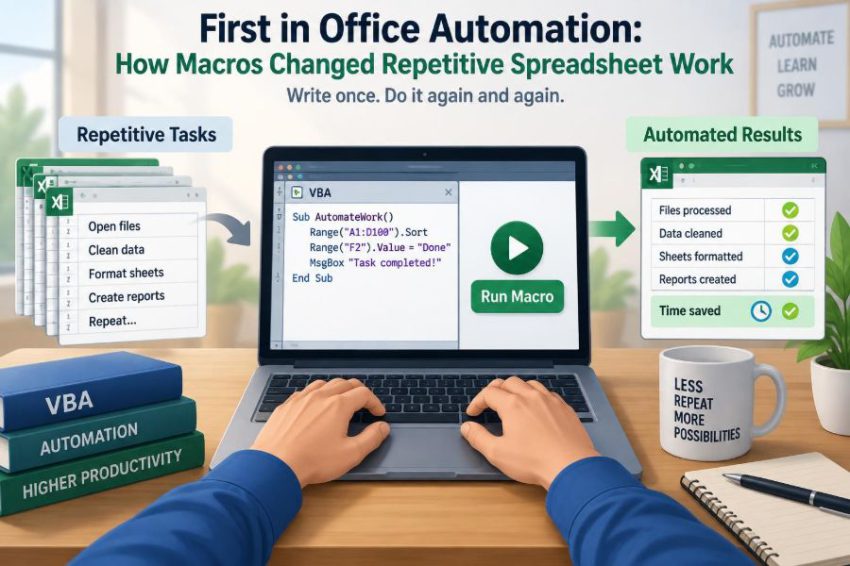

It is late in the afternoon, and a workbook has arrived with hundreds of new sales records. The required task sounds simple: clean the dates, apply the standard format, add totals, create a summary sheet, and save a copy for each regional manager.
None of those steps is especially difficult. The problem is that they must be repeated, in the same order, every week. One missed filter, copied formula, or renamed file can turn an ordinary routine into a frustrating correction exercise.
Spreadsheet macros changed that relationship with repetitive work. Instead of treating a workbook only as a place to enter values and formulas, users could record or write a sequence of instructions that performed familiar actions for them.
That idea helped make office automation practical for people who were not full-time programmers. VBA, or Visual Basic for Applications, became one of the best-known ways to build those instructions inside Microsoft Office.
🧾 The repetitive work problem
Spreadsheets are flexible enough to support many small business processes: expense reviews, payroll checks, inventory updates, invoice preparation, laboratory logs, and project reports. Flexibility is useful, but it also leaves people responsible for performing the same mechanical steps repeatedly.
Repetition creates two costs. The obvious cost is time. The less visible cost is inconsistency: a person may select the wrong range, use an outdated template, forget a final formatting step, or apply a correct rule differently from a colleague.
Macros address work that is predictable and rule-based. They do not replace judgment about an unusual transaction or a questionable result. They reduce the effort spent carrying out well-understood instructions.
🔁 What a macro actually is
A macro is a stored set of commands that an application can run. In a spreadsheet, those commands might select a worksheet, remove blank rows, format a column, place formulas in cells, build a chart, and save a new file.
The word can describe two related things. A user may record a macro by demonstrating actions in the application, or a developer may write macro instructions directly as code. Both approaches aim to make a repeatable procedure available again later.
A useful analogy is a recipe. A recipe does not decide what a diner wants; it gives dependable steps for preparing a known dish. Likewise, a macro carries out a defined process when the inputs and desired outcome are sufficiently clear.
🕰️ Macros existed before VBA
Automation did not begin with Visual Basic for Applications. Early spreadsheet software offered macro languages that let users attach commands and calculations to keyboard shortcuts or menus. These features were a major step beyond manually repeating every operation.
Those earlier tools showed a powerful principle: the person closest to a routine often understands it well enough to automate part of it. A finance clerk or analyst could encode local workflow knowledge without waiting for a separate software project.
VBA inherited this ambition while providing a more structured programming language and closer access to Office applications. It was not merely a way to replay keystrokes; it allowed procedures to inspect data, make decisions, and coordinate documents.
🏢 Why Office automation needed a common language
Office work rarely stays inside one file. A monthly process may draw values from Excel, place a narrative in Word, prepare messages in Outlook, and use a database or shared folder as a source of records.
A common language across Office applications made it possible to automate portions of that chain. VBA could control objects exposed by an application: a workbook and worksheet in Excel, a document and paragraph in Word, or a message in Outlook.
This mattered because the value was often in the handoff. Formatting a spreadsheet is useful, but generating a report from approved figures and preparing individualized emails can remove several manual transfer points where errors occur.
🧩 VBA: Visual Basic for Applications
VBA is a programming language and development environment embedded in many desktop Microsoft Office applications. It is based on the Visual Basic language family and is designed to automate and extend the host application.
In Excel, VBA code is commonly stored in modules, workbook objects, worksheet objects, or user forms. The Visual Basic Editor provides a place to write code, organize procedures, and inspect problems while a macro is running.
VBA is not the same thing as Excel formulas. A formula calculates a value in a cell. VBA can create formulas, but it can also open files, alter worksheet structure, respond to events, loop through records, and show a custom dialog.
🎥 Recording a macro lowers the first barrier
The Macro Recorder made automation approachable because it could translate many user actions into VBA code. A beginner could format a report once, record the steps, and assign the result to a shortcut or button.
Recorded code is often most valuable as a learning tool. It reveals that an action such as setting a number format becomes an instruction directed at a particular range or property.
Range("B2:B100").NumberFormat = "$#,##0.00"The recorder does have limits. It records actions rather than intentions, so it may include unnecessary selections, fixed cell references, and instructions that only work for the exact layout used during recording.
🧠 Moving from recorded actions to program logic
A reliable automation usually needs more than a replay. It must answer questions such as: Where does the imported data end? Is this sheet present? Which rows meet the condition? What should happen if required information is missing?
Writing code directly adds that logic. Variables can store values, conditions can choose among actions, and loops can process a list of rows. This changes a macro from a recording of one demonstration into a procedure that can adapt to ordinary variation.
For example, rather than formatting rows 2 through 500 because that was yesterday’s data size, a macro can determine the last used row and work only on the current dataset.
🧱 The object model explains how VBA controls Office
VBA works with an application through an object model: a hierarchy of things the application exposes to code. In Excel, an Application contains Workbooks; a Workbook contains Worksheets; a Worksheet contains Ranges and other objects.
Objects have properties, methods, and events. A property describes a state, such as a worksheet name or a cell’s value. A method performs an action, such as saving a workbook. An event is something that happens, such as a workbook opening.
This model is why VBA code can read like a precise instruction. A line that refers to a workbook, sheet, and range identifies not merely “some cells,” but a specific object in a specific location.
📊 A simple reporting workflow
Consider a hypothetical weekly sales report. A team receives an export with inconsistent capitalization, blank lines, and numbers stored as text. A manual routine might take twenty minutes for a familiar user and longer for someone covering the task.
A carefully designed macro could import the export, remove clearly empty rows, standardize recognized formats, refresh summary formulas, and create a dated output copy. The process still needs a person to review unusual records and approve the result.
The gain is not that the spreadsheet becomes magically correct. The gain is that routine transformations happen the same way each time, leaving human attention for exceptions and interpretation.
⏱️ Where macros save time
The strongest candidates for automation are tasks with stable inputs, clear rules, and enough frequency to justify setup and maintenance. A macro that saves five minutes once may be less useful than one that saves two minutes every business day.
- Applying a standard layout to recurring reports
- Combining data from similarly structured workbooks
- Creating separate files from filtered records
- Checking required fields before a report is issued
- Refreshing formulas, pivots, and print settings in a known sequence
Time savings should include the time required to test, document, and support the macro. Automation is an investment, not a free shortcut.
✅ Consistency is often the bigger benefit
A routine performed manually can vary even when every person is careful. Someone may use a different date format, omit a hidden worksheet from review, or save a deliverable in the wrong folder.
A macro can encode agreed standards: fixed headers, approved formatting, validation checks, naming conventions, and a repeatable sequence. That makes output easier for recipients to read and easier for the team to compare over time.
Consistency does not mean inflexibility. Good automation makes the standard path fast while clearly exposing cases that need an informed exception.
🔎 Automation can make checks visible
A macro can do more than transform data. It can test conditions and report what it found. For example, it might flag missing account codes, duplicate invoice numbers, dates outside the reporting period, or totals that do not reconcile.
These checks should be framed honestly. A macro can verify the rules it has been given; it cannot establish that the underlying business rule is complete or that every unusual value is wrong.
Useful designs place findings where people will see them, such as a review sheet or a clear message. Quietly fixing or suppressing a suspicious value can make a process harder to audit.
🧮 Formulas and VBA solve different problems
Excel formulas are usually preferable when the calculation should remain visible in the workbook, update naturally as values change, and be understood by ordinary spreadsheet users. Modern spreadsheet features can cover many transformation tasks without code.
VBA is more suitable when a task involves multi-step procedures, workbook structure, file operations, user interaction, or a process that must run in a defined sequence. The choice is not “advanced versus basic”; it is about fit.
| Need | Often a good fit |
|---|---|
| Calculate a value from nearby cells | Formula |
| Summarize and explore a dataset | PivotTable, formulas, or built-in tools |
| Clean and combine repeatable imports | Query tools or VBA, depending on workflow |
| Create files and apply many Office actions | VBA or another automation platform |
🛠️ Built-in tools may be a better first choice
Before writing a macro, check whether a built-in feature already addresses the task. Tables, formulas, PivotTables, data validation, conditional formatting, templates, and query tools can be easier to maintain than custom code.
This is not an argument against VBA. It is a design discipline: use the simplest dependable tool that meets the requirement. A workbook with clear formulas may survive staff changes better than a complex macro for a straightforward calculation.
VBA becomes especially valuable when built-in features must be coordinated or when the workflow reaches beyond a single calculation or worksheet.
🧷 Procedures are reusable units of work
VBA code is commonly organized into procedures. A Sub procedure performs an action, while a Function procedure returns a value. Naming procedures clearly makes a project easier to read and maintain.
Sub FormatMonthlyReport()
    Worksheets("Report").Range("A1").Font.Bold = True
End Sub
A practical project may have one procedure that imports data, another that validates it, and another that builds the finished report. Smaller units are easier to test than one long macro that attempts everything at once.
🔄 Loops handle lists without copy-paste
A loop repeats an instruction for a collection of items, such as each row in a data table or each workbook in a folder. This is one reason VBA can replace tedious sequences of nearly identical actions.
Loops need boundaries. Code should identify the intended range or collection, avoid assuming a fixed last row when data length varies, and stop safely when an expected object is absent.
For large datasets, looping through cells one at a time can be slow. Reading a range into an array, processing values in memory, and writing results back in one operation can be more efficient, though it adds complexity.
🚦Conditions let a macro make limited decisions
Conditionals use rules such as “if this cell is blank” or “if this total is negative.” They allow a macro to take different actions based on known criteria rather than blindly applying one sequence everywhere.
A sensible condition can protect a process. If an input sheet is missing, the macro can stop and explain the problem instead of producing a partial report. If a customer status is inactive, it can skip creating a notice.
The limitation is crucial: VBA follows the condition exactly as written. Ambiguous policy cannot be solved merely by putting it into an If statement.
🖱️ Buttons, shortcuts, and user forms
People are more likely to use an automation correctly when it is easy to start. A macro can be assigned to a button, a keyboard shortcut, or a custom ribbon control, depending on the workbook and organization.
User forms can collect input through labeled fields, lists, and buttons. For example, a report macro could ask for a reporting date and output folder rather than requiring users to edit those values in code.
A friendly interface should not hide important choices. It should make required input clear, validate it where possible, and tell the user what the macro will do before it overwrites or distributes anything.
⚡ Events can automate the trigger
An event procedure runs when a particular action occurs, such as opening a workbook, changing a cell, or activating a sheet. Events can make a workbook feel responsive: a validation check might run after a user edits a designated input area.
They can also surprise users. A workbook that changes data immediately upon opening or silently reacts to every edit may be difficult to troubleshoot, especially when multiple events interact.
Use event-driven code for clear, narrow purposes. Avoid designing hidden chains of actions that leave users unsure why a value or format changed.
📁 File formats determine what survives
In Excel, a workbook that contains VBA code must be saved in a macro-enabled format, commonly .xlsm or, for some specialized cases, .xlsb. Saving such a workbook as an ordinary .xlsx file removes the VBA project.
This catches many beginners because the worksheet data may appear fine after saving. The missing macro is noticed only when the file is reopened or shared.
Choose the format deliberately, and label templates clearly. If a process requires macros, recipients should know that the delivered workbook is macro-enabled and understand whether they are expected to run code.
🛡️ Macro security is necessary, not optional
Macros can automate useful work, but code can also alter files, access data available to the user, and perform unwanted actions. For that reason, Office applications use security settings and warnings around macro-enabled documents.
Never treat an unexpected macro prompt as a routine click-through. Enable code only when the file source and purpose are known and trusted. Organizations may use managed locations, signing practices, or policies to reduce risk, but local procedures should follow organizational guidance.
For authors, security means avoiding unnecessary access and explaining what the workbook does. A macro that acts transparently is easier to trust and safer to review.
🧯 Defensive coding prevents damaging surprises
A macro should assume that inputs can be incomplete, renamed, locked, or unexpectedly formatted. Defensive coding checks assumptions before making changes and avoids destructive actions until conditions have been verified.
- Confirm that expected worksheets, headers, and folders exist.
- Validate key values before using them in calculations or filenames.
- Show a confirmation before deleting, overwriting, or emailing output.
- Create a backup or save a new version when the process changes source data.
- Restore application settings if code temporarily changes them.
Error handling is part of this approach. It should provide a useful message and leave the application in a stable state, rather than simply hiding every error.
🧪 Test with realistic and awkward data
Testing only the clean sample file is a common mistake. A macro may work perfectly until it encounters an empty dataset, an extra header row, a long name, a duplicate key, a missing column, or a date interpreted differently on another computer.
Build test cases around the situations the process is likely to encounter. Keep a known-good sample, then add deliberately awkward examples that verify expected behavior at the edges.
When a macro creates important output, compare its results with a manually checked result during early runs. Testing is how you discover whether the instructions match the real workflow.
🧾 Documentation makes automation transferable
A workbook that only its creator understands is fragile. At minimum, document the macro’s purpose, required inputs, output location, assumptions, steps to run it, and what to do when a check fails.
Comments inside code should explain decisions that are not obvious from names alone. “Loop through rows” is evident from the code; the business reason for skipping a particular status may not be.
A short instruction sheet can be more valuable than a sophisticated interface when staff need to cover a process during leave, hand work to another team, or investigate a result months later.
👥 Maintenance is part of the real cost
Office processes change. A source system may rename an export column, a reporting template may acquire new fields, or a policy may change how a total is categorized. Code that once worked correctly can become inaccurate without visibly failing.
Assign ownership where possible. Someone should know when the macro was last reviewed, what assumptions it uses, and who can approve modifications. Critical workflows benefit from change notes and a test copy before updates reach production files.
The best automation is not code that never changes. It is code that can be changed safely when the surrounding process evolves.
⚠️ Common macro mistakes
Many VBA problems come from understandable shortcuts rather than advanced technical failures. Hard-coded cell addresses, reliance on the active workbook, and unqualified references can make a macro act on the wrong place when a user has another file selected.
Other frequent issues include:
- Using
SelectandActivateunnecessarily instead of referring directly to objects - Turning off screen updating or alerts and failing to restore them
- Suppressing errors without recording what went wrong
- Mixing input, transformation, and output in one difficult-to-read procedure
- Assuming every user has the same folders, permissions, and regional settings
These are design issues, not reasons to avoid VBA entirely. They are reminders to write for real operating conditions rather than the author’s own desktop.
🌐 Limits in a changing Office environment
VBA remains useful in many desktop Office workflows, particularly where established workbooks and local business processes already exist. However, it is not available or supported in the same way across every platform and Office environment.
Browser-based workflows, shared cloud workbooks, mobile use, and cross-platform teams may call for other tools or simpler workbook designs. Some tasks are better handled by database systems, query platforms, dedicated workflow tools, or modern automation services.
The practical question is not whether VBA is old or new. Ask where the work runs, who must maintain it, what security rules apply, and whether the solution can serve all intended users.
🧭 Choosing the right automation boundary
Not every repetitive task should be automated end to end. A useful boundary often automates preparation and checks while keeping approval, interpretation, and high-impact decisions with a person.
For instance, a macro can assemble a payment review pack and highlight exceptions. It should not necessarily approve payments merely because rows meet a simple formatting rule. The greater the consequence of an error, the more carefully controls and review should be designed.
Good automation reduces low-value repetition without pretending that structured instructions can replace professional accountability.
🚀 A sensible path for beginners
Start with a small, reversible task that you already perform accurately by hand. Record it once, inspect the resulting VBA, then improve one weakness: remove unnecessary selections, replace a fixed range, or add a clear message.
- Write the manual process as a short checklist.
- Identify inputs, outputs, and steps that require judgment.
- Automate only the stable mechanical steps first.
- Test on copies of realistic files.
- Document the result and ask another person to run it.
This approach teaches both coding and process design. It also prevents a first project from becoming an unmanageable attempt to automate every part of a complicated workflow.
🎯 The enduring lesson of macros
Macros changed spreadsheet work because they turned a familiar office application into a programmable tool. They gave users a way to preserve repeatable know-how, not just repeat clicks.
VBA extended that promise with logic, reusable procedures, and access to the wider Office environment. Its strengths remain clearest where a stable desktop process needs consistent execution and where the people maintaining it understand both the work and the code.
The core principle is simple: automate a process only after you can describe its rules, inputs, exceptions, and safeguards. Then the macro becomes a dependable assistant rather than a mysterious black box.
Macros are most valuable when they free people from predictable spreadsheet chores while keeping decisions, review, and responsibility visible. That balance is what made Office automation transformative—and what still makes thoughtful VBA useful today. ⚙️📊✅