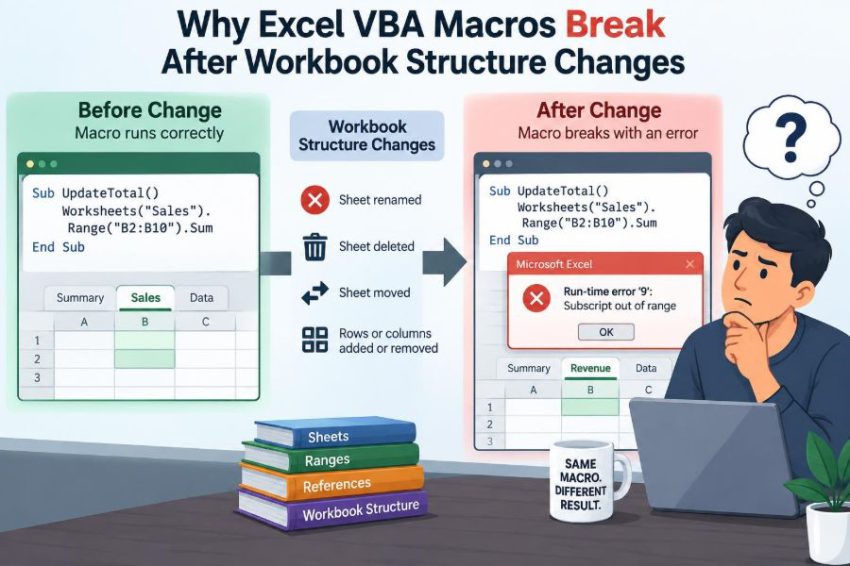

A monthly reporting workbook has worked for years. Then someone inserts a new column for a revised sales category, renames a worksheet to make it clearer, or moves a summary block to a new location. The next person clicks the familiar macro button—and receives an error, an incomplete report, or, more dangerously, a result that looks believable but is wrong.
This is one of the most frustrating aspects of Excel automation. The person changing the workbook may be making a reasonable improvement, while the macro was written around an older version of that layout. Neither action is inherently careless; the problem is that the workbook’s structure has become part of the program’s hidden assumptions.
Understanding those assumptions turns VBA failures from mysterious events into diagnosable engineering problems. It also helps workbook owners make safer changes and helps VBA developers write code that survives routine evolution.
Excel VBA macros do not usually break because Excel “forgot” what to do. They break because the code refers to something that no longer exists, no longer means the same thing, or is no longer located where the code expects it to be.
🧩 A workbook layout is part of the program
In VBA, a workbook is not just a document containing data. It is an object model: workbooks contain worksheets, worksheets contain ranges, tables, charts, names, controls, and other objects. A macro interacts with these objects using names, positions, addresses, and properties.
When code contains Worksheets("Sales").Range("B2"), it makes a precise promise: a worksheet named Sales will exist, and B2 will be the intended cell. Change either condition and the instruction may fail or produce an unintended result.
🔗 What “structure” includes
Workbook structure is broader than rows and columns. Any change to the objects or relationships a macro depends on can matter.
- Worksheet names, order, visibility, and existence
- Column positions, headings, inserted or deleted rows
- Excel Tables and their column names
- Named ranges and their reference formulas
- Chart series, PivotTables, queries, and connections
- Shapes, buttons, checkboxes, and assigned macros
- External workbook paths and source data formats
A formatting change is often harmless. A structural change alters the places, labels, or objects that code uses to find its way around.
📍 Hard-coded cell addresses are brittle
The most common fragile pattern is a fixed address. Consider a macro that reads customer ID from Range("A2"), writes an amount to Range("G2"), and loops to row 500 because that was the original report size.
Insert a column before G and Excel generally adjusts formulas, but VBA text such as Range("G2") still points to G2. The macro may now write into a notes field rather than the amount field. No error is required for the damage to occur.
↔️ Inserted columns can cause silent mistakes
A runtime error is inconvenient but visible. A shifted column is often worse because the macro completes successfully. If it copies column D into column H after a user inserted a new column, the destination may be a different business field.
This is why “the macro ran without errors” is not sufficient evidence of correctness. Macro output needs meaningful checks, especially where the workbook layout is maintained by several people.
🗑️ Deleted rows, columns, and ranges remove dependencies
Deleting a range can invalidate code more directly. If a macro uses a named range that is removed, or accesses a worksheet object that was deleted, VBA may raise an error such as “Subscript out of range” or “Application-defined or object-defined error.”
Deleted helper columns are a frequent example. A user may see a column of lookup values as redundant, while a macro may rely on it to group records or calculate a status before producing the final output.
🏷️ Renaming a worksheet breaks text-based references
A worksheet tab called Data is easy to rename to Raw Data. However, this line depends on the old tab name:
Set ws = ThisWorkbook.Worksheets("Data")Unlike many worksheet formulas, VBA string references are not automatically rewritten when a user changes a sheet tab. The code asks for Data, Excel cannot find it, and execution stops.
Renaming may also change a sheet’s internal code name only if a developer edits it in the VBA editor. The tab name and code name are different properties, and that distinction offers a useful way to reduce fragility.
🧷 Sheet code names can provide stability
Every worksheet has a visible tab name and, in a macro-enabled workbook, a VBA code name. Code can refer to a sheet by its code name, such as:
wsInput.Range("A1").Value = "Ready"If the tab is renamed from Input to January Input, the code name wsInput can remain unchanged. This is useful for developer-controlled templates, but it does not solve every problem: users can still delete the sheet, and the code name is not normally visible to non-developers.
🔢 Sheet index numbers change when tabs move
Another fragile shortcut is Worksheets(1). It means “the first worksheet in this workbook,” not “the sheet that currently contains my source data.” Move a cover sheet to the front, insert a new tab, or delete one, and the first worksheet changes.
Index references have valid uses when position itself is meaningful, but most business macros should identify a worksheet by a deliberate name, code name, or validated role rather than incidental tab order.
🎯 ActiveWorkbook and ActiveSheet create hidden dependencies
Code that says Range("A1") without qualifying the workbook and worksheet acts on whichever sheet is active at that moment. That can change when a user clicks elsewhere, another workbook opens, or a macro activates a different sheet.
Similarly, ActiveWorkbook may be the user’s report, an imported file, or the macro workbook. A safer baseline is to use ThisWorkbook for the workbook containing the VBA project and explicitly assign worksheet variables.
📋 Excel Tables are sturdier—if their names stay meaningful
An Excel Table, also called a ListObject in VBA, gives data a named structure. Instead of assuming data is always in A2:G500, a macro can refer to ListObjects("tblSales") and work with its data body range.
Tables usually expand when new rows are entered, so they are far more adaptable than fixed ranges. Yet they are not invulnerable: renaming or deleting the table, changing a required column heading, or converting the table back to a normal range can still break the macro.
📰 Column headers are better anchors than column letters
When column order may change, find a column by its header. In a table, that can be expressed through the ListColumns collection:
Set amountColumn = tbl.ListColumns("Amount").DataBodyRangeA user can move the Amount column from the fourth position to the eighth and this reference can still work. The trade-off is that header text becomes an interface: spelling, spaces, and renamed labels must be managed deliberately.
🧾 Headers can change meaning as well as spelling
Matching a header is not a complete guarantee. “Amount” might later mean pre-tax amount rather than total amount, or a new “Amount (Local)” column may be added beside “Amount (USD).” The code may find a valid label but use the wrong business definition.
For critical workbooks, define expected fields clearly and validate them. A macro can check that required headers exist, that no ambiguous duplicates are present, and that a few expected values have sensible data types before processing.
📏 Fixed last-row logic misses growing or shrinking data
Many recorded macros process a fixed range because that was the selected area during recording. A loop ending at row 1000 may include blank records today and omit valid records tomorrow.
A common improvement finds the last used row in a known key column:
lastRow = ws.Cells(ws.Rows.Count, "A").End(xlUp).RowThis is only reliable when column A is consistently populated for every record. Choose a genuine identifier, such as an order ID, rather than a column that may contain blanks.
🧼 Blank rows and merged cells confuse range discovery
Real-world sheets often contain title rows, section breaks, blank separator rows, and merged headings. Methods such as CurrentRegion stop at blank rows, while UsedRange can include cells that were formatted long ago and no longer hold data.
There is no universal “last cell” method. The dependable choice depends on the data design. A formal Table is usually clearest; otherwise, establish a specific start row, key field, and rule for what qualifies as a record.
🧮 Formulas can survive differently from VBA code
Excel formulas often adjust references when rows or columns are inserted. A formula such as =SUM(B2:B10) may expand when a row is inserted within its range. Developers sometimes expect VBA to behave in the same way.
But VBA may contain address strings, numerical column indexes, or copied formulas stored as text. Those instructions are not automatically “understood” as business relationships. Treat formula resilience and macro resilience as separate design concerns.
🔤 Formula text and localization add another layer
Macros that assign formulas can fail after structural or environment changes. .Formula uses the standard English function names and comma separators, while .FormulaLocal uses the user’s local Excel language conventions.
Structural changes can also shift formula references embedded in VBA strings. Where feasible, use Tables, named ranges, or calculated columns rather than generating long formulas based on manually assembled cell addresses.
🏷️ Named ranges help only when they are maintained
Named ranges make intent clearer. Range("rngReportStart") says more than Range("B7"), and a name can be updated in Name Manager if the report block moves.
However, names can become broken references, point to an unexpected sheet, or be duplicated at workbook and worksheet scope. A macro should qualify names where necessary and detect invalid references before using them.
📊 PivotTables, charts, and query outputs have their own contracts
Macros often refresh a PivotTable, alter a chart series, or read the results of a Power Query load. These objects can depend on source field names, table names, connection settings, and generated output ranges.
For example, deleting a field from source data may cause a PivotTable field reference in VBA to fail. Moving a query output may overwrite cells the macro previously considered safe. Treat these objects as dependencies with their own configuration, not as ordinary cell blocks.
🖱️ Buttons, shapes, and controls can lose their connection
A button may be a Form Control, an ActiveX control, or simply a shape assigned to a macro. Copying worksheets, changing protection, editing controls, or moving macros between files can disrupt the assignment.
When a button stops working, inspect both sides: confirm that the assigned procedure still exists and is accessible, then confirm that the control still points to the intended macro. The underlying procedure may be fine.
🔐 Protection changes what VBA is allowed to edit
Workbook and worksheet protection may be added during a redesign to prevent accidental edits. That is sensible, but a macro that inserts rows, filters a protected sheet, or writes to locked cells may then fail.
Protection is not merely a user-interface setting; it changes permitted operations. If a macro must work on protected sheets, design the protection settings and the VBA workflow together, with careful handling of credentials and permissions.
📂 External references fail when files move or formats change
Some macros open a source workbook using a full file path, expect a particular file name, or look for a specific tab inside an imported file. A folder reorganization, cloud-sync change, renamed export, or altered vendor template can invalidate those assumptions.
A robust import routine should verify that the file exists, identify the expected data structure after opening it, and explain what is missing. It should not quietly import the first sheet from an unrelated file.
⚠️ Error messages are clues, not complete diagnoses
“Subscript out of range” often points to a missing workbook, worksheet, or named item. “Object variable or With block variable not set” suggests that an expected object was never assigned. A 1004 error can arise from many invalid range, worksheet, or application operations.
The line highlighted by the VBA editor is a starting point. Ask what object that line expected, where the object comes from, and what structural change could have changed its name, location, or eligibility.
🕵️ Silent corruption deserves defensive checks
The most damaging macro is one that completes and writes incorrect values. Before writing results, check preconditions: required sheets exist, key headers are unique, source ranges contain records, and destination areas are appropriate.
After processing, use outcome checks. Depending on the task, that might mean confirming record counts, checking that totals are within an expected business range, or placing a clear audit summary on a log sheet. Validation should reflect the purpose of the automation, not just the absence of VBA errors.
🛡️ Build a validation gate before processing
A validation gate is a short set of checks that runs before the macro changes anything. It turns a cryptic late-stage failure into an early, useful message.
- Confirm the required worksheet, table, or named range exists.
- Confirm all required headers are present exactly once.
- Check that the source contains usable records.
- Verify that the destination is not an unexpected protected or occupied area.
- Stop safely and describe the corrective action if a check fails.
This is not overengineering for shared, recurring workbooks. It is a way to protect both data and user confidence.
🧰 Centralize layout assumptions in one place
Do not scatter worksheet names, column letters, start rows, and table names across twenty procedures. Put layout-specific values in a small configuration area or a dedicated VBA module with clear constants.
Private Const SALES_TABLE As String = "tblSales"
Private Const COL_ORDER_ID As String = "Order ID"
Private Const COL_AMOUNT As String = "Amount"
When the structure legitimately changes, there is one obvious place to review. Centralization does not eliminate dependencies, but it makes them visible and maintainable.
🧱 Separate business logic from worksheet navigation
A macro is easier to adapt when its calculation logic does not constantly reach into cells. One procedure can read validated data into an array, another can calculate totals or classifications, and a third can write output.
This separation makes troubleshooting clearer. If a new column breaks data loading, the calculation routine can remain unchanged. It also makes it more practical to test logic using small, controlled sample data.
🧪 Test changes on a copy, not the production workbook
Before changing columns, tab names, table designs, or query destinations, save a copy and test the full workflow. Test more than whether the macro launches: include realistic data, an empty-data case where relevant, and a review of outputs.
For recurring reports, a few known sample records are valuable. Their expected output becomes a practical regression check: if a redesign changes the result unexpectedly, investigate before distributing the workbook.
📝 Document the workbook’s macro contract
A macro contract is a short description of what the workbook must provide for the macro to work. It might state that the source must be a table named tblSales, that Order ID and Amount are required columns, and that output is written to a report sheet.
This documentation should also state what users may safely change. Formatting and column order may be permitted; table names and required headers may not. Clear boundaries reduce accidental breakage without freezing every useful improvement.
🤝 Coordinate workbook changes with macro owners
Workbook redesign is often done by analysts, while VBA maintenance is handled by another colleague or team. A small handoff process can prevent avoidable failures: describe the proposed change, identify impacted macros, test a copy, and release the revised workbook together.
Version labels and a brief change log help users avoid mixing an old macro workbook with a new data template. The goal is not bureaucracy; it is making dependencies visible before a deadline exposes them.
🔄 Refactor recorded macros into maintainable code
The macro recorder is useful for learning Excel’s object model, but recorded code often relies heavily on selections, active sheets, fixed addresses, and screen state. Those are exactly the dependencies most likely to fail after a redesign.
Refactoring means replacing Select and Selection with direct references, using variables for worksheets and tables, locating fields by meaningful names, and adding validation. It takes more thought initially but lowers the cost of future changes.
✅ A practical response when a macro suddenly breaks
Start by preserving the failed workbook and identifying the most recent structural change. Then use the VBA debugger to find the failing line and compare the code’s expectation with the current workbook.
- Read the failing line rather than guessing from the error alone.
- Check sheet names, table names, named ranges, headings, and source paths.
- Look for moved columns, deleted helper fields, new blank rows, or changed protection.
- Decide whether to restore the old contract or update the code for the new design.
- Add validation so the same mismatch is reported clearly next time.
A quick patch may restore work, but take a moment to remove the underlying fragile assumption when possible.
🧠 The core principle: code against meaning, not position
Workbook structure changes expose a simple truth: VBA is reliable only when its references match stable parts of the workbook. A cell address and tab index describe position. A named table, a validated header, a code name, and a documented output area describe purpose.
Position is sometimes appropriate, especially in tightly controlled templates. But as soon as people regularly edit a workbook, meaning-based references and early validation provide a much safer design. The best macro does not merely automate a task; it communicates what structure that task requires.
Excel VBA macros survive workbook change when developers make their assumptions explicit, reference meaningful objects, and verify the workbook before altering data. That approach makes automation easier to maintain and far easier to trust. ⚙️📊🛠️