
Microsoft Excel is often used one workbook at a time: open a file, update some cells, save it, close it, and repeat. That approach works well when only a few files are involved. But what happens when a business needs to process 50, 500, or even thousands of Excel workbooks containing sales reports, inventory records, financial summaries, or operational data? 📁📈
Doing the same steps manually in every workbook quickly becomes slow and error-prone.
This is where VBA—Visual Basic for Applications—can automate the process.
VBA is the programming language built into desktop versions of Microsoft Office. In Excel, it can control not only the workbook containing the VBA code but also other Excel workbooks, worksheets, ranges, charts, tables, and many other objects.
A VBA macro can automatically:
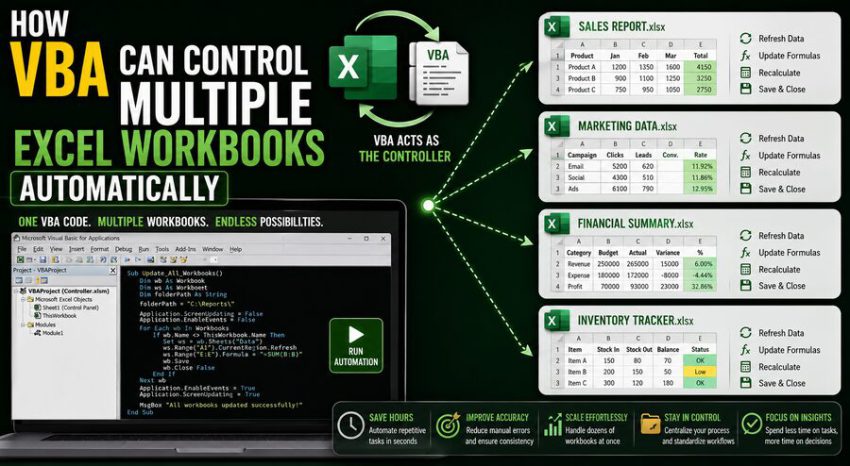
Find files → Open each workbook → Read or modify data → Copy information → Save changes → Close the workbook → Continue to the next file
This ability turns Excel from a manual spreadsheet application into a programmable automation environment. ⚙️💻
🧠 What Is VBA?
VBA stands for Visual Basic for Applications.
It is an event-driven programming language that allows users to automate Microsoft Office applications.
Inside Excel, VBA can perform tasks such as:
- Formatting worksheets
- Creating reports
- Importing data
- Updating formulas
- Filtering tables
- Creating charts
- Sending data between workbooks
- Opening and closing files
- Performing repetitive calculations
A sequence of VBA instructions is commonly called a macro.
Instead of manually performing the same operation every day, a user can write the instructions once and allow Excel to execute them automatically.
📚 Excel Uses an Object Model
To understand how VBA controls multiple workbooks, it helps to understand Excel’s object model.
Excel represents its major components as programmable objects.
A simplified hierarchy looks like:
Excel Application → Workbooks → Worksheets → Ranges
For example:
- The Excel application contains workbooks.
- A workbook contains worksheets.
- A worksheet contains cells and ranges.
VBA can reference any of these objects.
For example, conceptually:
Workbooks("Sales.xlsx")
refers to a particular open workbook.
And:
Worksheets("January")
can refer to a worksheet within that workbook.
Once VBA has a reference to the correct object, it can read or modify its properties and execute supported actions.
📁 The Workbooks Collection
Excel maintains a collection of all currently open workbooks.
VBA can inspect this collection using the Workbooks object.
For example, a macro can:
- Count open workbooks
- Identify one by name
- Activate a workbook
- Save it
- Close it
- Open another workbook
This is one of the foundations of multi-workbook automation.
Imagine three files are open:
Master.xlsm
January.xlsx
February.xlsx
VBA running from Master.xlsm can interact with both January.xlsx and February.xlsx without requiring the user to manually switch between them.
🔑 ThisWorkbook vs. ActiveWorkbook
One of the most important VBA concepts is the difference between ThisWorkbook and ActiveWorkbook.
📘 ThisWorkbook
ThisWorkbook refers to the workbook containing the VBA code currently running.
If your macro is stored in:
AutomationTool.xlsm
then ThisWorkbook normally refers to AutomationTool.xlsm.
📗 ActiveWorkbook
ActiveWorkbook refers to whichever workbook is currently active in Excel.
These may not be the same workbook.
This distinction matters because a macro could accidentally edit or save the wrong workbook if it relies carelessly on whichever file happens to be active.
Professional VBA automation usually uses explicit workbook references wherever possible.
🎯 Why Explicit References Are Safer
Consider an automation script designed to copy information from 20 sales files into one master workbook.
A fragile macro might repeatedly use:
ActiveSheet
and:
ActiveWorkbook
This assumes that the correct workbook and sheet always remain active.
But another operation might activate a different workbook unexpectedly.
A safer approach is to store references in variables.
For example:
Dim wbSource As Workbook
Dim wbMaster As Workbook

Set wbMaster = ThisWorkbook
Set wbSource = Workbooks.Open("C:\Reports\Sales.xlsx")
Now VBA knows exactly which workbook is the source and which is the master.
The code can work directly with those objects without depending on what the user currently sees on the screen.
📂 VBA Can Open Workbooks Automatically
VBA can open files using the Workbooks.Open method.
A simplified example is:
Dim wb As Workbook

Set wb = Workbooks.Open("C:\Reports\January.xlsx")
Excel opens the workbook and stores a reference to it in the variable wb.
The macro can then perform actions such as:
wb.Worksheets("Sales").Range("A1").ValueThis might retrieve the value from cell A1 on the Sales worksheet.
After processing the workbook, VBA can close it:
wb.Close SaveChanges:=FalseOr save modifications:
wb.Close SaveChanges:=TrueThis open-process-close cycle is central to automated workbook processing.
🔄 Processing Every Excel File in a Folder
One of the most common multi-workbook automation tasks is processing every file inside a folder.
Imagine a company receives one Excel report from each regional office:
📁 North.xlsx
📁 South.xlsx
📁 East.xlsx
📁 West.xlsx
Instead of opening each manually, VBA can search the directory and process files one at a time.
One traditional VBA technique uses the Dir function.
A simplified pattern looks like:
Dim fileName As String
Dim wb As Workbook

fileName = Dir("C:\Reports\*.xlsx")

Do While fileName <> ""

    Set wb = Workbooks.Open("C:\Reports\" & fileName)

    ' Process workbook here

    wb.Close SaveChanges:=False

    fileName = Dir

Loop
The macro repeatedly finds an Excel file, opens it, performs the desired operation, closes it, and continues until no files remain.
That simple structure can automate enormous amounts of repetitive work. ⚙️
📊 Example: Consolidating Data From Many Workbooks
Suppose 100 stores each send a workbook containing monthly sales data.
Every file has:
- Store ID
- Product name
- Units sold
- Revenue
Management wants one consolidated workbook.
A VBA macro could automatically:
1. Scan the reporting folder.
2. Open the first store workbook.
3. Locate the relevant worksheet.
4. Determine the used rows.
5. Copy the sales records.
6. Append them to the master workbook.
7. Close the source workbook.
8. Repeat for every remaining store.
Instead of an analyst spending hours copying and pasting data, the macro can perform the same structured workflow automatically.
📋 Copying Data Without Activating Workbooks
Beginners often write VBA that imitates human behavior:
Workbook.Activate
Worksheet.Select
Range.Select
Selection.Copy
This may work, but it is often unnecessary.
VBA can interact directly with objects.
For example:
wbSource.Worksheets("Sales").Range("A2:D100").Copy _
    Destination:=wbMaster.Worksheets("Combined").Range("A2")
The source workbook does not need to be manually selected.
Reducing .Select and .Activate commands generally makes automation:
- Faster ⚡
- More reliable
- Easier to understand
- Less dependent on screen state
🚀 Direct Value Transfer Can Be Even Faster
For many operations, VBA does not even need to use the clipboard.
Instead of copying a range, the macro can transfer values directly:
destinationRange.Value = sourceRange.ValueThis can be especially efficient when transferring large blocks of values.
It also avoids transferring unwanted formatting.
For large batch-processing jobs, avoiding unnecessary screen interactions can significantly improve performance.
🗂️ VBA Can Create New Workbooks
Automation is not limited to opening existing workbooks.
VBA can also create new ones:
Dim wbNew As Workbook

Set wbNew = Workbooks.Add
The macro can then:
- Add worksheets
- Insert data
- Apply formatting
- Create formulas
- Build charts
- Save the workbook under a new name
For example, a company might automatically create one customized report for every department.
A single master workbook could contain all company data, while VBA produces:
Finance_Report.xlsx
Operations_Report.xlsx
Marketing_Report.xlsx
and so on.
💾 VBA Can Save Files Automatically
Once a workbook has been created or modified, VBA can save it.
For example:
wbNew.SaveAs "C:\Reports\FinalReport.xlsx"The macro can dynamically create filenames based on:
- Dates
- Customer names
- Department names
- Project numbers
- Reporting periods
A reporting system might generate filenames such as:
Sales_Report_2026_08.xlsx
automatically.
This can eliminate tedious manual naming and filing tasks.
🗓️ Automating Monthly Reporting
Consider a finance team that receives 30 departmental spreadsheets every month.
Employees currently:
- Open each workbook.
- Find a specific worksheet.
- Copy totals.
- Paste results into a master workbook.
- Check for missing information.
- Save the consolidated report.
A VBA solution could perform almost the entire routine.
The macro might verify that required sheets exist, extract the relevant values, identify missing data, highlight errors, and generate a summary report.
The team’s work shifts from repetitive copying to reviewing exceptions and interpreting results.
That is one of the greatest benefits of automation. 📈
🔍 Finding the Last Used Row
When processing multiple workbooks, files often contain different amounts of data.
One workbook may contain 200 records.
Another may contain 8,000.
Hard-coding a range such as:
A2:D1000
may either miss data or process many unnecessary blank rows.
VBA can determine the last populated row dynamically.
A common pattern is:
lastRow = ws.Cells(ws.Rows.Count, "A").End(xlUp).RowThe macro can then create a range based on the actual size of each worksheet.
Dynamic ranges make workbook automation much more flexible.
🧩 Workbooks May Not Have Identical Structures
Real-world automation becomes challenging when source files are inconsistent.
For example:
- One workbook calls a sheet “Sales”.
- Another calls it “Sales Data”.
- A third is missing the sheet entirely.
A reliable macro must anticipate these differences.
Rather than assuming every workbook is perfect, VBA can check whether required objects exist before processing them.
This is one reason production-quality automation is usually more complicated than simply recording a macro.
🚨 Error Handling Keeps Batch Jobs Running
Imagine processing 500 workbooks.
Workbook number 237 is corrupted.
Without error handling, the entire macro might stop.
VBA provides error-handling mechanisms that can help the program respond to unexpected problems.
A structured process might:
Open file → Attempt processing → If error occurs, log filename → Close safely → Continue
This allows the automation to finish the remaining files while producing a list of items requiring manual attention.
Good automation does not assume errors never happen.
It defines what should happen when they do.
📝 Logging Makes Automation Easier to Audit
For important workbook-processing systems, it can be useful to maintain a log.
The log might record:
- Filename
- Date and time
- Processing status
- Number of records imported
- Error message
- Output location
For example:
| File | Status | Rows Imported |
|---|---|---|
| North.xlsx | Success | 1,250 |
| South.xlsx | Success | 980 |
| East.xlsx | Error | 0 |
A log provides evidence of what the macro processed and helps troubleshoot problems.
⚡ Turning Off Screen Updating Can Improve Performance
When VBA processes many workbooks, Excel may repeatedly redraw the screen.
This consumes time.
Macros can temporarily disable screen updating:
Application.ScreenUpdating = FalseThen restore it afterward:
Application.ScreenUpdating = TrueSimilar performance improvements can sometimes be achieved by temporarily managing:
- Automatic calculation
- Events
- Alerts
However, these settings should always be restored correctly, especially if an error occurs.
Otherwise Excel may remain in an unexpected state after the macro finishes.
🧮 Calculation Settings Matter
Large Excel workbooks may contain thousands of formulas.
If automatic calculation is enabled, opening or modifying each workbook may cause Excel to recalculate repeatedly.
During carefully designed batch processing, VBA can sometimes temporarily switch calculation mode to manual.
This can make processing much faster.
But engineers and analysts must understand the consequences.
If formulas need updated results before values are extracted, calculation may need to be triggered explicitly.
Performance optimization should never come at the cost of incorrect data.
🔔 Managing Excel Alerts
Excel may display confirmation messages during automated operations.
For example:
“Do you want to overwrite this file?”
or:
“Save changes before closing?”
Such dialogs can stop unattended automation.
VBA can control some Excel alerts programmatically.
However, suppressing warnings should be done carefully.
Warnings sometimes exist to prevent dangerous actions such as overwriting files or losing changes.
Safe automation should intentionally manage these conditions rather than simply disable every warning.
🛡️ Avoid Overwriting Source Files Accidentally
When processing many workbooks, one of the biggest risks is damaging original data.
A well-designed automation process may:
- Read source files without modifying them
- Save outputs into a different folder
- Maintain backups
- Use unique filenames
- Validate results before replacement
For example:
📁 Input — original workbooks
📁 Processed — completed outputs
📁 Archive — backups
Separating source and output locations can substantially reduce operational risk.
🔐 Macro Security Is Important
VBA macros are powerful because they can interact with files and other Office components.
That power also creates security concerns.
Malicious macros have historically been used to spread malware.
Users should therefore avoid enabling macros from untrusted files.
Organizations often use:
- Trusted locations
- Digital signatures
- Macro security policies
- Protected View
- Controlled access
Automation workbooks should be stored and distributed carefully.
A legitimate macro that processes hundreds of business files deserves the same security attention as other software.
🌐 VBA Can Work With Files on Network Drives
Multiple-workbook automation is not limited to local storage.
Excel workbooks may reside on:
- Shared network folders
- Corporate file servers
- Synced cloud folders
VBA can often work with them using appropriate file paths and permissions.
However, network automation introduces additional risks.
Connections may be slow or temporarily unavailable.
Another user may have a workbook open.
A file could be locked.
Reliable macros need to anticipate these conditions.
🔒 What Happens if Another User Has the Workbook Open?
When a workbook is shared through a network location, another person may already be editing it.
Excel may open the file as read-only or display a warning.
A VBA automation process should decide what to do.
Possible strategies include:
- Skip locked files
- Read them without editing
- Log them for later processing
- Create separate output copies
Blindly assuming every file can always be edited is risky in multi-user environments.
🧠 Arrays Can Improve Large-Scale Processing
One performance challenge in Excel VBA is interacting with worksheet cells individually.
A loop such as:
For i = 1 To 100000
    Cells(i, 1).Value = ...
Next i
can become slow because VBA repeatedly communicates with the worksheet object model.
A faster strategy is often to transfer an entire range into a VBA array.
The macro processes the data in memory and writes the results back in one operation.
Conceptually:
Worksheet → Array → Process in memory → Worksheet
For large datasets, this can create major performance improvements.
📊 Dictionaries Can Help Combine Data
When consolidating information from multiple workbooks, developers sometimes use dictionary structures to organize unique records.
Suppose 100 files contain product sales.
A dictionary can help aggregate results by product ID:
Product A → Total sales
Product B → Total sales
Product C → Total sales
This can be much faster than repeatedly searching worksheets for matching values.
VBA automation becomes especially powerful when Excel’s workbook controls are combined with normal programming concepts such as:
- Arrays
- Loops
- Functions
- Dictionaries
- Conditional logic
🧹 Automating Workbook Cleanup
VBA can also standardize messy Excel files.
Imagine hundreds of workbooks created by different employees.
A cleanup macro might automatically:
- Rename worksheets
- Remove blank rows
- Standardize date formats
- Correct headers
- Apply consistent number formats
- Delete unwanted sheets
- Freeze panes
- Set print areas
Instead of manually correcting every workbook, a standardized process can be applied repeatedly.
📄 Automatically Splitting One Workbook Into Many
Multi-workbook automation can work in the opposite direction too.
Instead of combining many files into one, VBA can divide one workbook into multiple files.
Suppose a master table contains sales data for 50 branches.
A macro could:
Filter Branch A → Create workbook → Save
Filter Branch B → Create workbook → Save
Filter Branch C → Create workbook → Save
This can automatically produce personalized reports for every branch.
The same concept works for customers, departments, projects, or regions.
🔄 Automatically Updating Linked Workbooks
Some Excel environments contain workbooks connected through formulas or links.
VBA can open related files, refresh data, recalculate formulas, and save updated outputs.
For example:
Source data workbook → Financial model → Management report
A macro could process this dependency chain automatically.
However, workbook links can become complicated, especially if files are renamed or moved.
For large systems, organizations may eventually prefer databases, Power Query, or dedicated business intelligence systems.
📈 VBA and Power Query Solve Different Problems
Power Query is another Excel technology frequently used for combining data from many files.
It is particularly effective when the problem is:
Import → Clean → Transform → Combine
VBA is more general-purpose.
It can control actions such as:
- Opening files
- Creating worksheets
- Formatting reports
- Running calculations
- Saving separate outputs
- Interacting with Excel’s interface
In many professional solutions, the technologies can complement each other.
Power Query may handle structured data transformation while VBA controls the broader workflow.
🤖 VBA Can Act Like a Small Automation Robot
A useful way to understand multi-workbook VBA is to imagine a software employee following precise instructions.
For every file:
Open it.
Find the sales worksheet.
Read the monthly total.
Put the result in the master file.
Mark the file as processed.
Close it.
Move to the next workbook.
That is essentially robotic process automation inside Excel.
The major advantage is consistency.
Unlike a human performing repetitive work for several hours, the macro does not become bored or accidentally skip workbook number 86 because of fatigue.
⚠️ But Automation Can Repeat Mistakes Very Quickly
Automation’s greatest strength is also a risk.
If a human makes one mistake, perhaps one workbook is affected.
If a faulty macro makes the same mistake across 1,000 files, the damage can spread quickly.
That is why good VBA development includes:
- Testing
- Backups
- Validation
- Error handling
- Logging
- Clear file paths
A macro should first be tested on copies of a small number of representative files before being used on critical production data.
🧪 Testing With Edge Cases
Suppose your normal workbook contains a worksheet called Data.
Testing only that perfect file is not enough.
A robust automation process should also test scenarios such as:
- Empty workbook
- Missing worksheet
- Wrong column names
- Blank data
- Protected sheet
- Corrupted file
- Read-only file
- Unexpected filename
These are known as edge cases.
Handling them makes the difference between a fragile macro and a dependable automation tool.
🧱 Break Large Macros Into Smaller Procedures
A macro that controls many workbooks can quickly become difficult to maintain.
Instead of placing everything inside one huge procedure, developers can create smaller reusable procedures and functions.
For example:
GetFiles()
ValidateWorkbook()
ImportData()
CreateReport()
WriteLog()
CloseWorkbookSafely()
This modular approach makes the automation easier to understand, test, and improve.
💼 Real-World Business Uses
Multi-workbook VBA automation is used for many practical tasks.
💰 Finance
Consolidating departmental budgets and financial reports.
🛒 Sales
Combining sales reports from multiple branches.
🏭 Manufacturing
Processing production and quality-control workbooks.
👥 Human Resources
Creating separate employee or department reports.
📦 Inventory
Combining stock information from multiple locations.
📊 Management Reporting
Automatically generating recurring KPI workbooks.
In each case, the basic value is the same:
Reduce repetitive file handling while increasing consistency.
🧩 A Simplified Automation Architecture
A well-organized VBA workbook-processing tool might work like this:
Control Workbook (.xlsm)
⬇️
Read configuration
⬇️
Scan input folder
⬇️
Open source workbook
⬇️
Validate structure
⬇️
Read/process data
⬇️
Write result
⬇️
Log status
⬇️
Close source workbook
⬇️
Repeat
⬇️
Save final report
This architecture separates the automation controller from the files being processed.
That makes the workflow easier to manage.
🔮 When VBA May Not Be the Best Tool
VBA is extremely useful, but it is not ideal for every scale of automation.
If a business needs to process millions of records, serve many simultaneous users, or run automation on servers without Excel, a different technology may be more appropriate.
Alternatives can include:
- Python
- SQL databases
- Power Automate
- Power Query
- Office Scripts
- Dedicated enterprise software
VBA remains especially valuable when:
Excel is already central to the workflow and the automation must control Excel-specific behavior.
The best tool depends on the problem.
✅ Final Thoughts
VBA can control multiple Excel workbooks automatically because Excel exposes its files, sheets, cells, and commands through a programmable object model. 📊⚙️
A VBA macro can discover workbooks in folders, open them one at a time, validate their structure, read or modify data, create new reports, save results, log errors, and close each file without requiring a user to manually repeat the process.
The most reliable automation avoids excessive dependence on Select, Activate, and whichever workbook happens to be active. Instead, it uses clear object references such as workbook and worksheet variables.
Performance can be improved by processing data in arrays, minimizing unnecessary screen updates, controlling calculation carefully, and transferring blocks of data directly.
But reliable automation also requires safeguards. 🛡️
Source files should be protected, errors should be logged, exceptional workbooks should be handled gracefully, and macros should be tested on copies before being allowed to modify large numbers of important files.
Used carefully, VBA can transform a repetitive Excel workflow that once required hours of manual work into a structured process that runs with minimal intervention.
What appears to the user as:
“Process all reports”
may actually cause Excel to execute hundreds or thousands of coordinated operations automatically.
That is the real power of multi-workbook VBA: turning Excel from a collection of separate spreadsheets into a programmable system capable of managing entire file-based workflows. 💻📁🚀