
Most Excel VBA macros are introduced in the same way: create a procedure, attach it to a button, and click the button whenever you want the code to run.
But VBA can do something much more powerful.
It can respond automatically when something happens inside Excel. 📊⚙️
For example, a macro can run when:
- A workbook opens
- A cell value changes
- The user selects a different cell
- A worksheet is activated
- A formula recalculates
- A workbook is saved
- A workbook is about to close
- A user double-clicks a cell
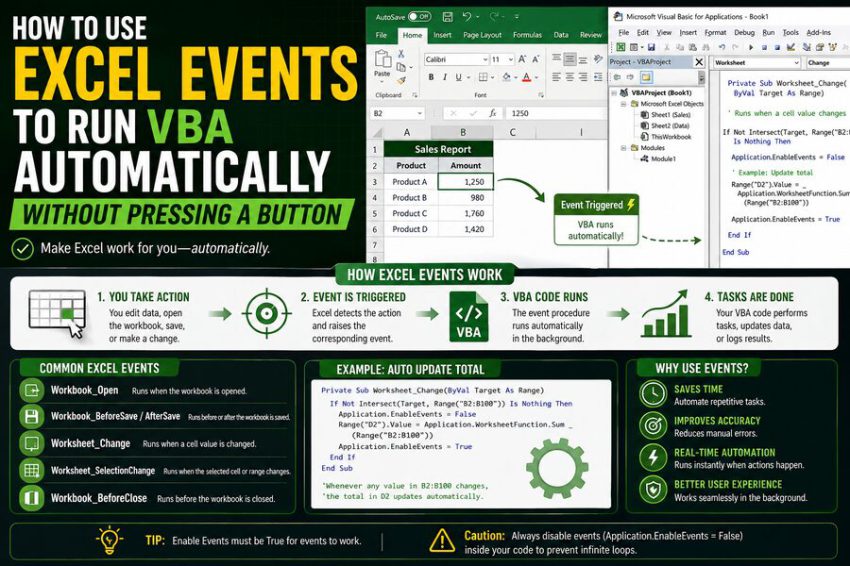
These automatic triggers are called events.
Instead of asking the user to press a button, Excel watches for particular actions and automatically runs the corresponding VBA procedure.
This makes events extremely useful for building interactive spreadsheets, automated reports, validation systems, dashboards, workflow tools, and business applications.
🧠 What Is an Excel Event?
An event is something that happens inside Excel that VBA can detect.
For example:
Opening a workbook is an event.
Changing cell B5 is an event.
Selecting another worksheet is an event.
Saving a workbook is an event.
Excel provides special VBA procedures that automatically run when these events occur.
A normal macro might look like this:
Sub UpdateReport()

    MsgBox "Report updated!"

End Sub
Nothing happens until the macro is called.
An event procedure is different.
For example:
Private Sub Workbook_Open()

    MsgBox "Welcome!"

End Sub
This code runs automatically when the workbook opens.
No button is required. 🚀
📍 Where Event Code Must Be Placed
One of the most important things to understand is that event procedures usually must be placed in specific VBA objects.
If you put them in the wrong module, they will not run automatically.
Open the VBA Editor by pressing:
Alt + F11
Inside the Project Explorer, you will typically see:
- Microsoft Excel Objects
- Individual worksheet objects
- ThisWorkbook
- Modules
Different events belong in different places.
Worksheet events
Events related to a specific worksheet belong inside that worksheet’s code module.
For example:
Sheet1
or:
Sheet2
Workbook events
Events involving the entire workbook belong inside:
ThisWorkbook
Standard macros
Ordinary macros generally belong in:
Module1, Module2, and other standard modules.
This distinction is essential. 🧩
✏️ Automatically Run VBA When a Cell Changes
One of the most useful Excel events is:
Worksheet_Change
It runs whenever a user changes the value of a cell on that worksheet.
For example:
Private Sub Worksheet_Change(ByVal Target As Range)

    MsgBox "A cell was changed."

End Sub
Place this code inside a worksheet’s VBA module.
Now whenever a cell is manually changed on that worksheet, Excel runs the procedure automatically.
The parameter:
Target
represents the cell or range that changed.
That means your code can identify exactly what was modified.
🎯 Run Code Only When a Specific Cell Changes
Usually, you do not want your macro to run after every edit.
Suppose you only want something to happen when cell B2 changes.
You can use:
Private Sub Worksheet_Change(ByVal Target As Range)

    If Not Intersect(Target, Range("B2")) Is Nothing Then

        MsgBox "Cell B2 changed!"

    End If

End Sub
The Intersect function checks whether the changed range overlaps with B2.
If it does, the code runs.
This technique is extremely common in event-driven VBA.
📦 Monitor an Entire Range
You can also monitor a larger area.
For example:
Private Sub Worksheet_Change(ByVal Target As Range)

    If Not Intersect(Target, Range("B2:B20")) Is Nothing Then

        MsgBox "A value in B2:B20 changed."

    End If

End Sub
Now VBA reacts only when something changes inside cells B2:B20.
This can be used for:
- Input forms
- Inventory sheets
- Expense trackers
- Data-entry systems
- Validation workflows
🧮 Automatically Calculate Something After Input
Suppose column B contains quantity and column C contains price.
You want column D to automatically calculate the total whenever either input changes.
You could use:
Private Sub Worksheet_Change(ByVal Target As Range)

    If Intersect(Target, Range("B2:C100")) Is Nothing Then Exit Sub

    Cells(Target.Row, "D").Value = _
        Cells(Target.Row, "B").Value * Cells(Target.Row, "C").Value

End Sub
Whenever the user changes quantity or price, VBA updates the total automatically.
Of course, a normal Excel formula could often handle this particular example more easily.
But event procedures become useful when the required action is more complex than a worksheet formula can conveniently perform.
⚠️ Beware of Infinite Event Loops
One of the most important risks with Worksheet_Change is accidentally triggering the event repeatedly.
Consider this:
Private Sub Worksheet_Change(ByVal Target As Range)

    Range("A1").Value = Now

End Sub
The user changes a cell.
The event runs.
The macro changes A1.
Changing A1 triggers Worksheet_Change again.
The event runs again.
That change may trigger it yet again.
You can create an event loop. 🔄⚠️
Excel provides a solution:
Application.EnableEvents = FalseThis temporarily disables event procedures.
Then your VBA code can make changes safely.
Afterward, turn events back on:
Application.EnableEvents = TrueA safer pattern looks like this:
Private Sub Worksheet_Change(ByVal Target As Range)

    On Error GoTo CleanUp

    Application.EnableEvents = False

    Range("A1").Value = Now

CleanUp:

    Application.EnableEvents = True

End Sub
The error-handling section is important because events should be re-enabled even if an error occurs.
🚀 Run VBA Automatically When the Workbook Opens
Another extremely useful event is:
Workbook_Open
Place this inside ThisWorkbook.
For example:
Private Sub Workbook_Open()

    MsgBox "Workbook loaded successfully."

End Sub
Whenever the workbook opens and macros are enabled, the message appears automatically.
This event can be used to:
- Refresh data
- Reset forms
- Set default worksheets
- Hide internal sheets
- Display instructions
- Update timestamps
- Check user settings
🔄 Refresh Data Automatically on Workbook Open
For example:
Private Sub Workbook_Open()

    ThisWorkbook.RefreshAll

End Sub
This tells Excel to refresh workbook connections automatically when the file opens.
Depending on the workbook, this may refresh:
- Queries
- PivotTables
- External connections
- Data models
For business reports that should always open with current data, this can be extremely useful.
📄 Automatically Open a Specific Worksheet
Suppose you always want users to start on a dashboard.
Inside ThisWorkbook:
Private Sub Workbook_Open()

    Worksheets("Dashboard").Activate

End Sub
Now the Dashboard sheet becomes active automatically whenever the workbook opens.
This helps guide users through a structured workbook.
🚪 Run VBA Before the Workbook Closes
Excel also provides:
Workbook_BeforeClose
Example:
Private Sub Workbook_BeforeClose(Cancel As Boolean)

    MsgBox "Remember to submit today's report."

End Sub
The event runs before the workbook closes.
The parameter:
Cancel
allows you to prevent the workbook from closing.
For example:
Private Sub Workbook_BeforeClose(Cancel As Boolean)

    If Range("B2").Value = "" Then

        MsgBox "Please complete cell B2 before closing."

        Cancel = True

    End If

End Sub
If B2 is empty, Excel cancels the closing operation.
This can be helpful in controlled workflows, though it should be used carefully so users do not feel trapped inside a workbook.
💾 Run Code Before Saving
Another useful event is:
Workbook_BeforeSave
Example:
Private Sub Workbook_BeforeSave(ByVal SaveAsUI As Boolean, Cancel As Boolean)

    Worksheets("Summary").Range("B1").Value = Now

End Sub
Every time the workbook is saved, Excel records the current date and time in B1.
You could also use this event to:
- Validate required fields
- Update a revision number
- Record who saved the workbook
- Run formatting checks
- Create backup logic
✅ Validate Data Before Saving
For example:
Private Sub Workbook_BeforeSave(ByVal SaveAsUI As Boolean, Cancel As Boolean)

    If Worksheets("Form").Range("B5").Value = "" Then

        MsgBox "Customer name is required before saving."

        Cancel = True

    End If

End Sub
Now the workbook refuses to save until the required field is completed.
This can help maintain data quality in shared operational workbooks.
🖱️ Run VBA When a User Selects a Cell
The event:
Worksheet_SelectionChange
runs whenever the user changes the active selection.
Example:
Private Sub Worksheet_SelectionChange(ByVal Target As Range)

    Range("A1").Value = Target.Address

End Sub
Whenever the user selects another cell, Excel places its address in A1.
This event can be used for interactive dashboards and helper systems.
For example, selecting a product could automatically display product details elsewhere on the worksheet.
💡 Show Instructions Based on the Selected Cell
Suppose cells B2:B10 contain data-entry fields.
You might display instructions in E2:
Private Sub Worksheet_SelectionChange(ByVal Target As Range)

    If Not Intersect(Target, Range("B2:B10")) Is Nothing Then

        Range("E2").Value = "Enter the required value here."

    Else

        Range("E2").ClearContents

    End If

End Sub
The worksheet now behaves more like an application interface.
🖱️ Run Code When a Cell Is Double-Clicked
Excel also has:
Worksheet_BeforeDoubleClick
Suppose double-clicking a cell should mark a task as complete.
Private Sub Worksheet_BeforeDoubleClick( _
    ByVal Target As Range, Cancel As Boolean)

    If Not Intersect(Target, Range("D2:D100")) Is Nothing Then

        Target.Value = "Completed"

        Cancel = True

    End If

End Sub
The line:
Cancel = Trueprevents Excel’s normal double-click behavior from occurring.
Instead, the event performs your custom action.
This can create surprisingly intuitive spreadsheet interfaces. ✅
🖱️ Run VBA When a Cell Is Right-Clicked
Another available event is:
Worksheet_BeforeRightClick
Example:
Private Sub Worksheet_BeforeRightClick( _
    ByVal Target As Range, Cancel As Boolean)

    MsgBox "You right-clicked " & Target.Address

End Sub
You can use this to create custom workflows based on right-click actions.
However, overriding familiar Excel behavior should be done carefully because users may expect the standard right-click menu.
📑 Run VBA When a Worksheet Is Activated
A worksheet can execute code whenever the user switches to it.
Use:
Worksheet_Activate
Example:
Private Sub Worksheet_Activate()

    Range("A1").Value = "Last opened: " & Now

End Sub
Every time that worksheet becomes active, A1 is updated.
Possible uses include:
- Refreshing a report
- Recalculating a dashboard
- Updating status information
- Loading data
- Resetting controls
🚶 Run Code When Leaving a Worksheet
The opposite event is:
Worksheet_Deactivate
Example:
Private Sub Worksheet_Deactivate()

    MsgBox "Leaving the data-entry sheet."

End Sub
This can be used for validation or cleanup when users leave a worksheet.
For example, you could verify whether required cells are filled before the user moves to another part of the workbook.
🔢 Run VBA When Formulas Recalculate
The event:
Worksheet_Calculate
runs whenever Excel recalculates the worksheet.
Example:
Private Sub Worksheet_Calculate()

    If Range("B2").Value > 1000 Then

        Range("C2").Value = "High"

    Else

        Range("C2").Value = "Normal"

    End If

End Sub
This event is useful because Worksheet_Change does not fire when a cell changes only because its formula recalculated.
That distinction often confuses new VBA users.
Worksheet_Change
Runs when the cell’s content is changed directly.
Worksheet_Calculate
Runs when formulas recalculate.
If you need to react to formula-driven changes, Worksheet_Calculate may be the better choice. 🧮
📚 Workbook-Level Sheet Events
Sometimes you want to monitor every worksheet in the workbook.
Excel provides workbook-level events such as:
Workbook_SheetChange
Inside ThisWorkbook:
Private Sub Workbook_SheetChange( _
    ByVal Sh As Object, ByVal Target As Range)

    Debug.Print Sh.Name, Target.Address

End Sub
This runs whenever a cell changes on any worksheet.
Sh identifies the worksheet.
Target identifies the changed range.
This is useful when you want centralized event logic instead of placing similar code inside many separate worksheet modules.
🔍 Automatically Record Changes
You can build a simple audit log using events.
Suppose you have a worksheet named Log.
Inside ThisWorkbook:
Private Sub Workbook_SheetChange( _
    ByVal Sh As Object, ByVal Target As Range)

    Dim LogSheet As Worksheet
    Dim NextRow As Long

    If Sh.Name = "Log" Then Exit Sub

    Set LogSheet = Worksheets("Log")

    NextRow = LogSheet.Cells(LogSheet.Rows.Count, 1).End(xlUp).Row + 1

    LogSheet.Cells(NextRow, 1).Value = Now
    LogSheet.Cells(NextRow, 2).Value = Sh.Name
    LogSheet.Cells(NextRow, 3).Value = Target.Address
    LogSheet.Cells(NextRow, 4).Value = Target.Value

End Sub
Now edits can be recorded automatically.
A production-grade audit system would require more careful handling, but this demonstrates how events can make Excel react to user activity without requiring manual execution.
🛡️ Always Use Event Code Carefully
Automatic VBA can be powerful, but it can also become frustrating if overused.
Imagine a macro that displays a message every time the user selects a cell.
After a few minutes, the workbook would become extremely annoying.
Events should generally be:
- Fast
- Predictable
- Relevant
- Limited in scope
- Easy to recover from
Avoid placing large, slow operations inside events that occur frequently.
For example, running a massive database refresh every time the user changes one cell could make Excel nearly unusable.
⚡ Exit Early When the Event Is Irrelevant
A good event procedure should quickly determine whether it needs to do anything.
Instead of:
Private Sub Worksheet_Change(ByVal Target As Range)

    'Lots of code runs every time

End Sub
use:
Private Sub Worksheet_Change(ByVal Target As Range)

    If Intersect(Target, Range("B2:B100")) Is Nothing Then Exit Sub

    'Relevant code here

End Sub
This prevents unnecessary processing.
It becomes especially important in large workbooks.
📌 Handle Multi-Cell Changes
A user may paste data into many cells at once.
Therefore, Target is not always a single cell.
Consider:
If Target.Value = "Yes" ThenThis can cause problems when Target contains multiple cells.
You may need to check:
If Target.CountLarge > 1 Then Exit SubFor example:
Private Sub Worksheet_Change(ByVal Target As Range)

    If Target.CountLarge > 1 Then Exit Sub

    If Target.Value = "Yes" Then

        MsgBox "Approved"

    End If

End Sub
Alternatively, write code that deliberately handles multiple changed cells.
🧹 Use Error Handling With EnableEvents
One of the most important VBA patterns is:
On Error GoTo SafeExit

Application.EnableEvents = False

'Code that changes cells

SafeExit:
Application.EnableEvents = True
Why is this necessary?
Suppose your code disables events:
Application.EnableEvents = FalseThen an error occurs before this line runs:
Application.EnableEvents = TrueEvents may remain disabled for the entire Excel session.
Your event procedures suddenly stop working. 😬
Error handling ensures Excel returns to a usable state.
🔧 Re-Enable Events Manually If They Become Disabled
If you accidentally leave events turned off, open the VBA Immediate Window using:
Ctrl + G
Then type:
Application.EnableEvents = Trueand press Enter.
This re-enables Excel events.
It is a useful troubleshooting technique when event code unexpectedly stops responding.
🧪 Debugging Event Procedures
Events can be harder to debug than normal macros because Excel calls them automatically.
One useful approach is to insert:
Debug.Print Target.AddressThe result appears in the Immediate Window.
You can also place breakpoints inside the event code.
When the event occurs, execution pauses at the breakpoint.
Then you can inspect:
- Variables
- Target ranges
- Worksheet names
- Calculated values
This helps determine why an event is firing—or why it is not.
🔐 Macros Must Be Enabled
VBA events work only when macros are allowed to run.
If a workbook contains VBA, it should normally be saved as a macro-enabled workbook:
.xlsm
rather than:
.xlsx
A standard .xlsx workbook cannot retain VBA code.
When users open a macro-enabled workbook, Excel’s security settings may disable macros until the file is trusted or the user explicitly enables them.
This is an important deployment consideration.
An event cannot run automatically if Excel’s security system prevents the VBA project from executing.
🏢 Trusted Locations and Organizational Policies
In companies, macro execution may be controlled centrally.
Organizations may use:
- Trusted locations
- Digitally signed VBA projects
- Group Policy
- Protected View
- Macro security rules
This means a workbook that works automatically on one computer may behave differently on another.
If an Excel automation tool is being distributed across a business, security and deployment should be considered from the beginning.
🧠 Events Can Make Excel Behave Like an Application
Once you begin using events, Excel becomes more than a spreadsheet.
It can behave like an interactive application.
Imagine an order-entry workbook where:
- The user selects a customer.
- VBA automatically loads customer information.
- Entering a product automatically fills the price.
- Changing quantity recalculates totals.
- Double-clicking a row marks it approved.
- Saving validates required information.
- Closing creates a backup.
No buttons are required for most of the workflow.
The spreadsheet reacts directly to user actions. 🖥️
🛒 Example: Automatically Add a Timestamp
Suppose column A contains tasks and column B contains their status.
You want column C to record the time whenever status becomes "Completed".
Place this inside the worksheet:
Private Sub Worksheet_Change(ByVal Target As Range)

    On Error GoTo SafeExit

    If Intersect(Target, Range("B2:B100")) Is Nothing Then Exit Sub

    If Target.CountLarge > 1 Then Exit Sub

    Application.EnableEvents = False

    If Target.Value = "Completed" Then

        Cells(Target.Row, "C").Value = Now

    Else

        Cells(Target.Row, "C").ClearContents

    End If

SafeExit:

    Application.EnableEvents = True

End Sub
Now the timestamp appears automatically.
This kind of automation is frequently useful in workflow trackers.
🎨 Example: Highlight Rows Automatically
Suppose you want completed items to turn bold automatically.
Private Sub Worksheet_Change(ByVal Target As Range)

    If Intersect(Target, Range("B2:B100")) Is Nothing Then Exit Sub

    If Target.CountLarge > 1 Then Exit Sub

    If Target.Value = "Completed" Then

        Rows(Target.Row).Font.Bold = True

    Else

        Rows(Target.Row).Font.Bold = False

    End If

End Sub
However, when possible, Conditional Formatting may be a better choice for purely visual behavior.
VBA should not replace built-in Excel features unnecessarily.
🧰 When Events Are Better Than Buttons
Event-driven VBA is particularly useful when:
The action should always happen automatically.
For example, validating data before saving.
The user should not need to remember an extra step.
For example, updating a timestamp after an edit.
The automation is directly tied to an action.
For example, loading details after selecting a customer.
Buttons may be better when the action should remain optional, deliberate, or expensive.
For example:
Generate Annual Report
might be better as a button because users probably do not want it running after every small edit.
🧩 Common Excel VBA Events
Some frequently used events include:
Worksheet events
Worksheet_Change
Runs after cell contents are changed.
Worksheet_SelectionChange
Runs after the selected range changes.
Worksheet_Activate
Runs when the worksheet becomes active.
Worksheet_Deactivate
Runs when leaving the worksheet.
Worksheet_Calculate
Runs when the worksheet recalculates.
Worksheet_BeforeDoubleClick
Runs before Excel processes a double-click.
Worksheet_BeforeRightClick
Runs before Excel processes a right-click.
Workbook events
Workbook_Open
Runs when the workbook opens.
Workbook_BeforeClose
Runs before the workbook closes.
Workbook_BeforeSave
Runs before saving.
Workbook_AfterSave
Runs after saving.
Workbook_SheetChange
Runs when data changes on any worksheet.
Workbook_SheetActivate
Runs when any worksheet becomes active.
These events cover a surprisingly large number of automation scenarios.
🧭 How Excel Finds Event Procedures
You do not need to memorize every event name.
Inside the VBA Editor:
- Open the worksheet or
ThisWorkbook. - Use the left dropdown at the top of the code window.
- Select
WorksheetorWorkbook. - Use the right dropdown.
- Choose the desired event.
Excel automatically generates the correct procedure declaration.
For example:
Private Sub Worksheet_Change(ByVal Target As Range)

End Sub
This is safer than manually typing complex event signatures.
🔄 Event-Driven Programming Is Used Far Beyond Excel
Excel events are an example of a broader software concept called event-driven programming.
Many modern applications work this way.
A web page reacts when a user clicks a button.
A mobile app reacts when the user taps the screen.
A server reacts when a request arrives.
An operating system reacts when a file changes.
Excel VBA uses the same fundamental pattern:
Something happens → the system detects it → code runs automatically
Understanding Excel events therefore teaches a programming concept that extends well beyond spreadsheets. 💻
⚠️ Avoid Putting Too Much Logic Directly Inside the Event
As projects grow, event procedures can become difficult to maintain.
Instead of writing hundreds of lines inside:
Private Sub Worksheet_Change(...)you can call a separate procedure:
Private Sub Worksheet_Change(ByVal Target As Range)

    If Intersect(Target, Range("B2:B100")) Is Nothing Then Exit Sub

    ProcessChange Target

End Sub
Then inside a standard module:
Public Sub ProcessChange(ByVal Target As Range)

    'Main business logic here

End Sub
This keeps the event procedure short and makes the rest of the code easier to test and reuse.
🧑💼 Practical Business Uses for Excel Events
Excel events can automate many routine workflows.
Examples include:
- Adding timestamps after updates ⏰
- Validating forms before saving ✅
- Refreshing reports at startup 📊
- Updating dashboards automatically 📈
- Logging user edits 📝
- Showing contextual instructions 💡
- Synchronizing sheets 🔄
- Automatically generating IDs 🔢
- Triggering alerts when thresholds are exceeded 🚨
- Updating dependent tables after inputs change ⚙️
The key is to identify tasks that should happen consistently whenever a predictable Excel action occurs.
✅ The Bottom Line
Excel VBA events allow macros to run automatically in response to actions inside Excel, eliminating the need for users to press a button.
A Worksheet_Change event can react when data is edited.
A Workbook_Open event can initialize or refresh a workbook automatically.
A Worksheet_SelectionChange event can create interactive interfaces.
A Workbook_BeforeSave event can validate data before saving.
A Worksheet_Calculate event can respond when formulas recalculate.
The basic concept is:
Excel action → Event detected → VBA procedure runs automatically ⚡
The most important rules are to place event code in the correct worksheet or ThisWorkbook module, keep frequently triggered events efficient, handle multi-cell changes properly, and use Application.EnableEvents carefully when your code modifies cells.
Once you understand events, VBA automation becomes much more powerful.
Instead of creating spreadsheets that wait for instructions, you can create workbooks that respond intelligently to what users are already doing. 📊🤖
That is what transforms Excel from a collection of cells and buttons into a genuinely event-driven business application.