
Creating hundreds of similar Excel workbooks manually can become an enormous administrative task. Imagine a company needs a separate workbook for every employee, customer, branch, project, school, supplier, or reporting location. Each file may use the same layout but require different names, identification numbers, dates, addresses, or other information.
A person could open a template, enter the correct information, choose Save As, type a filename, close the workbook, and repeat the process hundreds of times. But this approach is slow, repetitive, and vulnerable to human error. 😵💫📁
Visual Basic for Applications (VBA) provides a much more efficient solution.
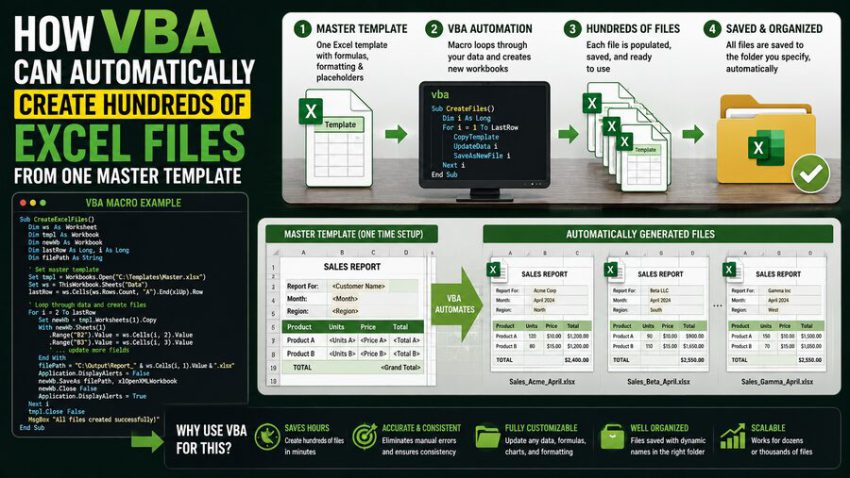
VBA is the automation programming language built into desktop Microsoft Office applications such as Excel. A VBA macro can read hundreds of records from a master worksheet, create a fresh copy of an Excel template for every record, fill in the appropriate values, assign a unique filename, and save each finished workbook automatically.
A process that might take an employee many hours can therefore be reduced to a largely automated workflow. ⚙️🚀
🧩 The Basic Automation Problem
Suppose a company needs to create monthly reporting workbooks for 500 branches.
Every workbook has the same structure:
- company logo,
- reporting month,
- branch name,
- branch ID,
- manager name,
- standard tables,
- formulas,
- instructions.
Only a few values change from one branch to another.
The company could maintain a master list like this:
Branch ID | Branch Name      | Manager
001       | Central Office   | A. Patel
002       | North Division   | J. Smith
003       | East Division    | M. Khan
004       | South Division   | R. Chen
VBA can process this table one row at a time.
For every branch, the macro can:
Read record → Copy template → Insert values → Create filename → Save workbook → Continue to next record
🔄 The loop continues until every required Excel file has been generated.
📋 What Is a Master Template?
A master template is the workbook that contains the standard design shared by all generated files.
It may include:
- headers and logos,
- formulas,
- charts,
- formatting,
- locked cells,
- data-validation rules,
- instructions,
- standard worksheets,
- print settings.
For example, a company might create:
Monthly_Report_Template.xlsx
Inside the template, specific cells are reserved for personalized information:
B3 → Branch Name
B4 → Branch ID
B5 → Manager
B6 → Reporting Month
VBA does not need to rebuild the entire workbook from scratch.
Instead, it opens or copies the finished template and changes only the information that should be unique.
This makes template-based automation especially powerful. 🎯
🗃️ The Master Data Sheet Controls the Process
The second important component is the master data table.
This worksheet contains one row for every file that needs to be created.
For example:
A          B                  C              D
ID         Customer Name      Region         Account Manager
10001      Alpha Industries   North          Priya
10002      Beacon Ltd.        West           Daniel
10003      Crest Corp.        South          Maria
The VBA macro might start at row 2, read the values from columns A through D, generate a workbook, and then move to row 3.
Because Excel already organizes data into rows and columns, VBA can easily process very large lists.
The number of files does not have to be hard-coded.
The macro can detect the last populated row and automatically determine how many records exist. 📊
🔁 The VBA Loop Is the Automation Engine
The key programming concept is a loop.
Instead of writing separate instructions for every customer, VBA repeats the same instructions for each row.
Conceptually:
For each row in the customer list

    Read customer information
    Create workbook from template
    Put customer information into workbook
    Save workbook with customer-specific filename

Next row
If the list contains 10 rows, the process runs 10 times.
If it contains 800 rows, the same code can run 800 times.
This scalability is what turns VBA into a valuable tool for bulk document generation. ⚡
💻 A Simplified VBA Example
A simplified macro might look like this:
Sub CreateCustomerFiles()

    Dim ws As Worksheet
    Dim lastRow As Long
    Dim i As Long
    Dim wb As Workbook
    Dim customerName As String
    Dim customerID As String
    Dim templatePath As String
    Dim outputFolder As String

    Set ws = ThisWorkbook.Worksheets("Customers")

    templatePath = "C:\Templates\CustomerTemplate.xlsx"
    outputFolder = "C:\GeneratedFiles\"

    lastRow = ws.Cells(ws.Rows.Count, "A").End(xlUp).Row

    For i = 2 To lastRow

        customerID = ws.Cells(i, "A").Value
        customerName = ws.Cells(i, "B").Value

        Set wb = Workbooks.Open(templatePath)

        wb.Worksheets("Report").Range("B3").Value = customerName
        wb.Worksheets("Report").Range("B4").Value = customerID

        wb.SaveAs outputFolder & _
                  customerID & "_" & customerName & ".xlsx"

        wb.Close SaveChanges:=False

    Next i

End Sub
This is only an educational example, but it demonstrates the overall architecture.
The macro reads customer information, opens the template, fills selected cells, saves the result under a new name, closes the generated workbook, and repeats the process.
🏷️ Automatically Creating Unique Filenames
One of VBA’s most useful capabilities is dynamically constructing filenames.
Instead of saving files as:
Book1.xlsx
Book2.xlsx
Book3.xlsx
the macro can generate meaningful names such as:
10001_Alpha_Industries.xlsx
10002_Beacon_Ltd.xlsx
10003_Crest_Corp.xlsx
A filename could combine:
- customer ID,
- customer name,
- reporting period,
- department,
- location,
- project number.
For example:
Mumbai_Operations_August_2026.xlsx
Meaningful naming conventions make hundreds of generated files much easier to organize and distribute. 📂
⚠️ Filenames Need Cleaning
Not every value stored in Excel can safely become part of a Windows filename.
Certain characters are prohibited or problematic, including characters such as:
\ / : * ? " < > |Suppose a customer is named:
Smith & Sons / Europe
Using that text directly in a filename could cause an error because / is not permitted.
A robust VBA application therefore includes a small function that replaces invalid filename characters.
For example:
Function CleanFileName(ByVal txt As String) As String

    Dim badChars As Variant
    Dim c As Variant

    badChars = Array("\", "/", ":", "*", "?", """", "<", ">", "|")

    For Each c In badChars
        txt = Replace(txt, c, "_")
    Next c

    CleanFileName = txt

End Function
The macro could then use:
customerName = CleanFileName(ws.Cells(i, "B").Value)This type of error prevention becomes especially important when hundreds or thousands of files are being generated automatically. 🛡️
📁 VBA Can Create Folder Structures Too
Bulk file generation becomes even more useful when VBA also organizes the output.
Suppose reports must be divided by region:
Generated Reports
├── North
├── South
├── East
└── West
The macro can read each customer’s region and determine the correct destination folder.
It can even create missing folders automatically using commands such as MkDir.
A company could therefore transform one master table into an entire organized reporting structure:
Master data → Hundreds of workbooks → Automatically organized folders
📊➡️📁➡️📄
🎨 Formatting Does Not Need to Be Recreated
One major advantage of using an existing template is that VBA can preserve sophisticated workbook formatting.
The template may already contain:
- brand colors,
- logos,
- merged headers,
- number formats,
- borders,
- charts,
- conditional formatting,
- hidden worksheets,
- formulas.
When the template is copied or opened and saved as another file, this structure remains intact.
VBA only changes selected cells.
This is usually much easier than programmatically creating every format from the beginning.
🧮 Formulas Can Be Included Automatically
Suppose each generated workbook contains a financial report.
The template may include formulas such as:
Total Revenue = SUM(monthly revenue)
Profit = Revenue - Expenses
Margin = Profit / Revenue
Every generated workbook inherits these formulas.
VBA can insert the branch-specific raw data while Excel performs the calculations automatically.
This allows companies to distribute standardized analytical workbooks without manually rebuilding formulas for every recipient. 🧮📈
📊 Entire Data Tables Can Be Inserted
Automation is not limited to changing a few cells.
VBA can copy complete data tables into generated workbooks.
Imagine a company has 50,000 sales transactions belonging to 300 customers.
The macro could:
- identify transactions belonging to Customer A,
- copy them into Customer A’s workbook,
- save the workbook,
- repeat for Customer B,
- continue through every customer.
Each recipient receives only the relevant subset of the master data.
This technique can be useful for:
- customer statements,
- salesperson reports,
- regional summaries,
- supplier reports,
- employee performance files.
📄 VBA Can Generate Multiple Worksheets Per File
Suppose each customer’s workbook needs:
- Summary,
- Transactions,
- Charts,
- Instructions.
The template can already contain these worksheets.
Alternatively, VBA can create or rename sheets dynamically.
For example, one workbook could contain separate worksheets for:
January | February | March | April
The macro can control almost every major workbook object, including:
- workbooks,
- worksheets,
- ranges,
- charts,
- tables,
- formulas,
- page layouts.
This makes VBA considerably more flexible than simple Excel formulas alone. ⚙️
🔐 Protecting Generated Workbooks
Some generated files may contain sensitive information.
VBA can automate certain workbook-protection tasks, such as:
- protecting worksheets,
- locking formulas,
- hiding calculation sheets,
- controlling editable ranges.
Depending on the Excel format and organizational requirements, files may also be saved using password-related options.
However, workbook protection should not automatically be considered strong security for highly sensitive information. Organizations should use appropriate access controls, secure storage, and approved security policies when handling confidential data. 🔐
✅ Data Validation Before Generation
A well-designed automation system should not immediately create hundreds of files from unchecked input.
Before starting, VBA can verify whether important data is missing.
For example:
Customer ID missing? → Stop or flag row
Customer Name blank? → Stop or flag row
Output folder missing? → Create folder or warn user
Template not found? → Stop safely
This validation prevents the macro from producing hundreds of incomplete or incorrectly named files.
It is much easier to detect errors before generation than to inspect 500 finished workbooks afterward. 🔍
🚨 Error Handling Is Essential
Large automation jobs should also include error handling.
Suppose file number 173 cannot be saved because its filename is invalid.
Without error handling, the entire macro might stop.
A more robust system can record the error and continue processing other records.
An error log might show:
Row 173 | Customer 45871 | File could not be saved
Row 291 | Missing customer name
Row 417 | Output folder unavailable
After the run finishes, the user can investigate only the failed records.
This approach is much more practical in high-volume automation. 🛠️
⚡ Improving VBA Performance
Creating hundreds of workbooks involves significant Excel processing.
VBA can often run faster if unnecessary screen updates and calculations are temporarily disabled.
A macro may use settings such as:
Application.ScreenUpdating = False
Application.EnableEvents = False
Application.Calculation = xlCalculationManual
After processing, the settings should be restored:
Application.Calculation = xlCalculationAutomatic
Application.EnableEvents = True
Application.ScreenUpdating = True
Turning off visual screen updates prevents Excel from constantly redrawing the application while files are being generated.
Temporarily controlling calculation can also help when the template contains many formulas.
Care must be taken to restore these settings even if an error occurs. ⚙️
💾 SaveAs vs. SaveCopyAs
VBA provides different approaches for generating files.
SaveAs changes the active workbook’s saved identity.
SaveCopyAs saves a copy while leaving the currently open workbook associated with its original file.
The correct method depends on the workflow.
Another approach is to create a copy of the template file first and then open the copied file for customization.
For large production automations, developers usually choose the method that minimizes template corruption risk and keeps file handling predictable.
🛡️ Never Overwrite the Master Template Accidentally
One of the most important design rules is to protect the original template.
The macro should never accidentally replace:
MasterTemplate.xlsx
with customer-specific information.
A safer architecture is:
Automation workbook → Reads master data
Template workbook → Used only as source
Output folder → Receives generated files
Separating these locations reduces the risk of accidentally modifying the master template.
Keeping backup copies is also sensible. 📁
🔄 Handling Existing Files
What happens if the macro tries to create:
Customer_1001.xlsx
but that file already exists?
The automation should have an explicit policy.
Possible choices include:
- overwrite the existing file,
- skip the record,
- add a timestamp,
- create a version number,
- ask the user.
For unattended automation, automatically asking the user hundreds of questions is usually undesirable.
A better system may create:
Customer_1001_v2.xlsx
or log the duplicate and continue.
🕒 Adding Dates Automatically
VBA can insert dates into both files and filenames.
For example:
Format(Date, "yyyy-mm-dd")could produce:
2026-08-24
A report filename might therefore become:
Customer_1001_2026-08-24.xlsx
Date-based naming makes recurring reporting processes much easier to manage.
It also helps prevent new reports from overwriting older reports. 📅
📧 VBA Can Extend Beyond File Creation
Once Excel files have been generated, VBA can potentially automate additional Office workflows.
For example, in supported desktop Office environments it may:
- prepare Outlook emails,
- attach generated files,
- create draft messages,
- export worksheets to PDF,
- update tracking sheets.
A workflow could therefore become:
Read customer data → Generate Excel report → Export PDF → Prepare email → Log completion
Such automation can dramatically reduce repetitive administrative work.
However, email automation should be implemented carefully to avoid accidentally sending incorrect or confidential information to recipients. 📧⚠️
🏢 Real-World Uses for Bulk Excel Generation
The same template-driven VBA technique can solve many business problems.
👥 Employee Files
HR departments can generate individualized:
- performance forms,
- compensation worksheets,
- training records.
🧾 Customer Statements
Finance teams can generate separate statement workbooks for hundreds of customers.
🏪 Branch Reporting
Companies can produce standardized reporting templates for every location.
🎓 Student Reports
Educational institutions can generate individual student worksheets or assessment files.
🤝 Supplier Documents
Procurement departments can produce supplier-specific evaluation and reporting files.
📊 Sales Reports
Sales managers can create separate territory reports for each salesperson.
The underlying automation pattern remains almost identical.
🎯 Why VBA Is Particularly Useful for Existing Excel Workflows
Organizations often already have years of business logic embedded in Excel:
- formulas,
- reports,
- templates,
- macros,
- charts,
- formatting.
Replacing everything with a custom web application may be unnecessary or expensive.
VBA allows companies to automate the Excel environment they already use.
For a controlled desktop workflow, this can provide a fast route from manual work to automation. 💼
VBA is particularly useful when:
- users already work heavily in Excel,
- the output must remain Excel files,
- the process runs on desktop Excel,
- development resources are limited,
- the workflow is relatively structured.
⚠️ When VBA May Not Be the Best Solution
VBA is powerful, but it is not ideal for every automation project.
Alternatives may be better when:
- thousands of users need simultaneous access,
- automation must run centrally in the cloud,
- very large datasets are involved,
- strong cross-platform support is required,
- the workflow needs sophisticated database integration,
- enterprise-scale monitoring is necessary.
Alternatives may include:
- Python,
- Power Automate,
- Office Scripts,
- database applications,
- custom web services.
VBA should be selected because it matches the workflow—not merely because the data happens to be stored in Excel.
🧠 Design the Process Before Writing Code
One of the biggest mistakes in spreadsheet automation is writing the macro before defining the workflow.
Before coding, document:
Where is the master data?
Which columns contain required values?
Where is the template stored?
Which template cells receive each value?
How should files be named?
Where should outputs be saved?
What happens when data is missing?
What happens when a file already exists?
What errors need to be logged?
Once these rules are clear, VBA development becomes much easier.
🚀 From Hundreds of Manual Saves to One Automated Run
The real power of VBA is not that it can save an Excel file. A person can already do that manually.
The power comes from repeating a carefully defined process hundreds of times without requiring hundreds of manual actions.
A master dataset supplies the unique information.
A master template supplies the consistent workbook structure.
VBA connects the two.
For each record, it reads the data, creates a template-based workbook, inserts the correct information, generates a meaningful filename, saves the result, and moves automatically to the next record. ⚙️📊
With proper validation, filename cleaning, error handling, logging, and performance optimization, the same technique can support reliable high-volume business workflows.
The central automation principle is simple:
When hundreds of Excel files share the same structure but contain different data, do not manually create hundreds of workbooks—store the differences in one master table and let VBA repeat the template-generation process automatically. 📋➡️⚙️➡️📁📁📁
That is how a repetitive spreadsheet task involving hundreds of manual saves can become a scalable, repeatable Excel automation system. 🚀💻