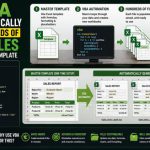

Excel is widely used to create financial statements, operational dashboards, invoices, engineering reports, sales summaries, inspection sheets, and management reports. While preparing these reports in Excel may be convenient, the final documents often need to be distributed as PDF files so that recipients can view them without accidentally changing formulas, formatting, or source data.
When only one report is involved, manually choosing File → Export → Create PDF is easy enough. But the situation changes dramatically when a company needs to generate dozens or hundreds of reports every week or month. 📄⚙️
An employee may have to open different worksheets, change customer or department selections, create PDFs, give each file the correct name, and place each one into the appropriate folder.
This repetitive process is exactly the kind of task that VBA automation can handle.
Visual Basic for Applications (VBA) is the programming language built into desktop versions of Microsoft Excel. By combining VBA with Excel’s PDF export functionality and file-system commands, businesses can build automated reporting systems that generate, name, and organize PDF reports with very little manual effort.
🧠 What Is VBA?
VBA stands for Visual Basic for Applications.
It allows users to write programs called macros that interact with Excel workbooks, worksheets, cells, charts, formulas, tables, and other Office features.
A VBA macro can perform operations such as:
- Reading values from cells
- Changing filters
- Updating formulas
- Refreshing data
- Formatting reports
- Creating worksheets
- Saving files
- Exporting PDFs
- Creating folders
- Repeating operations for many customers or departments
Instead of manually completing the same sequence every month, an employee can run a macro and allow Excel to perform the repetitive steps automatically. 🤖
📄 Why Convert Excel Reports to PDF?
Excel files are excellent working documents, but PDFs are often more appropriate for distribution.
PDF files offer several advantages:
- 🔒 They are harder to accidentally modify.
- 📐 Page layouts remain relatively consistent.
- 📧 They are convenient to email.
- 🖨️ They are suitable for printing.
- 💻 Recipients do not necessarily need Excel.
- 📂 They work well for document archives.
For example, a company might prepare a monthly sales workbook containing separate worksheets for each regional office.
Instead of sending the entire workbook, VBA could automatically create:
North Region.pdf
South Region.pdf
East Region.pdf
West Region.pdf
Each document could then be stored in the correct reporting folder.
⚙️ Excel’s ExportAsFixedFormat Method
Excel provides a built-in VBA method called ExportAsFixedFormat.
This is one of the main tools used for PDF automation.
A simple example is:
Sub ExportReport()

    Worksheets("Report").ExportAsFixedFormat _
        Type:=xlTypePDF, _
        Filename:="C:\Reports\Monthly Report.pdf"

End Sub
This macro tells Excel to export the worksheet named Report as a PDF.
The important arguments are:
Type:=xlTypePDF
This tells Excel that the desired output format is PDF.
Filename:=
This specifies where the PDF should be saved and what it should be called.
With only a few lines of VBA, a worksheet can therefore be converted directly into a PDF.
📁 Automatically Creating a Folder
A report-generation system becomes much more useful when it can create its own storage folders.
Suppose a company wants reports stored under:
C:\Reports\2026\August
VBA can check whether a folder exists before saving the document.
A simple folder check uses the Dir function:
If Dir(folderPath, vbDirectory) = "" Then
    MkDir folderPath
End If
Here:
Dirchecks whether the directory exists.vbDirectoryindicates that Excel should look for a folder.MkDircreates the folder when necessary.
One important limitation is that MkDir normally creates only one directory level at a time. If both the 2026 and August directories are missing, the parent folder must normally be created before its child.
A robust automation system therefore builds the folder hierarchy in the correct order.
🗓️ Organizing Reports by Year and Month
VBA can generate folder names automatically from the current date.
For example:
yearFolder = Format(Date, "yyyy")
monthFolder = Format(Date, "mmmm")
If the macro runs during August 2026:
yearFolder = “2026”
monthFolder = “August”
A complete path might then be assembled:
folderPath = "C:\Reports\" & yearFolder & "\" & monthFolderThe resulting storage structure could become:
Reports
│
├── 2025
│   ├── November
│   └── December
│
└── 2026
    ├── January
    ├── February
    └── August
This eliminates the need for users to manually organize monthly reports. 📂
🏢 Organizing Reports by Department
Folders can also be generated from worksheet data.
Suppose cell B2 contains the department name:
Engineering
VBA could read it with:
departmentName = Range("B2").ValueThe macro could then create a directory such as:
C:\Reports\2026\August\Engineering\A Finance report could automatically go into:
C:\Reports\2026\August\Finance\while a Production report could go into:
C:\Reports\2026\August\Production\This makes VBA useful for organizations producing reports for many internal teams.
🧾 Automatically Creating PDF File Names
File naming can also be automated using worksheet values.
Suppose Excel contains:
- Cell B2 =
North Region - Cell B3 =
August - Cell B4 =
2026
VBA might construct a filename using:
pdfName = Range("B2").Value & "_" & _
          Range("B3").Value & "_" & _
          Range("B4").Value & ".pdf"
The result becomes:
North Region_August_2026.pdfAutomated filenames make documents much easier to search and archive.
⚠️ Invalid Characters in File Names
Not every value stored in Excel can safely become a Windows filename.
Characters such as:
\ / : * ? " < > |cannot normally be used in Windows filenames.
For example, a customer name containing:
ABC / International
could cause the PDF export to fail if inserted directly into the filename.
A reliable macro should therefore sanitize filenames.
A helper function might look like:
Function CleanFileName(ByVal text As String) As String

    Dim badChars As Variant
    Dim i As Long

    badChars = Array("\", "/", ":", "*", "?", """", "<", ">", "|")

    For i = LBound(badChars) To UBound(badChars)
        text = Replace(text, badChars(i), "_")
    Next i

    CleanFileName = Trim(text)

End Function
Now:
ABC / International
can become:
ABC _ International
or another safe version.
This small detail makes automation significantly more reliable.
🔁 Creating Many PDFs Automatically
The major productivity gain appears when VBA generates multiple reports in a loop.
Imagine a workbook containing a list of customer names:
Customer A
Customer B
Customer C
Customer D
The macro can process one customer at a time.
Conceptually:
Select Customer A
↓
Update Report
↓
Create Customer A PDF
↓
Select Customer B
↓
Update Report
↓
Create Customer B PDF
↓
Continue...
A task that previously required dozens of manual exports can become a single automated operation.
💻 Example: Exporting Several Worksheets
Suppose every worksheet in a workbook represents a department report.
A simplified VBA macro could be:
Sub ExportAllSheets()

    Dim ws As Worksheet
    Dim folderPath As String
    Dim pdfPath As String

    folderPath = ThisWorkbook.Path & "\PDF Reports"

    If Dir(folderPath, vbDirectory) = "" Then
        MkDir folderPath
    End If

    For Each ws In ThisWorkbook.Worksheets

        pdfPath = folderPath & "\" & _
                  CleanFileName(ws.Name) & ".pdf"

        ws.ExportAsFixedFormat _
            Type:=xlTypePDF, _
            Filename:=pdfPath, _
            Quality:=xlQualityStandard

    Next ws

    MsgBox "PDF reports created successfully."

End Sub
The macro performs four major tasks:
- Finds the workbook’s location.
- Creates a PDF Reports folder if necessary.
- Loops through the worksheets.
- Exports each sheet using its worksheet name.
If the workbook contains:
Finance
Sales
Operations
the resulting files become:
PDF Reports
├── Finance.pdf
├── Sales.pdf
└── Operations.pdf
📑 Exporting Multiple Worksheets Into One PDF
Sometimes the goal is not to generate separate files.
A company might have:
- Cover Page
- Executive Summary
- Financial Report
- Charts
and want all four sheets combined into one PDF.
VBA can select multiple worksheets and export them together.
For example:
Sub ExportCombinedReport()

    Sheets(Array("Cover Page", _
                 "Executive Summary", _
                 "Financial Report", _
                 "Charts")).Select

    ActiveSheet.ExportAsFixedFormat _
        Type:=xlTypePDF, _
        Filename:=ThisWorkbook.Path & "\Complete Report.pdf"

End Sub
For production systems, developers often avoid unnecessary selections where possible, but the principle demonstrates how several sheets can form one PDF document.
🖨️ Page Setup Is Critical
PDF automation does not automatically guarantee good-looking reports.
Excel exports according to the worksheet’s print settings.
Engineers and analysts should therefore configure:
- Print area
- Margins
- Orientation
- Paper size
- Scaling
- Headers
- Footers
- Page breaks
For example:
With Worksheets("Report").PageSetup
    .Orientation = xlLandscape
    .Zoom = False
    .FitToPagesWide = 1
    .FitToPagesTall = False
End With
This tells Excel to use landscape orientation and fit the report to one page in width.
Without proper page setup, a table could unexpectedly spread across several narrow PDF pages.
📐 Setting a Print Area
If only part of the worksheet should appear in the PDF, VBA can define the print area.
For example:
Worksheets("Report").PageSetup.PrintArea = "$A$1:$H$45"Only cells A1 through H45 will be included in the printed report.
Dynamic reports can calculate the final row automatically and adjust the print area accordingly.
This prevents empty rows and irrelevant worksheet sections from appearing in PDFs.
🔄 Refreshing Data Before Export
Many Excel reports use:
- PivotTables
- Power Query
- Database connections
- External data
- Formulas
The PDF should usually be generated only after this information is current.
A macro can initiate a refresh using:
ThisWorkbook.RefreshAllHowever, some refresh operations can be asynchronous, meaning VBA may continue before all external queries have finished.
A production-quality workflow must ensure that refresh operations are actually complete before PDF generation starts.
Otherwise, a perfectly formatted PDF might contain yesterday’s data.
🧮 Recalculating Formulas
VBA can also force Excel to recalculate formulas.
For example:
Application.Calculateor, for a broader recalculation:
Application.CalculateFullThis is useful when the report changes according to a customer, region, reporting period, or other input selected by the macro.
The sequence can become:
Change report input → Recalculate workbook → Export PDF
👥 Creating One Report Per Customer
Imagine a sales workbook containing a report template.
Cell B2 controls which customer’s information is displayed.
VBA can loop through a customer list and change B2 each time.
Conceptually:
For Each customer In customerList

    Range("B2").Value = customer

    Application.Calculate

    ExportCurrentReport

Next customer
The result might be:
Customers
│
├── ABC Industries
│   └── ABC Industries_August_2026.pdf
│
├── Global Manufacturing
│   └── Global Manufacturing_August_2026.pdf
│
└── Northstar Ltd
    └── Northstar Ltd_August_2026.pdf
This is particularly powerful for invoices, account statements, commission reports, performance summaries, and customer dashboards.
📂 Automatically Building Nested Folder Structures
More advanced systems can organize files according to several pieces of information.
For example:
Reports
└── 2026
    └── August
        ├── Europe
        │   ├── Customer A
        │   └── Customer B
        │
        └── Asia
            ├── Customer C
            └── Customer D
The folder structure can be generated from values contained in the workbook.
Useful grouping fields include:
- Year
- Month
- Region
- Department
- Customer
- Project
- Report type
This creates a predictable document archive automatically.
🧱 A Reusable Folder-Creation Procedure
A useful VBA project can place folder logic inside a reusable procedure rather than repeating the same commands throughout the macro.
For example:
Sub EnsureFolder(ByVal folderPath As String)

    If Dir(folderPath, vbDirectory) = "" Then
        MkDir folderPath
    End If

End Sub
The main procedure can then call:
EnsureFolder "C:\Reports\2026"
EnsureFolder "C:\Reports\2026\August"
Separating tasks into small procedures makes macros easier to maintain and debug.
✅ Checking Whether a PDF Already Exists
Automated systems should decide what to do when a file already exists.
Possible strategies include:
- Overwrite it
- Skip it
- Add a timestamp
- Add a version number
- Ask the user
For example:
If Dir(pdfPath) <> "" Then
    Kill pdfPath
End If
This deletes an existing file before a replacement is created.
However, automatic deletion should be used carefully because it can remove important documents.
Another approach is to include a timestamp:
fileName = "Report_" & Format(Now, "yyyymmdd_hhnnss") & ".pdf"This might generate:
Report_20260824_161800.pdfTimestamped files are particularly useful for audit trails and version histories.
🚨 Error Handling Makes Automation Safer
A macro that generates hundreds of PDFs should not necessarily stop completely because one report contains an invalid value.
VBA provides error-handling tools.
For example:
On Error GoTo ErrorHandlerThe macro can then provide useful information when something fails.
Exit Sub

ErrorHandler:
    MsgBox "PDF generation failed: " & Err.Description
More advanced systems can record failures in a log worksheet and continue processing other reports.
A log might contain:
Customer A | Success
Customer B | Failed | Folder unavailable
Customer C | Success
Logging makes automated workflows easier to audit and troubleshoot.
⚡ Improving Macro Performance
Generating many reports can require repeated calculations and screen updates.
VBA can temporarily disable certain Excel features:
Application.ScreenUpdating = False
Application.EnableEvents = False
At the end, they should be restored:
Application.ScreenUpdating = True
Application.EnableEvents = True
Calculation mode may also be managed in more advanced macros.
However, every setting changed by VBA should be restored even when an error occurs.
Otherwise Excel may remain in an unexpected state after the macro ends.
🔒 Protecting the Original Workbook
Automated reporting macros should generally avoid unintentionally modifying the underlying source workbook.
Good practices include:
- Using a dedicated report template
- Avoiding unnecessary workbook saves
- Separating source data from presentation sheets
- Testing macros on copies
- Backing up important workbooks
This is especially important when hundreds of customer reports depend on one centralized workbook.
📁 Network Drives and Shared Folders
Businesses often need to save PDFs to network locations rather than local drives.
A path might look like:
\\FileServer\Finance\Reports\2026\August\VBA can work with shared locations when the user has the appropriate permissions and the path is available.
However, network failures can occur.
A robust reporting system should therefore detect save errors instead of assuming that every network location is always accessible.
☁️ What About OneDrive and SharePoint?
Modern organizations frequently store Excel workbooks in OneDrive or SharePoint.
VBA can still automate many reporting tasks, particularly when synchronized folders are available locally.
However, cloud URLs and locally synchronized paths behave differently.
Macros should be tested carefully in the organization’s actual environment.
Permissions, synchronization delays, file locking, and path differences can affect automation.
🖥️ Platform Compatibility
VBA is most commonly used with desktop Excel.
File paths and certain operating-system functions differ between Windows and macOS.
For example, hard-coded Windows paths such as:
C:\Reports\should not be assumed to work on a Mac.
Developers building macros for multiple operating systems should design path handling carefully and test the workflow on each target platform.
🛡️ Macro Security
Because VBA can modify files and automate applications, Excel applies security controls to macros.
Organizations may:
- Digitally sign VBA projects
- Use trusted locations
- Restrict downloaded macros
- Disable macros from untrusted sources
Users should never enable an unknown macro simply because a workbook requests it.
For business automation, VBA code should come from a trusted source and be reviewed before deployment.
🧠 A Complete Automated Reporting Workflow
A well-designed Excel-to-PDF system might follow this process:
1. 📥 Import or refresh the latest data
2. 🔄 Recalculate formulas
3. 👤 Select a customer, project, or department
4. 📊 Update the report template
5. 📐 Apply print settings
6. 📁 Determine the correct folder
7. 🏗️ Create missing directories
8. 🧹 Sanitize the PDF filename
9. 📄 Export the report to PDF
10. ✅ Record successful completion
11. 🔁 Repeat for the next report
What might take an employee hours manually can potentially be reduced to running one controlled macro.
🧪 Example of a More Complete VBA Macro
A simplified combined example might look like this:
Sub CreateMonthlyPDF()

    Dim ws As Worksheet
    Dim basePath As String
    Dim yearPath As String
    Dim monthPath As String
    Dim pdfPath As String
    Dim reportName As String

    On Error GoTo ErrorHandler

    Application.ScreenUpdating = False

    Set ws = ThisWorkbook.Worksheets("Report")

    basePath = ThisWorkbook.Path & "\Reports"
    yearPath = basePath & "\" & Format(Date, "yyyy")
    monthPath = yearPath & "\" & Format(Date, "mmmm")

    If Dir(basePath, vbDirectory) = "" Then MkDir basePath
    If Dir(yearPath, vbDirectory) = "" Then MkDir yearPath
    If Dir(monthPath, vbDirectory) = "" Then MkDir monthPath

    reportName = CleanFileName(ws.Range("B2").Value)

    pdfPath = monthPath & "\" & _
              reportName & "_" & _
              Format(Date, "yyyy-mm") & ".pdf"

    Application.Calculate

    ws.ExportAsFixedFormat _
        Type:=xlTypePDF, _
        Filename:=pdfPath, _
        Quality:=xlQualityStandard, _
        IncludeDocProperties:=True, _
        IgnorePrintAreas:=False, _
        OpenAfterPublish:=False

    Application.ScreenUpdating = True

    MsgBox "Report created:" & vbCrLf & pdfPath
    Exit Sub

ErrorHandler:

    Application.ScreenUpdating = True

    MsgBox "Unable to create report." & vbCrLf & _
           Err.Description

End Sub
Combined with the CleanFileName function shown earlier, this macro demonstrates many of the core ideas required for a practical reporting workflow.
🏢 Where This Type of Automation Is Useful
Excel-to-PDF automation can provide significant time savings in many departments.
💰 Finance
Generate:
- Monthly financial statements
- Budget reports
- Cost-center reports
- Account summaries
👥 Human Resources
Create:
- Employee summaries
- Attendance reports
- Department reports
Sensitive documents require appropriate privacy and access controls.
🏭 Manufacturing
Generate:
- Production summaries
- Quality reports
- Equipment-performance reports
- Shift reports
📦 Sales and Distribution
Create:
- Customer statements
- Sales summaries
- Regional performance reports
- Distributor reports
🏗️ Engineering and Projects
Generate:
- Project status reports
- Inspection reports
- Calculation summaries
- Progress documentation
The underlying workflow is essentially the same: change the data context, update the report, export the correct range, and save the PDF in a predictable location.
💰 Why Automation Can Save Significant Time
Suppose an analyst prepares 120 monthly reports.
If manually updating, exporting, naming, and filing each report takes three minutes:
120 × 3 minutes = 360 minutes
That equals:
6 hours every month
A carefully designed macro can automate most of that repetitive activity.
The benefit goes beyond labor savings.
Automation also reduces mistakes such as:
- Incorrect filenames
- Missing reports
- Reports stored in wrong directories
- Wrong customer selections
- Inconsistent naming conventions
Consistency itself can be extremely valuable.
⚠️ Automation Still Needs Validation
Automation does not guarantee correctness.
A macro can generate 500 incorrect reports much faster than a person can generate one incorrect report.
Before deploying an automated system, organizations should validate:
- Source data
- Formulas
- Filters
- Print areas
- File naming
- Folder logic
- Customer selection
- Error handling
Testing should include unusual situations such as missing data, invalid filenames, unavailable directories, and duplicate reports.
🔮 Moving Beyond VBA
VBA remains highly useful when reporting workflows are centered around desktop Excel.
However, larger automation systems may eventually use technologies such as:
- Power Automate
- Office Scripts
- Python
- Cloud reporting platforms
- Business intelligence tools
- Dedicated document-generation systems
The best technology depends on scale, infrastructure, security requirements, and how heavily the workflow depends on Excel.
VBA is particularly attractive when organizations already have mature Excel reports and want to automate them without rebuilding the entire reporting system. 📊⚙️
✨ Conclusion
VBA can automatically convert Excel reports into PDFs by using Excel’s built-in ExportAsFixedFormat capability. The same macro can determine filenames, create directories, organize files by year, month, customer, department, or project, and repeat the process across hundreds of reports.
A sophisticated workflow can also refresh external data, recalculate formulas, adjust print settings, sanitize filenames, detect existing files, record errors, and generate reports in structured folder hierarchies.
The basic process can be summarized as:
Read data → Update report → Create folder → Build filename → Export PDF → Repeat
This turns a repetitive administrative task into a repeatable automated process. 🤖📄
The greatest advantage is not simply that VBA can press the equivalent of Excel’s Export to PDF button automatically. It can apply business logic around that export.
It knows which report to create, what to call it, where to store it, and when to repeat the process for the next recipient.
For organizations that already rely heavily on Excel, this makes VBA a practical tool for transforming spreadsheets into structured document-generation systems—saving time, reducing manual errors, and keeping large collections of reports organized automatically