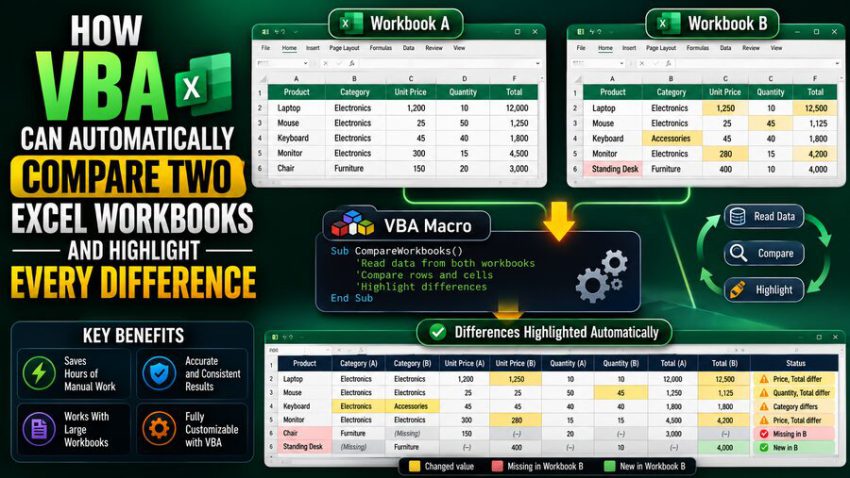

Comparing two Excel workbooks manually can become tedious very quickly. A small spreadsheet with a few dozen cells might be easy to inspect by eye, but a financial model, inventory report, engineering workbook, or operational dashboard may contain thousands of rows, dozens of worksheets, formulas, dates, and calculated values. 🔍📘
If one workbook represents an older version and another represents a newer version, the challenge becomes even greater.
Which cells changed?
Were formulas modified?
Did someone overwrite a formula with a hard-coded value?
Were rows added or deleted?
Did a percentage change from 8.5% to 8.6%, or was that simply hidden by formatting?
Microsoft Excel’s built-in tools can help in some situations, but for highly customized comparisons, Visual Basic for Applications, better known as VBA, can automate much of the work. ⚙️
A VBA macro can open two workbooks, examine corresponding worksheets and cells, identify differences, and visually highlight them. It can also produce a report showing exactly where each mismatch occurred.
The result is a repeatable comparison process that can turn hours of manual checking into a task completed in seconds or minutes.
🧠 What Is VBA?
VBA is a programming language built into Microsoft Office applications, including Excel.
It allows users to automate repetitive actions and interact directly with workbook objects such as:
- Workbooks
- Worksheets
- Cells
- Ranges
- Charts
- Tables
- Formulas
A VBA macro can read a cell’s value, compare it with another value, change the cell’s formatting, create a new worksheet, or generate a report.
That makes VBA particularly useful for workbook comparison because Excel exposes nearly every important spreadsheet element through its object model. 💻
📁 The Basic Workbook Comparison Idea
Imagine you have two files:
Budget_Old.xlsx
and:
Budget_New.xlsx
Both contain a worksheet called:
Operating Costs
You want to know whether anything changed.
A VBA macro can conceptually perform this sequence:
- Open both workbooks.
- Find matching worksheets.
- Determine the used range on each sheet.
- Compare corresponding cells.
- Detect mismatched values or formulas.
- Highlight the differences.
- Record each difference in a summary sheet.
- Save or display the results.
This approach can be extended to dozens of worksheets and hundreds of thousands of cells. 📊⚡
🔍 Comparing Cell Values
The simplest comparison checks whether two cells contain the same value.
Suppose:
Workbook A, Cell B5:
1250
Workbook B, Cell B5:
1275
A VBA macro can evaluate:
CellA.Value <> CellB.Value
If the condition is true, the cells are different.
The macro can then highlight B5 in one or both workbooks.
For example, changed cells might receive:
- Yellow fill 🟨
- Red font
- Bold formatting
- Cell comments
- Borders
The exact presentation can be customized.
🧾 Comparing Formulas Instead of Results
Comparing only displayed values is not always enough.
Consider this situation.
Workbook A contains:
=B2+C2
Workbook B contains:
=SUM(B2:C2)
Both formulas might currently return:
100
A value-only comparison would consider the cells identical.
But the underlying formulas are different.
For auditing, financial modeling, or compliance work, that difference may be extremely important.
VBA can compare the .Formula property instead of—or in addition to—the .Value property.
Conceptually:
If CellA.Formula <> CellB.Formula Then
The macro can flag the cell even when the current result is the same.
This is especially useful for detecting:
- Formula rewrites
- Hard-coded replacements
- Reference changes
- Different functions
- Broken formulas
🧮🔎
⚠️ Detecting a Formula Replaced by a Hard-Coded Value
One of the most dangerous spreadsheet changes occurs when someone replaces a formula with a manually entered number.
For example:
Original:
=SUM(D5:D12)
Modified:
48750
If the current total happens to equal 48,750, a value comparison sees no difference.
But the workbook behavior has fundamentally changed.
A VBA comparison can check whether one cell contains a formula and the other does not.
For example:
CellA.HasFormula <> CellB.HasFormula
If this is true, the macro can flag the cell as a structural change.
This can be extremely valuable in financial and operational models where accidental hard-coding can cause serious errors later. 🚨
📑 Comparing Entire Worksheets
A macro does not need to compare only one range.
It can iterate through every worksheet in the workbook.
For each sheet, it can:
- Search for a matching sheet in the second workbook
- Compare the used ranges
- Identify changed cells
- Record missing worksheets
- Detect additional worksheets
Suppose Workbook A contains:
- Summary
- Sales
- Expenses
- Forecast
Workbook B contains:
- Summary
- Sales
- Expenses
- Forecast
- Scenario Analysis
The macro can recognize that Scenario Analysis exists only in Workbook B.
That difference can then be added to the comparison report. 📚
➕ Detecting Added or Removed Sheets
Worksheet-level differences are just as important as cell-level differences.
A robust comparison tool should identify situations such as:
Sheet added:
New Forecast
Sheet removed:
Legacy Calculations
Sheet renamed:
This is harder to detect automatically because VBA may see a renamed worksheet as one missing sheet and one new sheet.
More sophisticated macros can compare sheet contents or internal identifiers to infer likely renames.
For many business workflows, however, simply listing unmatched worksheet names is already highly useful.
📐 Determining the Comparison Range
A common approach is to compare each worksheet’s UsedRange.
Excel’s UsedRange represents the region of a sheet that Excel considers to contain used cells.
This makes it convenient because the macro does not need to check all 17 billion-plus possible cells in a worksheet.
However, UsedRange is not always perfect.
Cells that were previously formatted or edited may remain part of the used range even if they look empty.
A more precise macro may calculate the final used row and column using methods such as:
FindEnd(xlUp)End(xlToLeft)
Choosing the right range-detection method can improve both speed and accuracy. ⚙️
⚡ Why Performance Matters
A small workbook might contain only a few thousand cells.
A large workbook can contain millions.
If VBA reads and writes worksheet cells one at a time, performance may become slow.
For example, repeatedly accessing:
Cells(row, column).Value
inside deeply nested loops can create substantial overhead.
A faster strategy is to load an entire range into a VBA array.
Conceptually:
ArrayA = RangeA.Value2
ArrayB = RangeB.Value2
VBA can then compare the values in memory.
This is usually much faster than repeatedly communicating with the worksheet object model. 🚀
Once the comparison is complete, the macro can return only the necessary highlighting or report output to Excel.
🧮 Why Value2 Is Often Useful
VBA offers properties such as:
.Value.Value2.Text
For large comparisons, .Value2 is often useful because it returns the underlying value without some of the extra conversion behavior associated with .Value.
This can make comparisons simpler and faster.
However, the right property depends on what you want to compare.
If you care about the exact displayed text, .Text may matter.
If you care about underlying formulas, .Formula is necessary.
A well-designed comparison macro should clearly define what “different” actually means.
🔢 Handling Floating-Point Differences
Numbers can create subtle problems.
Suppose Workbook A calculates:
0.3000000001
while Workbook B calculates:
0.3
Visually, both cells may display:
0.30
A strict comparison would report a difference.
But that difference may be meaningless for the business.
To avoid unnecessary alerts, the macro can use a numerical tolerance.
For example:
Absolute Difference < 0.000001
might be considered equal.
This is particularly useful for:
- Engineering calculations
- Financial models
- Scientific data
- Percentage calculations
- Imported measurements
🎯
Without tolerance handling, a comparison report can become cluttered with insignificant floating-point differences.
📅 Dates Need Special Handling
Excel internally stores dates as numbers.
For example, a date displayed as:
August 26, 2026
is stored internally as a serial value.
If two workbooks use different date formats, the displayed text may differ while the underlying date remains identical.
A comparison tool therefore needs to decide whether it is checking:
- Underlying date values
- Display formatting
- Both
This distinction matters because:
26-Aug-2026
and:
08/26/2026
may represent exactly the same date.
📅
🎨 Comparing Formatting
Sometimes the user wants to detect not only value changes but also formatting changes.
VBA can inspect formatting properties such as:
- Font
- Fill color
- Number format
- Borders
- Alignment
- Bold or italic state
For example, a cell might have the same value in both workbooks but use different number formats:
Workbook A:
$1,250.00
Workbook B:
1,250
Whether that matters depends on the purpose of the audit.
A flexible comparison macro can provide separate categories:
Value Difference
Formula Difference
Formatting Difference
This makes the results easier to interpret.
🟨 Highlighting Differences
Once the macro finds a mismatch, it can highlight the affected cell.
A simple approach might use:
Yellow = changed value
Other color categories could represent different kinds of changes:
- Yellow: value changed
- Orange: formula changed
- Red: missing cell or structural difference
- Green: newly added data
Visual highlighting is helpful because users can open the workbook and immediately see where changes occurred. 👀
However, a color-only system should be supplemented with a written report because colors alone can become confusing in a large workbook.
📋 Creating a Difference Report
A powerful VBA comparison tool can automatically create a worksheet called something like:
Comparison Report
Each detected difference can be recorded as a separate row.
Columns might include:
- Worksheet
- Cell address
- Old value
- New value
- Old formula
- New formula
- Difference type
For example:
Sales | F18 | 1250 | 1300 | Value Changed
or:
Forecast | G24 | =G20*1.05 | =G20*1.08 | Formula Changed
This creates an audit trail that users can filter, sort, review, or export. 📊
🔎 Comparing Blank Cells
Blank cells can also create complications.
A cell may appear blank but actually contain:
- An empty string returned by a formula
- A space
- A hidden character
- A formula such as
=""
These are not necessarily equivalent.
A sophisticated comparison routine may distinguish between:
Truly empty cell
and:
Formula producing an empty result
This matters in models where formula presence is important even if nothing is currently displayed.
🔤 Handling Text Differences
Text values may differ because of capitalization or spaces.
For example:
North America
versus:
North America
The second value contains a trailing space.
To a human, the cells may look identical.
To VBA, they can be different.
Depending on the purpose of the comparison, the macro might normalize text using functions such as:
TrimUCaseLCase
A strict audit might preserve every difference.
A business-friendly comparison might ignore capitalization or extra spaces.
The rules should match the goal of the comparison. 📝
📊 Comparing Structured Tables
Many modern Excel workbooks use Excel Tables, also called ListObjects.
A comparison macro can operate on table structures rather than raw worksheet coordinates.
This can be useful because tables provide:
- Named columns
- Defined data ranges
- Header information
- Structured references
Instead of saying:
Compare column G
the macro might compare:
Table1[Revenue]
This can make comparisons more robust when the worksheet layout changes.
🆔 Comparing Rows by Key Instead of Position
One of the biggest limitations of simple cell-by-cell comparison is row movement.
Imagine Workbook A contains:
Row 10 = Customer 1001
but Workbook B inserted a new customer near the top.
Now Customer 1001 appears in Row 11.
A positional comparison reports hundreds of differences even though most data merely shifted by one row.
A better solution is to compare rows using a unique key such as:
- Customer ID
- Product SKU
- Invoice number
- Employee ID
- Transaction ID
The macro can build a dictionary mapping each ID to its row.
Then it can compare the same logical record even if its physical row position changed. 🗂️
This is often essential for database-like Excel reports.
🧠 Using Dictionaries for Faster Matching
VBA supports dictionary-style data structures through objects such as Scripting.Dictionary.
A macro can load identifiers from Workbook A:
Customer 1001 → Row 10
Customer 1002 → Row 11
Customer 1003 → Row 12
Then load Workbook B and find matching customers instantly.
This is usually much faster than repeatedly scanning the worksheet for each key.
Dictionaries are particularly useful for detecting:
- Added records
- Deleted records
- Modified records
They turn a simple spreadsheet comparison into something closer to a database reconciliation tool. ⚡
➕ Detecting Added Records
Suppose Workbook B contains an invoice number that does not exist in Workbook A.
The macro can classify it as:
Added record
Instead of marking dozens of shifted cells as changed, it records one logical difference.
Likewise, if a record exists only in Workbook A, it can classify it as:
Deleted record
This is much more meaningful for business users.
🔄 Comparing Workbooks With Different Layouts
The two workbooks do not always have identical structures.
One might contain columns in this order:
ID | Name | Revenue | Region
while another contains:
ID | Region | Name | Revenue
A simple coordinate comparison fails.
A more advanced VBA macro can compare columns based on their header names.
It might first locate:
Revenue
in both workbooks and then compare those columns regardless of physical position.
This technique makes the comparison far more resilient to layout changes.
🔒 Protecting the Original Workbooks
A comparison macro should be designed carefully so that it does not unintentionally alter original files.
A safer workflow may be:
- Open both source workbooks read-only.
- Create a third comparison workbook.
- Copy relevant data or create links.
- Highlight differences in the comparison copy.
- Generate a report.
- Leave the originals unchanged.
This is especially important for:
- Financial records
- Regulatory files
- Client reports
- Audit workbooks
🛡️
Preserving source files provides a clear audit trail.
🚀 Turning Off Screen Updating for Speed
VBA can become significantly faster when Excel does not redraw the screen after every change.
Macros often temporarily disable:
Application.ScreenUpdating
They may also temporarily change:
- Automatic calculation
- Events
- Status bar behavior
For example, calculation can be set to manual while the comparison runs.
After the process finishes, these application settings must be restored.
This is important because an interrupted macro that leaves Excel in manual calculation mode can confuse users.
Robust VBA should therefore include proper error handling and cleanup logic.
⚠️ Error Handling Is Essential
Workbook comparison macros deal with many unpredictable situations:
- File not found
- Protected worksheet
- Missing worksheet
- Invalid range
- Corrupted workbook
- Read-only file
- Unexpected formulas
- Merged cells
A professional macro should handle these gracefully.
Instead of crashing halfway through, it should:
- Display a meaningful error
- Restore Excel settings
- Close temporary files
- Preserve partial results where appropriate
Good error handling transforms a quick script into a dependable business tool. 🛠️
🔐 Macro Security Considerations
VBA macros can automate powerful actions, so Excel applies security controls to them.
Organizations may:
- Disable unsigned macros
- Require trusted locations
- Digitally sign approved VBA projects
- Restrict macro execution through policy
Users should never enable an unknown macro simply because a workbook asks them to.
A legitimate workbook-comparison tool should come from a trusted source and be reviewed before deployment.
Macro security is especially important in enterprise environments. 🔒
📂 A Typical Automated Comparison Workflow
A polished comparison utility might work like this:
The user clicks:
Compare Workbooks
A file-selection dialog appears.
The user chooses:
Version_A.xlsx
and:
Version_B.xlsx
The macro then:
- Opens both workbooks.
- Reads worksheet names.
- Matches corresponding sheets.
- Loads cell ranges into memory.
- Compares formulas and values.
- Applies numerical tolerance rules.
- Identifies added or deleted records.
- Creates a difference report.
- Highlights mismatches.
- Displays a summary.
The summary might say:
Comparison Complete ✅
Sheets compared: 12
Cells checked: 284,518
Value differences: 37
Formula differences: 5
New records: 14
Deleted records: 2
That is far more useful than manually inspecting hundreds of thousands of cells.
🤖 VBA Can Make the Comparison Repeatable
The biggest advantage of automation is repeatability.
Suppose a finance department receives two monthly reports that must always be compared.
Manual comparison depends on whoever happens to perform the task.
Different employees may notice different changes.
A VBA tool can apply the same rules every time.
For example:
- Ignore differences smaller than 0.01
- Compare formulas
- Ignore capitalization
- Highlight deleted records
- Produce a report automatically
This consistency is valuable for audits and recurring operational processes. 📅
🆚 VBA vs. Manual Comparison
Manual comparison may work when:
- Workbooks are small
- Differences are obvious
- The task occurs rarely
VBA becomes more attractive when:
- Workbooks are large
- Comparisons happen repeatedly
- Accuracy matters
- Formula differences must be detected
- Reports need to be produced
- Custom rules are required
Once written and tested, the same macro can perform thousands of comparisons using identical logic.
🆚 VBA vs. Power Query
Excel’s Power Query can also compare datasets.
Power Query is excellent for:
- Joining tables
- Finding unmatched records
- Comparing structured datasets
- Repeating data transformations
VBA may be preferable when the comparison must:
- Highlight workbook cells directly
- Inspect formulas
- Examine formatting
- Control workbook windows
- Generate customized interactive reports
In some solutions, VBA and Power Query can even work together.
The best tool depends on whether the task is primarily data reconciliation or workbook-level auditing.
🧩 A Practical Comparison Strategy
A robust workbook comparison tool can operate in layers.
Layer 1: Workbook Structure
Check:
- Missing worksheets
- Added worksheets
Layer 2: Worksheet Structure
Check:
- Used ranges
- Headers
- Table names
Layer 3: Record Matching
Match records using unique identifiers where possible.
Layer 4: Cell Content
Compare:
- Values
- Formulas
- Errors
- Blank states
Layer 5: Formatting
Optionally compare:
- Number formats
- Colors
- Fonts
- Borders
Layer 6: Reporting
Create:
- Visual highlights
- Difference counts
- Detailed audit table
This layered approach produces much more useful results than a simple cell-by-cell loop.
💼 Real-World Uses
Automated workbook comparison is useful in many business environments.
💰 Finance
Compare budget versions, forecasts, and financial models.
📦 Operations
Detect inventory or supply-chain changes.
👥 Human Resources
Compare employee lists or compensation reports.
🏗️ Engineering
Audit calculation workbooks and design revisions.
🛒 Sales
Compare pricing lists and customer data.
📋 Compliance
Identify unauthorized modifications in controlled spreadsheets.
📊 Analytics
Validate monthly or weekly reporting outputs.
Wherever spreadsheet versions must be reconciled, automated comparison can reduce effort and improve consistency.
✅ Conclusion
VBA can turn workbook comparison from a slow manual task into a structured automated process. 📊⚙️
At its simplest, a macro opens two workbooks, loops through matching cells, and highlights any values that differ.
But a truly useful comparison tool can go much further.
It can detect formula changes, hard-coded replacements, added worksheets, deleted records, numerical differences, formatting changes, shifted rows, and structural differences. It can compare records by unique identifiers rather than relying entirely on row position, and it can generate a detailed report containing every detected mismatch.
Performance can be improved by loading worksheet data into arrays instead of accessing cells individually, while dictionaries can efficiently match records across large datasets. Numerical tolerances and text-normalization rules help prevent meaningless differences from overwhelming the report.
Most importantly, automation makes the process repeatable.
Instead of relying on someone to manually inspect thousands of cells, the organization can define precise comparison rules once and apply them consistently whenever new workbook versions arrive.
The core idea is straightforward:
Open both workbooks → match their structure → compare their data and formulas → record every mismatch → highlight the results. 🔍➡️🟨
With carefully designed VBA, Excel can become not just a spreadsheet editor but a powerful workbook-auditing system capable of finding differences across massive files in a fraction of the time required for manual review. 💻📘✅