
It is late afternoon, and a monthly report is due before the next meeting. The workbook has twelve tabs, data has arrived in three different formats, and the same formatting and checking steps need to happen again. For many Excel users, this is exactly where a familiar button—Run Macro—still saves the day.
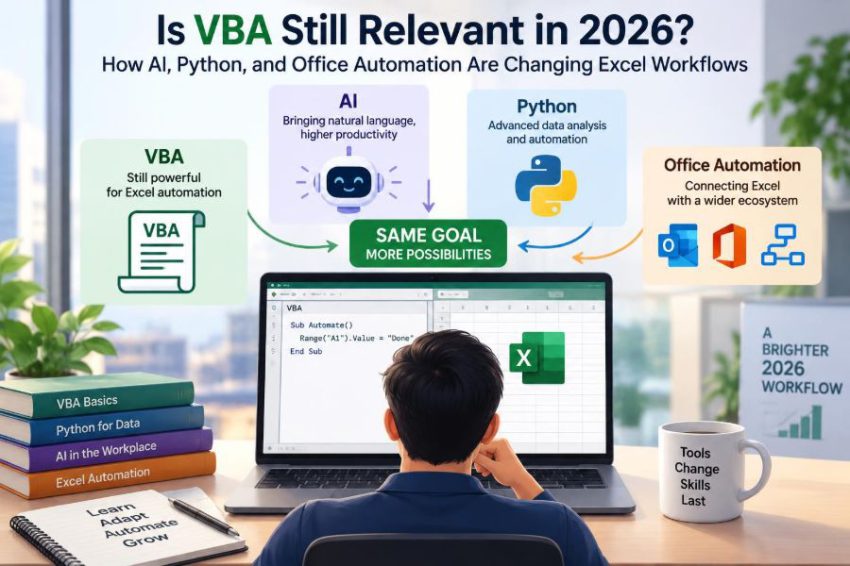
But the tools around that button have changed. Microsoft 365 has richer automation options, Python is easier to access, and AI assistants can help explain formulas, draft code, and reshape messy data. It is reasonable to ask whether VBA is now a legacy skill or still a practical one.
The honest answer is more useful than a simple yes or no. VBA remains highly relevant in particular Excel and Office environments, while it is a weaker choice for other jobs that have grown beyond the desktop workbook.
Choosing well is less about following a technology trend and more about matching the tool to the workflow, the people maintaining it, and the risk of getting it wrong.
📌 The short answer: VBA is still relevant
VBA is still relevant in 2026, especially for automating desktop Excel and other Office applications. It remains deeply embedded in many operational workbooks: finance models, reporting packs, planning templates, data-cleanup tools, and internal administrative processes.
Its relevance does not mean it is the best default for every task. VBA is most valuable when work happens inside Office, users need buttons and forms in familiar files, and the automation must work with existing desktop workflows.
🧩 What VBA actually is
VBA, or Visual Basic for Applications, is the programming language built into many desktop Microsoft Office applications. In Excel, it can read and write cells, create worksheets, apply formatting, react to workbook events, and control objects such as charts and PivotTables.
A VBA procedure is usually stored in a macro-enabled workbook, commonly an .xlsm file, or in an Excel add-in. It runs within the Office application rather than as a separate web service or standalone program.
🕰️ Why older technology can remain useful
A tool does not become useless merely because it is old. VBA has a large installed base, a low barrier to deployment within a team already using desktop Excel, and unusually direct access to the worksheet objects people work with every day.
Think of VBA as the built-in workshop behind a spreadsheet. It may not be the right place to build a company-wide data platform, but it can be an efficient place to build a reliable tool that prepares one recurring workbook.
📈 Where VBA remains strongest
VBA excels at Excel-centric automation: tasks where the workbook is both the input, the workspace, and the output. It is particularly effective when the job requires detailed control over ranges, formulas, sheet layouts, print settings, and user interaction.
- Refreshing a monthly template and producing a formatted report
- Validating data entered by colleagues before it is submitted
- Creating customized tabs for each department or client
- Combining selected files from a controlled folder structure
- Generating Word documents or Outlook drafts from Excel rows
🖥️ The desktop Excel advantage
VBA benefits from living close to Excel’s desktop object model. It can work directly with concepts users recognize: Workbook, Worksheet, Range, chart, table, and PivotTable.
This matters when automation is visual. If a report must preserve an established layout, insert page breaks, hide helper sheets, and select the final dashboard for the user, VBA can handle those desktop details naturally.
🔁 Recurring reporting is a classic use case
Consider a hypothetical operations analyst who receives a new export every Monday. The analyst must remove blank rows, standardize dates, compare totals against a control sheet, update a dashboard, save a PDF, and archive the source file.
That workflow may not need a new platform. A carefully designed VBA macro can turn a multi-step manual routine into a repeatable process, while keeping the visible report in the Excel format stakeholders already expect.
🧮 VBA still complements formulas
Formulas calculate; VBA orchestrates. Modern Excel functions such as XLOOKUP, FILTER, LET, and dynamic arrays can often replace small macros that only manipulate calculations.
But a macro can prepare data for formulas, fill a template, lock completed periods, or convert a working file into a final deliverable. The strongest workbook designs commonly use formulas for transparent calculations and VBA for process steps.
🤖 What AI changes—and what it does not
AI assistants can speed up VBA work by explaining unfamiliar code, suggesting a procedure, diagnosing a likely error, or translating a plain-language requirement into a starting point. This is especially helpful for learners who know the spreadsheet task but not the syntax.
AI does not remove the need to understand the workbook. A generated macro can use the wrong sheet, assume the wrong header position, overwrite formulas, or perform an action that is unsafe for sensitive data. Treat AI output as a draft to inspect and test, not as proof that the automation is correct.
🧠 AI is best used as a coding partner
A useful prompt includes the workbook structure and the expected outcome. For example: “The data is in a table named SalesData. Copy rows with Status equal to Approved into an existing sheet named Review without deleting its headings.”
Then ask for an explanation of each block. Understanding why code uses a table, a range, or a loop makes debugging far easier than pasting a long macro and hoping it works.
- Ask for small procedures instead of one giant macro.
- Request defensive checks for missing sheets, files, or headers.
- Ask which assumptions the code makes.
- Test on a copy of the workbook before using production data.
🐍 Why Python is part of the conversation
Python is a general-purpose programming language with a large ecosystem for data processing, automation, web requests, databases, and analysis. It is often better suited than VBA when a workflow needs to process many files, connect to systems, apply advanced analysis, or run outside Excel.
For example, a Python process can read data from a database, transform it consistently, save results, and run on a server or scheduled environment. VBA can communicate with some external resources too, but it was not designed as a modern data-engineering platform.
⚖️ VBA and Python solve different problems
| Need | Usually stronger fit | Why |
|---|---|---|
| Format an existing Excel report | VBA | Direct control of sheets, cells, and desktop Excel features |
| Analyze large or varied datasets | Python | Strong data libraries and reusable processing pipelines |
| Give colleagues a button in a workbook | VBA | Familiar, workbook-based interaction |
| Run unattended, scheduled processing | Python or cloud automation | Less dependence on an open desktop workbook |
| Build a workflow across services | Power Automate or APIs | Designed for events, approvals, and connectors |
The comparison is not a contest with one winner. A team may use Python to prepare a clean dataset and VBA to produce the final Excel pack used by managers.
📦 Scale is more than row count
People often say Python is “better for big data,” but scale also means complexity, frequency, number of users, and consequences of failure. A modest dataset can still deserve a more robust solution if several teams depend on it daily.
Conversely, a workbook with many rows may be manageable in VBA if the work is local, structured, infrequent, and focused on Excel output. The right question is: where does the workflow become slow, fragile, or difficult to maintain?
☁️ Office automation is moving toward the cloud
Microsoft’s cloud ecosystem has expanded the options for automating Office work. Power Automate can trigger flows from events such as a file arriving in a shared location, an approval being requested, or a form being submitted.
Office Scripts provides another route for automating Excel in web-oriented scenarios. It uses TypeScript rather than VBA and is designed around Excel on the web and cloud-connected workflows. Its capabilities and fit are different from the rich desktop behavior many VBA solutions rely on.
🔗 When Power Automate is the better choice
Choose a workflow tool when the central problem is moving information between people and services rather than manipulating a workbook. An approval chain, notification process, document handoff, or automated folder action is often clearer as a flow than as an Excel macro.
For instance, when a form response should create a task, notify a reviewer, and store an attachment, the workflow begins outside Excel. VBA would make the spreadsheet carry a responsibility it does not need.
🌐 Office Scripts are not simply “VBA online”
Office Scripts can automate many worksheet operations, but developers should not assume that every VBA macro has a one-to-one web equivalent. Desktop Excel features, event-driven behavior, user forms, and integrations may require a different design.
This distinction matters for planning. Migrating a macro is not merely translating syntax from Visual Basic to TypeScript; it often means rethinking where the process runs and how users interact with it.
🔒 Macro security remains a real constraint
Macros can perform powerful actions, including changing files and interacting with other Office applications. That power is why organizations commonly restrict macros from untrusted sources and require users to make deliberate decisions about enabling them.
Good VBA practice includes signed and controlled deployment where appropriate, clear ownership, trusted storage locations managed under organizational policy, and documentation of what a macro does. Never tell users to enable macros blindly.
🛡️ Sensitive data needs extra care
Automation can accidentally expose data as easily as it can save time. A macro may copy hidden columns, email an outdated attachment, save files to an unsecured location, or preserve data that should have been removed.
Before automating a process involving personal, financial, health, or confidential business information, confirm the organization’s access, retention, and sharing requirements. Technical convenience does not override privacy or governance obligations.
🧱 The maintenance problem is usually design, not VBA
Many disliked macros are not bad because they use VBA. They are hard to maintain because one enormous procedure mixes importing, cleaning, calculating, formatting, emailing, and error handling in hundreds of lines.
A maintainable solution separates responsibilities. A procedure that imports data should not also decide how every chart is formatted. Smaller routines make changes safer and let another person understand the flow.
🧭 Start with a process map
Before writing code, write the workflow in plain language: inputs, transformations, checks, outputs, and exceptions. This exposes decisions that a recorder or an AI prompt might miss.
- What starts the process?
- What files, sheets, tables, or systems provide input?
- What rules decide whether the data is valid?
- What output must be created, and for whom?
- What should happen when a required item is missing?
If these answers are unclear, coding will only hide the uncertainty behind a button.
🧾 Use tables and names instead of fixed cell addresses
Hard-coded references such as Range("A2:Q5000") are fragile when a file gains rows or a column moves. Excel Tables and named ranges give code meaningful anchors and reduce dependence on a particular worksheet layout.
For example, referring to a table column called Status is easier to review than remembering that status currently happens to be column H. This is a small design decision with a large maintenance benefit.
⚡ Performance depends on how code touches Excel
VBA can become slow when it repeatedly reads or writes one cell at a time, especially in large loops. Each interaction with the worksheet has overhead.
A common improvement is to read a range into a VBA array, process values in memory, and write the completed array back in one operation. Temporarily controlling screen updating and calculation can also help, but settings must be restored even if an error occurs.
🧯 Error handling should protect the user
An error message such as “Subscript out of range” tells a developer something, but tells a business user very little. A good automation checks expected conditions first and reports actionable problems.
For example, instead of failing halfway through, a macro can say that the required sheet or column is missing and stop before any output is changed. It should also avoid leaving application settings or partially created files in a confusing state.
🧪 Test realistic exceptions, not only happy paths
A macro that works on the sample file may still fail when a source file has no records, a header is renamed, dates arrive as text, or a colleague opens the workbook with a different regional setting.
Build a small test set that includes normal data and deliberate problems. Testing exceptions is where many reliable automations distinguish themselves from a recorded sequence that only works once.
📝 Documentation is part of the deliverable
A useful workbook should explain its purpose, inputs, outputs, and limitations. A short Read Me sheet can identify the macro owner, expected file location, button sequence, and recovery steps if something goes wrong.
Inside the code, comments should explain business rules and non-obvious decisions, not narrate every obvious line. “Exclude cancelled orders because finance reports recognized sales only” is more valuable than “set x equal to 1.”
👥 The handover test reveals hidden risk
Ask whether a capable colleague could run and update the automation if its creator were unavailable. If the answer is no, the organization has a key-person dependency, regardless of whether the code uses VBA, Python, or a cloud flow.
Store the source in an approved shared location, use understandable names, and avoid passwords or file paths known only to one person. Critical processes deserve peer review and a named owner.
🚫 Common reasons VBA becomes the wrong choice
VBA is a poor fit when the task must run reliably without a user’s desktop Excel session, serve a large audience through a web application, process data across enterprise systems, or support rigorous software deployment practices.
It can also be the wrong answer when the organization blocks macros, when the source data belongs in a database, or when a workbook is being used as an improvised application with too many users editing it at once.
🪜 A practical learning path for Excel professionals
Start by learning the Excel object model and basic programming habits: variables, conditions, loops, procedures, and debugging. Then focus on practical reliability—tables, validation, error handling, and performance—rather than collecting clever code snippets.
After that, learn enough Python or Power Automate to recognize when another tool is better. This creates a valuable skill: not just writing automation, but selecting an appropriate automation approach.
🔀 Hybrid workflows are increasingly normal
Modern work rarely requires loyalty to one language. A finance team might use Power Query to import and transform repeatable sources, formulas for model logic, VBA for final presentation steps, and Power Automate for distributing approved files.
Another team might use Python for data preparation and quality checks, then provide a polished Excel workbook for review. The handoffs should be intentional, documented, and simple enough for the people responsible for the process.
🎯 How to choose a tool for a new task
Use VBA when the workflow is primarily a desktop Excel experience and the value comes from controlling that experience. Choose Python when data processing, external systems, repeatability outside Excel, or advanced analysis drives the requirement.
Consider Office Scripts and Power Automate when collaboration, cloud storage, web-based Excel, approvals, or service-to-service actions are central. If uncertain, build the smallest safe prototype and measure the real friction before committing to a larger solution.
📚 What VBA knowledge still teaches you
Learning VBA develops skills that transfer beyond VBA: breaking work into steps, representing business rules precisely, validating inputs, debugging unexpected behavior, and designing for someone other than yourself.
Those habits matter whether the eventual code is a Python script, an Office Script, a database query, or a low-code flow. VBA can be a practical first programming language because the results appear in a familiar spreadsheet.
🔮 The likely role of VBA going forward
VBA is unlikely to be the universal answer to Office automation, and it does not need to be. Its durable role is as a focused desktop automation tool in organizations with Excel-heavy processes and existing workbook ecosystems.
Meanwhile, cloud automation, APIs, Python, and AI-assisted development will take more work that crosses applications, requires broader scale, or benefits from centralized execution. The boundary will vary by organization, security policy, and workflow maturity.
✅ The core takeaway: choose the workflow, then the tool
The question is not whether VBA has been replaced. The better question is whether VBA is the simplest dependable tool for a specific job. A one-click Excel reporting process may be an excellent VBA project; an unattended data pipeline probably is not.
AI can accelerate development, Python can expand analytical and integration capabilities, and cloud tools can coordinate work across services. None of those automatically makes the familiar macro obsolete.
VBA remains relevant when it solves a clearly defined Office problem better than the alternatives, while modern automation skills help you recognize when it is time to use something else. Build useful solutions, document them well, and let the workflow—not the hype—make the decision. 📊 🤖 🔧