
A project starts on a Thursday, a report is due “within five working days,” and the deadline lands near a public holiday. Counting squares on a calendar might work once, but it quickly becomes unreliable when a workbook tracks dozens of orders, requests, or milestones.
Excel stores dates as serial numbers, so subtracting one date from another is easy. The harder question is what the result should mean. Should Saturday count? What about a regional holiday, a half-day closure, or a date that includes a time?
VBA can turn those rules into a repeatable calculation. Instead of asking every user to remember the company calendar, a macro or custom function can apply the same definition of a business day every time.
This guide builds that logic carefully, from a simple weekday test to reusable code that handles holidays, invalid input, and real worksheet use.
🗓️ Define “business day” before writing code
A business day is not a universal technical value. In many offices it means Monday through Friday, excluding listed holidays. In other organizations, Saturday is a working day, and some teams follow different calendars by country or location.
Write the rule in plain language first. For example: “Count Monday through Friday; do not count dates on the Holidays worksheet; exclude the start date and include the end date.” That last sentence matters because date-range conventions are a common source of one-day disagreements.
➖ Understand ordinary date subtraction
In VBA, dates can be subtracted because they are numeric values internally. This returns elapsed calendar days, including weekends and holidays:
DaysApart = EndDate - StartDateIf 1 May is a Wednesday and 8 May is the following Wednesday, the result is 7. That is correct for elapsed time, but it is not automatically a count of working days.
🔢 Know how Excel represents dates and times
Excel generally stores a whole date as a serial number and a time as a fractional part. For example, a value at noon is later than the same date at midnight, even though both display the same calendar date under a date-only format.
When the task is about calendar days, use DateValue to remove the time portion. Otherwise, comparisons can behave unexpectedly when one cell contains a timestamp.
CleanDate = DateValue(CDate(Range("A2").Value))📅 Use Weekday to identify weekends
The VBA Weekday function returns a number representing the day of the week. Always provide the optional first-day argument rather than relying on a default that may be less obvious to the next person reading the code.
DayNumber = Weekday(SomeDate, vbMonday)With vbMonday, Monday is 1 and Sunday is 7. That makes a standard weekend test straightforward: values 6 and 7 are Saturday and Sunday.
✅ Create a small weekday helper function
Small functions are easier to test and reuse than one large procedure. This function answers only one question: is the date Monday through Friday?
Public Function IsWeekday(ByVal CheckDate As Date) As Boolean
    IsWeekday = (Weekday(CheckDate, vbMonday) <= 5)
End Function
The explicit Boolean result makes the intent clear. It also creates a useful building block for more complete business-day logic.
🧪 Test the weekday rule with simple examples
Before adding holidays, test known dates in the Immediate window, which you can open in the VBA editor with Ctrl+G:
? IsWeekday(#5/6/2024#)
True
? IsWeekday(#5/4/2024#)
False
Date literals in VBA can be sensitive to regional interpretation when written ambiguously. For dependable testing, use an unambiguous construction such as DateSerial(2024, 5, 6).
🏖️ Store holidays in a worksheet range
Hard-coding public holidays into a macro creates maintenance work every year. A better pattern is a dedicated sheet, such as Holidays, with one real Excel date in each cell of column A.
This lets a workbook owner update the holiday list without opening the VBA editor. Keep the range date-only where possible, and avoid mixed notes or headings inside the range passed to the function.
🔍 Check whether a date is a holiday
The CountIf worksheet function can determine whether a date occurs in a supplied range. The code below removes any time before checking.
Public Function IsHoliday(ByVal CheckDate As Date, _
                          ByVal HolidayRange As Range) As Boolean
    IsHoliday = (Application.WorksheetFunction.CountIf( _
        HolidayRange, DateValue(CheckDate)) > 0)
End Function
A repeated holiday date does not change the answer, though removing duplicates keeps the calendar easier to audit.
🚦 Combine weekday and holiday rules
A normal working day must satisfy both conditions: it is a weekday and it is not in the holiday range. Combining those rules in one function gives the rest of the project a single, readable decision point.
Public Function IsBusinessDay(ByVal CheckDate As Date, _
                              ByVal HolidayRange As Range) As Boolean
    CheckDate = DateValue(CheckDate)
    IsBusinessDay = IsWeekday(CheckDate) _
                    And Not IsHoliday(CheckDate, HolidayRange)
End Function
This is clearer than scattering weekend checks through multiple loops.
↔️ Decide which endpoints count
“Business days between two dates” can reasonably mean different things. A help-desk team may count the day a ticket arrives; a delivery promise may begin counting on the following day.
| Convention | Typical use | Meaning |
|---|---|---|
| Exclude start, include end | Days remaining to a due date | Start date is not counted |
| Include both dates | Staffing or attendance span | Each business-day endpoint counts |
| Exclude both dates | Full days strictly between dates | Only interior dates count |
The examples below use the common exclude start, include end convention. State that choice beside any result shown to users.
🔁 Build a reliable counting loop
The clearest general-purpose approach moves one calendar day at a time from the start date toward the end date. When that day is a business day, the counter increases.
Public Function BusinessDaysBetween(ByVal StartDate As Date, _
                                    ByVal EndDate As Date, _
                                    ByVal HolidayRange As Range) As Long
    Dim CurrentDate As Date
    Dim Total As Long

    StartDate = DateValue(StartDate)
    EndDate = DateValue(EndDate)

    If EndDate < StartDate Then
        BusinessDaysBetween = 0
        Exit Function
    End If

    For CurrentDate = StartDate + 1 To EndDate
        If IsBusinessDay(CurrentDate, HolidayRange) Then
            Total = Total + 1
        End If
    Next CurrentDate

    BusinessDaysBetween = Total
End Function
The loop begins at StartDate + 1, so the start date is excluded. It includes the end date if that date qualifies.
📌 Read a concrete date-range example
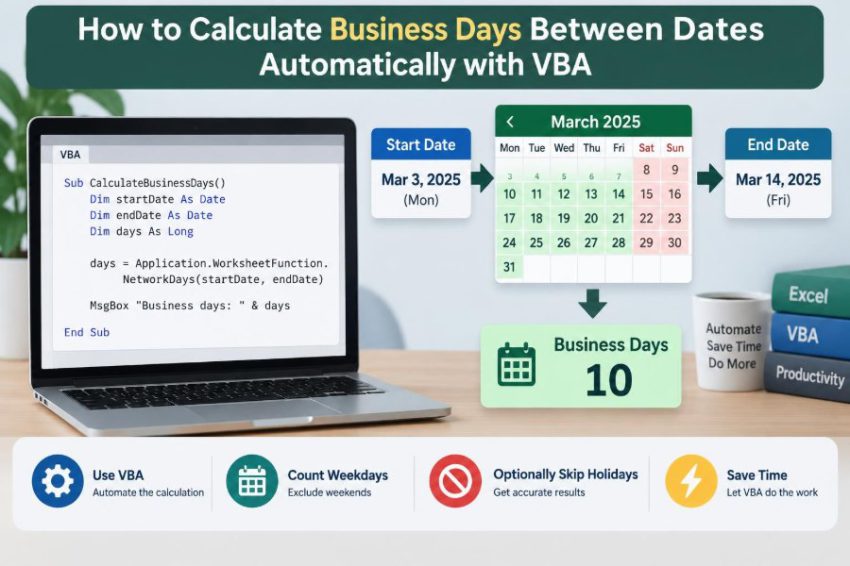
Suppose a request arrives on Friday 3 May and is due Friday 10 May. If there are no holidays, the function counts Monday through Friday of the following week: five business days.
If Wednesday 8 May appears in the holiday range, the result becomes four. Saturday and Sunday are considered by the loop but do not increase the total.
🧭 Handle a reversed date range deliberately
The sample returns zero when the end date comes before the start date. That is often appropriate for due-date calculations, because a negative “days remaining” value may be handled elsewhere as an overdue status.
For analytical reports, you may prefer a signed result. In that case, swap the dates, calculate the positive amount, and apply a negative sign. The right behavior depends on what the result communicates.
🧱 Validate worksheet input before calling VBA
A worksheet cell can be blank, text, an error, or a valid date. A macro that uses CDate without checking can stop with a type mismatch error.
If Not IsDate(Cells(RowNum, "B").Value) Then
    MsgBox "Enter a valid start date."
    Exit Sub
End If
Validation is especially valuable in shared files, where users may paste data from other systems. It is better to explain an invalid row than to quietly produce a misleading result.
🧮 Use the function directly in a worksheet
A public function in a standard VBA module can be used as a user-defined function (UDF). With start date in B2, end date in C2, and holidays in Holidays!A2:A30, enter:
=BusinessDaysBetween(B2,C2,Holidays!$A$2:$A$30)Save the workbook as an .xlsm file and enable macros when opening it. Users will see the formula result like any other Excel calculation, while the logic remains centralized in the module.
⚖️ Compare VBA with NETWORKDAYS
Excel already provides NETWORKDAYS and NETWORKDAYS.INTL. They are often the best choice when the rule fits their built-in behavior, because they are simple, visible, and do not require macro-enabled files.
VBA becomes useful when the workbook needs custom behavior: unusual shifts, date-specific exceptions, a reusable reporting workflow, or calculations triggered as part of a larger macro.
| Approach | Best fit | Key consideration |
|---|---|---|
| NETWORKDAYS | Standard Monday–Friday schedules | Counts both endpoints when they qualify |
| NETWORKDAYS.INTL | Alternative weekend patterns | Uses a weekend code or seven-character pattern |
| VBA function | Custom business rules and automation | Requires macro-enabled workbook management |
🧩 Use NETWORKDAYS.INTL inside VBA when appropriate
You do not always need to manually loop. If Excel’s definitions match your requirement, VBA can call the worksheet function. This example also converts the built-in inclusive result to an exclude-start result.
Result = Application.WorksheetFunction.NetworkDays_Intl( _
    StartDate, EndDate, 1, HolidayRange)

If IsBusinessDay(StartDate, HolidayRange) Then Result = Result - 1
Weekend code 1 means Saturday and Sunday. Test endpoint behavior carefully, particularly when start and end dates are the same.
🌍 Support nonstandard weekend patterns
Not every work calendar uses Saturday and Sunday as its days off. A simple loop can accommodate a different pattern by changing the test in IsWeekday, but a name like IsWeekday may then become misleading.
For flexible schedules, use a function such as IsWorkingDay and document the rule. With NETWORKDAYS.INTL, a seven-character pattern can indicate working and nonworking days, but it should be stored and reviewed carefully rather than guessed.
🏢 Treat holiday calendars as business data
A holiday range is part of the calculation’s business logic, not merely a list of dates. Different sites, clients, or departments may observe different closures, and a single company-wide list may not be accurate for every row.
A practical design is to maintain separate named ranges or tables for each calendar. Choose the range based on a location or business-unit value in the source data.
🕛 Normalize times before comparing dates
A holiday entered as midnight and a timestamp entered at 3:00 PM are not numerically identical. This is why DateValue appears in the helper functions: it converts both to their calendar date.
Do not use date formatting as a substitute for normalization. Formatting changes what users see; it does not remove the stored time value.
⚠️ Avoid common off-by-one errors
Most incorrect business-day results are not caused by difficult VBA syntax. They come from a definition that is implicit in the code but different from the user’s expectation.
- Starting the loop at
StartDatewhen the start should be excluded. - Ending the loop at
EndDate - 1when the end should be included. - Using
Weekdaywithout specifyingvbMonday. - Counting holidays that fall on weekends as if they remove an additional weekday.
- Comparing timestamp values directly against date-only holiday cells.
Write down a few expected answers before coding. They become the basis for meaningful tests.
🧯 Guard against missing or unsuitable holiday ranges
A formula may fail if a referenced sheet is renamed, if the range is invalid, or if a user enters text where a range is expected. In a controlled template, protecting the holiday sheet and using named ranges reduces accidental changes.
In a larger macro, use error handling only where it helps present a useful message. Avoid broad error suppression, because it can hide a broken calendar and make a deadline appear valid.
🚀 Consider performance for large date spans
A day-by-day loop is easy to understand and is typically fast for ordinary deadlines. But processing thousands of rows across multi-year spans can mean many individual date checks.
For high-volume reporting, consider NETWORKDAYS.INTL, calculate values in arrays rather than reading cells repeatedly, and avoid worksheet access inside deeply nested loops. Optimize after measuring a real slowdown, not before.
📦 Keep the code in a standard module
Put reusable functions in a standard module, not inside a worksheet’s code window or the ThisWorkbook object. In the VBA editor, choose Insert, then Module, and paste the functions there.
This placement makes the functions available throughout the workbook and helps other maintainers find the calculation logic quickly.
📝 Use Option Explicit and meaningful names
At the top of each module, add Option Explicit. It forces variables to be declared, helping catch misspellings such as CurrntDate that might otherwise create an unintended empty variable.
Names such as HolidayRange, CurrentDate, and TotalBusinessDays communicate purpose better than r, d, and x. Clear names are a practical form of documentation.
🧾 Add a macro for batch calculations
A UDF is convenient for a live worksheet, but a macro is useful when you want to write fixed results into an output column. The following pattern processes rows and leaves invalid entries visibly marked for review.
Public Sub FillBusinessDays()
    Dim LastRow As Long, r As Long
    Dim Holidays As Range

    Set Holidays = Worksheets("Holidays").Range("A2:A30")
    LastRow = Cells(Rows.Count, "B").End(xlUp).Row

    For r = 2 To LastRow
        If IsDate(Cells(r, "B").Value) And IsDate(Cells(r, "C").Value) Then
            Cells(r, "D").Value = BusinessDaysBetween( _
                Cells(r, "B").Value, Cells(r, "C").Value, Holidays)
        Else
            Cells(r, "D").Value = "Check dates"
        End If
    Next r
End Sub
Qualify Cells and Rows with a worksheet variable in production code, particularly when a macro may run while another sheet is active.
🔒 Remember macro security and workbook sharing
VBA code is not available in formats such as .xlsx. Saving as .xlsm preserves it, but recipients may have macros disabled by policy or may use environments that do not run VBA.
When sharing a workbook broadly, consider whether a visible Excel formula can meet the need instead. If VBA is required, provide a clear note about enabling macros and avoid relying on hidden logic for a result with operational consequences.
🧪 Test edge cases, not only ordinary dates
A function that works for one Monday-to-Friday example is not fully tested. Create a small test sheet with expected results and include boundaries that challenge the rule.
- Start and end date are the same weekday.
- Start or end date falls on a weekend.
- A holiday occurs in the middle of the range.
- A holiday falls on a weekend.
- The range crosses a year boundary.
- One input contains a date and time.
- The end date is before the start date.
Testing these cases makes the chosen convention visible and prevents a later edit from quietly changing results.
📚 Document the rule beside the result
A number such as “4” is incomplete without context. Add a nearby label, worksheet note, or documentation tab explaining the weekend pattern, holiday source, and whether endpoints are included.
This is particularly helpful when a report is reviewed months later. The reader should not have to inspect VBA code to understand what “business days” meant in that workbook.
🛠️ Extend the pattern for advanced schedules
Some businesses need rules beyond full working and nonworking days: rotating shifts, shutdown periods, local calendars, or deadlines measured in business hours. Those cases require richer data and should not be forced into a simplistic weekday formula.
For example, business hours require a start time, end time, daily schedule, and possibly time-zone treatment. The same design principle still applies: make the policy explicit, store variable calendar data outside the code, and test the edge cases.
🎯 Bring the calculation back to its core rule
Business-day calculation is fundamentally a filtering task. Begin with each calendar date in a defined interval, then count only dates that pass your organization’s working-day rules.
VBA is valuable because it can express those rules in readable functions, apply them consistently, and connect them to a maintained holiday calendar. The best implementation is not necessarily the shortest one; it is the one whose date boundaries and exceptions another person can verify.
When the definition of a business day is explicit and the code mirrors that definition, VBA turns deadline counting from a manual guess into a repeatable calculation. Build the rule once, test the awkward dates, and let the workbook handle the calendar work. 📅⚙️✅