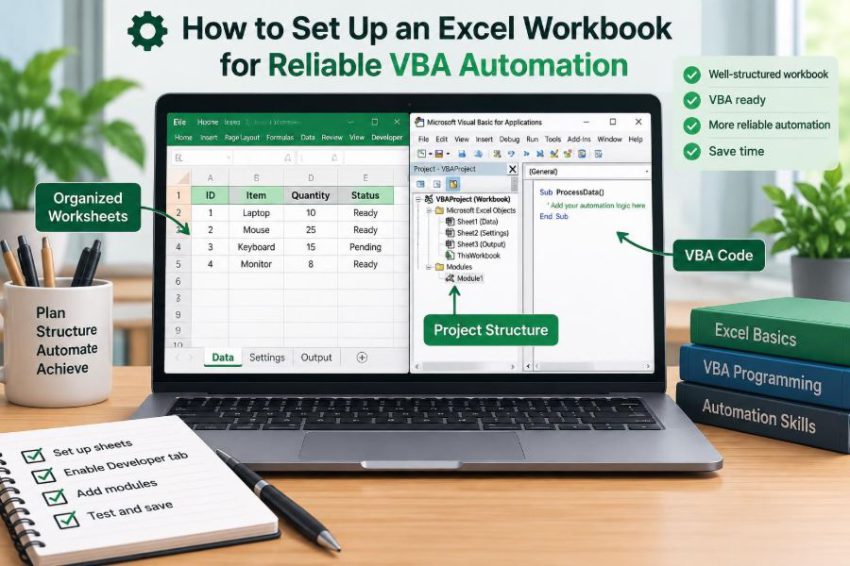

A monthly report arrives as a familiar spreadsheet: the same tabs, the same columns, and the same repetitive cleanup. A VBA macro seems like the obvious answer—until it runs perfectly on Tuesday and overwrites a total, misses new rows, or fails when someone renames a worksheet on Friday.
Those failures are rarely caused by a complicated line of VBA. More often, the workbook was never prepared to behave like a dependable input and output system. A macro can only be as reliable as the structure, assumptions, and safeguards around it.
Setting up an Excel workbook for automation means designing it so that people can use it normally while code can interpret it consistently. That includes file format, sheet roles, data layout, validation, error handling, and a safe way to test changes.
The goal is not to make every workbook elaborate. It is to remove ambiguity: make it clear where data belongs, what the macro may change, and what should happen when something unexpected appears.
🧭 Start with the workflow, not the macro
Before opening the Visual Basic Editor, describe the task in plain language. Identify the starting data, the decisions the process makes, the expected outputs, and the person who will run it.
For example, “clean the sales export” is too vague. A useful description might be: “Import a CSV export, remove blank records, standardize dates in the Orders table, refresh the Summary sheet, and save a dated copy.” Each step can then be built and checked.
- What information enters the workbook?
- Which sheets or tables can the macro edit?
- What must be preserved exactly?
- What should happen if required information is missing?
This small design step prevents automation from becoming a collection of guesses about a workbook.
🎯 Define the workbook’s purpose and boundaries
A reliable workbook has a clear job. It may be a reporting tool, an invoice generator, a controlled data-entry form, or a transformation template. Trying to make one file perform every role usually produces fragile logic.
State the boundaries as well. A reporting workbook might accept a prepared export but not repair every possible source-file variation. A data-entry workbook may calculate totals but should not silently alter approved historical records.
VBA should enforce a defined process, not compensate indefinitely for an undefined one. When requirements change, revise the process and code deliberately rather than adding another exception to an already unclear macro.
💾 Choose a macro-capable file format
An ordinary .xlsx workbook cannot retain VBA code. Save a workbook containing macros as .xlsm, the standard macro-enabled workbook format. If the workbook is used as a template for new files, .xltm may be appropriate.
Use .xlsb only when its binary format suits the team’s needs and compatibility expectations. It can be useful for some large workbooks, but it is less convenient when users expect XML-based files or work with systems that only accept standard formats.
Excel warns users when saving macro content into a non-macro format. Treat that warning as a real safeguard. Saving as .xlsx removes the VBA project.
📁 Establish a sensible folder structure
Many automation problems are actually file-location problems. A macro that assumes a particular desktop folder, network drive letter, or personal username can fail for other users.
Keep the workbook, source files, generated outputs, and archive copies in predictable locations. A practical layout might use folders named Input, Output, and Archive beside the macro workbook.
When code needs the workbook’s own location, use ThisWorkbook.Path rather than hard-coding a full path. This makes a moved project more likely to continue working, provided its companion folders move with it.
🗂️ Give every worksheet one clear role
A sheet should have a recognizable responsibility. A workbook becomes easier to maintain when its structure separates raw imports, user input, reference lists, calculations, reports, and configuration.
For instance, a simple automation workbook could include Input, Lookup, Summary, Config, and Log. Users need not visit every sheet, but developers can quickly find where each category of information belongs.
Avoid using a single “Sheet1” as an import area, scratchpad, report, and hidden configuration store. Mixed purposes make it difficult to know whether a macro is allowed to clear or rewrite a range.
🏷️ Use stable sheet references
Users often rename worksheet tabs to make a report friendlier. VBA code that relies only on a tab name can then stop with a subscript error.
Excel worksheets have both a visible tab name and a CodeName, set in the Visual Basic Editor’s Properties window. A CodeName does not change when a user changes the visible tab name. For a controlled workbook, code such as wsInput.Range("A1") can be more resilient than repeatedly calling Worksheets("Input").
There is a trade-off: CodeNames are less familiar to newer developers and must be managed deliberately. For reusable routines, a named sheet lookup may still be sensible. The main rule is to avoid accidental dependence on labels users can freely change.
📊 Store repeating records in Excel Tables
For most row-based data, convert the range into an Excel Table using Ctrl+T. Tables expand as records are added, carry column names with them, and give VBA a meaningful object to work with.
Instead of guessing that data ends at row 5,000, code can refer to a table and its columns. A table named tblOrders communicates more than a bare range such as A2:H5000.
Dim orders As ListObject
Set orders = Worksheets("Input").ListObjects("tblOrders")
If orders.DataBodyRange Is Nothing Then Exit Sub
The final check matters: an empty table may have headers but no data rows. Reliable code anticipates that normal condition.
🧱 Keep data rectangular and continuous
A usable data table has one header row, one record per row, and one field per column. Blank rows, merged cells, embedded subtotals, and decorative headings interrupt that structure and make filtering, sorting, and VBA range detection unreliable.
If a sales export needs a title and reporting notes, place them outside the table. If it needs totals, put them in a separate summary area or use the table’s Total Row feature where appropriate.
Think of a data table as a small database. Its visual appearance matters less than its predictable shape.
🔤 Create meaningful, unique headers
Headers are part of the workbook’s interface with VBA. Names such as CustomerID, OrderDate, and NetAmount tell both users and code what each value represents.
Do not use duplicate headers such as two columns both named “Date,” or vague labels such as “Info.” They make structured references unclear and can cause imports or lookup routines to operate on the wrong field.
Keep header wording stable once code relies on it. If changing “Net Amount” to “Invoice Value” is necessary, update and test the macro as part of the same change.
🧾 Separate raw data from formulas and reports
Imported data should not be mixed with report formulas in the same rows. If an import macro clears an old dataset, it may delete formulas placed beneath or beside it.
Use a dedicated raw-data table as the source for calculations, PivotTables, charts, or summary formulas on other sheets. This arrangement makes refreshing safer because the macro knows exactly what it can replace.
It also makes investigation easier. When a total looks wrong, you can compare the raw import with the calculated result rather than untangling values and formulas from one crowded worksheet.
🧮 Decide which calculations belong in VBA
Not every calculation should be converted into code. Worksheet formulas remain visible, can recalculate when values change, and are often easier for users to audit. VBA is better suited to actions: importing files, applying a repeatable transformation, creating documents, or controlling a sequence of steps.
For example, a formula may calculate commission on every record, while VBA refreshes the data and exports the finished report. Putting all business logic into code can hide rules that users need to inspect.
Conversely, avoid thousands of cell-by-cell VBA formula writes where a calculated table column or one array operation would be clearer and faster.
🔢 Standardize data types before automating
Excel can display a value as a date, number, currency, or text without guaranteeing that it is stored that way. A date-looking text value may sort incorrectly; an amount with a currency symbol may not behave as a number.
Define what each important column should contain. IDs may need to remain text to preserve leading zeroes. Dates should be genuine Excel dates. Monetary values should be numeric, with formatting used for display rather than symbols typed into every cell.
When source data is inconsistent, validate it and report exceptions. Blindly converting values can create errors, especially where date formats are ambiguous.
✅ Use data validation to prevent bad inputs
Data validation reduces the number of cases a macro has to repair later. Dropdown lists can constrain statuses, dates can be limited to reasonable ranges, and required fields can be flagged before a user starts a process.
Use validation as guidance, not as your only defense. Users can paste values into cells, alter validation rules, or provide a source file outside the workbook. VBA should still check critical values before it performs an irreversible action.
A useful pattern is to store dropdown choices on a dedicated lookup sheet and base validation on a named range or table column.
📛 Name important ranges and controls
Named ranges replace anonymous coordinates with intent. rngReportDate, rngOutputFolder, and rngCompanyName are easier to understand and less vulnerable to layout changes than B3, F12, and C2.
Name only values and areas that are genuine interfaces for users or code. Naming every small cell creates clutter. For growing datasets, Table names and column names are usually more useful than fixed named ranges.
Check the Name Manager periodically. Broken references can remain hidden until a macro uses them.
⚙️ Centralize settings on a configuration sheet
Hard-coded settings force someone to edit VBA for ordinary changes. A protected Config sheet can hold report dates, output folder choices, tolerance values, and other settings that authorized users may need to update.
Keep settings labeled clearly and separate them from operational data. Code should read a setting, confirm it is present and valid, then continue. This is safer than scattering the same folder path or threshold through multiple procedures.
Do not store secrets, passwords, or sensitive credentials in a worksheet as if protection makes them secure. Worksheet hiding and protection are not designed as strong security controls.
🔒 Protect the right things for the right reason
Worksheet protection can prevent accidental edits to formulas, headers, and layout while leaving input cells unlocked. Workbook structure protection can discourage unplanned sheet additions, deletions, or moves.
These features are best treated as guardrails against mistakes, not as a way to secure confidential information. A macro may need to unprotect a sheet briefly to update controlled areas, then restore protection.
Protection should support the workflow. If users must repeatedly work around it, they may create unofficial copies that are no longer governed by the automation.
👥 Design clear user input areas
Users should not have to infer where typing is allowed. Group input cells together, label units and formats, and distinguish editable cells from calculated cells through consistent formatting.
For a request form, place all required inputs in one area and show a short instruction such as “Enter an order date and select a region.” Avoid expecting users to enter values across several distant sheets before pressing a macro button.
Good interface design reduces invalid inputs before VBA needs to explain them.
🧹 Avoid merged cells in working areas
Merged cells are visually tempting but create practical problems for sorting, filtering, copying, resizing tables, and addressing ranges in code. A merged block is not equivalent to several independent cells.
Use “Center Across Selection” for a presentation-only heading when appropriate, or place a title above the working range. Keep raw data, user inputs, and macro-controlled regions unmerged.
This choice may seem minor, but it removes a frequent source of awkward range behavior.
🚫 Minimize Select, Activate, and ActiveWorkbook
Recorded macros often select a cell, activate a worksheet, and then act on whatever Excel currently considers active. That works until a user clicks another workbook, an event procedure changes focus, or a different sheet is selected.
Reference workbook, worksheet, and range objects explicitly. Use ThisWorkbook for the workbook containing the code when that is the intended target, rather than ActiveWorkbook.
With ThisWorkbook.Worksheets("Summary")
    .Range("B2").Value = Date
End With
Selection is sometimes necessary for user-facing actions, but it should not be the foundation of ordinary data manipulation.
🧩 Organize procedures into maintainable modules
A single giant macro is hard to test because every action is tied to every other action. Break a process into procedures with clear names: ValidateInput, ImportOrders, RefreshSummary, and ExportReport.
A top-level procedure can coordinate the sequence. Smaller procedures can focus on one responsibility and return a result or raise a meaningful error when they cannot complete it.
Use standard modules for general routines and sheet or workbook modules for event code tied to those objects. This structure helps the next developer find behavior without searching an entire project.
🧯 Validate before making changes
Check the conditions that the macro depends on before it clears data, creates files, or sends output. Confirm that required sheets, tables, headers, and settings exist. Confirm that the input table contains records if records are required.
Validation should produce an actionable message. “Required column ‘OrderDate’ was not found in tblOrders” is more helpful than a generic runtime error.
Where possible, validate everything first, then make changes. This reduces the chance of a half-finished workbook when the third step discovers a missing input.
🛑 Build error handling around recovery
On Error Resume Next is not a general solution. It suppresses errors, which can let a macro continue after a failed file open, a missing sheet, or an invalid calculation. If it is used for a narrow, expected check, restore normal handling immediately.
Use an error handler to record the procedure, explain the issue, clean up application settings, and stop safely. The right response depends on the task: a missing optional folder may be recoverable; a failed validation before deleting data should halt the process.
Error handling cannot predict every situation. Its purpose is to prevent a confusing crash or silent corruption when an unexpected situation occurs.
⏱️ Manage Excel application settings carefully
Macros sometimes turn off screen updating, events, alerts, or automatic calculation for speed. Those changes can improve performance, but they affect the entire Excel application session, not just one worksheet.
Always restore each setting on both the normal and error paths. If a macro leaves events disabled, later worksheet logic may appear mysteriously broken. If calculation remains manual, users may see stale results.
Capture the previous state before changing it rather than assuming Excel began in a particular mode.
📝 Create an audit trail for key actions
A simple log sheet can record when a macro ran, which user ran it, what input file was selected, how many records were processed, and whether exceptions were found. This is especially useful for recurring reporting and handoffs between colleagues.
Logging is not necessary for every small formatting macro. It is valuable when the process changes business records, produces an official report, or needs troubleshooting after the fact.
Keep the log append-only where practical. A timestamped history is more useful than a status cell that only shows the last run.
💿 Save outputs safely and preserve originals
Overwriting the only source file is a risky default. For transformations and reports, prefer generating a new file with a clear name that includes a meaningful date or reporting period.
Before saving, check whether the destination exists and whether a filename conflict needs user confirmation or a versioning rule. A macro should not quietly overwrite a prior result unless that behavior is explicitly intended.
For high-value workflows, keep the original import unchanged and archive a copy of the processed output. This makes later reconciliation possible.
🧪 Test normal, empty, and messy cases
Testing only the sample data that inspired the macro creates false confidence. Use copies of the workbook and try a normal dataset, an empty table, a missing required header, an extra unexpected column, invalid dates, and unusually long text.
Also test the people side: Can a colleague understand where to enter data? What happens if they rename a visible tab, cancel a file picker, or run the macro twice?
A test case is useful when it checks a stated expectation. For example: “If no records are present, show a message and do not clear the prior summary.”
🧰 Keep a development copy and use version discipline
Do not edit production VBA directly when users depend on the workbook. Maintain a development copy, test changes with representative data, then release a controlled version.
At minimum, record a version number and brief change notes on a visible About or Config area. For more complex work, export VBA modules as text files and manage them with a version-control workflow outside Excel.
Version discipline is not bureaucracy. It answers practical questions: which file contains the fix, what changed, and can a previous working version be restored?
📚 Document assumptions where users can find them
A short Read Me sheet can explain the workbook’s purpose, required inputs, supported source format, main macro steps, output location, and known limitations. It should use the language of the person operating the workbook, not only developer terminology.
Document assumptions near the relevant area too. If a field must use a particular date format or an input table must retain certain headers, say so where the user encounters it.
Comments in VBA remain valuable for non-obvious decisions, but user documentation should not depend on someone opening the Visual Basic Editor.
🔍 Review dependencies beyond the visible sheets
A workbook may depend on external links, Power Query connections, PivotTables, named formulas, add-ins, printer settings, or other files. These dependencies can behave differently on another computer or after a folder move.
Review them before calling a workbook portable. If an external dependency is essential, make that fact visible and provide a clear setup path. If it is obsolete, remove it rather than leaving hidden connections to surprise future users.
Reliable automation includes knowing what the workbook relies on outside its own cells and modules.
🚀 Use a pre-run checklist for critical processes
For recurring or high-impact automations, a short checklist is more dependable than memory. It can be a visible sheet, a validation routine, or both.
- Confirm the correct source file and reporting period.
- Confirm required tables and headers are present.
- Check that the output location is available.
- Save or archive the current workbook state.
- Run validation before the main process.
A checklist does not replace robust code, but it helps users avoid starting a valid macro with the wrong business input.
🏁 Build for predictable change, not perfect conditions
Workbook layouts, source exports, users, and reporting needs will change. Reliable VBA automation does not pretend that change will never happen; it makes expected changes easy to manage and unexpected changes easy to detect.
Use tables instead of guessed endpoints, settings instead of scattered constants, validation instead of assumptions, and clear boundaries instead of a workbook where every cell might mean anything. Pair those choices with backups, test cases, and understandable messages.
The core principle is simple: design the workbook as a stable system first, then let VBA automate that system. When the structure is trustworthy, code becomes shorter, safer, and much easier to improve.
A well-prepared workbook turns VBA from a fragile shortcut into a repeatable working process—one that users can operate with confidence and developers can maintain without guessing. ⚙️📊✅