
Visual Basic for Applications, better known as VBA, is widely used to automate repetitive tasks in Microsoft Excel and other Office applications. A VBA macro can format reports, clean data, generate invoices, move information between worksheets, create charts, send emails, or perform calculations that would otherwise require many manual steps.
But VBA code does not always work perfectly on the first attempt.
A macro may stop with an error message, produce the wrong result, appear to freeze, or behave differently depending on the workbook or computer being used. Learning how to debug VBA code is therefore one of the most valuable skills for anyone who works with Excel automation.
Debugging means systematically identifying where a problem occurs, why it happens, and how to correct it.
Rather than randomly changing lines of code until the macro works, experienced VBA developers use tools such as breakpoints, the Immediate Window, variable inspection, error handlers, and step-by-step execution to understand exactly what the program is doing. 🧠🔧
🐞 What Is a VBA Error?
A VBA error is a condition that prevents code from behaving as intended.
Not all errors are the same.
They can generally be divided into three major categories:
- Syntax errors – the code does not follow VBA’s language rules.
- Runtime errors – the code is valid but fails while executing.
- Logical errors – the macro runs without displaying an error, but the result is incorrect.
Logical errors are often the most difficult to identify because VBA may believe everything is working correctly.
For example, a macro might calculate:
Total = Price - Quantitywhen the programmer intended:
Total = Price * QuantityThe code is syntactically valid and will execute, but the answer will be wrong.
🧩 Start With the VBA Editor
In Excel, VBA code is typically edited inside the Visual Basic Editor, often called the VBE.
You can usually open it with:
Alt + F11
The editor provides several tools that are essential for debugging.
Important areas include:
- Project Explorer
- Code Window
- Immediate Window
- Locals Window
- Watch Window
- Properties Window
If the debugging windows are not visible, they can generally be opened from the View menu.
Learning these tools can turn debugging from guesswork into a structured investigation. 🔍
✅ Use Option Explicit
One of the simplest ways to prevent VBA bugs is to place:
Option Explicitat the top of each module.
This requires variables to be declared before they are used.
Without Option Explicit, a spelling mistake can silently create a new variable.
For example:
Dim TotalSales As Double

TotalSales = 5000
MsgBox TotalSale
Notice that TotalSale is missing the final s.
Without Option Explicit, VBA may treat TotalSale as a completely different variable with an empty value.
With Option Explicit, VBA detects the mistake and alerts you.
For this reason, many VBA developers consider Option Explicit essential.
You can also configure the VBA editor to add it automatically to new modules by enabling Require Variable Declaration in the editor options.
🔍 Compile the VBA Project
Before running a large macro, use:
Debug → Compile VBAProject
Compilation checks the project for various errors.
It can detect problems such as:
- Missing variables
- Incorrect procedure calls
- Invalid syntax
- Wrong argument types
- Duplicate declarations
Compiling regularly helps catch problems early.
If the Compile command becomes unavailable after you select it, that usually means VBA currently sees no compilation errors.
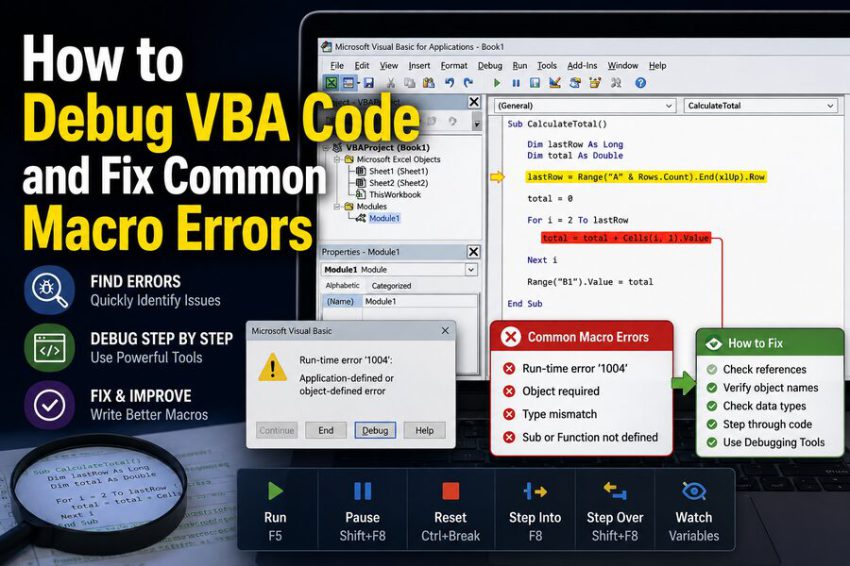
🚨 Understanding Runtime Errors
Runtime errors occur after a macro begins executing.
A familiar example is:
Run-time error ‘9’: Subscript out of range
Another is:
Run-time error ‘1004’: Application-defined or object-defined error
When an unhandled runtime error occurs, VBA often displays a dialog with buttons such as End, Debug, and sometimes Help.
Choosing Debug usually highlights the line that caused the error.
That highlighted line is your starting point.
However, the highlighted line tells you where VBA noticed the failure, not always the deeper reason behind it.
You still need to inspect the variables and objects involved.
⏸️ Use Breakpoints
A breakpoint tells VBA to pause execution before a particular line runs.
To create one, click the gray margin beside a line in the VBA editor or press F9.
The line becomes highlighted.
Now run the macro normally.
When VBA reaches the breakpoint, execution stops.
At this point, you can inspect variables, worksheet references, objects, and calculations.
Breakpoints are particularly useful when a macro has hundreds of lines and the problem occurs somewhere in the middle.
Instead of repeatedly running the entire macro, you can stop near the suspected area.
👣 Step Through Code One Line at a Time
One of the most powerful VBA debugging techniques is single-step execution.
Press:
F8
to execute the next line.
Each press of F8 advances the program by one statement.
For example:
Sub CalculateTotal()

    Dim Price As Double
    Dim Quantity As Long
    Dim Total As Double

    Price = 25
    Quantity = 4
    Total = Price * Quantity

    MsgBox Total

End Sub
By stepping through the macro, you can observe when each variable receives its value.
This is extremely useful when a calculation suddenly becomes wrong or an object unexpectedly becomes Nothing.
🔎 Hover Over Variables
While VBA is paused, move your mouse over a variable in the code.
The editor may display the variable’s current value.
Suppose your code contains:
Total = Price * QuantityHovering over Price might show:
Price = 25
while Quantity might show:
Quantity = 0
That immediately reveals why the result is zero.
This simple technique often identifies bugs within seconds.
💬 Use the Immediate Window
The Immediate Window is one of VBA’s best debugging tools.
Open it with:
Ctrl + G
You can ask VBA to display values by typing:
? Totaland pressing Enter.
The question mark is shorthand for Print.
You can also enter:
? Range("A1").Valueor:
? ActiveWorkbook.NameThe Immediate Window can even execute certain commands while the macro is paused.
For example:
Range("A1").Value = "Test"This makes it useful for experimenting with code without repeatedly modifying and restarting the macro.
🖨️ Use Debug.Print
You can also send information directly to the Immediate Window using:
Debug.PrintFor example:
Debug.Print CustomerName
Debug.Print Total
Debug.Print ActiveSheet.Name
Inside a loop, you might use:
For i = 1 To 10
    Debug.Print i, Cells(i, 1).Value
Next i
This allows you to see what VBA is processing during each iteration.
Unlike repeatedly displaying message boxes, Debug.Print does not interrupt execution every time.
It is particularly useful for debugging loops and large datasets.
📊 Use the Locals Window
The Locals Window automatically displays variables available in the current procedure.
When execution is paused, it can show:
- Variable names
- Data types
- Current values
- Object properties
This is helpful when a procedure contains many variables.
Rather than hovering over each one individually, you can examine them in one place.
Objects can often be expanded to reveal their internal properties.
👀 Use the Watch Window
The Watch Window allows you to monitor specific variables or expressions.
Suppose you want to track:
TotalSalesthroughout a large macro.
You can add it as a watch.
The Watch Window then displays its value whenever execution pauses.
You can also create a watch that pauses execution when a value changes or when a particular condition becomes true.
For example, if a loop behaves incorrectly only when:
i > 500you can use conditional debugging techniques instead of manually stepping through 500 iterations.
🚫 Common Error: “Subscript Out of Range”
One of the most common VBA errors is:
Run-time error ‘9’: Subscript out of range
This frequently happens when code references a workbook or worksheet that VBA cannot find.
Example:
Worksheets("Sales").Range("A1").Value = 100If the worksheet is actually named:
Sales Data
the code fails.
A similar problem occurs with workbooks:
Workbooks("Report.xlsx").Worksheets("Sheet1")If Report.xlsx is not open, VBA may raise an error.
✅ How to Fix It
Check:
- Exact worksheet spelling
- Spaces in worksheet names
- Whether the workbook is open
- Whether the code refers to the correct workbook
You can inspect available sheets with:
Dim ws As Worksheet

For Each ws In ThisWorkbook.Worksheets
    Debug.Print ws.Name
Next ws
This prints every worksheet name into the Immediate Window.
⚠️ Common Error: Object Variable Not Set
Another frequent error is:
Run-time error ’91’: Object variable or With block variable not set
This usually means an object variable has been declared but has not been assigned an actual object.
For example:
Dim ws As Worksheet

ws.Range("A1").Value = 100
The variable ws exists, but it does not yet refer to a worksheet.
The correct version might be:
Dim ws As Worksheet

Set ws = ThisWorkbook.Worksheets("Sales")
ws.Range("A1").Value = 100
When working with VBA objects, remember that assignment generally requires the Set keyword.
📍 Common Error: Range References
This code can create unpredictable behavior:
Range("A1").Value = 100Which worksheet contains A1?
Unless qualified, Range usually refers to the active sheet.
If another worksheet becomes active, the macro may write to the wrong place.
A safer approach is:
ThisWorkbook.Worksheets("Sales").Range("A1").Value = 100Or:
Dim ws As Worksheet
Set ws = ThisWorkbook.Worksheets("Sales")

ws.Range("A1").Value = 100
Explicit object references make VBA macros more reliable.
📘 ThisWorkbook vs. ActiveWorkbook
Confusing these two objects causes many VBA bugs.
ThisWorkbook refers to the workbook containing the VBA code.
ActiveWorkbook refers to whichever workbook is currently active.
These may not be the same workbook.
For example, if your macro opens another Excel file, that new workbook may become active.
Code such as:
ActiveWorkbook.Worksheets("Data")could then reference the wrong file.
When the macro specifically needs its own workbook, use:
ThisWorkbook📝 Common Error: Type Mismatch
A Type mismatch usually occurs when VBA receives a value that does not match the expected data type.
Example:
Dim Quantity As Long

Quantity = "Apple"
A Long variable expects an integer, not text.
Cells can also cause this problem.
Suppose:
Quantity = Range("A1").ValueIf A1 unexpectedly contains text such as "N/A", the assignment can fail.
✅ Safer Validation
You might check:
If IsNumeric(Range("A1").Value) Then
    Quantity = CLng(Range("A1").Value)
Else
    MsgBox "A1 must contain a number."
End If
Good VBA programs validate data instead of assuming it is always correct.
➗ Common Error: Division by Zero
Suppose your macro contains:
AveragePrice = TotalSales / QuantityIf Quantity is zero, the calculation fails.
A safer approach is:
If Quantity <> 0 Then
    AveragePrice = TotalSales / Quantity
Else
    AveragePrice = 0
End If
Whenever a calculation involves division, consider whether the denominator could ever be zero.
🔄 Debugging Loops
Loops are a common source of macro errors.
Consider:
For i = 1 To LastRow
    Cells(i, 2).Value = Cells(i, 1).Value * 2
Next i
Possible problems include:
- Incorrect
LastRow - Wrong worksheet active
- Invalid data inside cells
- Loop starting from the wrong row
- Variable
ibeing modified elsewhere
A useful debugging technique is:
Debug.Print "Row:", i, "Value:", Cells(i, 1).ValueThis shows exactly which row VBA is processing.
📏 Finding the Last Row Correctly
Many macros need to determine the final populated row.
A common technique is:
LastRow = Cells(Rows.Count, 1).End(xlUp).RowBut this code relies on the active worksheet.
A safer version is:
LastRow = ws.Cells(ws.Rows.Count, 1).End(xlUp).RowNow every reference clearly belongs to ws.
This prevents subtle bugs when the active sheet changes.
🧯 Use Error Handling
VBA provides structured mechanisms for handling runtime errors.
A common pattern is:
Sub Example()

    On Error GoTo ErrorHandler

    ' Main code here

    Exit Sub

ErrorHandler:

    MsgBox "Error " & Err.Number & ": " & Err.Description

End Sub
If an error occurs, VBA jumps to the ErrorHandler section.
The Err object provides useful information.
Err.Number gives the error number.
Err.Description provides a readable description.
This helps create macros that fail gracefully rather than abruptly stopping.
⚠️ Be Careful With On Error Resume Next
You may encounter:
On Error Resume NextThis tells VBA to ignore an error and continue with the next statement.
It can be useful in very specific situations.
However, it is frequently misused.
For example:
On Error Resume Next
' hundreds of lines of code
can hide serious problems and make debugging extremely difficult.
A better approach is to use it only around the exact operation where a particular failure is expected.
Then restore normal error handling with:
On Error GoTo 0Do not use error suppression as a substitute for fixing errors.
🧹 Always Restore Application Settings
Macros sometimes disable Excel features to improve performance:
Application.ScreenUpdating = False
Application.EnableEvents = False
Application.Calculation = xlCalculationManual
If the macro crashes before restoring them, Excel may behave strangely afterward.
A safer pattern is to perform cleanup even if an error occurs.
For example:
Sub ProcessData()

    On Error GoTo CleanUp

    Application.ScreenUpdating = False

    ' Main code

CleanUp:

    Application.ScreenUpdating = True

    If Err.Number <> 0 Then
        MsgBox Err.Description
    End If

End Sub
Professional VBA macros should leave Excel in a usable state even when something fails.
♾️ Debugging Infinite Loops
Sometimes VBA appears frozen because the code is trapped in a loop.
For example:
Do While x < 10
    Debug.Print x
Loop
Nothing changes x.
If x begins below 10, the loop can continue indefinitely.
The code should probably contain something like:
x = x + 1If a macro becomes stuck, you can often interrupt execution with:
Ctrl + Break
Infinite loops usually happen because the loop’s exit condition is never reached.
🐢 Debugging a Slow Macro
A macro can be technically correct but painfully slow.
Common performance problems include:
- Reading or writing worksheet cells one at a time
- Selecting cells unnecessarily
- Recalculating formulas repeatedly
- Updating the screen after every operation
- Using inefficient nested loops
For example, avoid code such as:
Range("A1").Select
Selection.Value = "Hello"
Prefer:
Range("A1").Value = "Hello"Better still, explicitly qualify the worksheet.
Removing unnecessary Select and Activate statements often makes macros faster and more reliable.
📦 Use Arrays for Large Data Tasks
Working repeatedly with worksheet cells can be slow because each read or write involves interaction with Excel’s worksheet object model.
For large datasets, consider loading a range into an array:
Dim Data As Variant

Data = Range("A1:A10000").Value
You can process the array in memory and then write the results back to the worksheet in one operation.
This can dramatically improve performance.
It also makes code easier to test because the processing logic becomes less dependent on the active sheet.
🔐 Common Permission and Security Problems
Sometimes a macro does not run because of Excel’s security settings rather than a programming mistake.
Possible issues include:
- Macros are disabled
- The file was downloaded from the internet and blocked
- The workbook is not stored in a trusted location
- The VBA project requires unavailable references
- Company security policies restrict macros
Avoid lowering security settings unnecessarily.
If the workbook is trusted, use appropriate organizational policies, digital signatures, or trusted locations rather than disabling security globally.
📚 Check for Missing References
VBA projects can depend on external libraries.
Open:
Tools → References
in the VBA editor.
If a reference is marked:
MISSING
the project may fail to compile or behave unexpectedly.
This often happens when a workbook is moved to another computer that does not have the same application or library installed.
One solution is to remove unnecessary references.
Another is to use late binding where appropriate, although that involves trade-offs such as losing some compile-time checking and IntelliSense.
🧪 Build Small Test Procedures
When debugging a complicated macro, isolate the suspicious section.
Instead of repeatedly testing a 500-line procedure, create a tiny temporary macro:
Sub TestFunction()

    Debug.Print MyFunction(10)

End Sub
Small tests are easier to reason about.
This follows an important software-engineering principle:
Reduce the problem until you can clearly observe the failure.
Once the smaller test works, integrate the corrected logic back into the full macro.
🧱 Break Large Macros Into Procedures
Very long macros are difficult to debug.
Instead of:
Sub HugeMacro()
    ' 1,000 lines
End Sub
divide the logic into smaller procedures:
Sub Main()

    ImportData
    CleanData
    CalculateResults
    FormatReport

End Sub
Each procedure has one clear responsibility.
If the formatting is wrong, you can focus on FormatReport.
If calculations are wrong, investigate CalculateResults.
Modular VBA is easier to read, test, maintain, and debug.
🏷️ Use Meaningful Variable Names
Poor variable names make debugging harder.
For example:
Dim a As Double
Dim b As Long
Dim c As Double
is much less clear than:
Dim UnitPrice As Double
Dim QuantitySold As Long
Dim TotalRevenue As Double
When an error occurs, meaningful names help you understand the code faster.
This becomes especially important when revisiting a macro several months later.
💬 Add Useful Comments
Comments can explain why unusual logic exists.
For example:
' Skip header row because customer data begins on row 2
For i = 2 To LastRow
Avoid comments that merely repeat obvious code.
For example:
i = i + 1 ' Add 1 to iadds little value.
Good comments explain intent, assumptions, or non-obvious decisions.
🧪 Test Edge Cases
A macro that works on your normal workbook may fail under unusual conditions.
Test scenarios such as:
- Empty worksheet
- One-row dataset
- Missing value
- Text where a number is expected
- Duplicate worksheet names
- Protected worksheet
- Closed workbook
- Very large dataset
These are called edge cases.
Many bugs remain hidden until unusual data causes them to appear.
Testing edge cases makes macros more robust.
📋 Create a Repeatable Debugging Process
When a VBA macro fails, a disciplined process works better than random experimentation.
A useful sequence is:
- Read the exact error message.
- Click Debug to identify the failing line.
- Check variable and object values.
- Confirm workbook and worksheet references.
- Step through surrounding code with F8.
- Use
Debug.Printor the Immediate Window. - Check data types and input values.
- Compile the project.
- Test the smallest possible version of the failing logic.
- Add appropriate error handling after fixing the actual cause.
This approach makes debugging faster and more predictable. 🔍
🚫 Do Not Hide the Error Before Understanding It
A common beginner reaction is to add:
On Error Resume Nextas soon as an error appears.
That may remove the error message, but it usually does not fix the underlying problem.
For example, if VBA cannot find a worksheet, ignoring the error will not magically create the worksheet.
It simply allows later code to continue using incorrect assumptions.
Always identify the cause first.
Then decide whether the error should be prevented, handled, or intentionally ignored.
🧠 Logical Errors Require Different Debugging
Suppose the macro runs without errors but calculates the wrong result.
You need to investigate the logic rather than error handling.
Check intermediate values.
For example:
Debug.Print "Revenue:", Revenue
Debug.Print "Expenses:", Expenses
Debug.Print "Profit:", Profit
Suppose you expect:
Profit = Revenue - Expenses
but the output shows:
Revenue = 10000
Expenses = 3000
Profit = 13000
You immediately know that the bug probably lies in the formula used to calculate Profit.
This technique is sometimes called tracing the data through the program.
🔁 Watch for Off-by-One Errors
Loops often contain subtle boundary errors.
Consider:
For i = 1 To 10versus:
For i = 2 To 10If row 1 contains headers, starting at row 1 could accidentally process the header as data.
Similarly, ending a loop one row too early can omit the final record.
These mistakes are commonly called off-by-one errors.
Whenever a loop produces incorrect results, check the starting and ending values carefully.
💾 Save Before Testing Destructive Macros
Debugging a macro that deletes rows, overwrites formulas, renames sheets, or modifies files can be risky.
Before testing:
- Save a backup copy.
- Work on sample data.
- Avoid testing destructive operations on important production files.
VBA macros can alter thousands of cells almost instantly.
Unlike some manual Excel actions, macro operations may not always be recoverable through the Undo command.
Safe testing is part of good debugging practice. 🛡️
🌟 Final Thoughts
Debugging VBA is not about memorizing every possible error message. It is about learning how to investigate code systematically.
When a macro fails, start by identifying the exact line and examining the data around it. Use breakpoints to pause execution, F8 to step through code, the Immediate Window and Debug.Print to inspect values, and the Locals and Watch windows to monitor variables.
Prevent common problems by using Option Explicit, qualifying workbook and worksheet references, validating inputs, checking data types, compiling frequently, and dividing large macros into smaller procedures.
Use VBA’s error-handling features thoughtfully rather than simply suppressing every failure with On Error Resume Next. 🐞🔧
Many frustrating VBA problems come from a surprisingly small set of causes: incorrect sheet names, uninitialized object variables, unexpected cell values, poorly qualified ranges, incorrect loop boundaries, missing references, or assumptions about which workbook is active.
Once you learn to inspect those areas systematically, macro errors become far less mysterious.
The most important debugging mindset is simple:
Do not guess what your VBA code is doing—pause it, inspect it, and verify what it is actually doing. 💻🔍
With good debugging habits, VBA changes from a fragile collection of macros into a much more reliable automation tool capable of handling complex Excel workflows efficiently and safely.