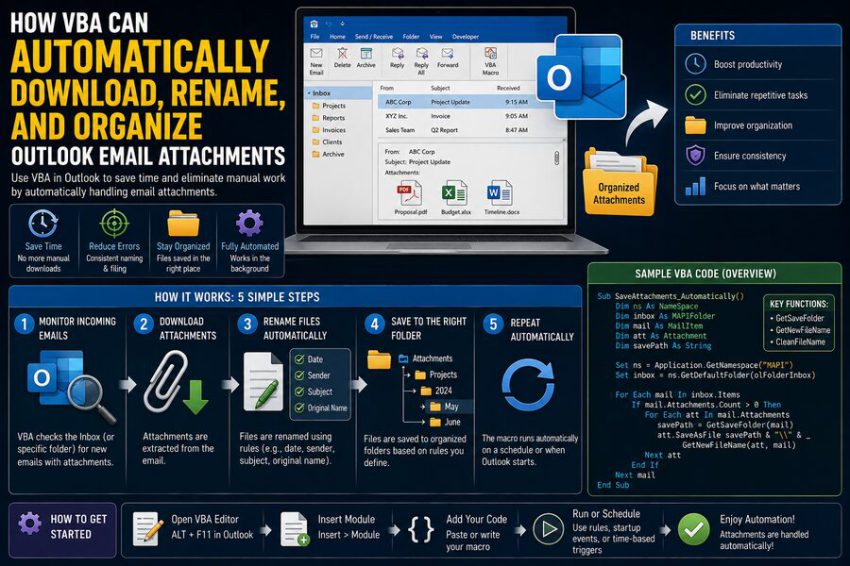

For many office workers, Outlook attachments create a surprisingly repetitive workflow. A report arrives by email, someone opens the message, downloads the attachment, renames the file, creates or finds the correct folder, saves the document, and repeats the process again tomorrow.
When this happens occasionally, manual handling is manageable. When dozens or hundreds of attachments arrive every week, however, the process becomes time-consuming and error-prone.
This is where VBA, or Visual Basic for Applications, can help automate Outlook attachment management. ⚙️
With a well-designed Outlook VBA macro, users can automatically inspect incoming emails, identify messages that match specific conditions, download their attachments, rename files according to consistent rules, create destination folders, and organize everything without manually saving each file.
The result is a workflow that can transform an overflowing inbox into a structured file-management system.
🧩 What Is Outlook VBA?
VBA is Microsoft’s built-in automation language used in several desktop Office applications, including Excel, Word, Access, and classic desktop Outlook environments.
In Outlook, VBA can interact with objects such as:
- Mail messages
- Folders
- Senders
- Subjects
- Attachments
- Received dates
- Categories
- Outlook events
A VBA procedure can therefore examine an email and make decisions based on information contained in that message.
For example, a macro could effectively say:
If the sender is the finance department, the subject contains “Monthly Report,” and the message includes an Excel attachment, save that attachment into the Finance Reports folder.
That simple logic is the foundation of much more sophisticated email automation. 📂
📥 Step 1: VBA Identifies the Emails That Matter
The first challenge is determining which messages should be processed.
Saving every attachment from every email is usually not desirable. Outlook inboxes often contain signatures, logos, screenshots, documents, and other files that users may not want archived automatically.
Instead, VBA can filter messages according to rules.
Common conditions include:
- Sender email address
- Sender display name
- Subject text
- Attachment file type
- Outlook folder
- Received date
- Categories
- Keywords in the message
- Number of attachments
For example, a company might receive daily reports with subject lines such as:
Daily Sales Report – August 25, 2026
The macro could search for messages containing the phrase:
Daily Sales Report
This allows the automation to ignore unrelated emails. 🎯
📎 Step 2: VBA Loops Through Email Attachments
Once a qualifying email has been identified, VBA can examine its Attachments collection.
Conceptually, the process looks like this:
For Each att In mail.Attachments
    'Process attachment
Next att
Each attachment provides information such as its filename and can be saved using Outlook’s SaveAsFile method.
A simplified example might look like:
att.SaveAsFile "C:\Reports\" & att.FileNameThis saves the attachment into the specified directory.
However, professional automation usually requires more than simply preserving the original filename.
Files need predictable names, folder structures, duplicate protection, and error handling.
That is where VBA becomes particularly useful. 🔧
🏷️ Step 3: VBA Automatically Renames Attachments
Attachment filenames supplied by senders are often inconsistent.
You might receive files named:
- report.xlsx
- final_report.xlsx
- report_new.xlsx
- salesfile.xlsx
- FINAL.xlsx
These names make long-term organization difficult.
VBA can construct standardized filenames using information from the email.
For example:
2026-08-25_Sales_Report.xlsx
or:
VendorName_Invoice_45823_2026-08-25.pdf
A filename can be built from several pieces of data:
NewName = Format(mail.ReceivedTime, "yyyy-mm-dd") & _
          "_Sales_Report.xlsx"
The macro can then save the attachment using the new name.
Consistent naming provides several advantages. ✅
Files sort naturally by date, duplicate files are easier to identify, search results become more useful, and employees no longer need to guess what a file contains.
📅 Using Dates in File Names
Dates are particularly useful when organizing recurring attachments.
Suppose a department receives one inventory report every day.
Instead of storing hundreds of files all named Inventory.xlsx, VBA could rename them as:
Inventory_2026-08-23.xlsx
Inventory_2026-08-24.xlsx
Inventory_2026-08-25.xlsx
The macro can obtain the date from the message’s ReceivedTime property rather than relying on the computer’s current date.
For example:
FileDate = Format(mail.ReceivedTime, "yyyy-mm-dd")This is helpful because an email received yesterday may not be processed until today.
Using the email’s received timestamp preserves the correct historical date. 📆
📂 Step 4: VBA Creates Organized Folder Structures
Saving attachments into one enormous folder eventually creates another problem: file clutter.
VBA can automatically divide files into folders.
A simple structure might be:
C:\Reports\
    2026\
        August\
            Sales\
            Finance\
            Inventory\
The macro can determine the folder dynamically.
For example:
FolderPath = "C:\Reports\" & _
             Format(mail.ReceivedTime, "yyyy") & "\" & _
             Format(mail.ReceivedTime, "mmmm") & "\"
If the required folder does not exist, VBA can create it.
A simple folder check might use:
If Dir(FolderPath, vbDirectory) = "" Then
    MkDir FolderPath
End If
For nested folders, the code should generally verify each level or use a reusable folder-creation procedure.
This makes the automation scalable across months and years. 🗃️
🏢 Organizing Attachments by Sender
Another useful approach is organizing files according to who sent them.
Imagine an accounts-payable team receiving invoices from many vendors.
VBA could create a structure such as:
Invoices\
    Vendor_A\
    Vendor_B\
    Vendor_C\
The sender name or address could determine the folder.
Conceptually:
If InStr(mail.SenderEmailAddress, "vendorA.com") > 0 Then
    FolderPath = "C:\Invoices\Vendor_A\"
End If
More sophisticated macros can use a lookup table to map email addresses to standardized vendor names.
This approach prevents inconsistent folder naming and makes the automation easier to maintain.
📄 Organizing Files by Attachment Type
VBA can also route files according to their file extensions.
For example:
Attachments\
    Excel\
    PDF\
    Word\
    Images\
A macro could inspect the filename extension:
ext = LCase(Mid(att.FileName, InStrRev(att.FileName, ".") + 1))Then it can decide where the file belongs.
For example:
Select Case ext
    Case "xlsx", "xls"
        FolderPath = "C:\Attachments\Excel\"
    Case "pdf"
        FolderPath = "C:\Attachments\PDF\"
    Case "docx", "doc"
        FolderPath = "C:\Attachments\Word\"
End Select
This can be useful when Outlook serves as an input channel for a broader document-processing workflow. 📊
⚡ A Basic Outlook VBA Attachment Automation Example
The following simplified example demonstrates the general idea.
Sub SaveReportAttachments()

    Dim ns As Outlook.NameSpace
    Dim Inbox As Outlook.Folder
    Dim itm As Object
    Dim mail As Outlook.MailItem
    Dim att As Outlook.Attachment
    Dim FolderPath As String
    Dim NewName As String
    Dim ext As String

    Set ns = Application.GetNamespace("MAPI")
    Set Inbox = ns.GetDefaultFolder(olFolderInbox)

    FolderPath = "C:\Reports\"

    For Each itm In Inbox.Items

        If TypeOf itm Is Outlook.MailItem Then

            Set mail = itm

            If InStr(1, mail.Subject, "Daily Sales Report", vbTextCompare) > 0 Then

                For Each att In mail.Attachments

                    ext = Mid(att.FileName, InStrRev(att.FileName, "."))

                    NewName = Format(mail.ReceivedTime, "yyyy-mm-dd") & _
                              "_Sales_Report" & ext

                    att.SaveAsFile FolderPath & NewName

                Next att

            End If

        End If

    Next itm

End Sub
This macro demonstrates several important ideas:
- Accessing the Inbox
- Checking message types
- Filtering by subject
- Looping through attachments
- Extracting the extension
- Generating a new filename
- Saving the attachment automatically
In real business environments, additional protections should normally be added. 🛡️
🔁 Preventing Duplicate Downloads
One common automation problem is duplicate processing.
If the macro scans the same emails every day, it could repeatedly save the same attachments.
There are several ways to prevent this.
One method is checking whether the destination file already exists:
If Dir(FolderPath & NewName) = "" Then
    att.SaveAsFile FolderPath & NewName
End If
Another method is marking processed emails with:
- An Outlook category
- A custom property
- A dedicated Outlook folder
- A flag
- A database or Excel processing log
For example, after saving the attachments, the macro might move the message into an Processed Reports folder.
This creates a clear separation between unprocessed and completed emails.
🔢 Handling Duplicate File Names
Sometimes two different attachments legitimately need the same base filename.
If both are called:
Invoice_2026-08-25.pdf
the macro needs a collision strategy.
VBA could append a number:
Invoice_2026-08-25.pdf
Invoice_2026-08-25_2.pdf
Invoice_2026-08-25_3.pdf
Alternatively, it could add:
- Time received
- Sender name
- Invoice number
- Message ID
- Attachment counter
For example:
2026-08-25_143015_VendorA_Invoice.pdfA good naming strategy should create filenames that are both unique and understandable. 🧠
🚫 Cleaning Invalid Filename Characters
Email subjects and sender names may contain characters that Windows does not allow in filenames.
Common invalid filename characters include:
\ / : * ? " < > |Suppose the email subject is:
Sales Report: North/West Region
Using that subject directly as a filename could cause an error.
A VBA cleaning function can replace invalid characters with hyphens or underscores before creating the final filename.
For example:
Sales_Report_North-West_Region.xlsxThis small detail is important for reliable automation.
🔔 Triggering Automation When New Email Arrives
A macro does not always need to be launched manually.
Outlook VBA can respond to events.
For example, code can monitor the Inbox and react when a new item is added.
Conceptually, the workflow becomes:
Email arrives → VBA checks message → Attachment identified → File renamed → Folder selected → Attachment saved
This can create near-automatic document ingestion. ⚡
However, event-driven VBA requires careful testing because Outlook security settings, macro settings, application restarts, and deployment policies can affect how reliably the automation runs.
For business-critical workflows, organizations may choose managed automation platforms, approved add-ins, Power Automate, or server-side systems instead of relying entirely on desktop VBA.
📊 Logging Every Processed Attachment
Professional automation should usually maintain a processing log.
A VBA macro can record information such as:
- Date processed
- Email sender
- Email subject
- Original filename
- New filename
- Destination path
- Processing status
- Error message
The log could be written into:
- A text file
- CSV file
- Excel workbook
- Access database
- SQL database
For example:
2026-08-25 | finance@example.com | Monthly Report | report.xlsx | 2026-08_Monthly_Report.xlsx | SavedLogs are extremely useful when troubleshooting automation or proving that specific attachments were successfully archived. 📝
⚠️ Error Handling Is Essential
Automation interacts with many things that can fail.
A network drive might be unavailable. A filename might be invalid. A user might not have folder permissions. An attachment might already exist. Outlook could temporarily be busy.
VBA therefore needs error handling.
A basic pattern might look like:
On Error GoTo ErrorHandler

'Automation code

Exit Sub

ErrorHandler:
    MsgBox "Error: " & Err.Description
For unattended automation, displaying message boxes is often not ideal. A better approach may be to write errors into a log and continue processing other messages where appropriate.
Robust error handling separates a useful prototype from dependable business automation. 🔧
🔐 Security Should Not Be Ignored
Automatically downloading email attachments introduces security considerations.
Attachments can contain:
- Malicious macros
- Executable content
- Embedded scripts
- Infected documents
- Unexpected file types
Automation should therefore avoid blindly downloading everything.
Safer designs often restrict processing to:
- Approved senders
- Approved file extensions
- Expected subject patterns
- Known Outlook folders
- Organization-controlled storage locations
It may also be appropriate to rely on the organization’s antivirus, endpoint security, email scanning, and document-security policies.
VBA should automate a trusted workflow—not bypass security controls. 🛡️
☁️ Saving Attachments to Network or Shared Locations
The destination does not necessarily have to be the user’s local computer.
VBA may save attachments into locations such as:
C:\CompanyReports\or a mapped network location such as:
Z:\Finance\Reports\Organizations may also work with locally synchronized folders associated with approved cloud storage services.
However, macros that depend on network drives should verify that the location is available before attempting to save files.
Otherwise, a temporary connection issue could interrupt the entire process.
🧠 Building Rules That Are Easy to Maintain
One frequent mistake is placing dozens of sender addresses, paths, and filenames directly inside VBA code.
That works initially but becomes difficult to maintain.
A more scalable approach is storing rules in a configuration table.
For example:
Sender                 Subject Keyword      Folder
finance@company.com    Monthly Report       C:\Reports\Finance\
sales@company.com      Sales Summary        C:\Reports\Sales\
inventory@company.com  Inventory            C:\Reports\Inventory\
The macro can read these rules instead of relying on hardcoded conditions.
This allows business users to update routing logic without rewriting the entire automation.
🔄 A Typical Automated Workflow
A well-designed Outlook attachment automation system might follow this sequence:
1. 📩 Detect an email
VBA identifies a new or unprocessed message.
2. 🔍 Validate the message
The sender, subject, and attachment type are checked against approved rules.
3. 📎 Examine attachments
The macro ignores unwanted files and selects relevant attachments.
4. 🏷️ Generate standardized filenames
The filename might contain the date, department, customer, or report type.
5. 📂 Determine the destination folder
The folder can be based on year, month, sender, project, or file category.
6. 🏗️ Create missing folders
VBA automatically creates required directories.
7. 💾 Save the attachment
The file is downloaded using SaveAsFile.
8. 🔁 Check for duplicates
The macro avoids overwriting an existing document unintentionally.
9. 📝 Write to the processing log
Details about the saved attachment are recorded.
10. ✅ Mark the message as processed
The message can be categorized, flagged, or moved.
This turns Outlook into the starting point of an automated document-management pipeline.
💼 Where This Type of Automation Is Useful
Outlook attachment automation can benefit many business processes.
💰 Finance
Automatically save:
- Invoices
- Bank statements
- Expense reports
- Monthly financial reports
📊 Sales
Automatically organize:
- Customer reports
- Sales spreadsheets
- Commission files
- Pipeline exports
🚚 Operations
Automatically archive:
- Shipping documents
- Inventory reports
- Supplier files
- Production summaries
👥 Human Resources
Automatically organize approved:
- Recruitment documents
- Staff reports
- Training records
- Administrative forms
Sensitive HR information requires particularly careful permission and privacy controls.
📈 Management Reporting
Executives receiving recurring Excel or PDF reports can automatically store them in standardized monthly folders.
🚀 Why Automation Becomes More Valuable at Scale
Saving one attachment manually may take only 20 or 30 seconds.
That sounds insignificant.
But suppose an employee handles 80 recurring attachments per day.
At 25 seconds each, that is approximately:
80 × 25 seconds = 2,000 seconds
That is more than 33 minutes every working day.
Over hundreds of working days, the accumulated time can become substantial.
Automation also reduces hidden costs associated with:
- Misnamed documents
- Attachments saved in the wrong folder
- Duplicate files
- Forgotten downloads
- Inconsistent archiving
The larger and more repetitive the workflow becomes, the more valuable automation tends to be. ⏱️
🎯 Final Takeaway
VBA can turn Outlook attachment management from a repetitive manual task into a structured automated process.
By combining Outlook’s email objects with VBA logic, a macro can identify relevant messages, inspect attachments, rename files, build organized folder structures, prevent duplicates, create processing logs, and mark messages as completed. 📩➡️📂
The basic concept is straightforward:
Find the right email → identify the right attachment → generate the right filename → save it in the right location.
The real value comes from making every step consistent and repeatable.
For small personal workflows, a simple Outlook VBA macro may save considerable time. For larger business processes, the same principles can serve as the foundation for more advanced automation using centralized workflow systems and enterprise document-management tools.
Used carefully—with proper filtering, logging, error handling, and security controls—VBA can make Outlook far more than an email client. It can become an automated gateway for organizing the documents that arrive in your inbox every day. ⚙️📁✨