
Many businesses keep important information inside Microsoft Excel: customer details, financial figures, project data, inspection results, invoices, employee records, inventory lists, and hundreds of other structured datasets.
But the final information often needs to appear somewhere else.
A finance team might need polished monthly reports in Microsoft Word. A sales department may need hundreds of customized customer letters. An engineering company might need inspection reports containing tables, photographs, and calculations taken from an Excel workbook. Creating these documents manually can require hours of repetitive copying, pasting, formatting, and saving. ⏱️
Visual Basic for Applications (VBA) can automate this entire workflow.
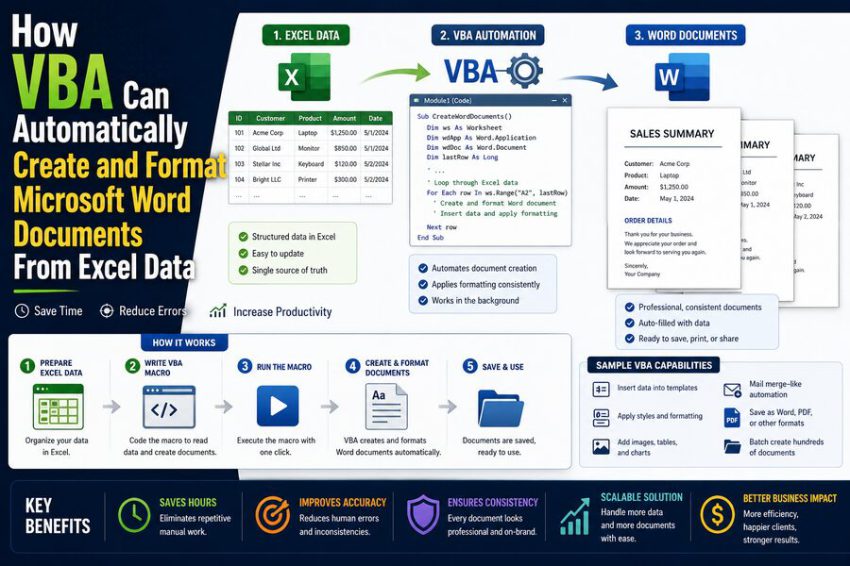
Using VBA inside Excel, a program can open Microsoft Word, create a new document or load a template, read values from spreadsheet cells, insert those values into predefined locations, construct tables, apply Word styles, add headers and footers, insert images or charts, and save the finished document automatically.
A task that might take a person several minutes per document can potentially be repeated across hundreds of Excel rows with very little manual work. ⚙️🚀
🧠 What Is VBA?
VBA, or Visual Basic for Applications, is the programming language built into many Microsoft Office desktop applications.
It allows users to automate repetitive tasks and control Office programs through their object models.
Inside Excel, VBA can manipulate objects such as:
- Workbooks
- Worksheets
- Cells and ranges
- Charts
- Tables
- PivotTables
But VBA can also communicate with other Office applications.
This means Excel VBA can control Microsoft Word through Automation, historically associated with technologies such as COM and OLE Automation on Windows.
A macro running in Excel can effectively say:
“Start Word, create a document, insert these spreadsheet values, format the document, and save it.”
That cross-application capability is what makes VBA particularly useful for automated document generation.
🔄 The Basic Excel-to-Word Workflow
A typical automated process looks like this:
Excel data 📊
⬇️
VBA macro starts ⚙️
⬇️
Microsoft Word opens 📄
⬇️
Word template is loaded 🧩
⬇️
Excel values are inserted 🔢
⬇️
Tables, styles, images, and formatting are applied 🎨
⬇️
Document is saved automatically 💾
The same process can then repeat for the next row of Excel data.
For example, if an Excel worksheet contains 500 customer records, VBA could potentially create 500 individually personalized Word documents.
📋 A Simple Example
Imagine an Excel worksheet containing:
| Customer | Project | Amount |
|---|---|---|
| Acme Ltd | Factory Upgrade | $125,000 |
| Delta Corp | Warehouse Expansion | $86,000 |
| Northstar Inc | Equipment Installation | $210,000 |
The company wants a Word report for each customer.
Instead of manually creating three reports, VBA can read each row and automatically produce documents such as:
Acme Ltd – Factory Upgrade.docx
Delta Corp – Warehouse Expansion.docx
Northstar Inc – Equipment Installation.docx
Each document can contain the correct customer name, project title, amount, date, tables, company branding, and standardized formatting.
When expanded to hundreds or thousands of records, the productivity benefit becomes enormous. 📈
🧩 Step 1: VBA Starts or Connects to Microsoft Word
The first task is obtaining a reference to the Word application.
A VBA macro can either launch a new Word instance or connect to an existing one.
A simplified example is:
Dim wdApp As Object
Set wdApp = CreateObject("Word.Application")

wdApp.Visible = True
The command:
CreateObject("Word.Application")
asks Windows to create a Microsoft Word application object.
The macro can then manipulate Word through wdApp.
Setting:
wdApp.Visible = True
makes the Word window visible.
During large automated jobs, developers sometimes keep Word hidden while documents are generated and only display it when necessary.
🔗 Early Binding vs. Late Binding
There are two common ways Excel VBA can interact with Word.
📚 Early Binding
With early binding, the VBA project contains a reference to the Microsoft Word Object Library.
Developers can write:
Dim wdApp As Word.Application
Dim wdDoc As Word.Document
Advantages include:
✅ IntelliSense while coding
✅ Easier access to Word constants
✅ Earlier detection of some programming errors
✅ More convenient development
However, library-version differences can occasionally create deployment issues.
🔧 Late Binding
Late binding declares Word objects generically:
Dim wdApp As Object
Dim wdDoc As Object
and creates them at runtime.
This can make macros easier to distribute across computers containing different compatible Word installations.
The tradeoff is that developers lose some IntelliSense and may need to use numeric values or define constants themselves.
For internal solutions where every computer has a predictable Office installation, early binding can be convenient. For broadly distributed workbooks, developers often consider late binding for compatibility.
📄 Step 2: VBA Creates a New Word Document
Once Word is running, Excel can create a blank document:
Set wdDoc = wdApp.Documents.AddThe macro now has access to the Word document object.
It can manipulate the document’s:
- Paragraphs
- Ranges
- Tables
- Sections
- Headers
- Footers
- Styles
- Bookmarks
However, generating complex documents entirely from scratch can lead to large amounts of formatting code.
For professional applications, a Word template is often a better approach.
🧩 Why Word Templates Make Automation Easier
Suppose a company already has a professionally designed report containing:
🏢 Company logo
📄 Cover page
🎨 Brand colors
🔠 Heading styles
📑 Page numbering
📝 Standard legal text
📋 Predefined tables
Instead of recreating all of this using VBA, developers can create a Word template and let Excel fill only the changing information.
The template might contain placeholders such as:
<<CustomerName>>
<<ProjectTitle>>
<<ReportDate>>
<<TotalAmount>>
VBA replaces those placeholders with Excel values.
This separates:
Document design 🎨
from:
Data automation ⚙️
and makes the system much easier to maintain.
🔖 Bookmarks Can Mark Where Data Belongs
Word bookmarks are a useful way to identify specific locations inside a document.
A template might contain bookmarks named:
- CustomerName
- ProjectNumber
- InspectionDate
- TotalCost
Excel VBA can insert data into those locations.
Conceptually:
wdDoc.Bookmarks("CustomerName").Range.Text = _
    Worksheets("Data").Range("A2").Value
The macro reads Excel cell A2 and inserts its value into the Word bookmark named CustomerName.
This is much safer than relying on fixed cursor positions because document text can grow or shrink without destroying the location logic.
🔍 Find and Replace Can Fill Placeholders
Another common method is Word’s Find and Replace system.
Imagine the template contains:
Dear <<CustomerName>>,
VBA can search for:
<<CustomerName>>
and replace it with:
Acme Ltd
The finished sentence becomes:
Dear Acme Ltd,
This approach is intuitive because non-programmers can easily understand and edit placeholder-based templates.
A single template might contain dozens of placeholders corresponding to columns in Excel.
🧠 Content Controls Offer a More Structured Approach
Modern Word documents can also use content controls.
These are structured document elements that can contain text, dates, lists, pictures, and other content.
A developer can assign meaningful tags such as:
CustomerName
ReportDate
ProjectPhoto
VBA can then locate a content control by its tag and populate it.
Compared with ordinary placeholder text, content controls can provide a more structured approach for sophisticated document-generation systems.
They can be especially useful when templates are frequently edited by business users.
📊 Step 3: Excel Data Is Read Programmatically
Excel VBA can retrieve values from cells using objects such as:
Worksheets("Data").Range("A2").Valueor:
Cells(rowNumber, columnNumber).ValueFor larger datasets, a macro might loop through every populated row.
Conceptually:
For i = 2 To lastRow
    customerName = Cells(i, 1).Value
    projectName = Cells(i, 2).Value
    amount = Cells(i, 3).Value
Next i
Each loop represents another record.
Inside that loop, VBA can create a new Word document and insert the appropriate information.
This is the basic mechanism behind batch document generation.
🔁 One Excel Row Can Become One Word Document
Suppose the workbook contains:
1,000 invoice records
A macro can process them using:
Row 2 → Invoice 1
Row 3 → Invoice 2
Row 4 → Invoice 3
and continue until the final row.
Each generated document can be automatically named using its data.
For example:
Invoice_10382_Acme_Ltd.docx
This eliminates enormous amounts of repetitive administrative work.
📑 VBA Can Build Word Tables Automatically
Word tables are especially useful for reports containing structured Excel data.
A macro can create a table with a specific number of rows and columns:
Set wdTable = wdDoc.Tables.Add( _
    wdDoc.Range(wdDoc.Content.End - 1), 5, 3)
It can then populate cells such as:
wdTable.Cell(1, 1).Range.Text = "Item"
wdTable.Cell(1, 2).Range.Text = "Quantity"
wdTable.Cell(1, 3).Range.Text = "Price"
Rows can be populated dynamically from an Excel worksheet.
This is useful for:
📦 Product lists
💰 Financial schedules
🧪 Laboratory results
🔧 Inspection findings
📊 Project summaries
The number of Word table rows does not have to be fixed beforehand.
VBA can determine how many Excel records exist and build the table accordingly.
📋 Entire Excel Ranges Can Also Be Copied
Sometimes the easiest approach is to copy an existing formatted Excel range into Word.
For example, VBA can copy:
- A financial table
- A KPI dashboard section
- A project schedule
- A calculation summary
The destination in Word can receive it as a Word table, formatted content, or sometimes an image depending on the chosen paste method.
This can save development effort when Excel already contains the exact visual structure needed.
However, direct copying can produce inconsistent Word formatting, so template-driven Word tables are often preferable when document appearance must be tightly controlled.
📈 Excel Charts Can Be Inserted Into Word
Automated reports often need charts.
Suppose Excel already contains a sales chart.
VBA can copy the chart and paste it into Word.
This enables automated reports containing:
📈 Revenue charts
📉 Cost trends
🏭 Production metrics
⚡ Energy consumption
📊 Performance dashboards
The report can therefore combine spreadsheet calculations with Word’s document-layout capabilities.
Depending on the paste method, a chart may be embedded, linked, or inserted as a static graphic.
Static images are often useful when the final report should not depend on the original Excel workbook.
🖼️ VBA Can Insert Images Automatically
Suppose Excel contains file paths for project photographs:
C:\Reports\Images\Site_101.jpg
The VBA macro can read the path and tell Word to insert the photograph at a particular location.
This is valuable for:
🏗️ Construction reports
🏠 Property inspections
🧪 Laboratory reports
🚗 Vehicle assessments
🛠️ Maintenance documentation
The macro can also resize images to fit predefined dimensions.
Hundreds of reports containing different photographs can therefore be produced automatically from one structured dataset.
🎨 VBA Can Apply Professional Word Styles
A major mistake in automated document generation is formatting every paragraph manually.
For example, repeatedly setting:
- Font name
- Font size
- Bold
- Paragraph spacing
- Color
creates complicated VBA code.
A better approach is to use Word styles.
Styles might include:
- Title
- Heading 1
- Heading 2
- Normal
- Caption
- Quote
- Table Text
VBA can assign the desired style:
someRange.Style = "Heading 1"If the organization later changes its branding, designers can update the Word template’s style definition instead of rewriting VBA.
This creates much cleaner automation. 🎨✅
📝 Headers and Footers Can Be Automated
Reports often require consistent page elements.
VBA can control Word headers and footers to insert:
🏢 Company name
📄 Document title
🔢 Page numbers
📅 Report date
🔒 Confidentiality notices
🆔 Project identifiers
Different Word sections can even use different headers and footers.
For example, the cover page may have no page number while subsequent pages display:
Page 1 of 12
This allows automated documents to meet professional corporate standards.
📐 Page Layout Can Be Controlled
VBA can also configure Word’s page setup.
Automation may define:
- Portrait or landscape orientation
- Margins
- Paper size
- Section breaks
- Column layouts
For instance, a report might use portrait orientation for most pages but temporarily switch to landscape for a wide table.
Word sections allow VBA to manage these layout differences programmatically.
🧾 Conditional Content Makes Documents Smarter
Not every document needs identical sections.
Suppose an inspection report includes a section titled:
Critical Defects
If Excel indicates that no critical defects were found, VBA could omit that section entirely.
Alternatively:
If defectCount > 0 Then
    'Insert defect section
Else
    'Insert "No critical defects identified"
End If
Conditional logic allows documents to adapt automatically to their underlying data.
This is much more powerful than simple mail merge.
🚦 VBA Can Apply Conditional Formatting in Word
Suppose project status stored in Excel is:
Delayed
The macro might display the Word text in bold or apply a warning style.
If status is:
Completed
it can apply another predefined style.
Similarly, report tables can highlight:
⚠️ Overdue items
📉 Negative variances
✅ Passed inspections
❌ Failed tests
This allows business logic from Excel to influence visual presentation in Word.
📑 Automated Tables of Contents Are Possible
For long reports, VBA can apply Word heading styles and generate a Table of Contents automatically.
Once headings are created correctly, Word can build the TOC from those styles.
This means a generated 100-page report can automatically include:
1. Executive Summary
2. Project Status
3. Financial Performance
4. Technical Findings
with correct page numbers.
VBA can also update the table of contents before the document is saved.
🔢 Fields and Page Numbers Can Be Updated
Word documents contain fields used for dynamic information.
These might include:
- Page numbers
- Dates
- Cross-references
- Tables of contents
- Figure references
After VBA modifies a document, these fields may need refreshing.
A macro can trigger field updates before saving so the final document contains accurate references.
This is especially important in long automatically assembled reports.
💾 Step 4: Documents Can Be Saved Automatically
Once the document has been populated and formatted, VBA can save it.
For example:
wdDoc.SaveAs2 "C:\Reports\Customer_Report.docx"The file name itself can be generated from Excel values.
For example:
fileName = customerName & "_" & projectNumber & ".docx"This can create organized output directories containing thousands of correctly named files.
📄 VBA Can Also Export Word Documents to PDF
In many workflows, the final deliverable should not be an editable Word document.
VBA can automate Word’s PDF export.
The workflow can become:
Excel data
⬇️
Create Word report
⬇️
Format document
⬇️
Save DOCX
⬇️
Export PDF
⬇️
Close Word document
A business could therefore generate entire PDF report packages automatically. 📄✅
This is especially useful for customer reports, invoices, certificates, inspection records, and formal documentation.
📂 Dynamic Folder Creation Improves Organization
Imagine generating reports for many projects.
Instead of saving everything into one directory, VBA can create folders automatically:
Reports\2026\Project_1042\
and save relevant Word and PDF documents there.
The program can use Excel fields such as:
- Year
- Customer
- Project number
- Department
to construct a consistent file structure.
This helps prevent document-management chaos.
🛑 Error Handling Is Essential
Document automation often processes large batches.
Suppose VBA successfully generates 299 reports and encounters a missing image while creating report 300.
Without error handling, Word may remain open, temporary files may be left behind, and the entire macro may stop unexpectedly.
Good VBA programs use error-handling logic to manage problems such as:
⚠️ Missing templates
📂 Invalid file paths
🖼️ Missing images
🔒 Locked documents
💾 Save failures
📊 Missing worksheet values
The macro should ideally record errors and continue safely where appropriate.
🧹 Word Objects Should Be Closed Properly
Automating another Office application means developers must manage its objects carefully.
When processing is complete:
wdDoc.Close
wdApp.Quit
and object variables should be released.
Otherwise, hidden Word processes may remain running after the macro appears to finish.
Repeated automation could eventually leave many background instances of Microsoft Word consuming memory.
Proper cleanup is an important part of reliable VBA programming.
🚀 Performance Matters During Large Batch Jobs
Creating a handful of reports is simple.
Creating 10,000 documents introduces performance considerations.
Developers may improve speed by:
- Keeping Word hidden during processing
- Avoiding unnecessary screen updates
- Reading Excel data into arrays
- Reducing repeated document searches
- Reusing templates efficiently
- Minimizing clipboard operations
- Writing fewer individual cell operations
For example, reading 10,000 Excel cells one at a time can be much slower than loading a range into a VBA array and processing it in memory.
Optimization becomes increasingly valuable as scale grows.
🗂️ Word Bookmarks, Placeholders, or Content Controls?
Developers have several template strategies.
🔖 Bookmarks
Good for precise named locations.
Advantages: Simple and easy to access through VBA.
Challenge: Some operations can remove or alter bookmarks unless code handles them carefully.
🔍 Text Placeholders
Examples:
<<CLIENT_NAME>>
Advantages: Extremely easy for template designers to understand.
Challenge: Requires reliable search-and-replace logic.
🧩 Content Controls
Structured Word controls with names or tags.
Advantages: Powerful and suitable for sophisticated templates.
Challenge: Slightly more complex to design and automate.
The best choice depends on the document workflow.
📮 Why Not Just Use Mail Merge?
Microsoft Word already provides Mail Merge, which can generate documents from Excel data.
Mail Merge is excellent for standardized outputs such as:
✉️ Letters
🏷️ Labels
📧 Simple personalized communications
VBA becomes more useful when the workflow requires advanced logic.
For example:
- Different numbers of table rows
- Conditional sections
- Charts
- Dynamic photographs
- Complex file naming
- Multiple output formats
- Custom calculations
- Automatic folder creation
Mail Merge handles straightforward record substitution very well.
VBA can behave more like a programmable document-generation engine.
🧪 Example: Automated Inspection Reports
Imagine a company performing building inspections.
Inspectors enter data into Excel:
- Client
- Address
- Inspection date
- Defect category
- Severity
- Notes
- Photograph path
At the end of the week, one macro could automatically create a Word report for every property.
Each report might contain:
🏠 Property information
📋 Inspection summary
⚠️ Defect tables
🖼️ Relevant photographs
📊 Condition statistics
📄 Standard recommendations
VBA could then export each report to PDF and save it inside the appropriate customer directory.
An administrative task that once consumed an entire day might become a largely automated workflow.
💰 Example: Financial Reporting
A finance department might store monthly figures in Excel because spreadsheets are excellent for calculation.
However, senior management may expect a polished Word report.
VBA can pull:
📊 Revenue
💰 Profit
📉 Variances
📈 Charts
📝 Commentary
from Excel and assemble an executive report.
The spreadsheet remains the calculation engine.
Word becomes the presentation and narrative engine.
Automation connects the two.
📋 Example: Automatically Generated Contracts
Excel may contain structured information about:
- Customer name
- Address
- Service description
- Price
- Contract term
- Start date
VBA could insert these values into a carefully approved Word template.
However, automated legal documents require strong controls.
The code should not be allowed to accidentally modify standard clauses or omit required text.
Organizations commonly use locked templates, version controls, approvals, and validation checks when automating legally significant documents. ⚖️
🔐 Data Validation Should Happen Before Document Creation
Automation can produce errors extremely quickly.
If one Excel cell contains the wrong customer name, VBA can generate hundreds of incorrect files before anyone notices.
A robust solution should validate source data first.
Checks may include:
✅ Required fields are populated
📅 Dates are valid
💰 Amounts are numeric
📧 Email addresses have plausible formats
📂 Image paths exist
🔢 IDs are unique
The principle is simple:
Bad Excel data → beautifully formatted bad Word documents.
Automation increases speed, so validation becomes even more important.
🧪 A Preview Mode Can Reduce Risk
A useful VBA solution may include a preview option.
Instead of generating 2,000 documents immediately, the user can create the first few and inspect them.
Once formatting and data are confirmed, the entire batch can run.
This is especially useful when a Word template changes frequently.
A minor template modification can sometimes affect bookmarks, table positions, or section structure.
🧾 Logging Makes Automation Auditable
A large document-generation process should record what happened.
Excel itself can contain a log worksheet showing:
| Record | Output File | Status |
| 1001 | Report_1001.docx | Success |
| 1002 | Report_1002.docx | Success |
| 1003 | — | Missing image |
The log can include:
📅 Time created
📄 File path
✅ Success status
⚠️ Warning
❌ Error description
If users later discover a missing document, they can quickly identify whether generation failed and why.
🔄 Templates Should Be Version Controlled
Document templates evolve.
Logos change.
Legal clauses are updated.
Management changes formatting standards.
Without version control, it can become unclear which template produced a particular document.
Organizations can maintain versions such as:
Inspection_Report_Template_v4.dotx
or store template version information in generated documents.
For important workflows, this creates traceability.
🔐 Macro Security Must Be Considered
VBA is powerful because it can control files and applications.
That same power means macros must be handled securely.
Organizations may use:
🔏 Digitally signed macros
🏢 Trusted locations
🛡️ Controlled macro policies
🔒 Protected source code where appropriate
Users should avoid enabling unknown macros from untrusted workbooks.
Document automation should operate within the organization’s normal security controls.
🌐 Limitations of VBA Automation
VBA is extremely useful, but it is not the ideal solution for every automation project.
Traditional Excel-to-Word VBA automation generally assumes compatible Microsoft Office desktop applications are installed and available.
It may become less suitable when:
- Automation must run on servers
- Thousands of users need simultaneous generation
- Cross-platform operation is required
- Documents must be generated entirely in cloud services
- Enterprise-scale workflow orchestration is necessary
In those situations, technologies such as Microsoft Graph, Power Automate, Office Scripts, server-side document libraries, or dedicated document-generation platforms may be more appropriate.
But for desktop and departmental automation, VBA remains a remarkably accessible tool.
🧠 Why VBA Remains Useful
VBA has existed for decades, but it still solves an important problem:
Businesses already have enormous amounts of structured data in Excel and professionally designed documents in Word.
VBA can connect those environments without requiring an entirely new software platform.
Employees who understand Excel can gradually learn enough VBA to automate tasks such as:
📄 Report creation
📨 Letter generation
📑 Certificates
📋 Inspection documents
💰 Financial reports
🧾 Invoices
This low barrier to entry makes it particularly useful for internal productivity tools.
🚀 From a Macro to a Complete Document-Generation System
A simple macro may begin with:
Take cell A2 and insert it into Word.
Over time, it can evolve into a complete workflow containing:
📊 Data validation
🧩 Template selection
🔁 Batch processing
📈 Chart insertion
🖼️ Image placement
🎨 Automatic styles
💾 DOCX saving
📄 PDF exporting
📂 Folder management
🧾 Processing logs
At that point, Excel is not merely a spreadsheet.
It becomes the control panel for an automated reporting system.
✅ Conclusion
VBA can automatically create and format Microsoft Word documents from Excel data by using Excel as the source of structured information and Word as the document-generation environment.
The process typically begins when an Excel macro starts or connects to Microsoft Word. VBA then creates a new document or opens a predefined template, reads values from spreadsheet cells, inserts them using bookmarks, placeholders, or content controls, and applies professional formatting through Word styles. 📊➡️📄
The automation can go much further.
VBA can construct tables, insert Excel charts, add photographs, create conditional sections, update tables of contents, configure headers and footers, generate dynamic file names, create output folders, save Word documents, and automatically export finished reports to PDF.
When combined with loops, one workbook can generate hundreds or thousands of customized documents from individual Excel records. ⚙️🚀
The largest benefits come from speed, consistency, and repeatability.
Instead of repeatedly copying values between Excel and Word, employees can focus on verifying the underlying information while the macro handles the mechanical work.
The key principle is simple:
Let Excel organize and calculate the data, let Word present it professionally, and let VBA automate everything in between. 📊⚙️📄
For organizations that already rely heavily on Microsoft Office, that combination can transform hours of repetitive document preparation into a controlled, repeatable, and highly efficient workflow.