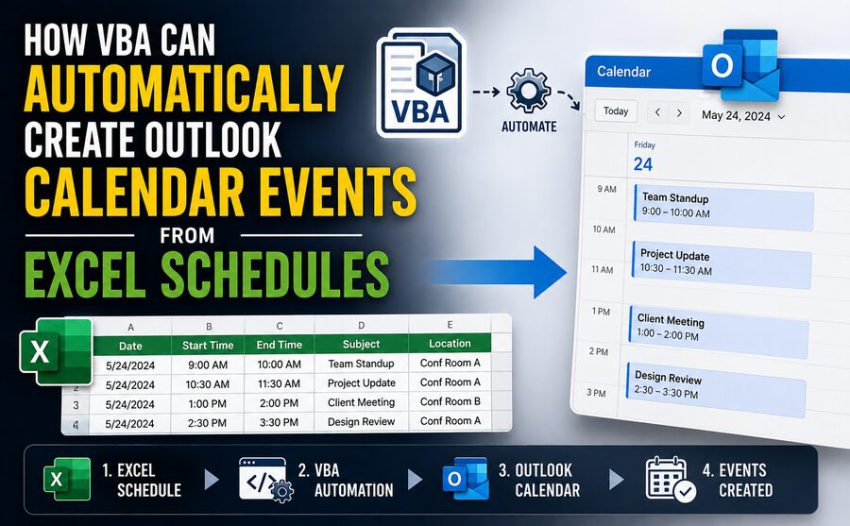

Many businesses build schedules in Microsoft Excel but rely on Microsoft Outlook to remind employees about meetings, deadlines, inspections, maintenance jobs, training sessions, deliveries, and project milestones.
Without automation, someone may have to read every Excel row and manually create a matching Outlook calendar event. For a schedule containing hundreds of entries, that process is slow, repetitive, and vulnerable to mistakes. 📊➡️📅
Visual Basic for Applications (VBA) can automate much of this work in environments that support the traditional Excel and Outlook desktop object models.
A VBA macro can read schedule information from worksheet cells, open or connect to Outlook, create appointments, fill in dates and times, add reminders and locations, and save the resulting calendar events automatically.
The core idea is straightforward:
Excel provides the schedule data, VBA provides the automation logic, and Outlook receives the calendar appointments. ⚙️
This technique can transform an ordinary spreadsheet into a lightweight scheduling automation system.
🧩 1. What VBA Is Doing Behind the Scenes
VBA is Microsoft’s built-in programming language for automating many tasks in Office desktop applications.
Inside Excel, a VBA macro can:
- Read cell values
- Loop through worksheet rows
- Perform calculations
- Validate dates
- Open other Office applications
- Create Outlook objects
- Save calendar appointments
The important capability here is Office automation.
Traditional desktop Outlook exposes an object model that VBA can use to create objects such as mail messages, contacts, and appointments.
Conceptually, the process looks like this:
Excel Schedule → VBA Macro → Outlook Appointment → Calendar
Instead of typing the same information twice, the spreadsheet becomes the source of truth.
📊 2. Start With a Well-Structured Excel Schedule
Automation becomes much easier when the spreadsheet has predictable columns.
For example, an Excel worksheet might contain:
| Event | Date | Start Time | End Time | Location | Reminder |
|---|---|---|---|---|---|
| Safety Inspection | 10-Sep-2026 | 09:00 | 10:00 | Plant A | 30 |
| Project Review | 11-Sep-2026 | 14:00 | 15:00 | Meeting Room 4 | 15 |
| Equipment Service | 12-Sep-2026 | 08:30 | 11:30 | Workshop | 60 |
Each row represents one calendar event.
VBA can read those columns and translate them into Outlook appointment properties.
For example:
Event → Outlook Subject
Date + Start Time → Start
Date + End Time → End
Location → Location
Reminder → ReminderMinutesBeforeStart
A consistent worksheet structure is one of the most important requirements for reliable automation. 🧱
📅 3. Outlook Represents Calendar Entries as Appointment Objects
In the classic Outlook object model, a calendar event is usually represented by an AppointmentItem.
VBA creates one and then assigns properties to it.
Typical properties include:
.Subject.Start.End.Location.Body.ReminderSet.ReminderMinutesBeforeStart.BusyStatus
After those values are populated, the appointment can be saved to the Outlook calendar.
The VBA command is conceptually similar to:
Set Appointment = OutlookApp.CreateItem(1)The value 1 represents an Outlook appointment item when late binding is used.
🔗 4. VBA Must First Connect Excel to Outlook
Before Excel can create calendar events, the macro needs access to an Outlook application object.
There are two commonly discussed approaches:
Early binding uses a reference to the Microsoft Outlook Object Library.
Late binding creates Outlook objects dynamically without requiring that reference in the VBA project.
Late binding is often convenient when a workbook needs to run on multiple computers with slightly different Office installations.
A typical late-binding approach looks like:
Dim OutlookApp As Object

On Error Resume Next
Set OutlookApp = GetObject(, "Outlook.Application")
On Error GoTo 0

If OutlookApp Is Nothing Then
    Set OutlookApp = CreateObject("Outlook.Application")
End If
The macro first tries to connect to an Outlook session that is already running.
If none is available, it attempts to create one.
🔄 5. The Macro Can Process Every Schedule Row Automatically
Once Outlook is available, VBA can loop through all populated rows in Excel.
Suppose row 1 contains headings and schedule entries begin on row 2.
The macro might determine the last used row and then process:
Row 2 → Row 3 → Row 4 → ...
For every row, it reads the schedule values and creates an appointment.
That is the key scalability advantage.
Creating 200 Outlook events manually may require hundreds of repetitive actions.
A properly designed macro can process the same 200 rows automatically. 🚀
💻 6. A Basic VBA Example
A simplified macro might look like this:
Sub CreateOutlookAppointments()

    Dim ws As Worksheet
    Dim OutlookApp As Object
    Dim Appointment As Object
    Dim LastRow As Long
    Dim i As Long
    Dim StartDateTime As Date
    Dim EndDateTime As Date

    Set ws = ThisWorkbook.Worksheets("Schedule")

    On Error Resume Next
    Set OutlookApp = GetObject(, "Outlook.Application")
    On Error GoTo 0

    If OutlookApp Is Nothing Then
        Set OutlookApp = CreateObject("Outlook.Application")
    End If

    LastRow = ws.Cells(ws.Rows.Count, "A").End(xlUp).Row

    For i = 2 To LastRow

        If IsDate(ws.Cells(i, "B").Value) _
           And IsDate(ws.Cells(i, "C").Value) _
           And IsDate(ws.Cells(i, "D").Value) Then

            StartDateTime = DateValue(ws.Cells(i, "B").Value) _
                            + TimeValue(ws.Cells(i, "C").Value)

            EndDateTime = DateValue(ws.Cells(i, "B").Value) _
                          + TimeValue(ws.Cells(i, "D").Value)

            Set Appointment = OutlookApp.CreateItem(1)

            With Appointment
                .Subject = ws.Cells(i, "A").Value
                .Start = StartDateTime
                .End = EndDateTime
                .Location = ws.Cells(i, "E").Value
                .ReminderSet = True
                .ReminderMinutesBeforeStart = ws.Cells(i, "F").Value
                .Body = "Created automatically from Excel."
                .Save
            End With

        End If

    Next i

    Set Appointment = Nothing
    Set OutlookApp = Nothing

    MsgBox "Calendar events created."

End Sub
This example demonstrates the essential pattern:
Read → Validate → Create → Populate → Save. ⚙️📅
Real business workbooks usually need additional checks and controls.
🕒 7. Combining Excel Dates and Times Correctly
Excel stores dates and times internally as numbers.
A date represents a whole-number portion, while time is represented as a fraction of a day.
For example, VBA can combine separate date and time cells with:
StartDateTime = DateValue(DateCell) + TimeValue(StartTimeCell)This creates a complete date-time value that Outlook can understand.
Correct date handling is important because regional formats can cause confusion.
For example:
03/04/2026
could mean March 4 in one locale and April 3 in another.
Using genuine Excel date values rather than text-formatted dates makes automation much safer. 📆
⏰ 8. Reminders Can Be Generated Automatically
One major benefit of creating events programmatically is that reminder settings can come directly from Excel.
Suppose the worksheet contains:
15
in a Reminder column.
VBA can assign:
.ReminderSet = True
.ReminderMinutesBeforeStart = 15
Outlook can then remind the user 15 minutes before the event.
Different rows can have different reminder periods.
A routine meeting might receive a 15-minute reminder, while a major inspection could receive a reminder one day beforehand.
This makes Excel a centralized place for scheduling rules.
📍 9. Locations and Notes Can Also Come From Cells
Calendar appointments can contain much more than a subject and time.
A macro can populate the event’s location:
.Location = ws.Cells(i, "E").ValueIt can also create a detailed body containing information from several spreadsheet columns.
For example:
.Body = "Technician: " & ws.Cells(i, "G").Value & vbCrLf & _
        "Job Number: " & ws.Cells(i, "H").Value & vbCrLf & _
        "Notes: " & ws.Cells(i, "I").Value
The resulting Outlook event might contain:
Technician: Alex
Job Number: M-4028
Notes: Inspect hydraulic system before restart.
This turns the calendar entry into a useful operational record rather than a simple reminder. 📝
🟣 10. Outlook Busy Status Can Be Controlled
Calendar events can indicate whether the user is available.
Traditional Outlook appointment objects support statuses corresponding to conditions such as:
- Free
- Tentative
- Busy
- Out of Office
A macro can therefore create scheduled work that automatically blocks the appropriate time.
For example, a maintenance appointment could be marked busy while a general informational reminder might remain free.
This can be useful when automated appointments feed into employee scheduling.
🔁 11. Recurring Events Require Additional Logic
Some schedules repeat.
Examples include:
- Weekly meetings
- Monthly inspections
- Quarterly audits
- Annual license renewals
Instead of creating dozens of separate calendar events, Outlook’s traditional object model can represent recurrence patterns.
VBA can obtain a recurrence pattern from an appointment and configure properties such as frequency and interval.
However, recurrence logic becomes more complicated because the macro must correctly define:
- Start date
- End date
- Repetition type
- Interval
- Occurrence rules
For many automation projects, creating individual rows in Excel is initially simpler and easier to audit.
👥 12. Appointments and Meeting Requests Are Not Exactly the Same
An important distinction exists between a calendar appointment and a meeting request.
An appointment belongs to a calendar.
A meeting generally involves attendees who are invited.
If the goal is merely to create events in the current user’s calendar, .Save may be sufficient.
If the automation must invite participants, additional properties and recipient handling are required, and sending meeting requests may have organizational and security implications.
Businesses should therefore decide whether their automation is intended to:
Create personal calendar entries or send invitations to other people.
The second requires more careful controls. 👥
✅ 13. Avoiding Duplicate Calendar Events Is Critical
A basic macro has an important weakness.
If the user runs it twice, it may create every event twice.
Run it three times, and three identical appointments may appear.
A production-quality workbook needs duplicate prevention.
One simple strategy is adding a Status column to Excel.
For example:
| Event | Date | Status |
| Safety Inspection | 10-Sep-2026 | Created |
| Project Review | 11-Sep-2026 | Pending |
The macro processes only rows marked Pending.
After successfully creating an event, it changes the cell to:
Created
This provides a simple record of what has already been exported.
🆔 14. Storing Outlook Entry IDs Is Even Better
A more sophisticated approach is to store Outlook’s unique identifier for the created calendar object.
After saving an appointment, the macro may be able to record its EntryID back into Excel.
The worksheet can then contain:
- Schedule ID
- Outlook Entry ID
- Sync status
This allows later automation to distinguish between:
- New events
- Existing events
- Events that need updating
That is the beginning of a true synchronization system rather than a one-time export process. 🔄
✏️ 15. Updating Existing Events Is Harder Than Creating Them
Creating a new appointment is relatively straightforward.
Synchronization is harder.
Suppose Excel originally contains:
Meeting: 2:00 PM
The macro creates the Outlook event.
Later, the Excel schedule changes to:
Meeting: 3:00 PM
Should the macro create another event?
Usually not.
It should locate the original appointment and modify it.
That requires a durable link between the Excel row and Outlook item, typically using an identifier or another carefully designed matching method.
Without such linkage, duplicate and outdated events can accumulate quickly.
🛡️ 16. Validation Should Happen Before Outlook Is Modified
A robust macro should inspect data before creating anything.
Useful validation rules include:
- Subject cannot be blank
- Date must be valid
- Start time must exist
- End time must be after start time
- Reminder must be numeric
- Event must not already be processed
For example:
If EndDateTime <= StartDateTime Then
    'Flag row instead of creating appointment
End If
Validation prevents bad spreadsheet data from becoming bad calendar data.
This principle applies to almost every automation project:
Validate first, automate second. ✅
🚨 17. Error Handling Prevents One Bad Row From Stopping Everything
Imagine a schedule containing 500 rows.
Row 217 contains an invalid time.
A poorly designed macro may stop entirely at that point.
A better system records the error and continues processing the remaining schedule.
An Error column might contain:
Invalid end time
or:
Outlook item could not be saved
Good automation does not merely work when everything is perfect.
It also explains what went wrong when something fails. 🔍
📝 18. Logging Makes Automation Easier to Audit
For business use, it can be useful to keep a log.
A log worksheet might record:
- Row number
- Event name
- Date processed
- Outlook result
- Error message
- User running macro
For example:
| Row | Event | Result |
| 12 | Project Review | Created |
| 13 | Site Inspection | Created |
| 14 | Audit | Invalid date |
This makes troubleshooting far easier than relying only on a final message box.
It also provides an audit trail for operational processes.
🔐 19. Macro Security Matters
VBA macros can perform powerful actions on a user’s computer.
That also means they create security concerns.
Organizations may restrict:
- Unsigned macros
- Downloaded macro-enabled workbooks
- Programmatic Outlook access
- Office automation
- Access to corporate calendars
A workbook containing VBA is normally stored in a macro-enabled format such as:
.xlsm
Users should not enable macros from untrusted sources.
Organizations using VBA operationally may also use digital signatures, trusted locations, and centrally managed security policies. 🔐
🖥️ 20. Compatibility With Outlook Matters
Traditional Excel-to-Outlook VBA automation depends on the classic Windows desktop Outlook object model and COM-style automation environment.
Microsoft’s newer Outlook experiences use a different application architecture, so organizations should verify that their specific Outlook version supports the automation method before building a workflow around VBA.
This is especially important when a company is migrating Office applications.
If traditional Outlook automation is unavailable, alternative approaches may include:
- Microsoft Graph
- Power Automate
- Office Scripts combined with cloud workflows
- Custom web applications
- Microsoft 365 APIs
VBA can still be extremely useful in compatible desktop environments, but platform architecture should be checked before deployment. ⚙️
☁️ 21. When Power Automate May Be a Better Choice
VBA is strongest when:
- Excel desktop is already central to the workflow
- The automation runs on a user’s Windows computer
- The company has existing VBA expertise
- The workflow is relatively small and controlled
Cloud automation may be better when:
- Many users need the system
- Work must run without Excel being open
- Events should be created centrally
- Cross-platform support is required
- Microsoft 365 cloud services are already in use
For example, Power Automate can monitor a table stored in Excel Online and create Outlook calendar events through cloud connectors.
The best technology depends on where the workflow needs to run.
🧰 22. A Button Can Make the Macro Easy to Use
Users do not need to open the VBA editor every time.
Excel can contain a button labeled:
📅 Create Outlook Events
The button can be assigned to the macro.
A user then:
- Updates the schedule.
- Checks the rows.
- Clicks the button.
- Receives a processing summary.
This creates a much friendlier experience for nontechnical staff.
A second button might perform:
🔄 Update Existing Events
while another could generate a validation report.
📋 23. Excel Tables Make the Schedule More Reliable
Instead of using arbitrary worksheet ranges, developers can turn the schedule into an official Excel Table.
Tables provide named columns such as:
Schedule[Event]
Schedule[Date]
Schedule[Start Time]
This can make code easier to understand and reduce problems when new rows are added.
Tables also provide filtering and structured references for users.
For maintainable automation, good spreadsheet design is just as important as good VBA code. 🧱
🏭 24. Real-World Business Uses
Excel-to-Outlook scheduling automation can support many workflows.
🔧 Maintenance
A factory could maintain preventive-maintenance dates in Excel and automatically create technician calendar appointments.
🏗️ Construction
Project teams could create inspection, delivery, and milestone reminders.
👩🏫 Training
HR teams could turn training schedules into calendar events.
💰 Finance
Finance departments could schedule tax deadlines, reporting dates, and payment reviews.
🚚 Logistics
Dispatch teams could create pickup, delivery, and inspection reminders.
📊 Project Management
Milestones maintained in Excel could automatically appear on managers’ calendars.
The same technical pattern can therefore support many industries.
🚀 25. From Simple Macro to Scheduling System
A basic VBA macro creates appointments from rows.
A more advanced implementation could add:
- Duplicate detection
- Two-way updates
- Unique schedule IDs
- User-specific calendars
- Categories
- Meeting attendees
- Recurrence
- Automatic error logs
- Event deletion
- Conflict detection
- Status dashboards
At that point, the spreadsheet is becoming a lightweight scheduling application.
However, complexity should be managed carefully.
If the workflow becomes mission-critical, highly multiuser, or cloud-dependent, a database-backed or API-based solution may ultimately be more maintainable than a large VBA workbook.
🧠 26. The Fundamental Automation Pattern
The underlying logic can be summarized simply:
Step 1: Store consistent schedule information in Excel. 📊
Step 2: Let VBA read each schedule row. 🔍
Step 3: Validate dates, times, and required information. ✅
Step 4: Connect to supported Outlook automation interfaces. 🔗
Step 5: Create an appointment object. 📅
Step 6: Populate subject, time, location, notes, and reminder. 📝
Step 7: Save the event. 💾
Step 8: Record that the row was successfully processed. ✔️
Once that pattern works reliably, additional features can be added gradually.
🏁 Conclusion
VBA can turn an Excel schedule into a powerful source of automated Outlook calendar events in compatible desktop Office environments.
Instead of manually copying event names, dates, times, locations, and reminders from a spreadsheet, a macro can read each row and create the corresponding Outlook appointment automatically. 📊➡️📅
The technical mechanism is straightforward: Excel VBA connects to Outlook’s traditional automation object model, creates an appointment, fills its properties, and saves it.
The real engineering challenge is making that automation reliable.
A professional solution should consider:
Data validation
Duplicate prevention
Error handling
Processing logs
Event identification
Security policies
Outlook compatibility
Future synchronization
For small and medium-sized internal workflows, the result can save substantial administrative effort.
A schedule that once required someone to manually create dozens or hundreds of calendar entries can instead become a structured source from which events are produced consistently and automatically. ⚙️🚀
And that demonstrates one of VBA’s enduring strengths: it can connect everyday Office tools and transform repetitive manual work into a repeatable business process.