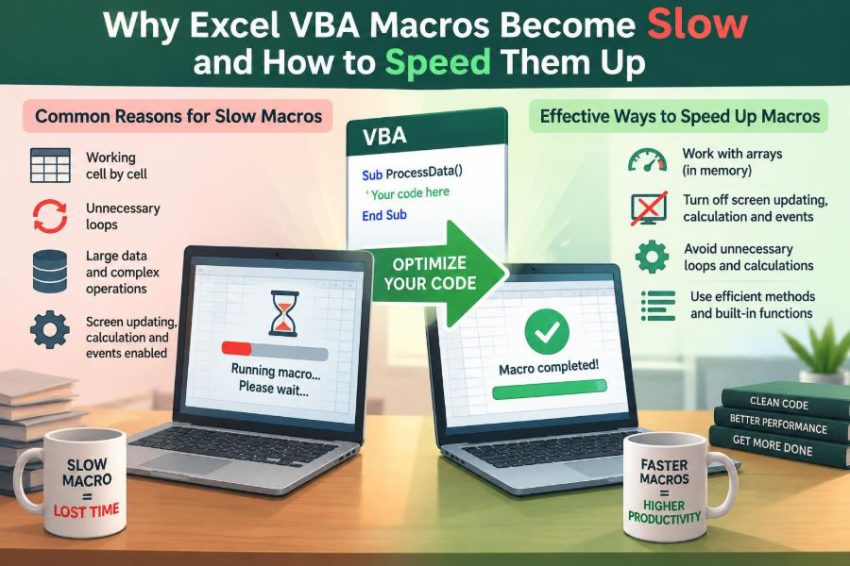

A monthly workbook arrives with thousands of rows, several formulas, and a button labelled “Refresh Report.” At first, the VBA macro finishes before anyone has time to make coffee. A few months later, the same button appears to freeze Excel for minutes.
This is a familiar problem for analysts, finance teams, operations staff, and anyone who automates repetitive spreadsheet work. The macro may still produce the right answer, but a slow process interrupts work, encourages manual shortcuts, and makes a workbook feel unreliable.
Slow VBA is rarely caused by one mysterious flaw. More often, a macro repeatedly asks Excel to repaint the screen, recalculate formulas, read individual cells, or switch between workbooks. Each action seems small, but thousands of repetitions create a large delay.
The good news is that most performance problems can be found systematically. Once you understand where Excel spends time, you can redesign code around bulk operations, controlled application settings, and clear measurement. ⚡
🐢 1. What “slow” means in an Excel macro
A macro is slow when its runtime disrupts the task it is meant to automate. The important measure is not whether every line looks elegant; it is whether users can run the process predictably and safely.
There are two broad sources of delay: VBA work, such as loops and string processing, and Excel work, such as worksheet interaction, calculation, formatting, events, and screen updates. In many real macros, Excel work is the larger cost.
🔍 2. Start by locating the bottleneck
Do not optimize by guessing. First identify which procedure, loop, or operation consumes the time. A macro can feel slow because of one inefficient inner loop rather than because every line needs improvement.
Use Timer for a quick elapsed-time check. Record timings around meaningful blocks, not around every single statement.
Dim startedAt As Double
startedAt = Timer

Call BuildReport

Debug.Print "BuildReport seconds: "; Timer - startedAt
For processes that may cross midnight, a more robust timer approach is useful, but for ordinary testing this is enough to compare changes. Measure before and after each improvement. ⏱️
🧭 3. Measure separate stages, not just the whole macro
A single total runtime tells you that there is a problem, but not where it lives. Divide the work into stages such as importing data, cleaning rows, writing results, formatting, and saving.
- Read source data.
- Transform values in memory.
- Write output ranges.
- Apply formats or create formulas.
- Refresh pivots, queries, or calculations.
Timing these stages prevents wasted effort. If formatting takes most of the runtime, rewriting a tiny text-cleaning function will not noticeably help users.
🖥️ 4. Stop unnecessary screen repainting
Excel normally redraws the workbook as code changes cells, selects sheets, or alters formatting. That feedback is helpful during manual work, but it is expensive when a macro makes many changes.
Set Application.ScreenUpdating = False before the intensive work, then restore it when the macro ends. The macro still changes the workbook; Excel simply postpones visual updates.
Application.ScreenUpdating = False
'Work happens here
Application.ScreenUpdating = True
Never assume this setting will restore itself after an error. A reliable cleanup pattern is essential, especially in macros other people will run.
🧮 5. Control automatic calculation carefully
With automatic calculation enabled, changing a cell can trigger recalculation of dependent formulas. If your macro writes many cells one at a time, Excel may repeatedly recalculate before the data is complete.
Temporarily switch calculation to manual when the macro performs large updates, then calculate deliberately after the updates are finished.
Application.Calculation = xlCalculationManual
'Write and update data
Application.Calculate
Manual calculation is powerful, but it must be restored. Leaving a user’s Excel session in manual mode can lead to confusing reports with formulas that look current but are not. 🧮
🔔 6. Prevent event procedures from firing repeatedly
Worksheet and workbook events can run whenever a cell changes, a sheet activates, or a workbook opens. A macro that writes hundreds of cells can unintentionally trigger a Worksheet_Change procedure hundreds of times.
Use Application.EnableEvents = False while performing controlled bulk changes. Re-enable events afterward so normal workbook behavior returns.
Application.EnableEvents = False
'Bulk updates
Application.EnableEvents = True
Only disable events when you understand what those events do. If an event contains important validation or logging, your macro may need to perform that work explicitly instead.
🛡️ 7. Restore Excel settings even when code fails
Performance settings should be treated as temporary state. A runtime error between turning a feature off and turning it back on can leave Excel in an awkward condition.
Use a cleanup label and a structured error handler. Save the previous settings rather than blindly assuming their original values.
Dim oldCalculation As XlCalculation
Dim oldScreenUpdating As Boolean
Dim oldEvents As Boolean

oldCalculation = Application.Calculation
oldScreenUpdating = Application.ScreenUpdating
oldEvents = Application.EnableEvents

On Error GoTo CleanUp
Application.ScreenUpdating = False
Application.EnableEvents = False
Application.Calculation = xlCalculationManual

'Main macro code

CleanUp:
Application.Calculation = oldCalculation
Application.EnableEvents = oldEvents
Application.ScreenUpdating = oldScreenUpdating
If Err.Number <> 0 Then Err.Raise Err.Number, , Err.Description
This pattern makes optimization safer. Fast code that leaves Excel unusable after one error is not production-quality automation.
📦 8. The biggest rule: move data in blocks
Crossing the boundary between VBA and a worksheet is relatively costly. Reading or writing one cell is manageable; doing it tens of thousands of times is often the central performance problem.
Read a rectangular range into a Variant array, process it in memory, and write the completed array back in one operation. This replaces many worksheet calls with just two.
Dim data As Variant
Dim lastRow As Long

lastRow = Cells(Rows.Count, "A").End(xlUp).Row
data = Range("A2:D" & lastRow).Value2

'Process data array
Range("A2:D" & lastRow).Value2 = data
This design change is frequently more valuable than small syntax-level optimizations. 📦
🧠 9. Why arrays are faster than cell-by-cell loops
An array lives in VBA memory. Accessing data(rowIndex, columnIndex) avoids repeated requests to Excel’s worksheet object model.
Compare the two approaches conceptually:
| Approach | Where work happens | Typical issue |
|---|---|---|
| Cell-by-cell loop | VBA repeatedly communicates with Excel | High overhead on large ranges |
| Read-process-write array | Most logic runs in VBA memory | Requires careful row and column indexing |
| Worksheet formula range | Excel calculation engine | Can add calculation and maintenance costs |
Arrays are not automatically best for every task, but they are usually the right starting point for large data transformations.
🔢 10. Use Value2 when you need underlying values
Range.Value2 reads and writes raw values without some of the date and currency conversions associated with Value. For many data-processing macros, it is a sensible default.
It does not preserve formatting, formulas, or displayed text. It gives the underlying cell value, which is exactly what many calculations and comparisons require.
data = Range("A2:C1000").Value2
Choose the property based on the result you need. Speed matters, but correct treatment of dates, formulas, and displayed values matters first.
🎯 11. Define the used range precisely
Processing an entire column means processing more than a million rows in modern Excel, even if only a few thousand contain records. Avoid ranges such as Range("A:A") for data loops unless that scale is truly intended.
Find the final relevant row and construct a bounded range. Also consider whether blank rows, formulas returning an empty string, or stale formatting could affect the method used to find that row.
lastRow = ws.Cells(ws.Rows.Count, "A").End(xlUp).Row
Set sourceRange = ws.Range("A2:F" & lastRow)
Precise boundaries improve speed and reduce the chance of overwriting unrelated worksheet content.
🚫 12. Avoid Select, Activate, and ActiveCell
Recorded macros often select a range, activate a sheet, and then perform an action. These steps make code slower and more fragile because they depend on the current user interface state.
Refer directly to the workbook, worksheet, and range you mean to use.
'Avoid
Worksheets("Data").Activate
Range("A1").Select
Selection.ClearContents

'Prefer
Worksheets("Data").Range("A1").ClearContents
Direct references are faster, easier to read, and less likely to modify the wrong sheet when a user clicks elsewhere during a macro.
🏷️ 13. Fully qualify workbook, worksheet, and range references
An unqualified Cells, Range, or Rows.Count refers to whichever sheet is active. That ambiguity can cause errors and may force unnecessary activations in poorly structured code.
Store key objects in variables and use them consistently.
Dim ws As Worksheet
Set ws = ThisWorkbook.Worksheets("Data")

lastRow = ws.Cells(ws.Rows.Count, "A").End(xlUp).Row
ws.Range("G2:G" & lastRow).ClearContents
ThisWorkbook means the workbook containing the VBA code, while ActiveWorkbook means the workbook currently active on screen. They are not interchangeable.
🔁 14. Keep expensive work outside inner loops
An inner loop runs once for every record, so even a tiny inefficiency inside it multiplies quickly. Move constant calculations, object assignments, and property lookups outside whenever possible.
For example, calculate the last row once, store the worksheet in a variable once, and avoid repeatedly constructing the same format string. This is a basic programming principle with a large impact in VBA.
Set ws = ThisWorkbook.Worksheets("Data")
lastRow = ws.Cells(ws.Rows.Count, "A").End(xlUp).Row

For r = 2 To lastRow
    'Use ws and precomputed values here
Next r
🧹 15. Do not clean data with repeated worksheet edits
Suppose a macro trims text, replaces a code, and normalizes case for every row. Writing each intermediate result back to the worksheet creates unnecessary Excel interaction.
Instead, read data into an array, perform all transformations on the array element, and write the final value once. The worksheet becomes the input and output surface, not temporary working memory.
For r = 1 To UBound(data, 1)
    data(r, 1) = UCase$(Trim$(CStr(data(r, 1))))
Next r
Use type conversions thoughtfully. A cell can be empty, contain an error, or hold a numeric value, so text functions may need validation before use.
🗂️ 16. Use dictionaries for fast lookups
Many slow macros search a reference list from top to bottom for every incoming row. This creates a nested-loop pattern: each record may scan the same lookup range again and again.
A dictionary stores values by key, allowing direct lookup after the reference data has been loaded. In VBA, this is commonly created with CreateObject("Scripting.Dictionary").
Dim lookup As Object
Set lookup = CreateObject("Scripting.Dictionary")

lookup("A100") = "Approved"
If lookup.Exists("A100") Then
    Debug.Print lookup("A100")
End If
Load keys from a range array first. Decide whether keys should be case-sensitive and ensure they are normalized consistently before adding and searching.
🧩 17. Replace nested loops with better data structures
A nested loop is not always wrong, but it deserves scrutiny when both loops process large lists. Matching every transaction against every customer can become slow very quickly.
Common replacements include:
- A dictionary for one-to-one or one-to-many key lookups.
- A collection when ordered grouping is useful.
- Worksheet formulas when Excel’s built-in functions express the task clearly.
- Sorting data first, then processing matching groups together.
The goal is not to avoid loops completely. The goal is to avoid repeating searches that a lookup structure can answer directly.
📄 18. Minimize workbook and worksheet switching
Opening, activating, saving, copying, and closing workbooks are relatively heavy operations. If a macro alternates between files for every row, the interface and file system become part of the bottleneck.
Open each needed workbook once, store object references, process its data in larger batches, and save only when necessary. Avoid relying on activation as a way to identify the target workbook.
When working with external files, also plan for missing paths, read-only files, and prompts. A slightly slower but well-handled import is better than a fast macro that fails unpredictably.
🧱 19. Build output in a single write operation
Report-building macros often write headings, values, formulas, and labels one cell at a time. This is convenient to code but costly at scale.
Create a two-dimensional output array sized for the result, fill it in memory, and assign it to a destination range. If formulas are appropriate, assign a formula to an entire bounded range rather than repeating the assignment row by row.
ReDim outputData(1 To recordCount, 1 To 3)
'Fill outputData
ws.Range("H2").Resize(recordCount, 3).Value2 = outputData
Make sure the array dimensions match the destination range. Off-by-one errors are common when arrays start at 0 in some contexts and worksheet-style data arrays start at 1.
🎨 20. Apply formatting in batches
Formatting can be surprisingly expensive because it changes cell properties and may trigger visual work. Setting a font, color, border, or number format inside a row loop repeats that overhead many times.
Format entire result ranges or contiguous blocks after values have been written. Use a single operation whenever all cells share the same format.
With ws.Range("H2:J" & lastRow)
    .NumberFormat = "0.00"
    .HorizontalAlignment = xlRight
End With
Conditional formatting and complex styles also deserve review. Keep presentation separate from data preparation where possible.
🧾 21. Be cautious with formulas and recalculation
Writing formulas can be faster than reproducing complex calculations in VBA, especially when users need transparent worksheet logic. But thousands of formulas can increase calculation time and make downstream changes expensive.
Choose deliberately between calculated values and formulas. Use formulas when the workbook should remain dynamic; use values when the macro is producing a fixed snapshot and recalculation is unnecessary.
Do not replace every formula with VBA merely for speed. Formula logic is often easier for spreadsheet users to audit, test, and modify.
📌 22. Use Excel features that fit the task
VBA is useful for orchestration and custom logic, but not every data task should be implemented as a loop. Filtering, sorting, removing duplicates, and some aggregations may be handled effectively by Excel features or built-in worksheet functions.
For repeatable data imports and transformations, query-based tools may also be a better fit than procedural VBA. The best solution is the one that remains understandable and maintainable for the people who own the workbook.
Before optimizing code, ask whether the process belongs in VBA at all. That question can eliminate an entire category of performance issues. 💡
🧪 23. Test with realistic data volumes
A macro that handles fifty rows smoothly may behave very differently with fifty thousand rows, longer text, more formulas, or several open workbooks. Test using a safe copy of data that resembles the real workload.
Include edge cases such as blank rows, error values, duplicate keys, missing lookup values, and unexpected dates. Performance improvements should not remove necessary checks or silently change results.
Record both runtime and correctness. A fast report with wrong totals is not an optimization.
🛠️ 24. Use debugging tools without distorting results
Debug.Print is useful for checking progress and timing during development, but printing inside a very large loop can affect performance. Remove or limit diagnostic output before making a final runtime comparison.
Breakpoints, watches, and stepping through code are essential for correctness, yet they do not represent normal execution speed. Test performance by running the procedure normally after debugging is complete.
For long processes, a carefully designed progress message can improve the user experience. Update it occasionally rather than on every iteration.
🧱 25. Write maintainable fast code
Optimization should not turn a macro into an unreadable collection of clever shortcuts. Clear variable names, small procedures, comments on non-obvious decisions, and explicit error handling make future changes safer.
Separate responsibilities where practical: one procedure reads input, another transforms arrays, another writes output, and another applies presentation. This structure also makes it easier to time and test individual stages.
Fast code is valuable only when people can trust and maintain it.
✅ 26. The core principle: reduce unnecessary trips to Excel
The central idea behind VBA performance is simple: make Excel do fewer repeated interface actions. Turn off temporary overhead safely, read and write ranges in blocks, keep intensive logic in memory, and avoid repeated searches or formatting operations.
Measure first, improve the actual bottleneck, and test the result with realistic data. A few high-impact changes usually matter more than dozens of tiny edits.
The fastest VBA macros minimize communication with the worksheet while preserving correct, clear, and recoverable automation. ⚡📦🧠