
It is 4:30 on a Friday. A colleague has sent a familiar request: combine several exported reports, remove unnecessary columns, calculate a few totals, and prepare a workbook for Monday’s meeting.
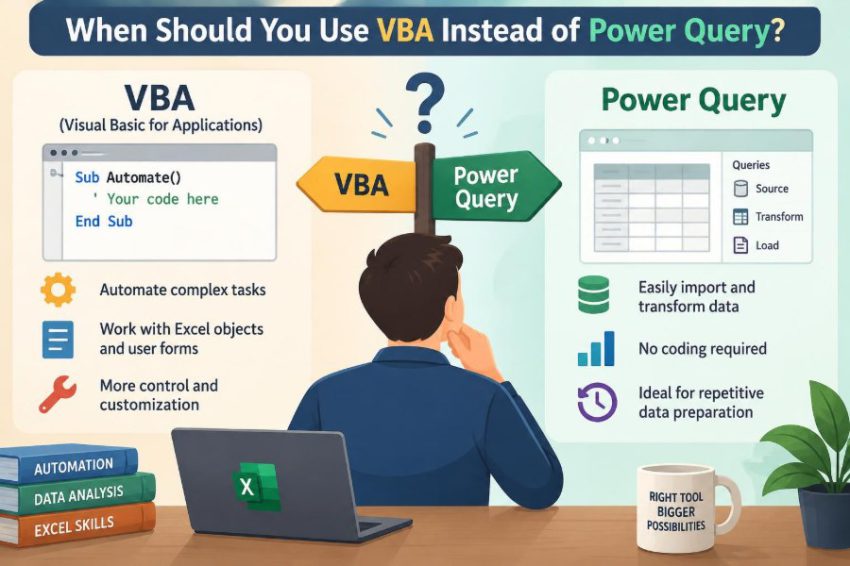
You know Excel can handle it. The harder question is which tool should do the work. Should you record or write a VBA macro, or should you build a Power Query that can refresh the data next week?
This choice matters because the two tools solve different kinds of problems. Choosing well can produce a process that is clearer, safer, easier to maintain, and far less dependent on manual effort.
VBA and Power Query are not rivals in every situation. Many excellent Excel solutions use both, with each tool responsible for the part of the workflow it does best. 🧭
🧩 1. Start with the real decision
The question is not whether VBA or Power Query is “better.” The useful question is: what must this process do, and when must it do it?
Power Query is designed primarily to connect to data, transform it, and load a result. VBA is a programming language within Office applications that can automate actions, make decisions, interact with workbook objects, and respond to users.
If your work is mostly repeatable data preparation, Power Query is often the first tool to consider. If it requires procedural control of Excel or Office, VBA may be the better fit.
🔄 2. Use Power Query for repeatable data shaping
Power Query is particularly strong when the same transformation should be applied each time a file or data source is refreshed. You define the steps once, then refresh them when new data arrives.
Typical shaping tasks include:
- removing unneeded columns;
- filtering rows by a condition;
- changing data types;
- splitting text into several fields;
- combining files with a consistent structure;
- grouping, merging, or appending tables.
These steps are visible in the query interface and are recorded as transformations. That transparency is a major advantage when the process is fundamentally about data.
⚙️ 3. Use VBA for procedural automation
VBA is most useful when a task is a sequence of actions, particularly actions involving Excel’s interface, workbook structure, or user choices. A macro can inspect conditions, branch to different actions, display messages, and update many workbook elements.
For example, a VBA routine can ask the user to select a file, validate that a required worksheet exists, create a new report sheet, apply a print layout, save a PDF, and prepare an email draft. Power Query does not aim to orchestrate that full sequence.
Think of VBA as an automation and control tool, not merely a way to transform data.
🗂️ 4. Choose VBA when the workbook itself must change
Power Query loads data into a table, the Data Model, or a connection-only result. It does not normally redesign the workbook around that data.
Use VBA when the job must create, delete, rename, copy, hide, protect, or reorganize worksheets. It is also appropriate when you must add formulas, create named ranges, alter charts, set page breaks, or manage workbook-level settings.
A monthly reporting workbook may need a new tab for each business unit, a standardized cover sheet, and tailored print settings. Those are workbook automation tasks, so VBA is a natural choice.
🧭 5. Choose VBA for guided user workflows
Some processes require a person to make a choice before the next step can occur. The user may need to select a reporting period, confirm an exception, choose a folder, or decide whether an existing output may be overwritten.
VBA can provide prompts, forms, buttons, validation messages, and controlled navigation. It can make a complicated workbook feel more like a small application.
Power Query can use parameters, but it is not designed as a general-purpose user-interface framework. When the experience of the person using the workbook is central, VBA usually offers more control.
🧹 6. Prefer Power Query for cleaning imported data
Data cleaning is where Power Query frequently has the clearest advantage. It is built to import data and apply a documented sequence of transformations before the data reaches the worksheet.
For example, it can consistently trim text, replace values, remove blank rows, promote headers, detect types, and standardize a date field. The process is repeatable without writing a loop through thousands of cells.
Using Power Query also keeps raw imported data and cleaned output conceptually separate. That separation makes errors easier to investigate. 🧼
📚 7. Prefer Power Query for combining similar files
Suppose a folder receives one sales export per region every month, and each file has the same columns. Power Query can connect to the folder, apply a transformation pattern, and append the results into one dataset.
This is generally more robust than a VBA macro that opens each file, copies ranges, and pastes values into a master workbook. The query describes the intended result instead of reproducing a long series of interface actions.
Consistency is important here. If source files vary widely in layout, both tools may need additional logic, but Power Query remains a strong starting point for structured files.
🧠 8. Understand the difference between steps and instructions
In Power Query, transformations are expressed as a chain of data-processing steps. Each step takes a table-like result and produces another result.
In VBA, you write instructions that execute in order. The code can loop, call procedures, inspect cells, react to errors, and change its path based on a condition.
| Need | Usually the stronger starting point |
|---|---|
| Clean and reshape a dataset on refresh | Power Query |
| Control worksheets, charts, files, or printing | VBA |
| Combine consistently structured exports | Power Query |
| Guide a user through choices and validation | VBA |
| Send a report through an Office workflow | VBA |
| Load transformed data for analysis | Power Query |
The distinction is not absolute, but it helps you avoid forcing a tool into a job it was not designed to handle.
🧾 9. Use VBA when formulas must be written or managed
Power Query can calculate values while transforming data, but it does not manage ordinary worksheet formulas in the way VBA can. It cannot, for example, fill a customized formula down a report section and then preserve a user-entered exception in a separate area.
VBA can write formulas, convert formulas to values, apply number formats, and respond when a template changes. It can also inspect formulas already present in a workbook.
Use this power carefully. If a calculation belongs in the query itself or in a stable Excel table formula, placing it there may be simpler than generating it with code.
📊 10. Use VBA when chart and report presentation matters
A clean dataset is not always the finished deliverable. Stakeholders may need a formatted report with updated charts, titles, annotations, and print-ready pages.
VBA can refresh charts, reposition objects, update text based on selected dates, and export a worksheet or workbook as a PDF. It can also create reports from a template while keeping presentation rules consistent.
Power Query prepares the data behind the report. VBA can handle the final presentation layer when the layout requires active management.
🔐 11. Consider security and macro policies early
A technically good VBA solution can still fail in practice if recipients cannot enable macros. Many organizations restrict macro-enabled workbooks, block files from untrusted locations, or require approved deployment practices.
Power Query also has security considerations, especially around credentials and external data sources, but it does not require users to enable VBA macros. That can make a query-based workbook easier to distribute in controlled environments.
Before building a solution, ask what your organization permits. Deployment rules are part of the design requirement, not an afterthought.
🧪 12. Choose the tool that is easier to test
Power Query transformations are often easier to inspect step by step. You can select a step and see the resulting preview, which helps identify the point at which a field or row changed unexpectedly.
VBA can also be tested carefully, but it requires programming discipline: breakpoints, controlled test files, meaningful procedure names, and explicit error handling. A macro that silently edits the wrong workbook can cause considerable confusion.
For straightforward data transformations, Power Query’s visible step history can reduce the testing burden.
🛠️ 13. Use VBA for complex exception handling
Real processes often encounter missing files, invalid names, unavailable folders, protected sheets, or values that require human review. VBA provides detailed control over what happens when an error or exception occurs.
A well-designed macro can stop safely, explain the issue, log a problem, or offer the user a choice. It can also treat different exceptions differently rather than applying one generic response.
Power Query can report refresh errors, and its transformation logic can handle many data conditions. But VBA is usually more suitable when the process needs a carefully managed recovery path.
🧮 14. Avoid VBA cell-by-cell loops for large data tasks
VBA can process data, but a macro that reads and writes worksheet cells one at a time is often inefficient and difficult to maintain. This is a common reason that automated workbooks feel slow.
When the goal is to filter, join, reshape, or aggregate a large imported table, Power Query is usually a better fit. It works as a data transformation engine rather than as a series of visible cell operations.
If VBA is necessary, better designs often read a range into an array, process it in memory, and write the result back in one operation. Even then, first ask whether Power Query already solves the data task more directly.
🔗 15. Use Power Query when source connections should be clear
Power Query gives users a recognizable place to review data sources, queries, refresh settings, and transformation steps. This helps when several people inherit the workbook.
A VBA macro can also import files or connect to data, but the connection rules may be embedded in code. Unless the code is well documented, a future maintainer may struggle to discover where the data comes from.
For routine imports from databases, folders, text files, or other workbooks, query connections often make the lineage easier to follow.
📩 16. Use VBA for Office application automation
VBA is valuable when Excel must work with other Office applications. Depending on the environment and permissions, it can automate parts of a workflow involving Outlook, Word, or other Office objects.
A common example is preparing a report, saving it, and creating an email draft with the report attached. Another is populating a Word document from values calculated in Excel.
Power Query is not intended to automate these application-level actions. Its role ends closer to obtaining and transforming the data.
🗓️ 17. Use Power Query for refresh-centered routines
If the process can be described as “put the new file in the folder, then refresh,” Power Query is likely worth serious consideration. This pattern is simple for users and reduces the number of manual copy-and-paste actions.
Refresh-centered routines are especially useful for recurring reporting, provided the source layout remains reasonably stable. A query can load clean data into an Excel table, a PivotTable source, or the Data Model.
The key benefit is repeatability: the same defined transformations apply to each new batch.
🧷 18. Use VBA when timing and sequence are essential
Some actions must happen in a particular order: remove old output, refresh selected connections, wait for a result, check a control total, generate a report, then save an approved copy.
VBA can coordinate such a workflow and make decisions between stages. It can also run in response to a button click, workbook event, or another defined trigger.
Use restraint with automatic event code. A workbook that performs unexpected actions whenever a cell changes can be difficult to understand and troubleshoot.
🧱 19. Separate data preparation from workbook behavior
A powerful design principle is to keep data preparation and workbook behavior separate. Let Power Query retrieve and clean the data, then let formulas, PivotTables, or VBA use that prepared result.
This division reduces duplication. You do not need VBA to repeat cleaning rules that Power Query already records clearly, and you do not need a query to imitate a user interface.
Separation also makes future changes safer because each part has a narrower responsibility.
🤝 20. Combine VBA and Power Query when the workflow needs both
The best answer is often not one tool alone. A practical hybrid workflow might use Power Query to consolidate and clean source files, then use VBA to refresh the workbook, update a reporting template, and produce a PDF.
In that arrangement, each tool operates where it is strongest. The query owns data transformation; the macro owns orchestration and presentation.
Do not combine tools merely because you can. Combine them when the handoff is clear and makes the solution easier to use or maintain.
🧑💻 21. Consider who will maintain the solution
A solution is not complete when it works once. It must also be understandable to the person who updates it next quarter, next year, or after you change roles.
People who are comfortable with Excel’s data tools may be able to inspect Power Query steps without being programmers. VBA maintenance requires someone who can read, test, and safely edit code.
Document the purpose, inputs, outputs, refresh instructions, and known assumptions whichever tool you choose. Good documentation is a form of risk control.
🏷️ 22. Build with stable names, not fragile positions
Whether you use VBA or Power Query, fragile assumptions cause problems. A macro that depends on “the third worksheet” or “column G” can break as soon as someone inserts a new column.
In VBA, prefer named worksheets, Excel Tables, named ranges, and clearly defined objects. In Power Query, use deliberate query names and verify that source headers and types are handled intentionally.
A robust process describes meaningful business objects rather than relying on accidental positions in a workbook.
🧭 23. Know when Power Query is not enough
Power Query is not a replacement for every Excel automation need. It is not designed to run custom dialogs, format a bespoke report, react richly to worksheet events, or perform arbitrary Office tasks.
It is also not always the best place for a highly interactive, one-off analysis where a user is constantly changing inputs and exploring results. In those cases, worksheet formulas, PivotTables, and sometimes VBA may be more appropriate.
Its strength is disciplined, repeatable data acquisition and transformation—not general workbook programming.
🚫 24. Know when VBA is unnecessary
Writing VBA for a task that Power Query can perform through a few clear steps creates avoidable maintenance work. It can make a routine depend on macro permissions and on a person who understands the code.
Be cautious when the macro’s main job is simply to import a file, delete a few columns, split text, remove blanks, and append records. Those are classic query transformations.
Use code because you need programming behavior, not because code feels more powerful.
✅ 25. Ask a short set of design questions
Before choosing a tool, work through these questions:
- Is the main output a cleaned, combined, or reshaped dataset?
- Will the same data steps run again on future files?
- Must the workbook’s sheets, formulas, charts, or print layout change?
- Does a user need prompts, buttons, validation, or choices?
- Must the process interact with files or other Office applications?
- Can recipients run macros under their organization’s policies?
- Who will support the solution after it is delivered?
Answers pointing toward repeatable data work favor Power Query. Answers pointing toward control, interaction, and automation favor VBA.
📝 26. A practical decision example
Imagine a finance team receives a standard CSV export every month. It needs to remove incomplete records, standardize department names, join a lookup table, and summarize the results for a PivotTable.
Power Query should usually own this work. The team can place the export in an agreed location and refresh the model, while the query applies the same cleaning rules every month.
Now add a requirement: create a separate worksheet for each manager, apply a protected reporting template, export each page to PDF, and prepare email drafts. VBA becomes appropriate for that reporting and distribution stage.
🎯 27. Core principle: match the tool to the responsibility
Use Power Query when the responsibility is to connect to data, clean it, reshape it, combine it, and load a dependable result that can be refreshed. Its step-based approach is especially valuable for recurring data preparation.
Use VBA when the responsibility is to control Excel or Office behavior: guide users, manage workbook objects, apply presentation rules, coordinate sequences, and handle decisions that go beyond data transformation.
The strongest solution gives Power Query the data work and gives VBA the automation work—using either tool alone only when it truly covers the whole requirement. 🧭⚙️📊