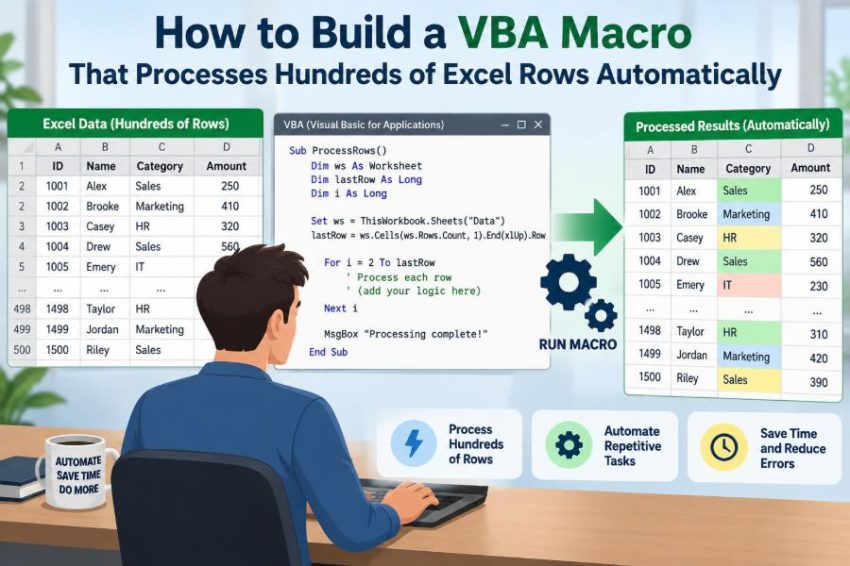

A monthly spreadsheet arrives with hundreds of sales records, support tickets, invoices, or inventory movements. The task sounds simple: clean a few fields, calculate a result, flag exceptions, and prepare a summary. Yet doing it row by row can consume an afternoon and introduce small, costly inconsistencies.
This is the kind of repetitive work VBA macros can handle well. A macro can apply the same rules to every record, run in seconds or minutes, and leave a clear output for someone to review.
The hard part is not writing a For loop. It is designing a macro that knows where the data ends, handles imperfect cells safely, avoids slowing Excel down, and does not overwrite the wrong information.
This guide builds that thinking step by step. The example uses a realistic order-processing sheet, but the techniques apply to many Excel automation tasks.
🧭 Define the job before opening the VBA editor
Start with a plain-language description of the workflow. For example: “For every order row, calculate the line total, label its status, and highlight orders that need review.”
That sentence identifies the macro’s inputs, rules, and outputs. It also prevents a common problem: writing code first and discovering later that the business rule was unclear.
- Input columns: order date, customer, quantity, unit price, payment status.
- Rules: a valid quantity and price create a line total; unpaid orders need review.
- Outputs: total in column F, processing status in column G, review flag in column H.
📋 Use a predictable worksheet layout
Automation works best when the worksheet follows a stable structure. Put headers in one row, keep each record on one row, and avoid merged cells inside the data area.
For this example, assume row 1 contains headings and rows 2 onward contain orders. Columns A through E hold source data, while F through H are reserved for macro output.
| Column | Header | Purpose |
|---|---|---|
| A | Order Date | When the order was recorded |
| B | Customer | Customer name or identifier |
| C | Quantity | Units ordered |
| D | Unit Price | Price per unit |
| E | Payment Status | Paid, Unpaid, or another approved status |
| F–H | Output fields | Total, result, and review flag |
If source files vary from month to month, consider identifying columns by header text rather than fixed letters. Fixed columns are easier for a first macro, but header-based logic is safer when layouts change.
🛡️ Save the workbook in a macro-capable format
Before adding code, save the file as an Excel Macro-Enabled Workbook with the .xlsm extension. The ordinary .xlsx format cannot retain VBA code.
Keep an untouched copy of original source data as well. A macro can write hundreds of cells quickly, which is helpful when correct and inconvenient when its range or rule is wrong.
🔓 Open the Developer tools and Visual Basic Editor
If the Developer tab is not visible, enable it in Excel’s ribbon customization settings. Then choose Developer > Visual Basic, or press Alt + F11 on Windows.
In the editor, choose Insert > Module. A standard module is a sensible home for a general-purpose procedure that processes a worksheet.
Give procedures clear action-oriented names, such as ProcessOrders. Names like Macro1 work technically, but they make maintenance harder once a workbook contains several automations.
🧱 Start with a small, explicit macro shell
Every VBA procedure begins with Sub and ends with End Sub. Add Option Explicit at the very top of the module to require every variable to be declared.
Option Explicit

Sub ProcessOrders()

End Sub
Option Explicit catches spelling mistakes in variable names. Without it, VBA may quietly create a new empty variable when you mistype an existing one, producing confusing results instead of an immediate error.
🎯 Point the code at the correct workbook and sheet
A macro should not rely on whatever sheet happens to be active. Users may click another workbook while the code is running, and unqualified references can then act on the wrong place.
Assign the target worksheet to a variable. In this example, the relevant sheet is named Orders in the workbook containing the macro.
Dim ws As Worksheet
Set ws = ThisWorkbook.Worksheets("Orders")
ThisWorkbook means the workbook where the VBA code lives. That is different from ActiveWorkbook, which means the workbook currently selected by the user.
🔎 Find the real last row of data
Hard-coding a stopping point such as row 500 works only until the file has 501 records, or until it has 40 records and the macro processes empty rows unnecessarily.
A common method starts at the bottom of a dependable data column and moves upward to the first populated cell:
Dim lastRow As Long
lastRow = ws.Cells(ws.Rows.Count, "A").End(xlUp).Row
Column A should be a field expected on every valid record, such as an order date or order ID. If it can contain blanks in the middle of the dataset, choose a more reliable column or validate rows using several fields.
🔢 Choose the correct variable types
VBA variables store values while the macro runs. Choosing types that match the data makes intent clearer and avoids avoidable conversion issues.
Longis appropriate for row numbers and counts.Doublehandles numeric calculations that may include decimals.Stringstores text such as a payment status.Variantcan hold different kinds of values, which is useful when reading a cell that could be empty or contain an error.
For currency reporting, Excel cell formatting is often sufficient for display. Where financial rounding rules are strict, define those rules explicitly rather than assuming ordinary floating-point arithmetic matches them.
🔁 Understand the row-processing loop
A For...Next loop repeats code for each row number in a range. Since row 1 contains headings, the first data row is 2.
Dim rowNum As Long

For rowNum = 2 To lastRow
    ' Process one order row here
Next rowNum
Think of rowNum as a moving pointer. During the first pass it is 2, then 3, then 4, until the final used row is reached.
📥 Read cell values once per row
Within the loop, read the fields you need into variables. This makes conditions easier to read than repeatedly writing long expressions such as ws.Cells(rowNum, "E").Value.
Dim quantity As Variant
Dim unitPrice As Variant
Dim paymentStatus As String

quantity = ws.Cells(rowNum, "C").Value
unitPrice = ws.Cells(rowNum, "D").Value
paymentStatus = Trim$(CStr(ws.Cells(rowNum, "E").Value))
Trim$ removes accidental spaces at the beginning or end of text. CStr converts a usable cell value to text, but cells containing Excel errors need separate handling before conversion.
✅ Validate inputs before calculating
A calculation should run only when the required cells contain sensible values. Multiplying blank cells may produce a misleading zero, while text such as “TBD” can trigger an error.
Use IsNumeric to confirm that quantity and unit price are numbers. Then decide whether zero or negative values are valid for your process.
If IsNumeric(quantity) And IsNumeric(unitPrice) _
   And CDbl(quantity) > 0 And CDbl(unitPrice) >= 0 Then

    ' Safe to calculate
Else
    ' Mark the row for correction
End If
Validation is a business decision, not merely a programming task. A return may legitimately have a negative quantity; a new sales order probably should not.
🧮 Calculate results with clear business rules
For a valid order, the line total is quantity multiplied by unit price. Convert values explicitly once validation has succeeded.
Dim lineTotal As Double
lineTotal = CDbl(quantity) * CDbl(unitPrice)
ws.Cells(rowNum, "F").Value = lineTotal
Writing the result to the sheet immediately is easy to understand and perfectly reasonable for modest datasets. Later, you can use arrays to reduce worksheet reads and writes when performance matters.
🏷️ Assign a meaningful processing status
A status column turns macro output into something people can scan and filter. Rather than merely calculating a total, the macro can explain whether the row was processed or needs attention.
ws.Cells(rowNum, "G").Value = "Processed"Use a limited, consistent vocabulary. For example, Processed, Check data, and Review payment are easier to filter than many near-duplicate phrases.
🚩 Flag exceptions without hiding them
Suppose unpaid orders need review. A simple text comparison can write a flag in column H while still allowing the calculation to complete.
If UCase$(paymentStatus) = "UNPAID" Then
    ws.Cells(rowNum, "H").Value = "Review payment"
Else
    ws.Cells(rowNum, "H").Value = ""
End If
UCase$ makes the comparison insensitive to capitalization. If your source system uses several values, such as “Pending” or “On Hold,” list those conditions deliberately rather than treating every non-Paid value as identical.
🧹 Clear stale outputs before a rerun
Macros are often run more than once after source data changes. If an earlier run wrote a flag and a later run no longer needs it, old output can remain unless the macro clears or replaces it.
At the start of a controlled run, clear the prior output range below the headers:
If lastRow >= 2 Then
    ws.Range("F2:H" & lastRow).ClearContents
End If
Only clear columns the macro owns. Never use a broad range such as entire columns unless you are certain it cannot remove formulas, notes, or manual work.
🧩 Assemble a complete first version
The following procedure combines the core steps. It processes every populated row according to the assumed layout and writes clear results for valid and invalid records.
Option Explicit

Sub ProcessOrders()
    Dim ws As Worksheet
    Dim lastRow As Long
    Dim rowNum As Long
    Dim quantity As Variant
    Dim unitPrice As Variant
    Dim paymentStatus As String
    Dim lineTotal As Double

    Set ws = ThisWorkbook.Worksheets("Orders")
    lastRow = ws.Cells(ws.Rows.Count, "A").End(xlUp).Row

    If lastRow < 2 Then
        MsgBox "There are no order rows to process."
        Exit Sub
    End If

    ws.Range("F2:H" & lastRow).ClearContents

    For rowNum = 2 To lastRow
        quantity = ws.Cells(rowNum, "C").Value
        unitPrice = ws.Cells(rowNum, "D").Value
        paymentStatus = Trim$(CStr(ws.Cells(rowNum, "E").Value))

        If IsNumeric(quantity) And IsNumeric(unitPrice) _
           And CDbl(quantity) > 0 And CDbl(unitPrice) >= 0 Then

            lineTotal = CDbl(quantity) * CDbl(unitPrice)
            ws.Cells(rowNum, "F").Value = lineTotal
            ws.Cells(rowNum, "G").Value = "Processed"

            If UCase$(paymentStatus) = "UNPAID" Then
                ws.Cells(rowNum, "H").Value = "Review payment"
            End If
        Else
            ws.Cells(rowNum, "G").Value = "Check data"
            ws.Cells(rowNum, "H").Value = "Quantity or price is invalid"
        End If
    Next rowNum

    ws.Range("F2:F" & lastRow).NumberFormat = "$#,##0.00"
    MsgBox "Order processing is complete."
End Sub
This is a template, not a universal rule set. Adapt its sheet name, columns, validation conditions, and output messages to match your workbook.
🧪 Test with a small, varied sample first
Do not begin by running new code on an important file containing hundreds of records. Create a small test sheet with ordinary records and deliberately awkward cases.
- A normal paid order with whole-number quantity.
- An unpaid order.
- A blank quantity or price.
- Text entered where a number is expected.
- A zero or negative value, if those cases matter to your process.
Check not only whether the macro finishes, but whether every output makes sense. A macro can run without errors and still apply the wrong business rule.
🐞 Use VBA’s debugging tools when results look wrong
The Visual Basic Editor provides practical tools for inspecting code. Click in the left margin to place a breakpoint; execution pauses there when you run the macro.
Press F8 to step through one line at a time. Hover over variables to inspect their current values, or use the Immediate window to ask quick questions during debugging.
These tools are especially useful when a row is unexpectedly marked invalid. You can see whether the sheet contains a hidden space, a formula result, text, or an error value rather than the number you expected.
⚡ Improve speed by reducing screen updates
For a few hundred rows, the direct approach is usually fast enough. For larger sheets or more complex calculations, Excel may spend noticeable time repainting the screen and recalculating after each write.
You can temporarily disable those features, then restore them at the end:
Application.ScreenUpdating = False
Application.Calculation = xlCalculationManual

' Processing code

Application.Calculation = xlCalculationAutomatic
Application.ScreenUpdating = True
Use this carefully. If the macro stops because of an error before restoration, Excel may remain in manual calculation mode. Error handling provides a safer pattern.
📦 Use arrays when worksheet access becomes the bottleneck
Reading and writing cells one at a time causes repeated communication between VBA and the worksheet. With thousands of rows, that interaction can become slower than the calculations themselves.
An array approach reads a rectangular range into memory, loops through the array, then writes results back in a small number of operations. It is more advanced, but the principle is simple: move data in batches, process it in memory, return it in batches.
For a first macro handling hundreds of rows, clarity is usually more valuable than premature optimization. Switch to arrays when you have measured a real delay or expect substantially larger datasets.
🧯 Add error handling for safer cleanup
Error handling lets the macro restore application settings and provide a useful message if something unexpected occurs. It should not be used to silently ignore every problem.
On Error GoTo CleanUp
Application.ScreenUpdating = False

' Main processing code

CleanUp:
Application.ScreenUpdating = True

If Err.Number <> 0 Then
    MsgBox "The macro stopped: " & Err.Description
End If
In production workbooks, restore every setting you changed, such as calculation mode or event handling. Also report enough detail for the user to act, without exposing technical messages as the only explanation.
🧾 Preserve formulas when formulas belong in the sheet
Not every calculation should be replaced by a VBA value. If users need live recalculation when they edit quantities later, a worksheet formula may be the better output.
VBA can write a formula into each row, or it can leave formula columns untouched and focus on importing, validating, and flagging records. Choose based on how the workbook will be used after the macro ends.
Use stored values when the macro creates a final snapshot. Use formulas when users need transparent, editable calculations that should update with the input cells.
🎨 Format output to support human review
Formatting should make decisions easier, not merely make the sheet look polished. Currency formatting on totals and filters on headers often provide immediate value.
Conditional formatting can highlight “Check data” or “Review payment” rows without hard-coding cell colors in VBA. That separates presentation rules from processing logic and lets users adjust the visual rule later.
🔐 Treat macros as trusted automation, not a security shortcut
VBA macros can read, modify, and automate workbook tasks, so organizations often restrict them for good reason. Only enable macros from sources you trust and understand.
If you distribute a macro-enabled workbook, document what it changes, which sheet it expects, and where it writes results. Transparent behavior builds confidence and makes it easier for colleagues to review the process.
👥 Design for another person to run it
A useful workbook does not depend on its author remembering hidden assumptions. Put brief instructions on a visible worksheet: where to paste data, required headers, what the macro changes, and how to interpret flags.
A button can make execution friendlier, but it should be added after the procedure works reliably. The button is only a trigger; the real usability comes from clear inputs, safe output ranges, and understandable messages.
🧷 Avoid Select, Activate, and other fragile habits
Recorded macros often contain lines such as Range("A1").Select and Selection.Copy. They imitate mouse actions, but they make code dependent on the active workbook and screen state.
Direct references are more reliable:
ws.Range("F2").Value = "Processed"This tells VBA exactly where to write, with no need to select a cell first. Direct references also make code shorter and easier to read.
🧠 Separate rules from mechanics as the macro grows
In a short macro, calculation and validation can live in one procedure. As requirements expand, separate distinct tasks into small procedures or functions.
For example, a function named IsValidOrder can decide whether quantity and price are acceptable, while ProcessOrders controls the loop. This makes the business rule easier to test and revise without changing every part of the macro.
📈 Add a summary after row-level processing works
Once each row has a reliable status, a summary becomes straightforward. You might count invalid rows, total processed order values, or count payment reviews.
Do not rush to add dashboards before the row-level results are trustworthy. A polished summary built from inconsistent data only makes incorrect output easier to overlook.
🗂️ Know when an Excel Table is a better foundation
An Excel Table provides named columns, built-in filters, and an automatically expanding data area. For recurring files, it can make a macro less dependent on hard-coded ranges.
Tables are not mandatory. A normal range is easier to understand when learning VBA. But when a team regularly adds rows and uses structured data, a table can reduce range-management problems.
🚧 Recognize limits of a row-by-row macro
A row loop is appropriate for many office workflows, but it is not the best tool for every task. Very large data volumes, complex joins between files, database refreshes, or repeatable data transformations may be better handled with Power Query, SQL, Python, or a database process.
The right question is not “Can VBA do this?” but “Will VBA be maintainable, auditable, and reliable for this volume and process?” For hundreds of structured rows, it is often a practical fit.
✅ Build automation around reliable decisions
A strong VBA macro is more than a loop that fills cells. It identifies the right data range, validates inputs, applies explicit rules, writes understandable output, and leaves Excel in a usable state.
Start with a small version you can test line by line. Then improve it with better validation, safer error handling, and performance techniques only when the workbook genuinely needs them.
The central principle is simple: automate repetition, but make every rule visible enough that a person can verify the result.
When your spreadsheet has a clear structure and your macro treats exceptions as information rather than inconvenience, processing hundreds of rows becomes a repeatable workflow instead of a manual chore. ⚙️📊✅