
It is late afternoon, a monthly report is due, and the same spreadsheet task is waiting again: clean imported data, copy it into a template, calculate totals, format a dashboard, and email a summary. You know Excel can do it, but turning the routine into a reliable macro feels harder than the routine itself.
For many students and working professionals, VBA has always been powerful but unevenly accessible. A small typo can stop a macro. A recorder-generated procedure can be long and fragile. And a useful idea such as “process every file in this folder” still has to be translated into objects, loops, ranges, and error handling.
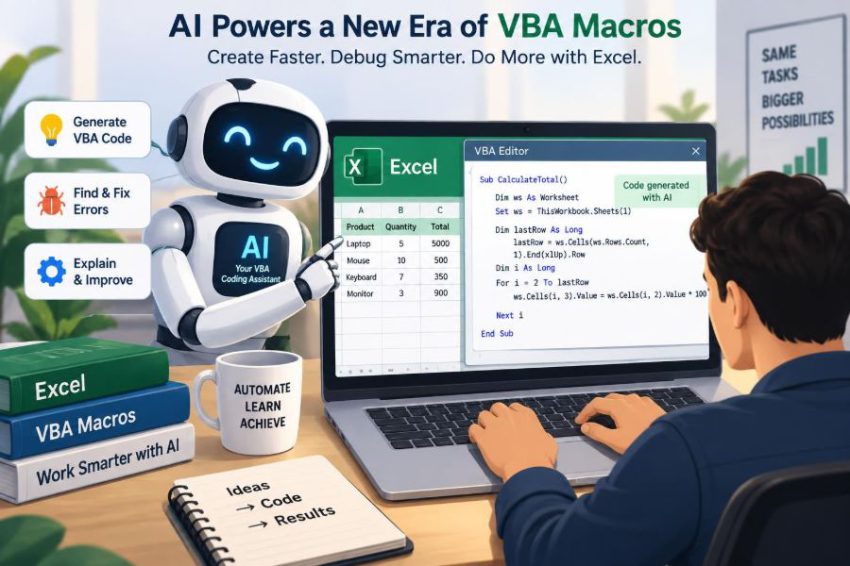
AI-assisted tools are changing that starting point. They can turn a plain-language description into a draft, explain unfamiliar code, suggest fixes for errors, and help break a large task into smaller procedures. That can save real time—but it does not remove the need to understand what a workbook is doing.
The most productive shift is not “AI writes macros instead of people.” It is that VBA work can become a faster conversation between a person who understands the business task and a tool that helps express, inspect, and improve the code.
🧭 What AI-Assisted VBA Development Actually Means
AI-assisted VBA development means using a generative AI tool to support parts of the programming process: describing a solution, drafting code, explaining errors, reviewing logic, or creating tests. The macro still runs in Excel’s VBA environment, under Excel’s macro-security rules.
It is helpful to separate the tool from the runtime. AI may generate a procedure, but it does not automatically know the real workbook’s layout, permissions, hidden sheets, protected cells, or business rules unless you describe them accurately.
📜 Why VBA Still Matters in Excel Workflows
VBA remains useful because it works closely with Excel workbooks, worksheets, cells, charts, PivotTables, and many Office applications. It is especially practical when an organization already has established workbooks and repetitive desktop processes.
A macro can standardize a process that would otherwise depend on many manual clicks. Examples include validating data-entry forms, assembling regional reports, exporting selected sheets to PDF, or applying consistent formatting before a file is shared.
AI does not replace the reasons VBA is used. It mainly reduces some of the friction involved in creating and maintaining the automation.
🗣️ From Business Request to Technical Specification
The first improvement often happens before any code is written. Instead of searching for scattered syntax examples, you can ask AI to turn a business request into a VBA specification.
Suppose the request is: “Highlight overdue invoices and create a summary by customer.” A useful specification identifies the sheet, column headers, meaning of “overdue,” treatment of blank dates, destination of the summary, and whether existing formatting should be preserved.
Good prompts are not simply detailed; they are testable. State inputs, expected outputs, exceptions, and constraints. That gives both the AI and the human reviewer something concrete to check.
🧩 The Anatomy of a Strong Macro Prompt
A vague request such as “write a macro to clean data” invites vague code. A better request supplies the workbook context and tells the tool what it must not assume.
- Name the worksheet and the row containing headers.
- List the relevant columns by header name when possible.
- Describe the desired result and where it should appear.
- Specify edge cases, such as blanks, duplicates, and nonnumeric values.
- Request clear variable names, comments, and error handling where appropriate.
- Ask the tool to explain assumptions before generating code.
For example, “Use the sheet named Sales; headers are in row 1; delete rows where Order ID is blank; do not delete the header; report the number of deleted rows” is much safer than “remove empty rows.”
🧱 Generating a First Draft, Not a Final Answer
AI is especially effective at producing a starting structure: a Sub procedure, variable declarations, a loop, and a final message. This reduces the blank-page problem for beginners and speeds up familiar patterns for experienced users.
However, generated code should be treated as a draft. It may use the active workbook when it should use a specific workbook, assume data starts in a fixed cell, or choose a method that is correct but slow for large datasets.
The practical habit is simple: read the code before running it, then test it on a copy of the workbook. A fluent explanation is not evidence that the macro fits your file.
🔍 How AI Can Explain Existing VBA Code
Legacy macros are common in workplaces. A procedure might work reliably, yet nobody currently knows why it disables events, what range it changes, or why it searches from the bottom row upward.
AI can translate a procedure into plain language and identify the role of each block. Ask for an explanation of inputs, outputs, worksheet changes, dependencies, and assumptions rather than only “what does this code do?”
This is useful for learning, but it is also a maintenance tool. A clear explanation can reveal whether a macro relies on an active sheet, hard-coded file path, named range, or external add-in that could fail later.
🐞 Debugging Compile Errors Faster
Compile errors happen before the macro can run. They commonly result from a misspelled keyword, unmatched parentheses, an undeclared variable when Option Explicit is enabled, or incorrect procedure syntax.
When sharing an error with AI, include the exact message, the highlighted line, and a small relevant code block. Ask for both the correction and the reason. That second request turns a repair into a lesson.
Do not paste an entire project for a one-line syntax issue. Smaller examples make it easier to isolate the problem and reduce the risk of exposing unnecessary workbook information.
🧪 Diagnosing Runtime Errors With Context
Runtime errors occur when VBA is executing. “Subscript out of range,” for example, often means a workbook, worksheet, or array index was not found; it does not automatically mean the quoted sheet name is wrong.
AI can suggest likely causes, but the actual state of Excel matters. Check whether the workbook is open, whether the name has an extra space, whether the code refers to the correct workbook, and whether the relevant object exists at that moment.
Useful debugging context includes the error number, the exact line, values of key variables, and what action happened immediately before the failure. A screen recording or careful reproduction can be more informative than a broad description.
🧠 Finding Logic Bugs That Do Not Raise Errors
The hardest bugs often produce no warning. The macro runs, but it totals the wrong rows, skips the last record, formats the wrong column, or silently overwrites a prior result.
AI can help review logic by comparing the code to a stated rule. For example: “Include only records dated this month, exclude cancelled orders, and group totals by customer.” Ask the tool to identify where the code might violate each rule.
Still, only a human familiar with the process can confirm the rule itself. Code can be internally consistent and still automate the wrong policy.
🧷 Why Object References Matter More Than Clever Syntax
Many unreliable macros depend on ActiveWorkbook, ActiveSheet, or Selection. They may work during the author’s test but act on a different workbook if the user clicks elsewhere first.
A more reliable pattern explicitly stores references. For instance, a macro can assign a known workbook to a variable and then assign its Sales worksheet to another variable. AI can draft this pattern, but you should verify the names and intended scope.
Dim ws As Worksheet
Set ws = ThisWorkbook.Worksheets("Sales")
ws.Range("A1").Value = "Updated"
ThisWorkbook means the workbook containing the VBA code, which is often—but not always—the same workbook a user intends to process. That distinction deserves deliberate attention.
⚡ Improving Slow Macros Without Guesswork
Cell-by-cell reading and writing can be slow because each interaction crosses between VBA and Excel. For sizeable ranges, it is often faster to read values into a VBA array, process them in memory, and write the result back in one operation.
AI can suggest performance patterns such as temporarily disabling screen updating, events, or automatic calculation. These techniques are useful, but they must be restored even if an error occurs. Otherwise Excel may appear broken after the macro stops.
Performance work should follow measurement. First identify the slow procedure and the size of the typical data range; then optimize the actual bottleneck rather than applying every possible setting by habit.
🛡️ Building Error Handling That Restores Excel State
Error handling is not merely a message box. In automation, it also protects Excel’s state and makes failure understandable to the user.
A robust procedure often has a cleanup path that restores settings such as ScreenUpdating, EnableEvents, and Calculation. AI can generate a template, but it must be adapted to the settings your macro actually changes.
Avoid using On Error Resume Next as a blanket solution. It suppresses errors and can let a macro continue after an important operation failed. Use it only around a narrow, expected operation, then check the outcome.
✅ Using AI to Design Test Cases
A macro is more trustworthy when it has been tested against cases designed to break its assumptions. AI can help create a test matrix from the rules you provide.
| Test case | What it checks | Expected result |
|---|---|---|
| Normal data | Main workflow | Correct rows and totals are produced |
| Blank required field | Missing-data handling | Row is skipped, flagged, or handled as specified |
| Duplicate identifier | Duplicate rule | Duplicate is reported or processed consistently |
| No matching records | Empty-result behavior | Macro finishes without misleading output |
| Unexpected text in numeric field | Validation | Error is explained or invalid value is handled safely |
Test on copies, not the only version of an operational workbook. For destructive tasks, verify both the visible result and any source data that should have remained unchanged.
📋 Letting AI Create Documentation Alongside Code
Documentation is often postponed until a macro becomes difficult to change. AI can quickly draft a procedure description, setup instructions, a list of inputs and outputs, and a summary of assumptions.
The best documentation remains close to the workbook. A short readme sheet, meaningful procedure names, and comments explaining non-obvious decisions are more useful than a long document that nobody updates.
Ask AI to document why a decision was made, not just restate what a line of code does. “Search upward because the imported file has trailing formatted rows” explains a future maintenance choice.
🏗️ Refactoring Recorder-Generated Macros
The Macro Recorder is valuable for discovering Excel object-model actions, but its output frequently contains selections, repeated formatting commands, and hard-coded addresses. AI can help turn that recording into shorter, maintainable VBA.
A productive workflow is to record a small action, inspect the output, then ask for a refactor that removes Select and Activate, uses qualified references, and preserves the intended behavior.
Compare the old and new versions before replacing anything. A recorder may have captured details you did not realize mattered, such as a number format or a specific paste option.
🧭 Choosing Between VBA, Formulas, Power Query, and Other Tools
AI can generate VBA quickly, but VBA is not automatically the best answer. A worksheet formula may be clearer for a live calculation. Power Query may be better for repeatable imports and transformations. A PivotTable may replace a custom summary loop.
Use VBA when the task needs procedural control: reacting to a button, coordinating sheets, applying conditional steps, interacting with files, or combining several Excel actions. Choose the simplest tool that meets the requirement and can be maintained by the people who inherit it.
🔐 Protecting Confidential Workbook Information
Prompts may contain customer names, financial figures, employee data, internal file paths, or proprietary business logic. Before sharing code or data with an external AI service, follow your organization’s policies and understand the tool’s data-handling terms.
Where possible, replace real names and values with placeholders. Share a minimal reproducible example: enough rows and code to demonstrate the issue, but no unnecessary sensitive information.
Also remember that generated code can access files, send emails, or modify data if you ask it to. Review such operations with the same care you would apply to code written by a colleague.
🧯 Macro Security Is Still a Separate Decision
AI-written VBA is still VBA. Excel may block macros from untrusted sources, and organizations may use policies that restrict which macros can run. Those protections are not obstacles to work around casually; they reduce the risk of malicious or unintended code.
Never enable macros simply because a workbook asks you to. Establish its source, inspect what it does, and use approved locations or signing practices where your organization requires them. AI assistance does not make a macro trustworthy by default.
📦 Understanding External Dependencies
A generated solution may use libraries, references, Windows-specific features, Outlook automation, file-system objects, or APIs that are unavailable on another computer. It may also assume a particular Office version.
Ask AI to list dependencies explicitly and to provide an alternative where practical. If a macro will be shared, test it in the environment where users will run it—not only on the developer’s machine.
Early binding and late binding illustrate this trade-off. Early binding can offer clearer code and IntelliSense through a reference; late binding can reduce reference-version problems but requires more careful coding and loses some development assistance.
🧮 Dates, Numbers, and Locale-Sensitive Assumptions
Dates and numeric formats are frequent sources of subtle errors. A text date such as 03/04/2025 can mean different things in different regional settings, while decimal and thousands separators vary by locale.
AI may produce code that uses a date literal or conversion function without understanding your regional context. Prefer unambiguous formats, validate values before calculation, and test with representative files.
For example, comparing Excel date serial values after confirming a cell contains a date is usually safer than comparing formatted date strings. Display formatting and underlying values are not the same thing.
🔄 Iterative Prompting Beats One Giant Request
A long, all-in-one request can produce a large macro that is difficult to inspect. A better approach is iterative: define the task, generate one procedure, test it, report the result, then add the next capability.
- Describe one clear operation and its inputs.
- Request a small, commented procedure.
- Run it on a copy with known test data.
- Share the precise failure or unexpected result.
- Revise the code and retest before expanding scope.
This mirrors sound software development. AI makes each iteration faster; it does not remove the value of small, verifiable changes.
👥 Using AI in Team-Based Workbook Development
Shared VBA projects benefit from conventions: clear module names, consistent error messages, a stated naming style, and one owner for production releases. AI can help propose a style guide or review code against one.
Teams should avoid treating generated snippets as anonymous, unreviewed additions. Someone needs to understand the change, test it, and confirm that it matches the workbook’s existing design and business rules.
Versioned copies and a change log are particularly valuable for macro-enabled workbooks. When a report changes unexpectedly, the team needs to know which code version ran and what was altered.
🎓 How Beginners Can Learn Rather Than Copy
For a new VBA learner, AI can act like a patient explainer. Ask it to annotate a small procedure, explain the difference between a Range and a Cells reference, or create a practice exercise with an answer hidden until you attempt it.
Copying a working macro may solve a task, but understanding its variables, loops, conditions, and object references is what enables adaptation. A useful learning routine is to predict what each block will do, run it on sample data, then change one parameter and observe the result.
Start with small automations: finding the last used row, applying a format, validating an entry, or creating a basic summary. Each one teaches an Excel object-model concept that larger projects reuse.
🧑💼 How Experienced Users Can Work More Strategically
Experienced VBA developers can use AI less as a code vending machine and more as a reviewer, documentation assistant, and source of alternative designs. It can surface edge cases, suggest a test plan, or compare a loop-based solution with an array-based one.
The professional skill is judgment: recognizing when a suggestion is idiomatic, when it is overengineered, and when a concise existing solution should be left alone. Maintainability is often more valuable than a clever reduction in lines of code.
⚠️ Common AI-Generated VBA Mistakes to Catch
Generated code often looks plausible even when it is incomplete. Review these recurring issues before execution:
- Unqualified
Range,Cells, orRowscalls that target whichever sheet is active. - Hard-coded row limits that miss new data or scan unnecessary rows.
- Assumed headers, sheet names, or file paths that do not match the real workbook.
- Error suppression that hides a failed operation.
- Failure to restore application settings after an error.
- Destructive actions without a preview, confirmation, backup, or clear log.
- Use of methods unavailable in the target Excel environment.
These are not uniquely AI problems. They are ordinary programming risks that become easier to introduce when code is accepted faster than it is reviewed.
🧾 A Practical Review Checklist Before Running a Macro
Before using a new or revised macro on real data, take a short pause. This is where many costly spreadsheet errors can be prevented.
- Can you state exactly which workbook, sheets, ranges, and files it will change?
- Have you tested it on a copy containing normal and awkward cases?
- Are destructive steps reversible or logged?
- Are object references explicit rather than dependent on selections?
- Will error handling restore Excel settings?
- Are external dependencies and permissions available?
- Have you checked formulas, totals, and outputs against an independent expectation?
If any answer is unclear, the macro is not yet ready for unattended use.
🚀 The Emerging Human-in-the-Loop Workflow
The most realistic future workflow combines natural-language planning, AI-assisted drafting, human review, and Excel-based verification. AI handles some repetitive translation between intent and code; the user provides context, tests results, and accepts responsibility for the outcome.
This changes the entry barrier for VBA, but it also raises the value of core skills. People who understand spreadsheet structure, data quality, logic, security, and process ownership will get better results from AI than people who only request code.
🎯 The Core Principle: Automate With Understanding
AI can make VBA creation and debugging faster, clearer, and more approachable. It can help a student understand a loop, help an analyst convert a reporting rule into a draft macro, and help a developer inspect a stubborn error.
Yet reliable Excel automation still depends on disciplined fundamentals: precise requirements, explicit object references, safe testing, careful error handling, appropriate tool choice, and responsible data practices. The goal is not to produce more code. It is to produce automation that people can trust, explain, and maintain.
The strongest AI-assisted VBA workflow keeps human judgment at every point where context, risk, and correctness matter. Used that way, AI becomes a practical accelerator rather than a substitute for sound spreadsheet engineering. ⚙️📊🤝