
You update a sales total, press Enter, and a warning appears because the value exceeds a budget. Or you click a button and a monthly report is formatted, saved, and emailed in seconds. Excel can feel as though it is responding intelligently—but the response is usually the result of a carefully connected VBA system.
For many learners, macros begin as recorded actions: select a range, change a font, apply a filter. That is useful, but it does not explain why some code runs only when a workbook opens, why other code runs after a cell changes, or why a macro sometimes affects the wrong sheet.
The missing idea is that VBA is not only a list of commands. It works through objects that represent Excel, procedures that tell those objects what to do, and events that decide when particular procedures should run.
Once those pieces make sense together, you can build workbooks that react predictably instead of merely replaying clicks. That is the difference between a one-off macro and a maintainable Excel tool.
🧭 The Three Parts of VBA Automation
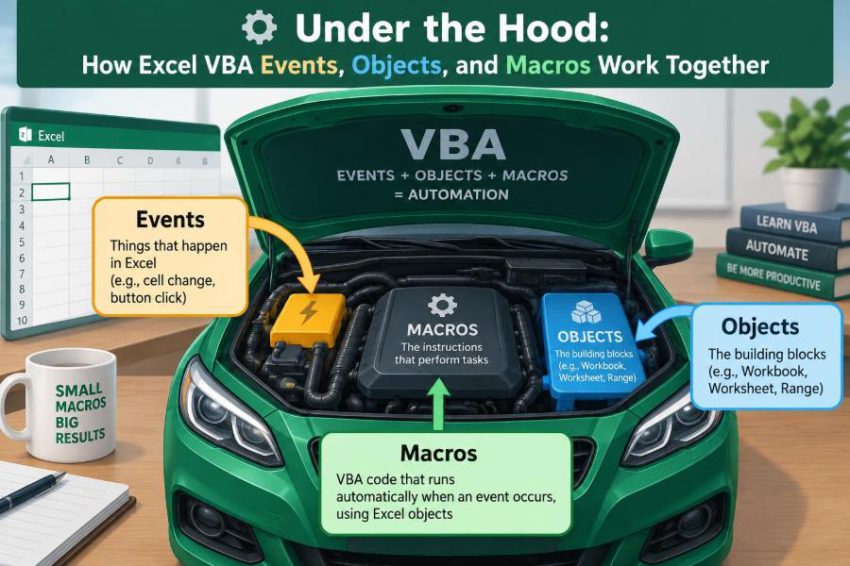
Most Excel VBA automation can be understood through a simple chain: a user or Excel action occurs, an event may detect it, and code works with Excel objects to produce a result.
Suppose a user edits cell B2. The worksheet can raise a Change event. An event procedure checks whether B2 was involved, then writes a timestamp into C2. The worksheet, cells, and range are objects; the timestamp routine is a procedure; the edit is the event trigger.
This separation matters because each part answers a different question:
- Objects: What part of Excel will code work with?
- Macros and procedures: What work should be done?
- Events: When should that work begin automatically?
🏗️ Excel Is an Object Model
VBA controls Excel through an object model: an organized hierarchy of things Excel contains. An object is something VBA can identify, inspect, or manipulate, such as a workbook, worksheet, chart, cell range, or table.
The hierarchy resembles a building. Excel is the building, workbooks are rooms, worksheets are areas within rooms, and ranges are specific locations. VBA often moves from a larger container to a smaller item.
Application.Workbooks("Budget.xlsx").Worksheets("January").Range("B2").Value = 500This statement is long, but it is precise: it identifies the Excel application, one workbook, one worksheet, one range, and the value to place there.
📚 The Application Object at the Top
The Application object represents the running Excel program. Settings that apply broadly—such as screen updating, calculation mode, alerts, and events—are commonly controlled through it.
For example, Application.ScreenUpdating = False can prevent Excel from repainting the screen during a lengthy routine. That can make code feel faster, although it does not improve every operation.
Application-level settings need careful cleanup. If a macro turns off events or alerts and then fails before restoring them, Excel may behave unexpectedly afterward. Reliable code restores changed settings even when something goes wrong.
📖 Workbooks, Worksheets, and Their Roles
A Workbook is an Excel file opened in Excel. A Worksheet is one tab within that workbook. Both have properties, methods, and events, but their responsibilities differ.
A workbook-level procedure is suitable for tasks involving the whole file: checking whether required sheets exist when the file opens, refreshing connections, or preparing a dashboard. Worksheet-level code is better when behavior belongs to a particular tab, such as validating entries on an input form.
Choosing the correct object level keeps code understandable. A rule about entries on the “Orders” sheet should usually live with that worksheet, not in an unrelated general module.
🔬 Ranges Are Where Most Work Happens
A Range represents one cell, a rectangular group of cells, or even multiple selected areas. Since worksheets store most business data in cells, ranges are central to Excel VBA.
A range has properties such as Value, Formula, Row, and Column. It also has methods—actions it can perform—such as ClearContents, Copy, and Sort.
Worksheets("Orders").Range("D2:D100").ClearContentsThat code calls the ClearContents method on a particular range. Reading VBA in this object-dot-member pattern makes unfamiliar code far easier to interpret.
🧩 Properties, Methods, and Collections
Objects expose information and actions in consistent ways. A property describes or stores a characteristic. A method performs an action. A collection is a group of related objects.
| Concept | Example | Meaning |
|---|---|---|
| Property | Range("A1").Value |
The value held in A1 |
| Method | Range("A1").Clear |
An action that clears A1 |
| Collection | Worksheets |
The worksheets in a workbook |
For example, Worksheets(1) retrieves one member of the Worksheets collection. Collections can be addressed by position or, often more safely, by a name such as Worksheets("Orders").
🎯 Why Explicit References Prevent Bugs
Excel has convenient shortcuts: ActiveWorkbook, ActiveSheet, Selection, and ActiveCell. They refer to whatever the user currently has open, selected, or active.
That convenience becomes risky when a macro activates another workbook, opens a dialog, or is started while a different sheet is selected. A routine intended to format a report could format the user’s currently active sheet instead.
Prefer explicit references whenever practical:
Dim ws As Worksheet
Set ws = ThisWorkbook.Worksheets("Orders")
ws.Range("A1:D1").Font.Bold = True
ThisWorkbook means the workbook containing the VBA code, which is often safer than whichever workbook happens to be active.
🛠️ What a Macro Really Is
In everyday Excel language, a macro is an automated task. In VBA, it is usually a Sub procedure: a named block of instructions that performs actions but does not directly return a value.
Sub FormatHeader()
    ThisWorkbook.Worksheets("Orders").Range("A1:D1").Font.Bold = True
End Sub
Users can run a public macro from the Macro dialog, a button, the Quick Access Toolbar, or another procedure. A macro can also be a small building block called by many other routines.
🧮 Functions Return a Result
A Function procedure differs from a Sub because it returns a value. Functions are useful when code calculates or decides something that another procedure needs.
Function IsValidOrderNumber(ByVal orderNumber As String) As Boolean
    IsValidOrderNumber = Len(orderNumber) = 8
End Function
A macro could call this function before processing an order. In some cases, a public function can also be used as a custom worksheet function, although worksheet functions have restrictions and should not unexpectedly change the workbook.
Separating calculation logic into functions makes event procedures shorter and easier to test.
🎥 What the Macro Recorder Teaches—and Misses
The Macro Recorder translates selected Excel actions into VBA. It is an excellent learning tool because it reveals object names, properties, and methods that would otherwise be hard to discover.
Its output is not automatically production-quality code. Recorded macros commonly use Select and Activate, rely on the active sheet, and repeat operations that can be written more directly.
Use the recorder to answer “What code does Excel generate for this action?” Then revise the output: qualify workbook and worksheet references, remove unnecessary selections, and give the procedure a meaningful name.
⚡ Events Are Excel’s Signals
An event is a signal that Excel raises when something happens. Opening a workbook, changing a cell, selecting a sheet, calculating formulas, or clicking a command can all produce events.
Event-driven code is different from a manually run macro. A manual macro waits for a person or another procedure to call it. An event procedure waits for Excel to raise its specific event.
Think of a doorbell. The button press is the event; the chime is the procedure’s response. The chime does nothing until the appropriate signal arrives.
📍 Event Procedures Must Live in the Right Place
Excel does not search every module for an event procedure. It looks in a specific code module associated with the object that raises the event.
- Worksheet events belong in that worksheet’s code module.
- Workbook events belong in the
ThisWorkbookmodule. - Application events require a class module and a configured event-handling object.
- Ordinary reusable macros commonly belong in standard modules.
A correctly named Worksheet_Change procedure in a standard module will not run automatically. Placement is part of the event’s wiring.
✏️ Worksheet Change Events
Worksheet_Change runs after a user, paste operation, or VBA statement changes cell content on that worksheet. Excel supplies a Target range that identifies the changed cell or cells.
Private Sub Worksheet_Change(ByVal Target As Range)
    If Intersect(Target, Me.Range("B2")) Is Nothing Then Exit Sub
    Me.Range("C2").Value = Now
End Sub
Me means the worksheet that owns the code. This example responds only to B2 and records the current date and time in C2. Without the Intersect check, the same procedure would run for every edit anywhere on the sheet.
🧷 Intersect Narrows the Trigger
Users often paste data into many cells at once. In that case, Target may contain a multi-cell range, not one address. Checking Target.Address = "$B$2" can therefore be too narrow for broader input areas.
Intersect asks whether two ranges overlap. It is a dependable way to limit an event to relevant cells.
If Intersect(Target, Me.Range("B2:B100")) Is Nothing Then Exit SubThis guard clause ends the procedure immediately when the edit does not affect the monitored range. It reduces unnecessary processing and makes the rule visible near the top of the code.
🔄 Why Change Does Not Mean Recalculation
Worksheet_Change reacts when a cell’s contents are changed. It does not normally fire merely because a formula recalculates and displays a different result.
For formula-driven responses, Worksheet_Calculate may be appropriate. However, calculation can happen frequently, especially in large workbooks, so its code should be small and carefully scoped.
This distinction avoids a common puzzle: a formula result changed, but the Change event did not run. The formula’s text was not edited; Excel recalculated its result.
📖 Workbook Events Manage the File Lifecycle
Workbook events concern the file as a whole. A familiar example is Workbook_Open, which runs when the workbook opens and macros are enabled.
Typical opening tasks include checking required settings, refreshing approved data, displaying guidance, or moving the user to a dashboard. Such routines should be restrained: a workbook that changes data silently on opening can surprise users and complicate troubleshooting.
Other workbook events can respond before saving, before closing, or when a sheet is activated. These are useful places to apply file-wide rules, not to hold every piece of workbook logic.
🧠 Events Do Not Replace Good Workflow Design
Automatic behavior is helpful when it is predictable. A timestamp after a status entry is often sensible. Automatically saving, emailing, deleting data, or changing a large report after every edit may be disruptive.
Ask three questions before choosing an event: Does the action need to happen immediately? Will users understand that it happened? Can it be reversed if it is wrong?
When the answer is uncertain, a visible button or a clearly named manual macro may be the better interface. Automation should reduce work without taking control away from the user.
♻️ The Event Recursion Trap
An event procedure can change a cell, which can trigger the same event again. In the timestamp example, writing to C2 causes another worksheet change. If the code also monitors C2, it can repeatedly call itself.
Use Application.EnableEvents when an event procedure must make edits that could trigger further events:
On Error GoTo CleanUp
Application.EnableEvents = False
Me.Range("C2").Value = Now
CleanUp:
Application.EnableEvents = True
The cleanup path is essential. If events are left disabled, other event-driven features in open workbooks may stop responding until they are turned back on or Excel is restarted.
🛡️ Error Handling Protects Excel’s State
Error handling is not just about displaying a message. In automation, it also restores Excel to a usable state after an unexpected failure.
If a routine turns off screen updating, events, alerts, or calculation, its cleanup section should restore each setting it changed. Save prior settings when necessary rather than assuming the default is always correct.
Use an error handler deliberately. Ignoring errors with broad On Error Resume Next can conceal missing sheets, invalid references, and logic mistakes that later become harder to diagnose.
🚦 Event Order Can Affect Results
Several events may occur around one user action. A user may activate a sheet, select a cell, change its content, and then trigger recalculation. The exact sequence depends on the action and workbook design.
A practical consequence is that one event should not casually assume another has already completed its work. If a process requires a particular sequence, make that sequence explicit in a procedure rather than relying on incidental event timing.
For complex workbooks, add temporary diagnostic lines such as Debug.Print Target.Address while testing. The Immediate window in the VBA editor can help reveal what actually fired.
📦 Passing Work from Events to Procedures
Event procedures are most maintainable when they act as small dispatchers. They identify the trigger, perform a quick check, and pass work to a named procedure.
Private Sub Worksheet_Change(ByVal Target As Range)
    If Intersect(Target, Me.Range("B2:B100")) Is Nothing Then Exit Sub
    ValidateOrderEntry Target
End Sub
The validation logic can then live in a standard module or another well-chosen location. This makes it possible to run and test the logic from a manual macro, rather than having to edit a worksheet every time.
🧪 Testing Event-Driven Code Safely
Events can fire during ordinary editing, which makes testing different from running a single macro. Test in a copy of the workbook, especially when code changes or clears data.
Start with small cases: one cell, then multiple pasted cells, then blank values, invalid entries, and edits outside the monitored range. Also test what happens when the sheet is protected, a required workbook item is missing, or an error occurs midway through the routine.
Use breakpoints in the VBA editor to pause code and inspect Target, variable values, and the active workbook. Testing unusual cases is where fragile automation is usually exposed.
🔒 Macro Security Is Part of the Design
VBA code can automate valuable work, but it can also perform powerful actions. Excel therefore gives users and organizations controls over whether macros run. A workbook should not assume that its code will always be enabled.
Design files so the worksheet remains understandable without macros where possible. Explain any manual steps needed, avoid obscuring essential logic, and do not use macros to bypass security or conceal actions from users.
Only enable macros from files and sources you trust. In managed workplaces, policies may restrict macros, and those policies should be respected rather than worked around.
🗂️ Naming Makes the Object Model Readable
Names are part of a workbook’s interface. A procedure named ValidateOrderEntry explains more than Macro1. A variable named lastOrderRow is clearer than x.
The same applies to worksheet names and named ranges. Meaningful names reduce the need to remember that “Sheet3” is actually the returns log or that column H contains approval status.
Use names that describe a role, not a temporary implementation detail. Clear naming is especially valuable in event code, where a future maintainer must quickly understand what triggers a rule and why.
📏 Scope Determines What Code Can Reach
Scope describes where a procedure or variable can be used. A Private worksheet event procedure is intended for that worksheet’s internal behavior. A public procedure in a standard module can be called from other VBA modules and, when appropriate, assigned to a button.
Keeping variables local to the procedure that needs them reduces unintended interactions. Use module-level or workbook-wide state only when there is a genuine shared need and a clear plan for resetting it.
Small scope makes code easier to reason about: fewer parts of the workbook can alter the same value or call the same internal routine unexpectedly.
⚙️ Performance Begins with Fewer Excel Calls
Slow VBA often comes from repeatedly crossing between VBA and the worksheet. Reading or writing one cell at a time inside a long loop creates many separate interactions with Excel.
When practical, read a range into a VBA array, process the values in memory, and write the completed array back in one operation. This approach also reduces screen activity and makes code less dependent on selection.
Turning off screen updating or switching calculation mode can help in selected routines, but these are supporting techniques. The larger gain usually comes from reducing unnecessary worksheet reads, writes, selects, and recalculations.
🧱 A Practical Architecture for Workbook Tools
A stable VBA workbook often has a simple division of responsibilities. Standard modules hold reusable business logic, worksheet modules hold local event entry points, and ThisWorkbook holds file-level events.
For example, an Orders worksheet event can detect a status change. It calls a standard-module procedure that validates the row, updates a summary through explicit object references, and returns a clear result. The event code stays short; the reusable logic stays testable.
This is not a rigid rule. Small personal workbooks may not need much structure. But as a workbook gains sheets, users, and rules, separating triggers from work prevents a single event procedure from becoming an unmanageable block.
🧰 A Step-by-Step Design Checklist
Before writing an automated response, describe the intended behavior in plain language. Then turn that description into a compact design.
- Identify the object that owns the data or action.
- Decide whether a manual macro or an event is more appropriate.
- Choose the specific event, if one is needed.
- Define the exact target range or condition that should trigger work.
- Write reusable work in a focused procedure or function.
- Use explicit workbook, worksheet, and range references.
- Plan error cleanup for any application setting you change.
- Test normal edits, pasted data, errors, and unexpected user actions.
This checklist is deliberately practical: it catches design problems before they become debugging sessions.
🚧 Common Mistakes and Better Alternatives
Several problems recur in early VBA projects. None is unusual, and each has a straightforward improvement.
- Putting event code in a standard module: move it to the object module that raises the event.
- Using Select and Activate everywhere: work directly with qualified objects.
- Responding to every cell edit: use
Intersectto narrow the trigger. - Disabling events without cleanup: restore them through an error-safe exit path.
- Putting all logic in an event: call focused procedures that can be tested independently.
- Assuming formulas cause Change events: use the appropriate calculation-based design when formula results matter.
🌟 The Core Principle: Trigger, Target, Task
The most useful mental model for Excel VBA automation is trigger, target, task. The trigger is the event or user command. The target is the object or range the code should work with. The task is the focused procedure that produces the intended result.
If any part is vague, automation becomes fragile. An unclear trigger runs too often; an unclear target affects the wrong sheet; an oversized task becomes difficult to test and maintain.
When these three parts are explicit, events stop seeming mysterious. They become a controlled way to connect a real Excel action to a clear, object-based piece of VBA logic.
Strong Excel VBA solutions are built by connecting the right event to the right objects through small, deliberate procedures. Start with one predictable workflow, make its references explicit, and let the workbook earn complexity only when the task truly requires it. ⚙️📊🧩