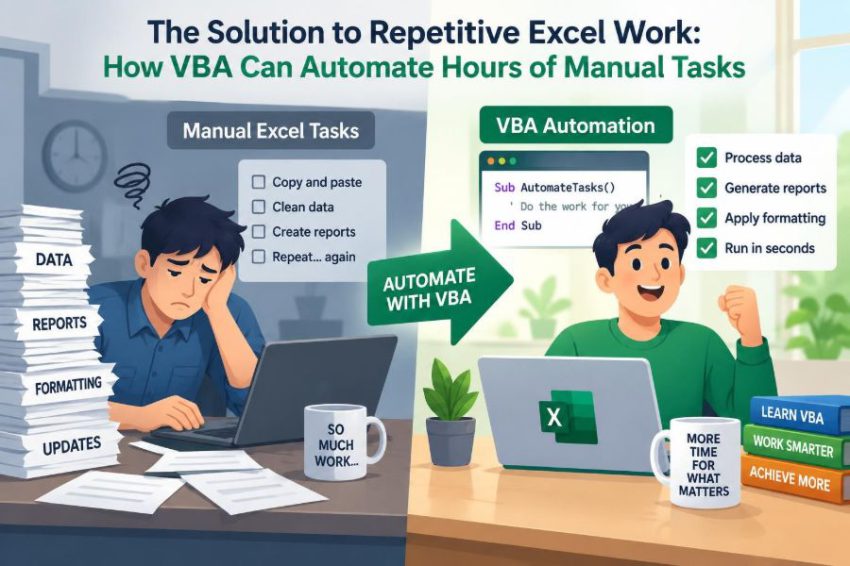

It is 4:45 p.m., and a familiar spreadsheet task is still unfinished. You have copied rows from several files, adjusted formatting, calculated totals, renamed tabs, and prepared the same report you created last week.
None of those actions is especially difficult. The problem is repetition: a sequence of small clicks that must be performed carefully, in the same order, every time.
That is where Visual Basic for Applications, usually called VBA, becomes useful. VBA lets Excel follow instructions you define, turning a repeatable process into a macro that can run in seconds or minutes rather than demanding the same manual effort again.
Automation is not about replacing judgement. It is about reserving your attention for the decisions, exceptions, and analysis that a spreadsheet cannot reliably make on its own.
🔁 What Makes Excel Work Repetitive
A task is a good automation candidate when it follows a predictable pattern. You may need to clean imported data every morning, apply the same report layout to monthly figures, or create a separate worksheet for each department.
The key question is not simply, “Does this take a long time?” A five-minute job performed every day, or a two-minute job with a high risk of mistakes, can be worth automating.
- Steps happen in roughly the same order.
- The input files have a consistent structure.
- The rules can be explained clearly.
- The output has a repeatable format.
🧩 What VBA Actually Is
VBA is a programming language built into many Microsoft Office applications, including Excel. In Excel, it can read and change cells, worksheets, workbooks, charts, tables, and many other objects.
A VBA procedure is commonly called a macro. A macro might place a formula into a range, combine data from multiple workbooks, create a PDF, or check whether required fields are blank.
VBA is especially useful because it works inside the Excel environment people already use. You do not need to move a well-structured spreadsheet process into another application just to automate it.
🧠 The Core Idea: Turn Steps into Rules
Manual Excel work often exists as a sequence of actions in someone’s memory: open the file, remove extra rows, format dates, calculate totals, then save a copy. VBA converts that remembered process into explicit instructions.
For example, “highlight overdue invoices” becomes a rule: inspect each due date; if it is earlier than today and the invoice is unpaid, apply a fill colour. The computer does not understand an intention such as “make it look right”; it needs conditions it can test.
Writing those rules can reveal ambiguities in a process. If different people perform the same report differently, automation requires the team to decide which result is correct.
🛠️ Where to Find the VBA Tools
Excel’s VBA tools are available through the Developer tab. If the tab is not visible, it can be enabled through Excel’s ribbon customization settings.
The main workspace is the Visual Basic Editor, often opened with Alt + F11 on Windows. There you can insert a module, write a procedure, review existing code, and run or debug a macro.
Excel for the web does not run traditional VBA macros. Desktop Excel is normally required for creating and using them, and feature behavior can vary across platforms and Office versions.
🎥 Start with the Macro Recorder
The Macro Recorder watches selected actions in Excel and writes VBA code that approximates them. It is a helpful learning tool because it exposes the object-and-action structure behind common operations.
Suppose you select a heading row, make the text bold, and apply a fill colour while recording. Excel may produce code resembling this:
Sub FormatHeading()
    Rows("1:1").Font.Bold = True
    Rows("1:1").Interior.Color = RGB(217, 225, 242)
End Sub
The generated code is not always efficient or flexible, but it gives you a starting point. Read it, identify what each line changes, then simplify it instead of treating recorded code as a finished solution.
📦 Understand Excel’s Object Model
VBA works through an object model: a hierarchy describing the things Excel contains. A workbook contains worksheets; a worksheet contains ranges, charts, tables, and other objects.
For example, this path identifies a cell:
Workbooks("Sales.xlsx").Worksheets("January").Range("B4")You do not always need to write the full path, but explicit references make code safer. They reduce the chance that a macro changes whichever workbook or sheet happens to be active.
🧭 Why ActiveSheet Can Cause Trouble
Beginners often rely on ActiveWorkbook, ActiveSheet, and Selection. These refer to whatever Excel has currently selected, which may change if a user clicks somewhere else or another workbook opens.
A safer pattern is to store specific objects in variables. The macro then knows exactly where it should work.
Dim ws As Worksheet
Set ws = ThisWorkbook.Worksheets("Report")
ws.Range("A1").Value = "Updated"
ThisWorkbook means the workbook containing the macro. That is often more dependable than assuming the currently active workbook is the correct one.
🧾 Variables Give Data a Name
A variable is a named place for a value that may change while a macro runs. Variables make code easier to read and help VBA handle data deliberately.
For example, a row number should be stored as a whole-number type, while a customer name should be stored as text. Using meaningful names makes the purpose clear:
Dim lastRow As Long
Dim customerName As String
Dim totalAmount As Double
Long is generally a sensible choice for worksheet row numbers because Excel worksheets can contain more rows than the older Integer type was designed to handle.
🔀 Conditions Let a Macro Make Decisions
Conditions use If...Then...Else logic. They let a macro choose an action based on a value, such as whether a status cell says “Paid” or “Open.”
If ws.Cells(r, 5).Value = "Open" Then
    ws.Cells(r, 6).Value = "Follow up"
Else
    ws.Cells(r, 6).ClearContents
End If
Conditions should handle real-world variations. Text may contain extra spaces, blank cells may appear, and values may not be in the expected format. A robust macro checks those possibilities rather than assuming every row is perfect.
🔄 Loops Handle Repeated Rows
A loop repeats a block of code. In spreadsheet automation, loops are often used to inspect each row in a data set or each worksheet in a workbook.
This example works down column A until it reaches the last used row:
lastRow = ws.Cells(ws.Rows.Count, "A").End(xlUp).Row
For r = 2 To lastRow
    ws.Cells(r, "C").Value = UCase(ws.Cells(r, "B").Value)
Next r
Starting at row 2 assumes row 1 contains headings. That assumption should be documented and checked, particularly if users may receive files with a different layout.
⚡ Use Arrays for Larger Data Sets
Cell-by-cell loops can become slow because every read from, or write to, a worksheet involves communication with Excel. For larger ranges, VBA can often work faster by loading values into an array, a collection held in memory.
The general pattern is to read a range once, process the array, and write it back once. This approach is more advanced, but it matters when a macro must process many rows regularly.
Speed is not the only goal. Start with clear, correct code. Improve performance when the size of the task makes the delay noticeable.
🧹 Clean Imported Data Consistently
Data exports are a common source of repetitive work. A report from another system may contain unnecessary spaces, inconsistent capitalization, blank rows, or dates stored as text.
A cleaning macro can apply the same standards each time. For instance, it can trim spaces with Trim, standardize a name with Proper or UCase, and remove rows that contain no data.
Be cautious with automatic changes. Converting text to dates or numbers can alter legitimate values if the source uses an unexpected format. Test a copy of representative data before making the macro part of a routine.
📊 Build Reports from Raw Data
VBA can turn raw records into a prepared report by applying formulas, sorting rows, formatting headings, adjusting column widths, and adding a report date. This is useful when the report design is stable but the data changes.
A practical macro might clear yesterday’s data, import a new export, refresh a PivotTable, add totals, and save a dated copy. Each action is straightforward; automation makes the sequence dependable.
Keep the reporting rules visible where possible. Complex calculations may be easier for colleagues to review when they remain as worksheet formulas rather than being hidden entirely in code.
📁 Process Multiple Workbooks Carefully
Monthly or regional files often arrive in a folder with similar structures. VBA can open each workbook, collect selected data, and append it to a master sheet.
This saves copying and pasting, but it also introduces risks. A folder may contain an old file, an unrelated workbook, or a partially completed export. A careful macro filters filenames, confirms expected sheets exist, and records files it could not process.
Never assume every file is identical simply because the filename looks similar. Validate the headings or layout before copying data.
🗂️ Create Worksheets and Files from Templates
Some processes require a separate worksheet or workbook for every employee, project, branch, or reporting period. VBA can copy a template sheet, rename it, and insert values such as a department name or date.
Templates are valuable because they separate layout from logic. Instead of building formatting line by line, a macro starts with an approved structure and fills in the changing content.
When names become sheet names or filenames, clean invalid characters first. Excel worksheet names have restrictions, and duplicate names must be handled rather than allowed to stop the macro unexpectedly.
📧 Prepare Emails Without Losing Control
VBA can interact with Outlook in some desktop environments to draft messages and attach files. This can be useful for repetitive report distribution, but it deserves additional caution.
A sensible design prepares draft emails for review rather than sending messages immediately. The user can verify recipients, attachments, and wording before anything leaves the organization.
Email automation may be affected by security settings, Outlook configuration, and workplace policies. Treat it as a controlled workflow, not a shortcut for bypassing review.
🖱️ Give Users a Simple Way to Run a Macro
A well-designed macro should not require every user to open the Visual Basic Editor. You can assign a macro to a button, shape, or control on a worksheet with a clear label such as “Refresh Report.”
Before running a significant process, tell users what it will do. If it overwrites data, creates files, or takes noticeable time, the worksheet should make that clear.
Simple instructions also help: where to place input files, which sheet to use, and what output to expect. A useful tool includes its operating assumptions, not only its code.
🧪 Test with Safe Copies First
Macros can make hundreds of changes much faster than a person can. That is precisely why testing matters. Work on copies of files until the behavior is understood.
Test ordinary data, but also test awkward cases: an empty range, a missing worksheet, a duplicate filename, blank required fields, and an unexpected text value. These cases often reveal where assumptions were hidden in the code.
For important processes, compare the macro’s output with a manually checked result. Automation should make a process repeatable, not merely faster.
🐞 Debug Errors Instead of Guessing
When a macro stops, VBA usually displays an error message and highlights the line where it encountered a problem. Read the message; it often points to a missing object, a type mismatch, or an invalid range reference.
The debugger offers practical tools: breakpoints pause code at a chosen line, F8 steps through one line at a time, and the Immediate Window can display values while investigating.
Use Option Explicit at the top of modules. It requires variables to be declared and catches many spelling mistakes before a macro runs.
🛡️ Treat Error Handling as Part of the Design
Error handling is not a way to hide every problem. It is a way to respond usefully when a foreseeable problem occurs, such as a missing input file.
On Error GoTo CleanUp
' Main macro steps go here
CleanUp:
Application.ScreenUpdating = True
If Err.Number <> 0 Then MsgBox Err.Description
A cleanup section is especially useful if the macro temporarily turns off screen updating, events, or automatic calculation. Those application settings should be restored even when a problem interrupts the normal path.
🔒 Understand Macro Security
Macros are powerful, which means they can also be used maliciously. Excel commonly disables macros from untrusted files or displays a security warning before allowing them to run.
Do not enable macros merely because a file asks you to. Verify the source and understand the workbook’s purpose. In a workplace, follow the organization’s security guidance and approved distribution methods.
Save macro-enabled workbooks with the .xlsm extension. Saving a VBA workbook as a standard .xlsx file does not preserve the macro code.
💾 Protect Source Data and Outputs
A macro should avoid permanently altering the only copy of source data unless that is explicitly required. It is often safer to import into a working sheet, create a new output workbook, or save a versioned copy.
Build in safeguards for destructive actions. A confirmation prompt, backup copy, or clearly named output folder can prevent a routine task from overwriting information that is still needed.
Data protection also includes access. A macro should not expose confidential worksheets or distribute reports to recipients who should not receive them.
📈 Make Macros Faster Without Making Them Fragile
Several settings can improve speed during a large operation: screen updating can be paused, automatic calculation can be temporarily changed, and events can be disabled. These techniques reduce visual redraws and unnecessary recalculation.
However, performance code creates responsibility. Always restore settings afterward, including when an error occurs. A faster macro is not an improvement if it leaves Excel in a confusing state.
Also reduce unnecessary worksheet interaction. Store repeated references in variables, avoid selecting cells, and process ranges in blocks when practical.
🧱 Split Large Macros into Small Procedures
A long procedure that imports files, cleans data, builds a report, and emails it can be difficult to test. Break it into smaller procedures with focused names such as ImportData, CleanData, and CreateReport.
This is called modular design. It makes a macro easier to read, reuse, and repair because each procedure has a narrower responsibility.
Small procedures also make it easier to isolate failures. If the import works but formatting does not, you know where to investigate instead of scanning one large block of code.
📝 Comment the Why, Not the Obvious
Comments explain decisions that code alone cannot make clear. A useful comment might explain why rows with a particular status are excluded or why a date is interpreted in a specific way.
A comment such as “set cell A1 to Report” adds little because the code already says that. More valuable documentation includes the expected source layout, required columns, owner of the process, and known limitations.
Comments must be maintained. An outdated comment can be more misleading than no comment at all.
⚖️ Know When VBA Is Not the Best Tool
VBA is not automatically the right answer. Excel formulas may be better for transparent calculations, PivotTables may handle recurring summaries, and Power Query is often well suited to repeatable data import and transformation.
| Need | Often worth considering |
|---|---|
| Live calculation visible to users | Excel formulas |
| Repeatable import and reshaping of data | Power Query |
| Interactive summaries | PivotTables and charts |
| Multi-step actions, file handling, custom logic | VBA macros |
For workflows shared across different platforms or requiring stronger central governance, an organization may prefer another automation platform. Choose the tool that fits the task, its users, and its maintenance needs.
🚧 Common Beginner Mistakes
Many VBA problems come from reasonable shortcuts that fail when a workbook changes. Recognizing them early saves time.
- Using
SelectandActivateinstead of direct references. - Hard-coding a last row number instead of finding the actual last row.
- Assuming input cells always contain valid values.
- Turning off Excel settings without restoring them.
- Writing a macro only for the happy path and ignoring missing files or sheets.
- Saving over the original workbook before checking the output.
These are not reasons to avoid VBA. They are reminders that an automated process needs the same care as a manual one, plus clear handling for exceptions.
🎯 A Practical First Automation Project
Choose a modest task you already understand thoroughly. A weekly report formatter is a strong first project because the inputs and visible result are easy to check.
- Write down the manual steps in order.
- Record a small part of the task with the Macro Recorder.
- Replace selections with direct worksheet and range references.
- Add variables for changing values, such as the last row or report date.
- Test on a copied workbook with normal and unusual data.
- Add a simple button and short instructions when it is reliable.
Do not begin with the most complicated process in the department. A small success teaches the habits needed for larger projects.
🤝 Build Automation People Can Trust
The best macro is not necessarily the cleverest one. It is the one colleagues can run confidently because its purpose, inputs, output, and limitations are clear.
That means using descriptive names, avoiding silent data deletion, presenting understandable messages, and leaving a trace of what happened when appropriate. If a macro imports five files and skips one, the user should know.
Trust also comes from maintainability. A useful workbook should not become unusable because its original author is unavailable to explain every hidden step.
🌟 The Central Lesson: Automate Repetition, Keep Human Judgement
VBA is most valuable when it takes over stable, rule-based work: copying structured data, applying repeatable formatting, checking known conditions, and producing familiar outputs. It frees people from routine clicks without pretending that every business decision can be reduced to code.
Start by understanding the process, define its rules, test the macro safely, and design for exceptions. Then improve the solution gradually as you learn how real files and real users behave.
The goal of VBA is not to make Excel do everything; it is to make repeatable Excel work more accurate, manageable, and worthwhile.
A small, well-tested macro can transform a frustrating routine into a dependable workflow—leaving more time for analysis, communication, and better decisions. ⚙️📊✨