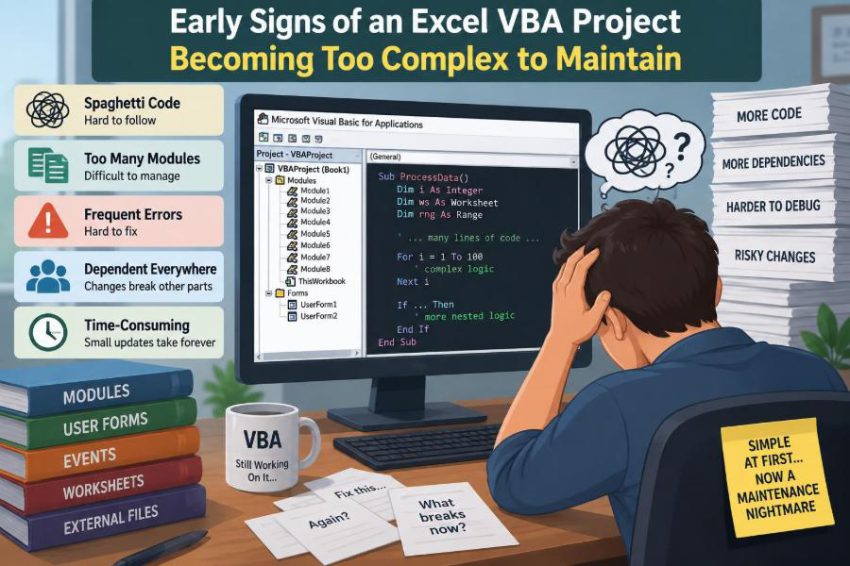

A workbook often begins as a useful shortcut: a button imports a file, a macro cleans a report, and a few formulas become a monthly process. It works, people rely on it, and more requests arrive.
Months later, the workbook may be doing work that once belonged to several separate tools. It sends emails, updates trackers, creates files, checks business rules, and quietly depends on a particular folder, worksheet name, or colleague’s local settings.
That does not mean VBA was the wrong choice. Excel VBA is excellent for automating spreadsheet-centred tasks. The problem begins when a project grows without enough structure to make changes safe and understandable.
The early warning signs are rarely dramatic. They appear as hesitation before editing a macro, small fixes that create new errors, and a growing sense that the workbook must not be touched. Recognizing them early gives a team choices before routine maintenance becomes a rescue operation.
🧭 Complexity is not the same as size
A long VBA procedure is not automatically unmaintainable, and a small workbook is not automatically simple. Complexity comes from the number of things a change can affect: worksheets, files, users, assumptions, external applications, and hidden states.
A 100-line macro that reads one table and writes one result may be manageable. A 30-line macro that changes global Excel settings, edits several sheets, calls another workbook, and depends on the active cell can be much riskier.
The useful question is not “How many lines does it have?” but “Can someone predict the consequences of changing this?”
🧱 One macro is doing several jobs
A common early sign is a procedure that imports data, validates it, formats a report, saves a copy, and emails it—all in one sequence. Each task may be reasonable, but combining them makes the procedure difficult to test or reuse.
If the email step fails, should the import be repeated? If formatting changes, must a developer understand the validation rules? These questions indicate that separate responsibilities have become entangled.
Break the work into purpose-named procedures, such as ImportOrders, ValidateOrders, and CreateReport. A main routine can coordinate them while each smaller routine has a clearer job.
🪢 Procedures have too many hidden dependencies
A macro has a hidden dependency when it relies on something not obvious from its inputs. Examples include the active workbook, the selected cell, a worksheet tab name, an environment variable, or a global variable set by a previous macro.
For example, Cells(2, 1).Value means “cell A2 on whichever sheet is active.” That may work during a developer’s test and fail when a user clicks another sheet before pressing the button.
Explicit object references make dependencies visible:
wsOutput.Cells(2, 1).Value = resultThis is more than style. It states where the program intends to write.
🎯 The code relies on Select and Activate
Recorded macros often contain Select, Selection, and Activate. These instructions imitate a user’s clicks, so they can be useful when learning what Excel exposes through VBA. In production automation, they introduce fragile state.
Another workbook window, chart sheet, dialog box, or user click can change the selection. The code may then act on the wrong object or fail with an unclear error.
Prefer direct references to workbooks, worksheets, ranges, and tables. There are occasional Excel operations where activation is unavoidable, but it should be a deliberate exception rather than the normal way code finds its target.
🗺️ Worksheet names are scattered through the code
When dozens of procedures contain strings such as Worksheets("Summary"), a renamed tab turns into a maintenance hunt. The risk is higher when names differ only slightly, such as “Data”, “Data 2”, and “Data_Final”.
Centralize important names as constants or, where appropriate, use worksheet code names. A code name is a stable VBA identifier attached to a worksheet; the visible tab can then change without forcing every reference to change.
Code names require care when copying sheets or distributing templates, but the larger lesson is simple: give important workbook structure one authoritative definition.
🔢 Magic numbers and strings keep appearing
A “magic number” is a literal value whose meaning is not clear where it is used. A loop beginning at row 7, a status code of 3, or a cutoff of 0.15 may all be valid business rules—but future readers need to know why they exist.
Replace unexplained literals with named constants when they represent stable rules:
Private Const FIRST_DATA_ROW As Long = 7Not every number needs a constant. Values that are obvious locally, such as a loop increment of 1, usually do not. The warning sign is repetition or business meaning concealed in a bare value.
📦 Global variables carry the project’s state
Module-level or public variables can make a project feel convenient: one procedure stores a customer ID, and another uses it later. Over time, however, the project becomes dependent on the order in which macros were run.
A user can run the second macro first. An error can interrupt the first one. A developer can test a procedure while an old value remains in memory. These are state problems: the result depends on history rather than only on current inputs.
Pass needed values as parameters and return results where practical. Keep global state limited to carefully controlled configuration, not temporary working data.
🧩 Modules no longer have a clear purpose
A module named Module1 or Misc often becomes a landing place for whatever code does not fit elsewhere. Eventually, related routines are separated while unrelated routines sit side by side.
Organize standard modules by responsibility: workbook utilities, import routines, report generation, or validation rules. Give modules and procedures names that describe intent rather than implementation details.
This does not require an elaborate architecture. It simply makes the project navigable when someone needs to find the code that owns a behaviour.
📏 Procedures are hard to read in one pass
Length alone is not a defect, but a procedure becomes suspicious when it contains many nested If blocks, multiple loops, repeated setup and cleanup code, and comments that explain where one unrelated task ends and another begins.
Extract coherent chunks into private helper procedures. A good boundary has a meaningful name and a limited input/output contract, such as “find the last valid row” or “write exceptions to the log.”
Do not split code merely to create tiny wrappers. The goal is fewer concepts to hold in mind at once, not more jumps between procedures.
🌲 Nested conditions hide business rules
Deeply nested conditions make it difficult to see which rule applies in which case. This is especially common in finance, operations, and compliance workbooks where several statuses determine an outcome.
Guard clauses can make invalid or exceptional cases explicit near the start of a routine. A guard clause exits early when a required condition is not met, reducing indentation for the normal path.
For more complicated rules, consider a decision table on a worksheet or a dedicated function with carefully named Boolean tests. Business logic should be readable enough to review with the person who owns the rule.
🔁 Copy-and-paste changes multiply
Duplicated VBA is a maintenance multiplier. A formatting fix applied to four copied loops may be missed in the fifth. Similar code also creates uncertainty: are the differences intentional or accidental?
Look for blocks that differ only by a sheet name, column number, or report label. Often they can become one parameterized procedure or a loop over a small configuration list.
Abstraction has a limit. If two routines look alike but follow different business rules, forcing them together can hide meaningful differences. Remove duplication when the underlying responsibility is genuinely the same.
🧹 Cleanup happens only on the happy path
Many macros temporarily set ScreenUpdating, EnableEvents, DisplayAlerts, or calculation mode to improve speed and reduce interruptions. Trouble begins when an error prevents those settings from being restored.
The next user may find that formulas no longer calculate or events no longer fire, without connecting the symptom to the earlier macro. This is one of the clearest signs that error handling needs design rather than a quick patch.
Use a cleanup section that runs whether work succeeds or fails. Save prior application settings before changing them, and restore those saved values rather than assuming Excel’s default state.
🚨 Error handling only says Resume Next
On Error Resume Next tells VBA to continue after an error. It can be appropriate for a narrow, expected check, such as determining whether an optional workbook is already open. Used broadly, it converts real failures into incorrect or partial output.
The most dangerous result is not always a crash. It is a report that looks complete but silently skipped a step.
Keep the scope of Resume Next as short as possible, inspect Err.Number immediately, and reset error handling with On Error GoTo 0. For core workflows, provide a useful message and record enough context to investigate.
📝 Errors cannot be reproduced or explained
“It failed” is not enough information to maintain an automation. A useful error report identifies the operation, relevant workbook or file, row or record where appropriate, and the original error description.
A lightweight log can be a dedicated worksheet, text file, or controlled output window during development. It should not expose sensitive data unnecessarily, especially if the workbook contains customer, employee, or financial information.
Logging is not a substitute for fixing errors. It shortens the path from a user’s report to the code path that needs attention.
🧪 Testing requires clicking through the whole workbook
If every small change requires a developer to run a full monthly process manually, the project is already expensive to modify. This is common when business logic, worksheet interaction, and output formatting are mixed together.
Move calculations and rule decisions into functions that accept plain values where possible. A function that decides whether an order is overdue can be tested with dates and statuses without opening a workbook or selecting a range.
VBA does not provide a built-in modern unit-testing framework, but developers can still create repeatable test procedures, test sheets, and known input/output cases. The aim is confidence in small pieces before testing the complete workflow.
🧫 Test data is missing or unsafe
Complex projects need examples that cover ordinary, empty, invalid, and boundary cases. Without them, changes are tested against whatever live workbook happens to be available.
That creates two risks: accidental changes to real data and missed edge cases. A separate copy with anonymized or invented records is safer for routine development.
For a hypothetical invoice macro, useful cases might include a blank customer ID, a date at month-end, a duplicate invoice number, and a file with headers but no rows. These cases clarify expected behaviour before a bug is reported.
🔒 Protection and passwords are mistaken for control
Worksheet protection can reduce accidental edits, and VBA project protection can discourage casual viewing. Neither is a complete change-management system, and protection settings should not be treated as strong security for sensitive information.
A maintainable project still needs clear ownership, controlled distribution, and a reliable way to identify the current version. If passwords are known only to one person, the project has a continuity risk even if the code itself is tidy.
Use protection for its intended purpose: preventing routine mistakes. Use organizational security controls and appropriate storage practices for genuinely sensitive data.
📁 File paths and external resources are hard-coded
A macro that expects C:\Users\Alex\Desktop\Input.xlsx works only in one environment. Shared-drive mappings, cloud-synced folders, renamed files, and changed permissions can all break hard-coded assumptions.
Centralize paths in a configuration area, derive locations from the workbook path when that fits the deployment model, or let users choose a file with a controlled file picker. Validate that the file exists before beginning work.
External dependencies are not inherently bad. They need visible configuration and clear failure messages when they are unavailable.
🌐 The workbook depends on other applications
VBA can automate Outlook, Word, browsers, databases, and other Excel workbooks. Each integration introduces version differences, permissions, timing issues, and objects outside the current workbook’s control.
For instance, an Outlook email routine may work on one desktop setup but be affected by account configuration or organizational security policies on another. A browser automation approach can be particularly fragile when the target interface changes.
Isolate integration code behind a small set of procedures. That way, a change to an email or export mechanism does not require rewriting the report logic that prepares the data.
⚡ Performance fixes are becoming guesses
Slow macros often lead to random changes: turning off screen updating, adding more calculation switches, or rewriting loops without measuring the real bottleneck. These changes can complicate the code while barely improving run time.
Common causes include reading and writing worksheet cells one at a time, repeated worksheet functions inside loops, and unnecessary formatting operations. Moving a range into a VBA array, processing it in memory, and writing it back in one operation can help in suitable cases.
Optimize after confirming where time is spent. A fast macro that is impossible to verify is not automatically an improvement.
📊 Workbook formulas and VBA rules disagree
A workbook becomes difficult to maintain when the same business rule exists partly in formulas and partly in VBA. A future change may update one version but not the other, producing contradictory answers.
Choose a clear source of truth for each rule. Formula-driven calculations may be better when users need transparency on the sheet. VBA may be better for a workflow rule that coordinates actions or processes many files.
Document the boundary. “VBA prepares the input table; formulas calculate the visible metrics” is much easier to maintain than overlapping logic with no stated owner.
📚 The project has no map for a new maintainer
Comments that repeat code syntax offer little help. More valuable documentation explains the workbook’s purpose, main entry points, required input sheets, external dependencies, expected outputs, and safe operating sequence.
A short “start here” sheet or developer note can answer practical questions: Which button starts the process? Which sheets are user-editable? Where does imported data come from? What should happen after an error?
Documentation will not stay perfect, so keep it close to the project and focused on decisions that are hard to infer from code alone.
👤 Only one person can safely change it
Key-person dependency is a major maintenance signal. It may arise because one person knows the business process, the code is poorly named, credentials are private, or changes have never been reviewed by anyone else.
This is not a criticism of the person who built a useful tool under pressure. It is a reason to create shared understanding while that person is available.
Pair review a change, walk another colleague through the workflow, and make deployment steps explicit. Even occasional review improves resilience because assumptions are spoken aloud and challenged.
🔀 Versions circulate by email and shared folders
When files named “Final”, “Final2”, and “Final_ReallyFinal” circulate, nobody can be sure which VBA code produced a report. Different users may be fixing different copies of the same defect.
Use a controlled master location and a clear release process. Where practical, export VBA modules to text files and keep them in version control, which records changes and supports comparison between versions.
Version control does not remove the need to test workbook changes, because worksheets and settings are also part of the system. It does make code changes far easier to review and recover.
🚦 A small request feels dangerous
The strongest practical warning sign is emotional: a reasonable request such as “add one column” feels risky because nobody knows what it might break. That fear usually comes from tight coupling—parts of the workbook depend on details of other parts.
Before accepting such a change, trace the data flow. Find where the column is imported, validated, used in formulas, written to reports, and referenced by any external export. This turns an anxious guess into a bounded investigation.
Do not respond by refusing all change. Use the request to identify and reduce one dependency at a time.
🛠️ Refactoring should be gradual and protected
Refactoring means improving internal structure without intentionally changing the visible behaviour. It is tempting to rewrite a troublesome VBA project from scratch, but a full rewrite can lose undocumented exceptions that users depend on.
Make a small change, test a known workflow, and keep a recoverable version. Good early refactoring targets include explicit object references, centralized constants, error cleanup, and extracting repeated code.
Separate structural cleanup from business-rule changes when possible. If both happen at once, it becomes harder to tell whether a new result comes from a defect or an intended policy update.
🧰 Configuration can replace code edits
Some recurring requests are not code changes at all. They are settings: which columns to import, where a report is saved, which departments are included, or what threshold triggers an exception.
Place appropriate settings in a clearly labelled configuration sheet or structured table, validate them when the macro starts, and protect them from accidental edits if needed. This gives authorized users flexibility without asking someone to alter VBA for every variation.
Do not make every possible behaviour configurable. Excessive configuration can become its own confusing programming language. Expose settings that are stable, understandable, and genuinely owned by the user process.
🏗️ Know when Excel VBA is no longer the right boundary
VBA remains practical for many local, spreadsheet-driven tasks. But reconsider the design when the workbook is acting as a multi-user database, a high-volume integration service, a security-critical application, or a process that must run reliably without an attended desktop.
The answer may be a database, a shared workflow platform, Power Query, Office Scripts, a dedicated application, or a combination. The correct alternative depends on organizational tools, security requirements, data volume, and who must support it.
Migration does not have to be immediate. Identifying the boundary helps teams stop adding features that deepen a poor fit.
✅ A practical maintenance health check
Use the following questions before the next major feature request. Several “no” answers do not mean failure; they indicate where focused improvement will have the greatest value.
- Can a new maintainer identify the main entry point and data flow?
- Do procedures use explicit workbook, worksheet, and range references?
- Are business rules named, centralized, and testable?
- Do errors restore Excel settings and give useful context?
- Can a change be tested with safe, repeatable sample data?
- Are file paths, sheet names, and key settings managed in one place?
- Is there one controlled current version and more than one capable maintainer?
This checklist is most useful as a conversation with users and owners, not as a pass-or-fail scorecard.
🌱 The core principle: make change understandable
Maintainability is not about making VBA look sophisticated. It is about allowing a future person—possibly you after six months away—to understand what the workbook does, change one part safely, and verify the result.
Clear boundaries, explicit references, focused procedures, recoverable errors, repeatable tests, and shared ownership all support that goal. They also make ordinary improvements less stressful because the project exposes its assumptions instead of hiding them.
Complexity cannot always be avoided. A useful automation may genuinely coordinate many steps. The sustainable response is to make those steps visible, separate responsibilities where possible, and reassess the tool when its responsibilities outgrow Excel’s natural strengths.
An Excel VBA project is maintainable when changing it is a deliberate, testable task rather than a leap of faith. Start with one warning sign, improve it carefully, and let the workbook become easier to trust over time. ⚙️🌱✅