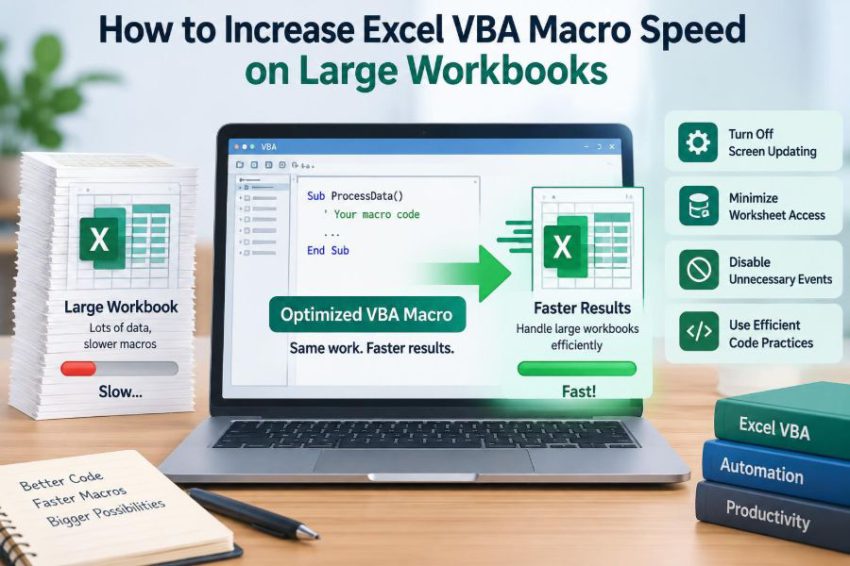

A macro that finishes before you can reach for your coffee feels routine. The same macro, pointed at a workbook with tens of thousands of rows, can suddenly take minutes, make Excel appear frozen, and leave users wondering whether it has failed.
This is a familiar problem in reporting, reconciliation, data cleanup, and monthly operational work. The VBA code may be logically correct; it is simply asking Excel to do far more work than the programmer can see.
Large-workbook performance is not usually fixed by one clever line of code. It improves when you reduce unnecessary interaction with the worksheet, control Excel’s background work, and choose the right algorithm for the task.
The goal is not to make every macro obscurely “optimized.” It is to make its expensive work intentional, measurable, and safe.
🚦 Start by Finding the Actual Bottleneck
Do not optimize based on intuition alone. A slow macro may spend most of its time reading cells, recalculating formulas, formatting ranges, opening files, or repeatedly searching a sheet—not necessarily in the loop that looks longest.
Use Timer to time meaningful stages. For longer processes that might cross midnight, a more robust timing method is preferable, but Timer is useful for quick diagnosis.
Dim started As Single
started = Timer
'Code to test
Debug.Print "Seconds: " & Timer - started
Measure data import, processing, and output separately. Once you know where time is going, the best improvement is often obvious.
🧭 Separate Setup, Processing, and Output
A fast macro usually has three distinct phases: identify the data and settings, process values in memory, then write final results back to Excel. Mixing all three inside one row-by-row loop makes the code harder to reason about and often slower.
For example, a reconciliation macro can read two source ranges into arrays, build a lookup structure, calculate matches in memory, and write one completed results array to the destination sheet. This design avoids thousands of individual worksheet calls.
🖥️ Turn Off Screen Updating While Work Runs
Every visible change can cause Excel to repaint part of its window. If a macro selects sheets, applies formats, filters data, or writes many cells, that repainting adds avoidable overhead.
Application.ScreenUpdating = False
'Run the macro
Application.ScreenUpdating = True
This does not speed up calculations themselves, but it can substantially reduce user-interface work. Always restore the setting, even if an error occurs. A macro that leaves screen updating off can make Excel look broken afterward.
🧮 Control Automatic Calculation Carefully
When calculation is automatic, Excel may recalculate dependent formulas after many changes. On a formula-heavy workbook, repeatedly writing values one cell at a time can trigger a large amount of calculation work.
Application.Calculation = xlCalculationManual
'Write and process data
Application.Calculate
Application.Calculation = xlCalculationAutomatic
Manual calculation is powerful but not a universal default. Some code needs current formula results while it runs. In that case, calculate a necessary worksheet or range at a deliberate point rather than assuming all formulas are current.
📣 Disable Events When They Are Not Needed
Excel events are procedures that respond to actions such as changing a cell or activating a worksheet. If the workbook contains Worksheet_Change code, your macro may unintentionally trigger it thousands of times while loading data.
Application.EnableEvents = False
'Changes that should not trigger event procedures
Application.EnableEvents = True
Only disable events when you understand what they do. Some workbooks depend on event code for validation, audit logging, or related updates. Skipping it may be correct during a controlled bulk load, but it should be a conscious decision.
🛡️ Restore Application Settings Reliably
Performance settings are shared by the Excel application, not just your workbook. Therefore, saving their current values and restoring them is safer than always forcing a preferred ending state.
Dim oldCalc As XlCalculation
Dim oldEvents As Boolean, oldScreen As Boolean

oldCalc = Application.Calculation
oldEvents = Application.EnableEvents
oldScreen = Application.ScreenUpdating

On Error GoTo CleanUp
Application.Calculation = xlCalculationManual
Application.EnableEvents = False
Application.ScreenUpdating = False

'Main procedure goes here

CleanUp:
Application.Calculation = oldCalc
Application.EnableEvents = oldEvents
Application.ScreenUpdating = oldScreen
If Err.Number <> 0 Then Err.Raise Err.Number, , Err.Description
The cleanup path is not merely defensive programming. It protects the person who has to use Excel after an unexpected error.
📦 Read Ranges into Arrays in One Operation
Crossing the boundary between VBA and the worksheet is relatively expensive. Reading Cells(r, c).Value inside a large nested loop forces that crossing over and over.
Instead, retrieve a rectangular range once. VBA stores a multi-cell range as a two-dimensional Variant array, whose row and column indexes normally begin at 1.
Dim data As Variant
data = Worksheets("Data").Range("A2:H50000").Value2
Now a loop over data(r, c) runs in VBA memory rather than repeatedly asking Excel for a cell value.
✍️ Write Results Back in Batches
The same rule applies on output. Build an output array and assign it to a destination range in one operation instead of writing each result individually.
Worksheets("Output").Range("A2").Resize(rowCount, 3).Value2 = resultsBatch writing is particularly useful for calculated columns, flags, standardized text, and imported records. If a result range must keep formulas or special formatting, write only the values that genuinely need to change.
🔢 Prefer Value2 for Raw Data Transfers
.Value2 generally avoids some currency and date conversions performed by .Value. For bulk transfers of raw worksheet values, it is usually the more direct choice.
This does not mean dates stop being dates: Excel stores them as serial numbers, and formatting determines how they display. Use .Text only when you specifically need the displayed string; it is not a good substitute for retrieving underlying data.
🎯 Work with a Precise Data Range
A loop over an entire column means up to more than a million rows, even if only a few thousand contain data. Avoid broad references such as Range("A:A") in performance-sensitive processing.
Find or define the actual working area. In structured datasets, an Excel Table can provide a clear data body range. For imported files, determine the last used row using a method appropriate to the sheet’s layout, then process only the intended rectangle.
🧹 Treat UsedRange with Caution
UsedRange can be convenient, but it is not always the visible data area. Old formatting, cleared content, or accidental edits far down a worksheet can expand it and make a macro process a surprisingly large range.
For reliable automation, define expected columns and determine the final row from a key column that should contain every record. Validate the result before using it, especially when a blank source sheet is possible.
🔁 Avoid Select, Activate, and ActiveCell
Selecting cells imitates manual Excel use. It makes VBA depend on whichever workbook, sheet, or cell happens to be active, and it adds interface activity that the macro does not need.
'Slower and fragile
Sheets("Data").Select
Range("A2").Select
Selection.Value = "Done"

'Direct and predictable
Worksheets("Data").Range("A2").Value = "Done"
Direct references improve both speed and reliability. They also make it much easier to review what the macro changes.
📌 Qualify Every Workbook, Worksheet, and Range
An unqualified Range belongs to the active sheet. During a long procedure that opens files, refreshes queries, or calls other routines, active context can change unexpectedly.
Store important objects in variables and use them explicitly.
Dim wsData As Worksheet
Set wsData = ThisWorkbook.Worksheets("Data")
wsData.Range("B2:B100").ClearContents
ThisWorkbook means the workbook containing the VBA project. That distinction matters when users launch a macro while another workbook is active.
🔍 Replace Repeated Worksheet Searches
Calling Range.Find, WorksheetFunction.Match, or CountIf for every source row can be reasonable for small data. At larger sizes, repeated searches can become the dominant cost.
If you must look up many keys against one reference list, read the list once and create a dictionary. Each source record can then test for a key in memory rather than searching the worksheet again.
🗂️ Use Dictionaries for Fast Key Lookups
A dictionary stores values by unique keys, such as invoice numbers, employee IDs, or product codes. It is well suited to matching, deduplicating, counting, and aggregating records.
Dim lookup As Object, r As Long
Set lookup = CreateObject("Scripting.Dictionary")

For r = 1 To UBound(referenceData, 1)
    lookup(CStr(referenceData(r, 1))) = referenceData(r, 2)
Next r

If lookup.Exists(CStr(sourceData(r, 1))) Then
    results(r, 1) = lookup(CStr(sourceData(r, 1)))
End If
Convert keys consistently. For example, a numeric-looking ID and its text version may not behave as the same key if one source preserves leading zeros.
🧠 Choose an Algorithm Before Optimizing Syntax
Suppose 20,000 sales records must be compared with 20,000 customer records. A nested loop checks each sales row against every customer row, producing an enormous number of comparisons. A dictionary-based lookup builds the customer index once, then checks each sale once.
This is an algorithmic improvement, not a cosmetic one. Replacing a slow search pattern usually matters more than replacing one VBA function with another.
📐 Use Built-In Excel Features for Suitable Jobs
Excel’s native operations can be efficient because they run within Excel rather than through cell-by-cell VBA. Sorting a range once, applying an AutoFilter, copying visible rows, or using a calculated formula column may be better than recreating the same task in a loop.
The trade-off is control. Native methods can change selection, filters, formula states, or worksheet layout if used carelessly. Use them when their behavior matches the business task, not simply because they exist.
🧩 Minimize COM Calls Inside Loops
VBA communicates with Excel’s object model through calls such as reading a cell, changing a font, or asking for a row count. These calls are often the hidden cost in a loop.
Cache what you can: worksheet references, last-row values, range addresses, and array contents. A loop that uses local variables and arrays is normally much lighter than a loop that repeatedly navigates Worksheets(...).Cells(...).
🎨 Apply Formatting to Whole Ranges
Formatting cell by cell is especially wasteful because each assignment can involve an object-model call and a display update. If every output cell needs the same number format, alignment, or fill color, apply it to the completed range once.
With wsData.Range("D2:D" & lastRow)
    .NumberFormat = "0.00"
    .HorizontalAlignment = xlRight
End With
When format varies by condition, consider conditional formatting or group cells into a few ranges where possible. Do not remove meaningful formatting simply for speed; users still need readable results.
🧱 Avoid Building Arrays with ReDim Preserve in Large Loops
ReDim Preserve keeps existing array contents while changing its final dimension. Calling it for every added item can repeatedly copy an increasingly large array.
If the maximum row count is known, allocate the array once and track how many entries you actually use. If it is unknown, grow capacity in chunks, such as several hundred or thousand items at a time, then trim the final array if necessary.
🧾 Use Strings and Concatenation Deliberately
Repeatedly extending a very large string inside a loop can create unnecessary copying. This appears in macros that build CSV text, HTML reports, or diagnostic logs one line at a time.
For modest output, simple concatenation is readable and often sufficient. For larger output, collect lines in an array and use Join, or write incrementally to a text stream when the design calls for a file. Choose the approach after measuring the actual workload.
📋 Keep Clipboard Operations to a Minimum
Copy and PasteSpecial use the clipboard and can leave Excel in copy mode. They are useful when you genuinely need formulas, formats, column widths, or a specialized paste operation.
For values alone, direct assignment is typically clearer and avoids clipboard state.
targetRange.Value2 = sourceRange.Value2For formatting-only or formula-only tasks, use the specific property or a carefully limited paste operation rather than copying large areas by habit.
📊 Be Careful with Volatile Formulas and Formula Writes
Some worksheet functions recalculate whenever Excel recalculates, while others have broad dependency chains. A macro that inserts large numbers of formulas into a workbook may be slow even if the VBA loop itself is efficient.
Where appropriate, calculate results in VBA and write values, especially for a static report. Where formulas are needed for transparency or future updates, write one formula to a range in a batch and calculate at a controlled point. The right choice depends on whether the workbook must remain interactive.
🧬 Avoid Recalculating More Than Necessary
Calling Application.Calculate can be appropriate after a bulk update, but it may calculate far more than the result you need. If the workbook architecture allows it, use narrower calculation methods for the relevant sheet or range.
Be cautious with partial calculation in models that have dependencies across worksheets. A number can look current while depending on an earlier result that has not been recalculated. Accuracy comes before micro-optimization.
🕰️ Keep the Excel Interface Responsive
A long macro can make Windows label Excel “Not Responding” because the interface is not processing messages. Adding DoEvents occasionally yields control so Excel can repaint and respond to basic user interaction.
However, DoEvents is not a speed technique and can introduce risks: users may click buttons, edit data, or trigger another action while the macro is mid-process. Use it sparingly, pair it with clear status feedback, and prevent re-entry where needed.
📍 Show Progress Without Updating Every Row
A status-bar message can reassure users during a legitimate long operation. Updating it on every iteration, though, creates its own overhead.
If r Mod 1000 = 0 Then
    Application.StatusBar = "Processing row " & r & " of " & totalRows
End If
Update at sensible intervals, then clear the status bar during cleanup with Application.StatusBar = False. Progress reporting should inform the user without becoming the slowest part of the routine.
🗃️ Reduce Expensive External Connections
Opening workbooks, refreshing queries, reading network files, and automating other Office applications can be slower or less predictable than in-memory processing. Network latency, file locks, and external system availability are outside VBA’s direct control.
Open external workbooks only once, avoid activating them, retrieve the necessary range in a batch, and close them cleanly. If a refresh is required, distinguish the refresh time from the processing time when profiling the macro.
🧪 Test with Realistic Workbook Conditions
A macro tested on a clean 500-row sample may behave very differently in a shared production file with formulas, conditional formatting, tables, hidden sheets, external links, and years of accumulated formatting.
Use a safe copy of a realistic workbook. Test empty datasets, one-row datasets, duplicate keys, unexpected blanks, and the largest expected input. Performance changes should not quietly alter outputs or bypass controls that the process depends on.
⚠️ Do Not Trade Correctness for a Faster-Looking Macro
Removing calculations, events, validation, or formatting can make elapsed time look impressive while changing the business result. A faster macro that writes stale totals, skips required checks, or leaves Excel in manual calculation mode is not an improvement.
Document assumptions: which sheets are processed, whether source data must be sorted, how duplicates are handled, and whether formulas are expected to update. Performance code is easier to maintain when its safety boundaries are visible.
🧰 A Practical Optimization Order
When a macro is slow, use a staged approach rather than applying every technique at once. That makes it easier to identify which change helped and to catch unintended effects.
- Measure the slow stages with representative data.
- Remove
Select,Activate, and unqualified references. - Restrict processing to the actual data range.
- Replace cell-by-cell reads and writes with arrays and batch assignments.
- Replace repeated searches or nested comparisons with a dictionary or better algorithm.
- Control screen updating, events, and calculation with reliable cleanup.
- Review formulas, formatting, file operations, and external refreshes.
- Retest both speed and correctness.
🏁 The Core Principle: Move Less Work Across Excel and VBA
The most dependable performance pattern is simple: minimize worksheet interaction, perform repetitive logic in memory, and return results in a small number of deliberate operations. Application settings then prevent Excel from repeatedly doing background work while the macro is in progress.
Not every workbook needs every optimization. A short one-time task may be best kept simple, while a daily macro over large data deserves structured arrays, careful error cleanup, and a lookup strategy designed for its data volume.
The best fast macro remains understandable. Future users and maintainers should be able to see what it reads, what it changes, when it calculates, and how it recovers if something goes wrong.
Fast VBA on large workbooks comes from reducing unnecessary Excel calls and choosing efficient data-processing patterns—not from making the code harder to read. Start with measurement, improve the biggest cost, and keep accuracy and cleanup built into the design. ⚙️📈✅