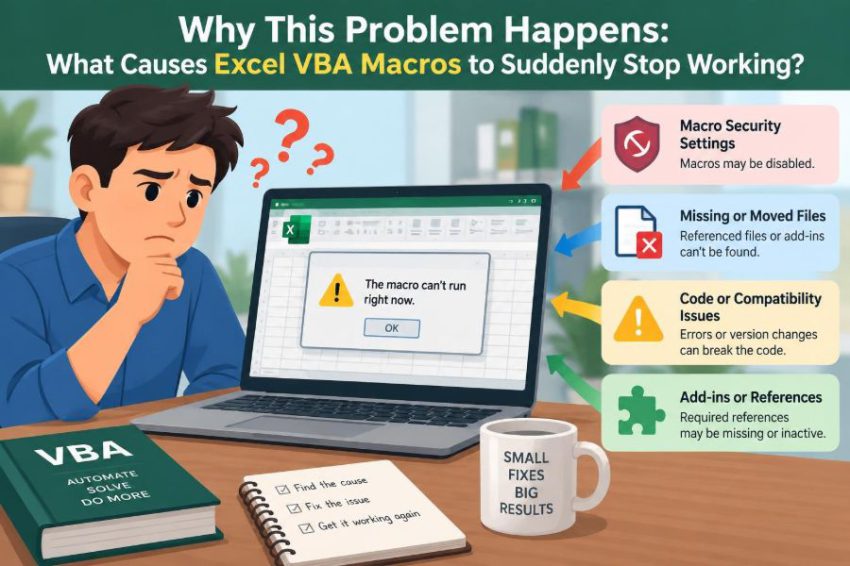

Your Excel workbook ran perfectly last week. A button generated reports, cleaned imported data, or emailed a summary in seconds. Then someone opens the same file and nothing happens—or Excel displays an error that seems unrelated to the code.
This is frustrating because “the macro stopped working” can describe many different failures. Excel may be blocking the file before code runs, VBA may be compiling a different module, a worksheet may have been renamed, or an external system may no longer be available.
The quickest fix is rarely guessing at code changes. The useful question is: at what point in the chain did the macro fail? Once you separate security, workbook structure, references, data, and runtime behavior, the cause becomes much easier to isolate.
This guide explains the common reasons Excel VBA macros suddenly fail, what each symptom usually means, and how to make a workbook less fragile next time.
🔍 “Stopped Working” Can Mean Several Different Things
A macro is not one single thing. It is a sequence: Excel opens a workbook, decides whether macros may run, finds the procedure, compiles the code, accesses workbook objects and data, and may communicate with other applications.
A failure at any stage produces a different symptom. A button that does nothing is not diagnosed the same way as a procedure that starts and then raises “Subscript out of range.”
| What you see | Likely area to check first |
|---|---|
| No macro runs at all | File type, security settings, blocked download |
| Compile error before running | References, declarations, syntax, missing libraries |
| Error on a particular line | Workbook names, ranges, data, permissions, external resources |
| Wrong result with no error | Active workbook assumptions, events, calculation, changed data layout |
Identifying the symptom precisely prevents broad and risky “fixes,” such as lowering all macro security settings when the actual problem is a renamed worksheet.
🛡️ Excel May Be Blocking Macros Before They Start
Modern Excel deliberately treats macros as a security risk because VBA can modify files, call other applications, and automate actions on a computer. A workbook may open normally while its code is prevented from running.
Look for a security message near the top of the workbook window. The wording varies by Office version and organizational policy, but it may say that macros are disabled or that Microsoft has blocked macros from an untrusted source.
Do not enable code automatically just because a file is familiar. Confirm who supplied it, what it is expected to do, and whether it has been altered. Security prompts are protection, not evidence that Excel is malfunctioning.
📥 Internet Download Marking Can Change Macro Behavior
Windows can mark files obtained from browsers, email attachments, cloud-sharing services, or chat tools as originating from the internet. Excel may then block VBA macros even when the user would normally choose to enable them.
If organizational rules permit and you trust the source, inspect the file’s properties in Windows. A file-level unblock option may appear there. The exact availability depends on how the file was obtained and the policies applied to the device.
Sending the workbook to another person or extracting it from a ZIP file can also change its trust context. That explains a common scenario: the author can run the macro, but the recipient cannot.
📁 The Workbook May Have Been Saved in the Wrong Format
Standard .xlsx workbooks cannot retain VBA projects. Macro-enabled workbooks normally use .xlsm, while macro-enabled templates use .xltm. Older formats such as .xls have different compatibility considerations.
When someone uses Save As and chooses .xlsx, Excel normally warns that VBA content cannot be saved. If that warning is accepted, the code is removed from the saved copy. The original file may still contain the macro, making the mix-up easy to miss.
Check the extension and then open the Visual Basic Editor with Alt+F11. If the project and modules are absent, this is not a runtime error; the saved file no longer contains the VBA code.
🏢 Company Policy Can Override Personal Excel Settings
On managed work devices, administrators may control macro behavior through policy. They may disable macros from internet-origin files, require signed code, restrict trusted locations, or prevent users from changing Trust Center options.
This is especially likely when a workbook works on a home computer but fails on a work laptop. It may also affect only a department, a virtual desktop, or a recently updated device.
A support team can clarify the approved route: a signed macro, an authorized network location, or a reviewed deployment process. Trying to bypass policy can create both security and compliance problems.
📍 Trusted Locations Matter, but They Are Not a Universal Fix
Excel can treat files in designated trusted locations differently from files opened elsewhere. Teams sometimes use a controlled folder for known internal workbooks that contain macro automation.
That convenience has a risk: every workbook in a trusted location receives broader trust. Do not make a general Downloads folder, desktop, or shared catch-all folder trusted merely to solve one prompt.
A better approach is a restricted location with clear ownership and controlled write access. Trust should apply to a managed workflow, not to every file that happens to be nearby.
✍️ A Digital Signature May No Longer Be Valid
Some environments allow only digitally signed VBA projects. A signature helps establish that a known publisher signed a particular version of the code.
Editing signed VBA code normally invalidates that signature. Even a small correction, such as changing a message box, can mean the workbook now behaves differently at open time.
Certificates can also expire, be replaced, or not be trusted on another computer. In a signed-code environment, the sustainable solution is a maintained signing process, not a one-time signature added during development.
🧩 Missing References Can Cause Compile Errors
VBA can use object libraries provided by Excel, Outlook, Access, Word, or other software. A reference tells VBA about the objects, methods, and constants available from that library.
If a referenced library is unavailable, perhaps because another Office version is installed or an application is missing, VBA may show a compile error or label a reference as MISSING. Check this in the Visual Basic Editor under Tools, References.
Do not simply untick every missing reference. First determine whether the project actually needs it. Removing a required reference may replace one clear compile failure with less obvious failures later.
🔗 Early Binding and Late Binding Behave Differently
Early binding declares a specific external type, such as an Outlook object, and requires the relevant library reference. It provides helpful autocomplete and compile-time checking during development.
Late binding creates an object at runtime, commonly with CreateObject, and declares it as Object. It can reduce version-specific reference issues, but it loses some editor assistance and requires literal values where named library constants were used.
'Late-bound example: Outlook must still be installed to create it
Dim mailApp As Object
Set mailApp = CreateObject("Outlook.Application")
Late binding is not a cure for missing software or blocked automation. It is a compatibility choice that should be made deliberately for the parts of a project that need it.
🧠 A Different Office Version Can Expose Hidden Assumptions
VBA code often survives Office upgrades, but not every dependency does. A workbook may rely on a control, add-in, library version, command behavior, or external application that differs across installations.
The most revealing test is to compare the working and failing environments: Excel version, 32-bit or 64-bit Office, installed add-ins, file location, and access to connected systems. “It works on my machine” usually means one of these conditions differs.
Documenting supported environments is valuable for shared business workbooks. It turns a vague compatibility complaint into a list that can be tested.
🧱 32-Bit and 64-Bit Office Can Break API Declarations
Some advanced VBA projects call Windows API functions. These declarations can fail in 64-bit Office if they were written only for 32-bit VBA, especially where pointers or handles are stored in Long variables.
Compatible code commonly uses conditional compilation and the LongPtr type where appropriate. This is a specialized area: copying declarations from an unverified source can cause instability or incorrect results.
If the error began after an Office architecture change, inspect API declarations first. Ordinary worksheet automation usually does not need Windows API calls at all.
🗂️ Renamed Worksheets Break Hard-Coded Names
A line such as Worksheets("Sales Data").Range("A1") depends on the visible tab name remaining exactly “Sales Data.” A user changing it to “SalesData,” adding a space, or translating the label can cause runtime error 9, “Subscript out of range.”
Where practical, use a worksheet’s VBA code name for internal code references. The code name is shown in the Project Explorer and is not changed when a user renames the tab.
'wsSales is the sheet code name, not necessarily its visible tab name
wsSales.Range("A1").Value = "Updated"
Visible names are still useful for people. The point is to avoid making user-facing labels an unnecessary programming dependency.
🔤 Named Ranges Can Be Deleted, Moved, or Scoped Differently
Named ranges make code readable: Range("ReportDate") communicates more than Range("B2"). But names can be deleted, redirected, or defined at worksheet scope rather than workbook scope.
A name that works from one sheet may not resolve from another if its scope is local. Names can also contain formulas that become invalid after a sheet is removed.
Use the Name Manager to inspect a failing name, its scope, and its “Refers to” address. For critical templates, protect structure where appropriate and make the expected names part of the workbook’s maintenance rules.
📐 Inserted Columns Can Silently Produce Wrong Answers
Not every broken macro raises an error. Suppose code treats column F as “Amount,” then a user inserts a new column before it. The macro may now sum, format, or overwrite the wrong field without any warning.
This is more dangerous than a visible error because the output can look plausible. Fixed column numbers are acceptable only when the layout is tightly controlled.
For changing data imports, locate columns by a validated header name, or use Excel Tables and structured design. Then stop with a clear message if an expected header is absent or duplicated.
📊 Empty, Invalid, or Unexpected Data Changes the Path
A macro may have been written against a sample containing rows, dates, numeric values, and no blanks. Real-world data eventually contains an empty file, a text value in a numeric field, an error value, or a date stored in an unexpected form.
For example, End(xlUp) can identify a different “last row” than intended when formulas, blanks, or old content remain below the visible dataset. Likewise, a calculation using a text value may yield an error or an unintended conversion.
Validate input before processing. Check that required headers exist, that data rows are present, and that fields meet the rules your calculation depends on.
📋 Tables, Filters, and Hidden Rows Change What “Data” Means
Excel ranges can include filtered-out rows, manually hidden rows, totals rows, and table headers. Code written for a plain rectangular range may behave differently after users convert the data into an Excel Table or apply a filter.
Be explicit about the intended scope. Should the macro process every record, only visible records, or only the table’s data body? These are different requirements, not minor implementation details.
Testing with a filter applied is a simple way to uncover an assumption that otherwise remains hidden until a busy reporting day.
🧭 ActiveWorkbook and ActiveSheet Are Fragile Shortcuts
ActiveWorkbook means whichever workbook Excel currently considers active—not necessarily the workbook that contains the macro. Opening a source file, displaying a dialog, or clicking another workbook can change that context.
Similarly, ActiveSheet relies on the user’s selection. A macro may work during a recorded demonstration and then write into the wrong sheet when someone launches it from elsewhere.
Use explicit object references instead. ThisWorkbook identifies the workbook containing the VBA code, while a stored workbook or worksheet variable can identify the intended target.
🖱️ Buttons and Controls Can Lose Their Connection
A worksheet button may exist even when its assigned macro does not. This can happen after copying sheets between workbooks, renaming procedures, deleting a module, or switching between form controls and ActiveX controls.
Right-click a form control and inspect its assigned macro. For ActiveX controls, use Design Mode and inspect the event procedure in the sheet’s code module.
Controls are also sensitive to workbook context. A copied button can still point to a macro name that existed only in the original workbook.
⚡ Events May Be Disabled After an Error
Event procedures run automatically in response to actions such as changing a cell, opening a workbook, or recalculating a sheet. They depend on the application-level setting Application.EnableEvents.
If code sets events to False and then errors before restoring them, worksheet-change macros may appear to have suddenly stopped. The workbook still opens, but automatic behavior is silent.
Use a cleanup path so settings are restored even after a failure. During diagnosis, the Immediate Window in the Visual Basic Editor can check the current setting, but the lasting fix belongs in the code.
🧮 Manual Calculation Can Leave Results Looking Stale
A macro may change inputs successfully while formulas appear unchanged because calculation mode is manual. Calculation mode can be affected by other open workbooks and by code that changes application settings.
Do not solve every issue by forcing full recalculation blindly; large workbooks may become slow. Instead, decide whether the macro requires recalculation, which worksheet or range needs it, and whether calculation mode must be restored afterward.
If users report “the macro ran but the totals did not update,” calculation state is a strong candidate.
🔒 Protected Sheets and Read-Only Files Restrict Changes
A macro can read a protected worksheet but fail when it tries to write to locked cells, insert rows, apply filters, or change workbook structure. The exact allowed actions depend on how protection was configured.
Read-only status creates a different issue: code may run but fail to save its result, or users may unknowingly work in a temporary copy. Cloud synchronization conflicts can add another layer of confusion.
Design macros around the intended protection model. If a procedure legitimately needs temporary access, handle protection carefully and avoid embedding sensitive passwords casually in broadly distributed code.
🌐 Network Paths and Cloud Sync Can Make Files Unavailable
Many VBA solutions depend on files stored on shared drives, network paths, or synchronized cloud folders. A disconnected VPN, changed drive mapping, delayed sync, permission change, or renamed folder can break those dependencies.
Hard-coded paths such as Z:\Finance\... are especially brittle because drive letters vary between computers. Where possible, build paths from known locations, configure them in a visible settings sheet, and verify existence before opening a file.
Clear error messages matter here. “Source file was not found at [path]” gives a user something actionable; a generic runtime error does not.
📧 Outlook, Databases, and Other Automation Targets Have Their Own Rules
Excel VBA often automates Outlook, queries databases, refreshes connections, or controls other Office applications. The Excel code can be correct while the target application is unavailable, not configured, restricted, or changed.
For instance, a macro that creates an email may fail if Outlook is not installed or if the organization uses a configuration that does not support the expected automation path. Database connections may fail because credentials, drivers, servers, or permissions changed.
Treat each external dependency as a separate system. Check whether it opens independently, whether the user has access, and whether the macro reports the real dependency failure.
🧱 Add-Ins Can Interfere with Excel Sessions
Add-ins extend Excel with custom functions, ribbon controls, data connections, and event handlers. A faulty or conflicting add-in can affect calculation, startup, controls, or macro behavior across multiple workbooks.
If the problem appears in many unrelated files, test Excel in Safe Mode or temporarily disable nonessential add-ins through the approved support process. If only one workbook fails, its own code and structure remain more likely suspects.
Do not permanently remove business-critical add-ins as a first response. Isolate the cause before changing a working environment.
🐛 Error Handling Can Hide the Actual Failure
On Error Resume Next tells VBA to continue after an error. It is occasionally appropriate for a narrow, expected operation, but broad use can turn a clear failure into a mysterious wrong result.
For example, a failed attempt to open a file may be ignored, after which later code processes an old workbook or an empty object. The reported problem then appears far from its cause.
Use targeted error handling, test the outcome immediately, and restore normal error behavior with On Error GoTo 0. During development, let unexpected errors surface with a useful line of investigation.
🧾 Debugging Starts with Reproducing the Exact Situation
Before changing code, capture the conditions: the file version, the user’s Excel version, the location from which it was opened, the exact error text, and the step that triggers it. A screenshot is often useful, but the typed error message and failing action are even better.
Then reproduce the problem using a copy of the workbook and equivalent input data. Avoid debugging the only production file, especially if the macro writes over source data or sends messages.
In the Visual Basic Editor, use breakpoints, step through with F8, and inspect variable values. The goal is not to stare at every line; it is to find the first assumption that is no longer true.
🧪 Add Defensive Checks Where Failure Is Predictable
Reliable VBA does not assume a sheet, header, folder, or external application is present. It checks conditions that users or environments can reasonably change, then stops safely with a specific explanation.
If Not WorksheetExists("Sales Data", ThisWorkbook) Then
    MsgBox "The required Sales Data sheet is missing.", vbExclamation
    Exit Sub
End If
The helper function is not shown here, but the design idea matters: validate prerequisites before processing. A meaningful message reduces support time and prevents partial updates.
🧹 Always Restore Application Settings
Macros often improve speed by turning off screen updating, calculation, alerts, or events. Those settings apply to the Excel application, not merely to one procedure.
If a macro exits early and leaves them altered, later workbooks can behave strangely. Users may describe this as Excel “randomly” failing even though the original macro is no longer running.
Set up one cleanup route that restores every changed setting. This is one of the most valuable habits in VBA maintenance.
📝 Change Control Prevents Accidental Breakage
Shared workbooks are frequently changed by people who are not VBA developers: tabs are renamed, columns are rearranged, formulas are replaced, and buttons are copied. Those changes may be reasonable from a spreadsheet perspective but incompatible with automation.
Separate input areas from calculation and output areas, label editable fields, and document what must not change. For important solutions, keep a controlled master copy and record meaningful code or template revisions.
Protection can help, but communication is equally useful. People are more likely to preserve a named range when they understand that a monthly report depends on it.
✅ A Practical Triage Order Saves Time
When a macro suddenly fails, investigate in an order that eliminates broad causes before deep code review:
- Confirm the file is the expected macro-enabled version.
- Check macro warnings, internet blocking, and organizational policy.
- Determine whether no code runs, compilation fails, or a specific line fails.
- Compare the working and failing machine, file location, and Office setup.
- Check renamed sheets, names, changed headers, paths, and protection.
- Inspect references, events, calculation state, and external dependencies.
- Reproduce the issue and correct the first broken assumption.
This order is not rigid, but it avoids spending an hour editing code when Excel has simply blocked the downloaded file.
🎯 The Core Principle: Macros Depend on More Than Code
Excel VBA macros usually do not stop “for no reason.” They stop because a dependency changed: trust status, file format, Office environment, workbook structure, input data, application state, or an outside system.
The code is only one part of the solution. A dependable macro also has a stable workbook design, clear prerequisites, careful error handling, controlled deployment, and recovery steps for predictable failures.
When you diagnose the stage at which failure occurs, you replace trial-and-error with evidence. That is the skill that makes macro troubleshooting faster—and makes future automation more resilient.
A VBA macro is reliable when both its code and the environment it expects are deliberately managed. Check the chain, test the assumptions, and make failures understandable rather than mysterious. ⚙️📊🔍