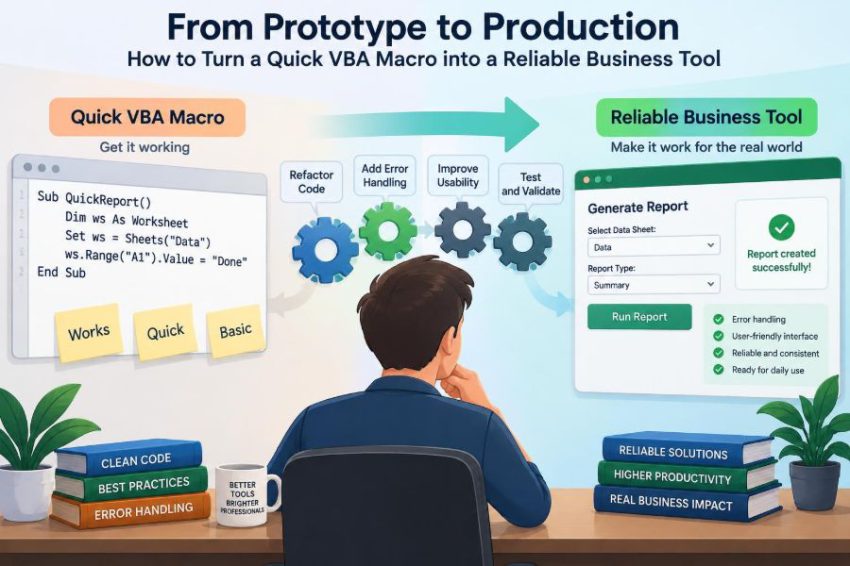

It starts with a small request: clean a monthly export, combine several worksheets, or prepare a report before a meeting. You record a macro, add a few lines of VBA, and suddenly a task that took an hour takes two minutes.
Then people begin relying on it. A colleague asks for a button. Another asks whether it can handle a new file layout. Soon, the workbook is being copied between teams, edited by several people, and used on a deadline.
At that point, the original macro is no longer a personal shortcut. It is a business tool—and the standards for a business tool are different from the standards for a quick experiment.
Production-ready VBA does not mean building a giant application. It means making deliberate choices so the tool behaves predictably, explains failures clearly, protects data, and can be maintained by someone other than its first author.
🧭 Recognize the moment a macro becomes a tool
A prototype exists to test an idea quickly. A production tool exists to perform a repeatable business process under normal variations: different users, different files, incomplete data, and changing deadlines.
The turning point is usually reliance. If a result is sent to management, used for finance, loaded into another system, or expected by colleagues each month, treat the macro as operational software.
🎯 Define the job before rewriting the code
Do not begin with refactoring. First, write down what the macro is supposed to accomplish, who uses it, which inputs it accepts, and what output counts as correct.
A useful one-sentence scope might be: “Import approved sales exports from a selected folder, validate required columns, create a summary workbook, and preserve the source files.” This prevents useful-looking features from quietly expanding the project.
📋 Turn assumptions into explicit requirements
Quick macros often rely on invisible assumptions: the active workbook is the right one, data begins on row 2, a sheet is named “Data,” and every user has the same folder path. These assumptions are where production failures begin.
- Which file types are allowed?
- Which headers are mandatory?
- What should happen to blank rows or duplicate records?
- Where should the output be saved?
- Who can correct an input problem?
Writing these decisions down gives you something concrete to test and explain.
🧩 Separate the process into clear stages
Reliable automation is easier to reason about when each stage has one responsibility. A typical flow is: collect inputs, validate them, transform data, produce output, verify results, and report completion.
This structure also makes failures safer. If validation happens before transformation, a malformed source file can be rejected before it changes anything.
🧪 Keep a prototype mindset where it belongs
Exploration is still valuable. Use a copy of a workbook to discover object models, test formulas, and learn which fields matter. The problem is not experimentation; it is shipping experimental assumptions as permanent behavior.
Keep scratch code separate from the routine people run. A module named Sandbox is more honest than leaving temporary procedures mixed with production code.
🏗️ Choose a sensible VBA project structure
For a small tool, standard modules are often enough. As complexity grows, group procedures by purpose rather than placing every routine in one module.
| Module area | Typical responsibility |
|---|---|
| EntryPoints | Macros assigned to buttons or shortcuts |
| Importing | File selection and reading source data |
| Validation | Header, value, and business-rule checks |
| Reporting | Output sheets, formatting, and summaries |
| Utilities | Reusable helpers such as finding a header |
A clear structure reduces the temptation to copy and alter blocks of code, which creates hard-to-find inconsistencies.
🚪 Create one controlled entry point
Users should normally run one obvious macro, not choose among internal helper procedures. That entry procedure coordinates the workflow and presents a consistent start and finish.
Public Sub RunMonthlyReport()
    'Prepare, validate, process, save, and report status
End Sub
Helpers can remain Private where appropriate. This reduces accidental use of a routine that expects setup work to have already happened.
🧱 Break long procedures into testable routines
A thousand-line procedure can work, but it is difficult to inspect and risky to modify. Split work into focused procedures with names that describe intent, such as ValidateHeaders, LoadSourceRows, and CreateSummarySheet.
Prefer functions that return a useful result—such as True or False, a worksheet reference, or a collection—over routines that silently depend on distant global state.
🔒 Use explicit declarations and meaningful names
Place Option Explicit at the top of every module. It forces variable declarations and catches spelling errors that would otherwise become unintended new variables.
Name variables for their business role: sourceWorkbook, lastDataRow, and reportDate reveal more than wb1, r, and x. Short loop counters are fine; unclear names for important objects are not.
📍 Avoid depending on ActiveWorkbook and Selection
Recorded macros commonly use ActiveWorkbook, ActiveSheet, Select, and Selection. They work only while the user interface remains exactly as expected.
Instead, store references and act on them directly. A workbook opened by your code should be represented by a workbook variable; a report sheet should be represented by a worksheet variable. This avoids a user clicking another workbook halfway through the run.
🗂️ Treat files and worksheets as untrusted inputs
A file with the expected name may contain the wrong sheet, old data, or a changed header. A worksheet may be hidden, protected, or missing entirely. Reliable code checks rather than assumes.
For example, confirm that required headers exist before determining column positions. Header-based logic survives reordered columns; fixed column numbers often do not.
✅ Validate before changing data
Validation is not merely checking whether a cell is blank. It confirms that the input is suitable for the promised process. Required columns, dates, numeric amounts, allowed categories, and unique identifiers may all need checks.
Collect validation problems into a readable list when possible. Telling a user that “Customer ID is missing in rows 18 and 43” is far more actionable than a generic error message.
🧼 Normalize messy values deliberately
Business exports often contain trailing spaces, inconsistent capitalization, numbers stored as text, or dates interpreted differently across regional settings. Decide which differences are harmless and normalize them consistently.
For instance, use Trim$ for expected text fields, compare categories after a documented normalization step, and avoid relying on ambiguous text dates. Do not silently “fix” values when the correction could change their meaning.
🧮 Put business rules in named code
A rule such as “exclude cancelled orders” should not be buried inside a long conditional statement in the middle of a loop. Give it a name, such as IsReportableOrder.
Named rules make the business decision visible, easier to review, and easier to update when policies change. They also distinguish a data-quality issue from an intentional exclusion.
⚡ Process data in batches, not cell by cell
Excel object calls are relatively expensive. Repeatedly reading or writing individual cells can make a macro slow even when its logic is simple.
For larger ranges, read values into a Variant array, process the array in memory, then write the result back in one operation. This usually improves speed and makes transformations less tied to screen state.
🚦 Manage Excel application settings safely
Turning off screen updating, events, and automatic calculation can make a task faster. However, these are application-level settings: if the macro ends unexpectedly, Excel can be left in an inconvenient state.
Application.ScreenUpdating = False
Application.EnableEvents = False
'... work ...
Application.EnableEvents = True
Application.ScreenUpdating = True
Always restore settings in a cleanup path, including after an error. Performance improvements should never leave users wondering why formulas stopped recalculating.
🛑 Design error handling for recovery
On Error Resume Next is not a general error-handling strategy. Used broadly, it hides failures and lets the macro continue with invalid assumptions.
Use targeted error handling around a specific operation that can reasonably fail, then inspect the result. For the main process, provide a single cleanup route that restores settings, closes temporary files when appropriate, and gives the user a useful message.
🗣️ Give users messages they can act on
“Run-time error 9” is meaningful to a developer but rarely to the person trying to finish a report. Explain what happened, where it happened in business terms, and what the user should do next.
Good messages are specific without exposing confusing implementation detail: “The selected file does not contain a ‘Transaction Date’ column. Download the standard export and try again.”
🧯 Make failures safe and reversible
Consider what happens if a failure occurs after rows are deleted, a sheet is overwritten, or a file is partially saved. The safest design validates first and delays irreversible changes until the last practical moment.
Where feasible, create output in a new workbook or staging sheet, then replace the final version only after successful completion. Keep source files read-only from the macro’s perspective unless editing them is an explicit requirement.
💾 Save outputs predictably
A production tool should not depend on a user remembering where to save the result or choosing the right file type. Use a documented output location or ask for one clearly, then show the final path.
File names should support traceability without becoming cryptic. Including a reporting period or run date can help, but avoid overwriting prior outputs unless that behavior is deliberate and visible.
🔍 Verify the result, not just the absence of errors
A macro can finish without raising an error and still produce an empty report, omit rows, or apply a formula to the wrong range. Add checks that reflect the intended outcome.
- Confirm the output worksheet exists.
- Compare expected and processed record counts.
- Check that required summary fields were created.
- Flag unusually empty output for review.
These are not guarantees of business correctness, but they catch many silent failures early.
🧪 Test normal cases and awkward cases
Testing with one familiar workbook is not enough. Build a small set of safe test files that represent normal input, missing headers, blank data, unexpected extra columns, duplicate IDs, and malformed values.
Also test what happens when the user cancels a file picker, opens the tool in a different folder, or runs it twice. Repetition often reveals output-overwrite and state-management problems.
📊 Use a simple test checklist
A checklist makes testing repeatable, especially when a change seems small. Record the input used, expected result, actual result, and whether the behavior was accepted.
For critical recurring reports, compare a sample output against a manually verified result after significant changes. The objective is not perfect formal testing; it is evidence that important scenarios were deliberately checked.
📝 Document the user workflow
Documentation should answer practical questions: where to place input files, what the expected headers are, how to run the macro, where output appears, and what common messages mean.
A short “before you run” section can prevent more support requests than a long technical manual. Keep developer notes separately, including module roles, assumptions, and known limitations.
👥 Design for the next maintainer
Someone else may need to change the macro when the original author is unavailable. Comments should explain why a non-obvious decision exists, not narrate every obvious line of code.
Avoid embedding personal paths, passwords, or unexplained constants. Put configurable values in one visible place, such as a settings sheet or clearly named constants, and describe what changing them affects.
🔐 Understand VBA security boundaries
VBA is useful inside the Office environment, but it is not a complete security system. Workbook and VBA project protections should not be treated as a robust method for safeguarding sensitive information or secrets.
Use approved storage and access practices for confidential data. If a process requires credentials, elevated permissions, or controlled audit trails, involve the appropriate IT, security, or business owners rather than embedding a workaround in a workbook.
📦 Plan distribution and version control
Sending updated macro files by email creates uncertainty about which version is authoritative. Give the tool a visible version number and establish one distribution location or release process.
For more mature work, exporting VBA modules as text files allows changes to be tracked in a source-control system. Even without formal tooling, maintaining a change log and preserving prior releases improves accountability.
🔄 Manage change without breaking routine work
Every new request has a cost: more branches, more test cases, and more chances to alter existing output. Ask whether a request is a configuration option, a new feature, or a separate tool.
Before changing a trusted process, preserve a known-good copy and rerun representative test cases. A fast fix on deadline day can be appropriate, but it should be reviewed and cleaned up afterward.
📈 Know when VBA is no longer the right platform
VBA remains practical for desktop Excel automation, analyst workflows, and processes that stay within a manageable workbook-based scope. It becomes less suitable when many simultaneous users need central data, web access, robust permissions, scheduled server execution, or detailed audit requirements.
That does not mean the VBA tool failed. It may have successfully proved the process and revealed the requirements for a database, Power Automate flow, Office Script, add-in, or dedicated application.
🛠️ Use a production-readiness review
Before calling the tool ready, review it from a user’s perspective. Can a new colleague run it with the instructions? Can an invalid file be rejected without damaging data? Can a maintainer identify the source of an output?
- Inputs are defined and validated.
- Workbook and worksheet references are explicit.
- Errors restore application settings and explain next steps.
- Outputs are saved and checked predictably.
- Representative scenarios have been tested.
- Known limitations are documented.
🌱 Build reliability in layers, not all at once
You do not need to rebuild every useful macro into an enterprise system. Start with the risks that matter most: protect data first, then validate inputs, improve error messages, remove active-selection dependencies, and document the workflow.
The core principle is simple: a reliable VBA business tool makes its assumptions visible, handles expected variation safely, and leaves people with trustworthy results or clear next steps.
A quick macro can be the beginning of excellent automation when it grows with the process it supports—not just with the number of lines of code. ⚙️📊✅