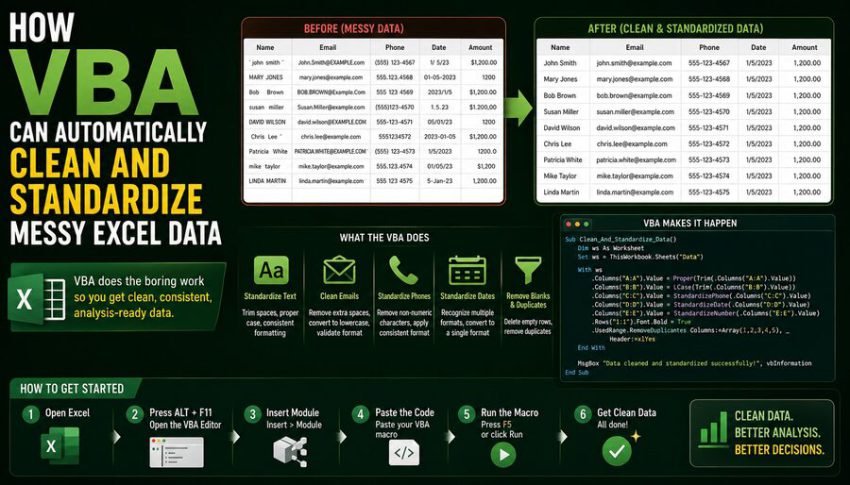

Excel spreadsheets often begin neatly and become increasingly messy over time. Data may arrive from different departments, customers, exports, websites, accounting systems, or manually entered forms. Before long, the same worksheet can contain inconsistent capitalization, extra spaces, duplicated records, malformed dates, blank cells, numbers stored as text, and dozens of slightly different ways of writing the same category. 📊😵💫
Cleaning this information manually can take hours, especially when thousands of rows are involved.
This is where VBA, or Visual Basic for Applications, can be extremely useful.
VBA is the programming language built into desktop Microsoft Office applications, including Excel. It allows users to create macros that automatically inspect cells, transform values, remove unwanted characters, standardize formats, identify errors, and repeat the same cleaning rules across entire datasets.
Instead of manually correcting the same problem hundreds of times, a VBA macro can apply a consistent set of rules in seconds. ⚙️✨
The basic idea is:
Messy Excel data ➡️ VBA cleaning rules ➡️ Standardized dataset ➡️ Easier analysis
💻 What Is VBA?
VBA is an automation language that allows Excel users to control workbooks programmatically.
A VBA macro can perform many of the same actions a person performs manually, including:
- Reading cells
- Changing values
- Formatting ranges
- Deleting rows
- Creating worksheets
- Finding duplicates
- Applying formulas
- Sorting data
- Generating reports
Because VBA can use loops, conditions, functions, and variables, it can also make decisions.
For example:
If a cell is blank ➡️ flag it
If a phone number contains spaces ➡️ remove them
If a name is written in lowercase ➡️ convert it to proper case
That turns Excel from a manual spreadsheet tool into an automated data-processing environment. 🤖📗
🧹 Why Excel Data Becomes Messy
Messy data usually appears because information is entered or imported from multiple sources.
Imagine a customer list containing these names:
john smith
 JOHN SMITH
John  Smith
john Smith
To a human, these probably represent the same name.
To Excel, however, they are different text values.
You might also find locations such as:
New York
NEW YORK
new york
New  York
Dates may appear as:
21/08/2026
08-21-2026
21 Aug 2026
August 21, 2026
Phone numbers might be stored as:
5551234567
555-123-4567
(555) 123-4567
555 123 4567
Before analysis, reporting, importing into another system, or performing duplicate detection, these values often need to be standardized.
✂️ Removing Extra Spaces
One of the most common spreadsheet problems is unwanted spaces.
Users may accidentally type:
" John Smith "or place multiple spaces between words.
VBA can use Excel’s Trim functionality to clean text.
For example:
Sub RemoveExtraSpaces()

    Dim cell As Range

    For Each cell In Selection
        If Not IsEmpty(cell.Value) Then
            cell.Value = WorksheetFunction.Trim(cell.Value)
        End If
    Next cell

End Sub
This macro checks every selected cell and removes unnecessary spaces.
So:
" John Smith "becomes:
"John Smith"When thousands of rows are involved, this simple automation can save a substantial amount of time. ⏱️
🔠 Standardizing Capitalization
Inconsistent capitalization can make reports look unprofessional and interfere with grouping or matching.
VBA can convert text into:
- Uppercase
- Lowercase
- Proper case
For example:
cell.Value = UCase(cell.Value)turns:
new yorkinto:
NEW YORKSimilarly:
cell.Value = LCase(cell.Value)produces lowercase text.
For names and locations, proper case may be useful:
cell.Value = StrConv(cell.Value, vbProperCase)This could transform:
jane DOEinto:
Jane DoeHowever, proper case should be used carefully because names such as McDonald, O'NEIL, or acronyms such as NASA may require special rules.
Good data cleaning often involves exceptions. 🧠
📅 Standardizing Dates
Dates are one of the most troublesome spreadsheet data types.
Excel can display dates in many formats, and imported dates may sometimes be stored as plain text rather than actual date values.
A VBA macro can test whether a value is recognized as a date:
If IsDate(cell.Value) Then
    cell.Value = CDate(cell.Value)
    cell.NumberFormat = "yyyy-mm-dd"
End If
This converts valid date values into a consistent display such as:
2026-08-21Using a consistent format makes sorting, filtering, reporting, and data exchange much easier.
However, ambiguous dates require caution.
For example:
03/04/2026could mean March 4 or April 3 depending on regional conventions.
Automation should therefore use clearly defined rules rather than guessing whenever possible. ⚠️
🔢 Converting Numbers Stored as Text
Another frequent Excel problem is numbers that look numeric but are actually stored as text.
For example:
"1250"may appear exactly like the number:
1250but Excel can treat the two differently.
This can cause problems with:
- SUM calculations
- Sorting
- Charts
- PivotTables
- Statistical formulas
VBA can convert text-like numbers using functions such as CDbl, CLng, or Val, depending on the situation.
For example:
If IsNumeric(cell.Value) Then
    cell.Value = CDbl(cell.Value)
End If
After conversion, Excel can treat the value as a proper number.
📞 Cleaning Phone Numbers
Suppose a dataset contains phone numbers in many formats.
VBA can remove characters such as:
- Spaces
- Hyphens
- Parentheses
- Periods
For example:
phone = cell.Value
phone = Replace(phone, " ", "")
phone = Replace(phone, "-", "")
phone = Replace(phone, "(", "")
phone = Replace(phone, ")", "")
The number:
(555) 123-4567would become:
5551234567Once standardized, the phone number can be reformatted consistently.
It is usually best to store phone numbers as text rather than numeric values because phone numbers are identifiers, not quantities. Leading zeros may also be significant in some countries.
📧 Standardizing Email Addresses
Email addresses often contain accidental spaces or inconsistent capitalization.
A VBA cleaning rule might:
- Remove leading and trailing spaces.
- Convert the email address to lowercase.
- Check whether it contains an
@symbol. - Flag suspicious values.
For example:
email = LCase(Trim(cell.Value))

If InStr(email, "@") = 0 Then
    cell.Interior.ColorIndex = 6
End If
This does not fully validate whether an email address exists, but it can detect obvious formatting problems.
🗑️ Removing Duplicate Records
Duplicate rows can distort reports and cause problems such as:
- Customers counted twice
- Duplicate invoices
- Inflated sales totals
- Repeated mailing-list entries
Excel has a built-in Remove Duplicates feature, and VBA can automate it.
For example:
Range("A1:D10000").RemoveDuplicates Columns:=Array(1, 2), Header:=xlYesThis could remove duplicates based on columns A and B.
However, duplicate detection requires careful thought.
Two people may share the same name.
A better duplicate key might combine:
Email + Customer ID
or:
Invoice Number + Date
Automation should use fields that genuinely identify unique records. 🔑
🕳️ Detecting Blank Cells
Missing data is another common issue.
A macro can scan important columns and highlight blanks.
For example:
If Trim(cell.Value) = "" Then
    cell.Interior.ColorIndex = 6
End If
A more advanced macro might write:
MISSING VALUEto a separate validation column instead of changing the original data.
This is often safer because it preserves the source dataset.
🏷️ Standardizing Categories
Suppose a sales report contains these values:
United States
USA
U.S.A.
US
U.S.
They all represent the same country.
A macro can standardize them:
Select Case UCase(Trim(cell.Value))

    Case "USA", "U.S.A.", "US", "U.S.", "UNITED STATES"
        cell.Value = "United States"

End Select
This technique is particularly useful for:
- Country names
- Departments
- Job titles
- Product categories
- Sales regions
- Status fields
A consistent category list is essential for accurate PivotTables and dashboards. 📊
🔍 Finding and Replacing Unwanted Characters
Imported datasets may contain hidden or unusual characters.
These might include:
- Tabs
- Line breaks
- Non-printing characters
- Special spaces
Excel’s Clean function can remove many non-printing characters.
A VBA expression might use:
cell.Value = WorksheetFunction.Clean(cell.Value)It can also be combined with Trim:
cell.Value = WorksheetFunction.Trim(WorksheetFunction.Clean(cell.Value))This is a common first step when cleaning imported text.
🔄 Using Loops to Clean Thousands of Rows
The true power of VBA appears when a cleaning rule is applied repeatedly.
A loop can process an entire column:
Dim lastRow As Long
Dim i As Long

lastRow = Cells(Rows.Count, "A").End(xlUp).Row

For i = 2 To lastRow
    Cells(i, "A").Value = Trim(Cells(i, "A").Value)
Next i
The macro first determines the last used row in column A.
It then processes each row automatically.
Whether the worksheet contains 100 rows or 50,000 rows, the basic logic remains the same.
⚙️ Building a Complete Cleaning Pipeline
Instead of running many separate macros, a company can create one standardized cleaning procedure.
For example:
Import raw file 📥
⬇️
Remove hidden characters 🧹
⬇️
Trim spaces ✂️
⬇️
Standardize capitalization 🔠
⬇️
Normalize dates 📅
⬇️
Convert numeric fields 🔢
⬇️
Standardize categories 🏷️
⬇️
Check missing values 🔍
⬇️
Flag duplicates 🚨
⬇️
Export clean dataset ✅
This transforms cleaning from an informal manual activity into a repeatable process.
🧠 Using Functions Instead of Repeating Code
As macros become larger, it is useful to create reusable VBA functions.
For example:
Function CleanName(value As String) As String

    value = WorksheetFunction.Clean(value)
    value = WorksheetFunction.Trim(value)
    value = StrConv(value, vbProperCase)

    CleanName = value

End Function
The macro can then call:
Cells(i, "A").Value = CleanName(Cells(i, "A").Value)Reusable functions make VBA code easier to maintain and test.
📚 Using Lookup Tables for Standardization
Hard-coding every replacement inside VBA can become difficult when hundreds of categories exist.
A better approach may be to maintain a mapping table.
For example:
| Raw Value | Standard Value |
|---|---|
| USA | United States |
| U.S.A. | United States |
| UK | United Kingdom |
| U.K. | United Kingdom |
The VBA macro can read this table and replace values automatically.
This has a major advantage:
Business users can update standardization rules directly in Excel without editing VBA code.
🧾 Preserving the Original Data
A good cleaning macro should usually avoid destroying the original source data.
One safer workflow is:
Raw_Data sheet ➡️ Copy ➡️ Clean_Data sheet
The macro performs transformations on the copy.
This provides several benefits:
- Original values remain available.
- Errors can be investigated.
- Cleaning rules can be tested safely.
- Results are easier to audit.
For important business datasets, reproducibility matters just as much as speed.
🚦Adding Validation Reports
Instead of silently changing everything, a well-designed macro can generate a data-quality report.
For example:
Rows processed: 18,450
Blank customer IDs: 27
Invalid dates: 14
Duplicate records: 63
Unknown categories: 9
This tells the user what the macro found.
A separate worksheet called Validation_Report can make the process easier to review.
This is especially valuable in finance, operations, compliance, and reporting environments.
⚡ Improving VBA Performance
A macro that edits cells one by one can become slow on very large datasets.
VBA performance can often be improved by temporarily disabling screen updates and automatic recalculation:
Application.ScreenUpdating = False
Application.Calculation = xlCalculationManual

' Cleaning code here

Application.Calculation = xlCalculationAutomatic
Application.ScreenUpdating = True
For even better performance, large ranges can be loaded into VBA arrays, processed in memory, and written back to the worksheet in one operation.
This can be dramatically faster than repeatedly accessing individual cells.
🛡️ Use Error Handling
Real-world spreadsheets contain unexpected values.
A cleaning macro should therefore handle errors gracefully.
VBA supports error-handling techniques such as:
On Error GoTo ErrorHandlerThe program can record problematic rows rather than simply stopping.
A reliable cleaning process should make errors visible.
Silently ignoring them can create more dangerous problems than the original messy data.
🔐 Macro Security Matters
VBA macros can automate legitimate business workflows, but they can also execute harmful code.
Users should avoid enabling macros from unknown or untrusted files.
Organizations may use:
- Trusted locations
- Digitally signed macros
- Restricted macro policies
- Controlled templates
A company’s data-cleaning workbook should be distributed through an approved and trusted process.
Automation should increase productivity without weakening security. 🔒
🤔 When VBA Is a Good Choice
VBA is particularly useful when:
- Data regularly arrives in Excel workbooks.
- The same cleanup steps happen repeatedly.
- Users already work primarily in desktop Excel.
- The dataset is manageable within Excel.
- The workflow needs buttons or simple user interfaces.
- The process must integrate with existing worksheets.
For example, an operations team receiving the same weekly supplier spreadsheet could use a button labeled:
Clean Weekly Data
The macro then performs the entire workflow automatically.
🔄 When Power Query May Be Better
VBA is not the only Excel automation tool.
For repeatable data import and transformation, Power Query can often be a strong alternative.
Power Query is especially useful for:
- Combining many files
- Importing data
- Reshaping tables
- Removing columns
- Splitting text
- Changing data types
- Refreshable transformation pipelines
VBA is particularly useful when the workflow needs procedural logic, interaction with workbook objects, custom buttons, or actions beyond data transformation.
In many organizations, VBA and Power Query are used together.
📊 Example: Cleaning a Customer Database
Imagine a worksheet with 25,000 customer records.
The raw data contains:
- Extra spaces in names
- Mixed capitalization
- Different state abbreviations
- Inconsistent phone numbers
- Duplicate emails
- Invalid dates
- Blank customer IDs
A VBA macro might automatically:
- 📥 Copy the raw dataset.
- 🧹 Remove hidden characters.
- ✂️ Trim text fields.
- 🔠 Standardize customer names.
- 🏷️ Normalize state codes.
- 📞 Clean phone numbers.
- 📧 Convert emails to lowercase.
- 📅 Standardize dates.
- 🔍 Detect blank IDs.
- ♻️ Flag duplicates.
- 📊 Generate a validation report.
A process that previously required hours of manual work could become a repeatable automated workflow.
🧠 Why Standardization Matters
Data cleaning is not merely about making spreadsheets look tidy.
Inconsistent data directly affects analysis.
Suppose a PivotTable contains these department labels:
Sales
SALES
sales
Sales Department
Excel may treat them as separate categories.
The report could therefore display four different sales departments when only one actually exists.
Standardization ensures that equivalent values are represented consistently.
That improves:
- Reporting
- Filtering
- Sorting
- Dashboard accuracy
- Database imports
- Data matching
- Business decision-making
🌟 The Bigger Picture
VBA allows Excel users to turn repetitive data-cleaning tasks into programmable and repeatable workflows.
Instead of manually scanning thousands of cells, a macro can systematically:
Trim text ✂️ ➡️ Normalize case 🔠 ➡️ Standardize dates 📅 ➡️ Convert numbers 🔢 ➡️ Map categories 🏷️ ➡️ Detect duplicates 🔍 ➡️ Validate records ✅
The most important benefit is not simply speed.
It is consistency.
A human cleaning a large spreadsheet manually may apply slightly different rules from one row to another or overlook mistakes after hours of repetitive work.
A VBA macro applies the same programmed rules every time.
That makes Excel data easier to analyze, compare, report, and import into other systems.
The strongest VBA cleaning solutions also preserve raw data, document transformations, flag exceptions, generate validation reports, and make rules easy to update.
When designed carefully, VBA can transform a messy spreadsheet from an error-prone manual task into a controlled data-quality pipeline. 🧹📊⚙️
For teams that receive similar Excel files repeatedly, that difference can mean fewer mistakes, faster reporting, and far less time spent performing tedious corrections by hand.