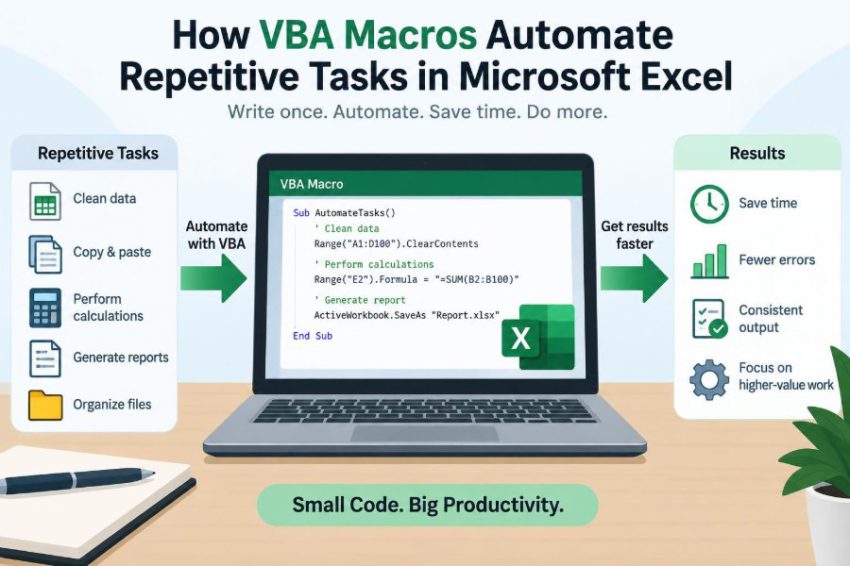

It is Monday morning, and a workbook arrives with hundreds of sales rows. Before the team meeting, someone must remove blank records, standardize dates, calculate totals, apply the usual formatting, and create a summary for managers.
None of those steps is especially difficult. The problem is that the same sequence returns every week, and small manual differences can quietly change the result.
VBA macros turn a repeatable Excel procedure into a repeatable program. Instead of clicking through the same tasks again, a user can run code that follows defined instructions in seconds.
For students, VBA is a practical introduction to programming. For working professionals, it can make spreadsheet processes more consistent, auditable, and easier to maintain. ⚙️
🧩 1. What VBA Means in Excel
VBA stands for Visual Basic for Applications. It is a programming language built into many Microsoft Office desktop applications, including Excel.
In Excel, VBA can read cells, change values, format worksheets, create charts, manage files, and respond to user actions. A VBA procedure saved in a workbook is commonly called a macro.
🔁 2. Why Repetitive Tasks Are Good Automation Candidates
Automation works best when a task has clear inputs, consistent steps, and a useful output. The more often those steps repeat, the more valuable a macro can become.
- Cleaning imported data using the same rules
- Creating a weekly report from a standard template
- Formatting newly added rows
- Copying values from one worksheet to another
- Exporting selected sheets for distribution
A macro does not replace judgment. It handles predictable work so that people can spend more time checking exceptions and making decisions.
🎯 3. The Core Idea: Instructions, Not Magic
A macro is simply a sequence of instructions. Excel runs each instruction in order unless the code tells it to make a decision, repeat a block, or stop.
For example, the instruction below writes text into a cell:
Range("A1").Value = "Monthly Report"The statement identifies an object, Range("A1"), and sets one of its properties, Value. This object-and-property pattern appears throughout VBA.
🗂️ 4. Understanding the Excel Object Model
VBA works with Excel through an object model: a hierarchy of things that Excel contains. A workbook contains worksheets; a worksheet contains ranges, charts, tables, and other objects.
Workbooks("Sales.xlsx").Worksheets("Data").Range("B2").Value = 250This fully qualified instruction is long, but it is precise. It tells VBA exactly which workbook, sheet, and cell should receive the value.
🧭 5. Where to Write and Run Macros
The VBA editor is opened from Excel with the keyboard shortcut Alt + F11 on Windows. In the editor, standard modules are a common place to store general-purpose procedures.
The Developer tab can also provide access to the Visual Basic editor, macro list, and controls. If it is not visible, it can be enabled in Excel’s ribbon customization options.
📦 6. Why Macro-Enabled Files Matter
A workbook that contains VBA code should normally be saved as an Excel Macro-Enabled Workbook with the .xlsm extension. A standard .xlsx workbook does not retain VBA code when saved.
Use an appropriate file format before closing a workbook after writing a macro. This simple step prevents a common and frustrating loss of work.
🎙️ 7. Starting with the Macro Recorder
Excel’s Macro Recorder watches many actions performed in the workbook and generates VBA code for them. It is useful for discovering the names of objects and commands.
Record a small formatting task, stop recording, then inspect the generated procedure. The code may be more verbose than hand-written code, but it provides a useful first example.
Useful recorder tasks
- Applying a number format
- Adding borders or a fill colour
- Sorting a selected range
- Creating a simple chart
The recorder cannot design a complete solution for every situation. It records actions; it does not understand the business rule behind them.
🧱 8. The Structure of a Simple Procedure
Most beginner macros are procedures beginning with Sub and ending with End Sub. A meaningful name makes the macro easier to find and maintain.
Sub FormatReport()
    Range("A1:D1").Font.Bold = True
    Columns("A:D").AutoFit
End Sub
Indentation is not required by VBA, but it makes code far easier to read. Clear structure is part of reliable automation.
📍 9. Referencing Cells and Ranges Safely
A range can be one cell, such as Range("C5"), or many cells, such as Range("A2:D20"). VBA can also use Cells(row, column) when row and column numbers are more convenient.
Cells(2, 3).Value = "Complete"That statement writes to row 2, column 3, which is cell C2. Named ranges can make important references easier to understand than raw cell addresses.
🧹 10. Cleaning Data with Defined Rules
Imported data often contains leading or trailing spaces, inconsistent capitalization, blanks, or text that should be numeric. A macro can apply a cleaning rule consistently to every relevant row.
Range("B2:B100").Value = Range("B2:B100").ValueThat line alone does not clean text, but it illustrates an important principle: macros can operate on a block of cells at once. For more complex cleaning, code can inspect each value and transform it according to a documented rule.
🔎 11. Finding the Last Used Row
Reports rarely contain exactly the same number of records. Hard-coding a final row such as 1000 can process unnecessary cells or miss new data.
Dim lastRow As Long
lastRow = Cells(Rows.Count, "A").End(xlUp).Row
This common pattern starts at the bottom of column A and moves upward to the last non-empty cell. It assumes column A is reliably populated for each record, so choose the column carefully.
🔄 12. Repeating Work with Loops
A loop repeats instructions. A For...Next loop is useful when processing row numbers from a known starting point to a calculated ending point.
Dim r As Long
For r = 2 To lastRow
    Cells(r, "E").Value = Cells(r, "C").Value * Cells(r, "D").Value
Next r
This calculates a value in column E for every data row. The first row is excluded because it may contain headings.
🚦 13. Making Decisions with If Statements
Automation often needs a rule: highlight overdue items, label low stock, or skip incomplete records. VBA uses If...Then to choose what happens next.
If Cells(r, "E").Value < 0 Then
    Cells(r, "E").Font.Color = vbRed
End If
Conditions should reflect a real business rule, not an assumption hidden inside code. Add comments when a rule might need explanation later.
🧮 14. Using Variables for Flexible Macros
A variable stores a value while a macro runs. Variables make code clearer and reduce repeated calculations.
Use a suitable data type where possible. For example, Long is generally appropriate for worksheet row numbers, while String stores text and Date stores dates.
Dim reportMonth As String
reportMonth = Range("B1").Value
🗣️ 15. Asking Users for Input
Some macros need a user choice, such as a department name or reporting date. An InputBox can collect simple input before the main procedure runs.
Dim department As String
department = InputBox("Enter the department name")
User input should be checked before it is used. A blank response, an unexpected date, or a cancelled prompt may require the macro to stop safely.
📊 16. Automating Formulas and Results
VBA can write formulas into cells just as a user can. This is useful when a new report needs the same formula pattern every time.
Range("E2:E" & lastRow).Formula = "=C2*D2"However, relative references need careful testing. Excel adjusts the formula for each row in the assigned range, which is often helpful but can create errors if the initial formula is wrong.
🎨 17. Applying Consistent Formatting
Formatting macros can make a workbook easier to read and reduce the time spent applying the same visual conventions. They can set headings, number formats, column widths, borders, and alignment.
Range("D2:D" & lastRow).NumberFormat = "$#,##0.00"
Range("A1:E1").Font.Bold = True
Keep formatting purposeful. A macro should improve communication, not add decoration that makes a report harder to scan.
📋 18. Working with Excel Tables
Excel Tables are often more robust than loose ranges because they expand when new rows are added and have named columns. VBA can refer to a table through its ListObject.
When a reporting process is based on a structured table, the macro can be less dependent on fixed coordinates. That makes the workbook more resilient to routine growth.
📁 19. Moving Data Between Worksheets
A common macro copies cleaned data from an import sheet into a report sheet. Explicit worksheet references reduce the risk of copying from whichever sheet happens to be active.
Worksheets("Report").Range("A2").Value = _
    Worksheets("Import").Range("A2").Value
For larger ranges, assigning one range’s Value to another is usually more efficient than copying one cell at a time.
⚡ 20. Avoiding Select and Activate
Recorded macros often contain Select and Activate. They work, but they make code dependent on the active workbook, worksheet, or selection.
| Less reliable style | Clearer style |
|---|---|
Range("A1").Select |
Range("A1").Value = "Done" |
Selection.Font.Bold = True |
Range("A1:D1").Font.Bold = True |
Direct references are easier to understand, test, and reuse. They also reduce failures caused by a user clicking elsewhere while a macro is running.
🛡️ 21. Handling Errors Without Hiding Them
Errors can occur when a sheet is renamed, a file is missing, a range has unexpected data, or a user cancels an action. Good error handling gives a useful message and returns Excel to a safe state.
On Error GoTo HandleError
' Main macro code goes here
Exit Sub

HandleError:
    MsgBox "The report could not be completed. Check the source data."
End Sub
Avoid using On Error Resume Next broadly. It can conceal problems and allow a macro to continue with incomplete or incorrect results.
✅ 22. Validating Before Changing Data
Before clearing, overwriting, or exporting data, a macro should verify its assumptions. Check that required worksheets exist, key headings are present, and required input is not blank.
Validation turns hidden assumptions into visible checks. It is particularly important when a workbook is used by several people or receives data from external systems.
🧪 23. Testing with Realistic Cases
Test a macro on a copy of the workbook, not on the only version of important data. Use normal cases as well as awkward cases: no records, one record, blank cells, invalid text, and unusually long lists.
Questions to test
- What happens if the expected sheet is missing?
- What happens when the data contains blanks?
- Does the macro process all rows, including the last one?
- Can it be run twice without damaging the result?
A macro that works once is not necessarily reliable. Repeatability is the goal.
📝 24. Documenting and Naming Your Code
Use names that explain purpose: BuildWeeklySummary is clearer than Macro1. Add short comments for non-obvious decisions, inputs, and assumptions.
' Column A must contain an ID for every valid record
lastRow = Cells(Rows.Count, "A").End(xlUp).Row
Documentation is not only for other people. After a few months, it helps the original author understand why the code was written that way.
🔐 25. Macro Security and Trust
Macros can perform powerful actions, including changing files and data. For that reason, Excel may disable macros in workbooks from untrusted sources.
Only enable macros when the workbook and sender are trusted and the purpose is understood. In a workplace, follow organizational security practices and avoid treating macro warnings as routine obstacles.
👥 26. Designing for Other Users
A useful macro should not require every user to understand VBA. A clearly labeled button, a short instruction sheet, and informative messages can make a process approachable.
Still, the workbook should state what the macro does, what data it expects, and where it places the output. Friendly design reduces both confusion and accidental misuse.
🏁 27. The Core Principle of VBA Automation
The central principle is simple: identify a stable, rule-based workflow; express each step clearly in code; then test it against realistic conditions. VBA makes Excel capable of performing those instructions consistently at the press of a button.
The best macro does not merely make a task faster—it makes the process clearer, more repeatable, and easier to review. Start with one small recurring task, improve it carefully, and let reliable automation grow from there. ⚙️📈✅