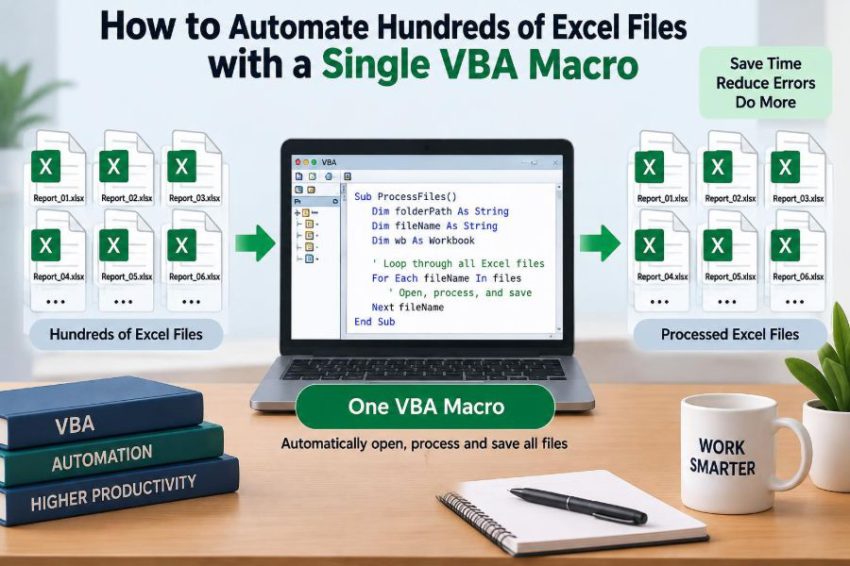

It often starts with a folder that looks harmless: a few monthly reports, then a few dozen branch files, then hundreds of workbooks that all need the same update. Perhaps you must pull a total from each file, standardize a worksheet, or add a formula before sending the results onward.
Opening each workbook manually is slow, but the larger problem is consistency. One skipped file, one pasted value in the wrong row, or one workbook saved in the wrong format can quietly undermine the entire process.
VBA can turn that repetitive job into a controlled routine. A macro can inspect a folder, open each matching workbook, perform a defined task, save the result, and record what happened.
The goal is not simply to make Excel work faster. It is to create a process you can test, review, rerun, and trust when the number of files grows.
🗂️ Understand the Folder-Looping Pattern
Most multi-file Excel automation follows the same pattern: identify a folder, find files that match a rule, process one file at a time, and move to the next file.
Think of the macro as a careful clerk working through an inbox. It does not need to know every filename in advance. It only needs a reliable instruction for which files belong in the job and what should happen to each one.
The core VBA tools are usually Dir for finding filenames and Workbooks.Open for opening each workbook. A loop connects them.
🎯 Define One Repeatable Task First
Do not begin by trying to automate an entire reporting department. Start with one action that is genuinely identical across files.
For example, a macro might copy cell B2 from the Summary sheet in every workbook and place the results in a master workbook. Another macro might replace an outdated formula in F2:F500.
A task is a good candidate for automation when its inputs, location, and expected output are consistent. If each workbook needs a different judgment call, VBA can still help, but it needs more rules or a review step.
🧭 Set Clear Assumptions About Your Files
Automation is only as reliable as the assumptions behind it. Before writing code, inspect a representative sample of files and write down what is expected.
- Which worksheet name should exist?
- Which cells, columns, or tables contain the target data?
- Are files
.xlsx,.xlsm, or a mixture? - Should the macro save changes, create copies, or only collect information?
- What should happen when a workbook does not match the expected layout?
These questions turn an ambiguous request such as “process all reports” into instructions VBA can follow.
📁 Keep Source Files and Output Files Separate
Place incoming workbooks in a dedicated source folder whenever possible. Save the master workbook, logs, and generated output somewhere else.
This separation prevents a common failure: a macro processes its own output on the next run. It also makes it easier to identify the original source files if you need to investigate an unexpected result.
If files must remain in one folder, use a naming rule and exclude the controlling workbook explicitly. A separate folder is simpler and safer.
🛡️ Work on Copies Before Touching Originals
During development, use copies of real files rather than the originals. A macro can make the same mistake hundreds of times much faster than a person can.
For file-changing tasks, a useful design is to read from a source folder and save processed copies to an output folder. This preserves an untouched version and makes comparison possible.
Even after testing, consider whether overwriting is truly necessary. Saving a copy can use more storage, but it provides a practical rollback path.
⚙️ Prepare the VBA Editor and Macro Workbook
Store the automation code in a macro-enabled workbook with the .xlsm extension. Press Alt + F11 to open the Visual Basic Editor, then insert a standard module through Insert > Module.
A standard module is appropriate for a general procedure such as ProcessFolder. It keeps the macro independent from a specific worksheet’s event code.
Save the workbook before testing. If you save it as a normal .xlsx file, Excel removes the VBA project.
🔐 Use a Trusted Location and Safe Macro Settings
Excel may block macros depending on its security settings, particularly for files downloaded from email or cloud services. Do not weaken security broadly just to run one workbook.
Instead, use an organization-approved trusted location when available, and only enable macros in files you recognize and have reviewed. A macro that opens many workbooks has substantial access to your data, so its source matters.
If your workplace applies policy-managed macro controls, follow that process rather than attempting to bypass it.
📍 Store the Folder Path in a Worksheet Cell
Hard-coding a folder path directly in VBA is convenient for a quick test but awkward for day-to-day use. A better approach is to place the path in a clearly labeled cell, such as Settings!B2.
Then a user can point the macro to a new reporting period without editing code. This is also less risky because the location is visible before the macro begins.
folderPath = ThisWorkbook.Worksheets("Settings").Range("B2").Value
If Right(folderPath, 1) <> "\" Then folderPath = folderPath & "\"
The final backslash matters because VBA will join the folder path and filename into one complete path.
🔎 Find Workbooks with the Dir Function
Dir returns filenames that match a pattern. Calling Dir(folderPath & "*.xlsx") finds the first Excel workbook with an .xlsx extension in that folder.
Each later call to Dir(), with no argument, returns the next match. When there are no more matches, it returns an empty string.
fileName = Dir(folderPath & "*.xlsx")
Do While fileName <> ""
    'Process this file
    fileName = Dir()
Loop
This approach is simple and built into VBA. It is ideal when you need a basic filename pattern rather than detailed file metadata.
🧩 Choose File Patterns Deliberately
The pattern after the folder path determines which files are included. A broad pattern can include workbooks you did not intend to process.
| Pattern | What it matches | Useful when |
|---|---|---|
*.xlsx |
Standard Excel workbooks | Source files contain no macros |
*.xls* |
Several Excel extensions | The folder contains older and newer workbook types |
Sales_*.xlsx |
Files beginning with “Sales_” | A naming convention identifies valid reports |
*_2025.xlsx |
Files ending in “_2025.xlsx” | The period is part of the filename |
A narrow, meaningful naming rule reduces accidental processing. It is often more dependable than trying to infer a workbook’s purpose after opening it.
🚫 Exclude the Controller Workbook
If the macro workbook sits in the same folder as the files it processes, it may appear in the Dir results. Opening or modifying the workbook that is already running the code can cause confusing behavior.
Compare each filename with ThisWorkbook.Name and skip it when they match. ThisWorkbook means the workbook containing the VBA code, which is more dependable here than ActiveWorkbook.
If fileName <> ThisWorkbook.Name Then
    'Safe to process the other workbook
End If
Still, keeping the controller outside the source folder remains the cleaner design.
📖 Open Each Workbook Without Making It the Focus
Assign the opened file to a workbook variable. This allows the code to refer to that exact workbook even when the user clicks elsewhere or Excel changes the active window.
Dim wb As Workbook
Set wb = Workbooks.Open(folderPath & fileName, ReadOnly:=True)
Avoid relying on ActiveWorkbook and ActiveSheet in multi-workbook automation. They describe whatever Excel currently considers active, not necessarily the file you intended to process.
Use ReadOnly:=True for extraction jobs. It reduces the chance of accidental source changes and can avoid some save prompts.
📄 Refer to Worksheets by Name
After opening a workbook, refer to the worksheet explicitly. In a consistent template, the sheet name is usually the clearest identifier.
Dim ws As Worksheet
Set ws = wb.Worksheets("Summary")
amount = ws.Range("B2").Value
Using Worksheets(1) is fragile because sheet order can change. A sheet called Summary may still be renamed by a user, so the macro should be ready to handle a missing sheet rather than assuming it can never happen.
📊 Build a Master Log as You Go
A master workbook should not merely hold extracted values. It should also show what the macro did. A log is your audit trail when someone asks why a file was skipped or where a number came from.
Useful log columns include filename, full path, processing time, status, extracted value, and error message. For an update task, record whether the file was saved and where the output was written.
Write a row for every attempted file, not only successful ones. A complete list makes missing results visible.
🧱 Find the Next Empty Log Row Reliably
Appending data requires a reliable way to find the next available row. The common approach starts at the bottom of a known column and moves upward to the last used cell.
With ThisWorkbook.Worksheets("Log")
    nextRow = .Cells(.Rows.Count, "A").End(xlUp).Row + 1
End With
This works well when column A contains a value for every logged record. If column A can be blank, choose another column that is always populated, such as the filename or timestamp.
Do not use a fixed row counter unless you have initialized it carefully. A computed next row makes repeated runs less likely to overwrite prior results.
🧪 Start with a Read-Only Extraction Macro
The safest first project is one that opens each workbook as read-only, reads a value, logs it, and closes the file without saving. It teaches the core pattern without changing business data.
Here is a complete example that reads Summary!B2 from every .xlsx file in the chosen folder.
Sub CollectSummaryValues()
    Dim folderPath As String, fileName As String
    Dim wb As Workbook, ws As Worksheet
    Dim logWs As Worksheet, nextRow As Long

    folderPath = ThisWorkbook.Worksheets("Settings").Range("B2").Value
    If Right(folderPath, 1) <> "\" Then folderPath = folderPath & "\"
    Set logWs = ThisWorkbook.Worksheets("Log")

    fileName = Dir(folderPath & "*.xlsx")
    Do While fileName <> ""
        If fileName <> ThisWorkbook.Name Then
            nextRow = logWs.Cells(logWs.Rows.Count, "A").End(xlUp).Row + 1
            Set wb = Workbooks.Open(folderPath & fileName, ReadOnly:=True)
            Set ws = wb.Worksheets("Summary")

            logWs.Cells(nextRow, "A").Value = fileName
            logWs.Cells(nextRow, "B").Value = ws.Range("B2").Value
            logWs.Cells(nextRow, "C").Value = "Processed"
            logWs.Cells(nextRow, "D").Value = Now

            wb.Close SaveChanges:=False
        End If
        fileName = Dir()
    Loop
End Sub
🧯 Handle Missing Worksheets and Unexpected Layouts
Real folders are rarely perfectly standardized. One file may lack the required sheet, use a different name, or have an empty target cell.
Do not let one unusual workbook end the entire run. Handle the problem, log it, close the file, and continue. The key is to keep error handling narrow so that you know which operation failed.
On Error Resume Next
Set ws = wb.Worksheets("Summary")
On Error GoTo 0

If ws Is Nothing Then
    'Log a missing-sheet status
Else
    'Read or update the expected range
End If
Reset ws to Nothing before checking the next workbook. Otherwise, it may still refer to a worksheet from an earlier file.
⚠️ Use Error Handling Without Hiding Errors
On Error Resume Next tells VBA to continue after an error. It is useful around one expected risk, such as looking for an optional worksheet, but dangerous when left active across a large procedure.
Broad error suppression can make a failed open, missing range, or failed save look like a successful run. Instead, use a structured handler that records the error description and moves on.
On Error GoTo FileError
'Process one workbook
On Error GoTo 0

FileError:
    logWs.Cells(nextRow, "C").Value = "Error: " & Err.Description
    Err.Clear
In a production macro, ensure the error route also closes any workbook that was opened before continuing.
💾 Decide Exactly When and How to Save
Extraction macros normally close each source workbook with SaveChanges:=False. Update macros need a deliberate save strategy.
wb.Save overwrites the opened file. wb.SaveAs creates a file at a specified location but requires attention to filename, extension, and file format. For example, saving macro-enabled content as .xlsx can remove VBA from that workbook.
For batch updates, saving a processed copy with a prefix such as Updated_ is often easier to review than overwriting the original immediately.
🪪 Treat File Names as Data, Not Decoration
A filename often contains useful information: department, period, region, or report type. Your macro can copy that information into the log or use it to decide whether a workbook should be processed.
For example, a hypothetical file named North_2025-04_Sales.xlsx might be split into region and month if your naming convention is stable. But do not build critical logic on loosely typed names that people enter inconsistently.
When filenames are unreliable, validate the workbook’s sheet names or a designated control cell after opening it.
🚀 Speed Up Excel Carefully
Opening hundreds of files can take time, especially when they contain formulas, external connections, or large worksheets. Temporarily disabling screen updating, automatic calculation, and event handling can reduce unnecessary work.
Application.ScreenUpdating = False
Application.EnableEvents = False
Application.Calculation = xlCalculationManual

'Run the batch process

Application.Calculation = xlCalculationAutomatic
Application.EnableEvents = True
Application.ScreenUpdating = True
Always restore these settings even if an error occurs. If events remain disabled or calculation stays manual, Excel may appear to behave incorrectly after the macro ends.
🔗 Watch for External Links, Refreshes, and Prompts
Some workbooks contain links to other files, queries, data connections, or macros that run when the workbook opens. These can slow the batch, create prompts, or refresh data you did not intend to change.
Test with representative files before processing the full folder. Depending on the workbook design, you may need to control link updates or disable events while opening files.
Do not assume every prompt can be safely suppressed. A prompt may be warning about a broken connection, a protected workbook, or another condition that deserves review.
🔒 Respect Protected and Shared Files
A workbook can be read-only because another person has it open, because the file is marked read-only, or because permissions restrict changes. Sheet and workbook protection create separate constraints.
Your macro should distinguish between “data was collected successfully” and “file was updated successfully.” A read-only file may be suitable for the first task but not the second.
Never embed passwords casually in VBA code. Anyone with access to the workbook may be able to inspect the project unless stronger organizational controls are used.
🧭 Avoid Using Select, Activate, and ActiveCell
Recorded macros frequently contain commands such as Workbooks("Report.xlsx").Activate, Range("A1").Select, and ActiveCell.Value. They imitate clicks, but they are unreliable when many files are open.
Direct references are clearer and safer:
wb.Worksheets("Summary").Range("B2").Value = "Reviewed"This line states exactly which workbook, sheet, and cell will change. It does not depend on what happens to be visible on screen.
🧾 Validate Before You Write Changes
Before changing a workbook, test whether it is the kind of workbook you expect. Check for the target sheet, a version label, required headings, or a known value in a control cell.
For example, if cell A1 should contain Monthly Sales Report, inspect it before editing formulas. This simple guard can prevent a generic-looking workbook from receiving an inappropriate update.
Validation should be specific enough to catch mismatches but not so strict that harmless formatting differences stop a valid file.
🧠 Separate Processing Logic from File Logic
As a macro grows, keep the folder loop separate from the work performed on each workbook. The main procedure should coordinate the job; a second procedure can process one workbook.
Sub ProcessOneWorkbook(ByVal wb As Workbook)
    Dim ws As Worksheet
    Set ws = wb.Worksheets("Summary")
    'Put the workbook-specific task here
End Sub
This structure makes code easier to test. You can open one sample workbook and run ProcessOneWorkbook without looping through an entire folder.
🧪 Test in Small Batches Before Scaling Up
Run the macro against two or three copies first. Include a normal workbook, a workbook with a missing sheet, and one with an unusual but acceptable value.
Then inspect the log, the output files, and the originals. Confirm that every file is closed, statuses make sense, and no unexpected save occurred.
Only after that should you test a larger batch. This staged approach is slower at the beginning but much faster than repairing a broad unintended update.
📈 Make the Macro Rerunnable
A reliable batch process should cope with being run again. This is called idempotent behavior: repeating the process should not create duplicate or increasingly incorrect results.
For a collection macro, you might clear the previous log before a full rerun or store a unique file identifier and skip files already recorded. For an update macro, check whether the target formula or value is already present before writing it.
The right design depends on the job, but “run it again and hope” is not a process.
🕒 Add Progress Messages for Long Runs
When a macro takes several minutes, users need evidence that it is still working. Updating the Excel status bar is less intrusive than repeatedly showing message boxes.
Application.StatusBar = "Processing: " & fileNameYou can also log a start time and finish time in the master workbook. At the end, reset the status bar with Application.StatusBar = False.
A progress indicator does not make the macro faster, but it makes a long-running process easier to monitor and less likely to be interrupted unnecessarily.
🧹 Clean Up Workbooks and Application Settings
Every opened workbook should be closed, including files that cause errors. Every application setting changed for speed should be restored.
A common pattern uses a cleanup label near the end of the procedure. Both the normal path and the error path route through it before the macro exits.
Cleanup is not cosmetic. Left-open workbooks can cause file locks and memory pressure, while unrecovered settings can affect unrelated Excel work after the automation finishes.
🧰 Know When VBA Is Not the Best Tool
VBA is excellent for desktop Excel tasks involving workbook structure, formulas, and familiar file folders. It is less suitable when the process must run unattended on a server, process very large datasets, or integrate heavily with enterprise systems.
Power Query can be a better choice for combining consistently structured data without opening each workbook visibly. Power Automate, Office Scripts, databases, or a language such as Python may fit cloud-based or scheduled workflows better.
The best tool is the one that matches the data volume, security requirements, maintenance skills, and environment—not simply the tool you already know.
✅ Build Reliability Before Adding Complexity
The central lesson is simple: batch automation succeeds when every file is treated as a controlled transaction. Identify it, validate it, process it through explicit object references, record the outcome, and close it cleanly.
A short read-only macro with useful logging is more valuable than a sophisticated script that silently overwrites files. Once the basic loop is dependable, you can add transformations, reports, output copies, and more detailed checks.
The safest way to automate hundreds of Excel files is to make each individual file operation visible, testable, and recoverable.
Start with a small folder, preserve your originals, and let the log tell you exactly what happened. With those habits in place, one VBA macro can replace a repetitive workbook-by-workbook routine without replacing your judgment. 📂⚙️✅