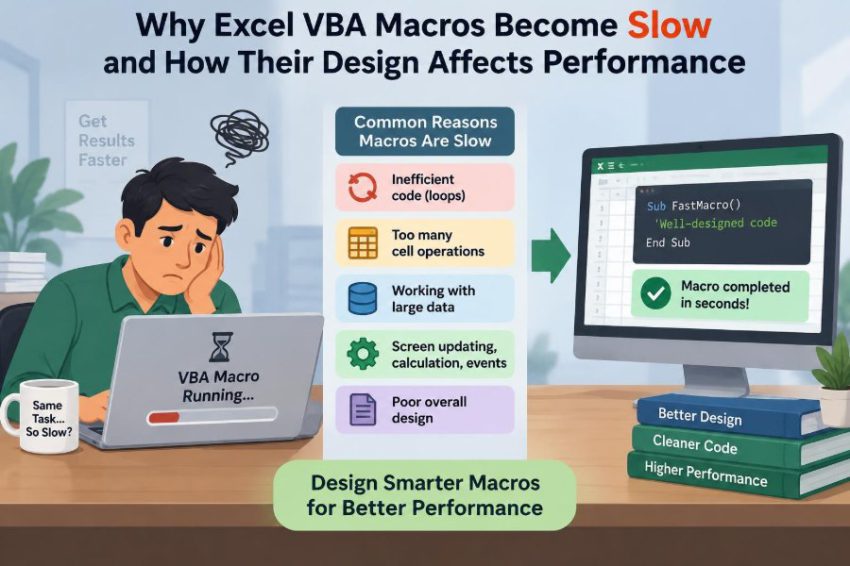

A monthly report that once finished before a coffee break now seems to run forever. The status bar flickers, Excel stops responding, and someone asks whether the workbook has become “too big.”
Often, the workbook is not the real problem. A macro can process the same business data quickly or painfully slowly depending on how it communicates with Excel, where it stores values, and how often it repeats work.
This matters because VBA is frequently used for routine tasks: cleaning exports, building reports, reconciling lists, and updating templates. A slow macro costs time, but it also makes people distrust automation and return to manual work.
Performance is not mainly about writing clever one-line code. It is about designing a process that asks Excel to do expensive things only when necessary.
🧭 What “slow” means in a VBA macro
A macro is slow when its elapsed run time makes a task impractical, interrupts a user’s work, or creates the impression that Excel has frozen. The same run time may be acceptable for a nightly process but unacceptable for a button a colleague clicks repeatedly.
Start by identifying the slow part rather than assuming every line is equally costly. Reading cells, writing cells, recalculating formulas, searching worksheets, and refreshing external connections can have very different costs.
🏗️ VBA runs inside Excel’s object model
VBA does not work directly on a grid of raw values. When code uses Cells(r, c).Value, it asks Excel’s object model to locate a workbook, worksheet, range, and property.
One such request is harmless. Tens or hundreds of thousands of requests in a loop create substantial overhead, much like making a separate phone call for every item on a shopping list instead of sending one clear order.
🔁 The cell-by-cell loop problem
The classic performance issue is reading or writing one cell at a time. For example, a loop that checks each source cell and immediately writes its result to a destination cell forces repeated crossings between VBA and Excel.
For r = 2 To lastRow
    If Cells(r, 3).Value = "Open" Then
        Cells(r, 8).Value = "Review"
    End If
Next r
This code is understandable and may be fine for a small list. On larger ranges, its design becomes the bottleneck because Excel must service each individual property request.
📦 Move data in blocks with arrays
A faster pattern is to read a rectangular range into a Variant array, process that array in VBA memory, then write the completed result back in one operation. The number of Excel interactions drops sharply.
data = Range("A2:H" & lastRow).Value
For r = 1 To UBound(data, 1)
    If data(r, 3) = "Open" Then data(r, 8) = "Review"
Next r
Range("A2:H" & lastRow).Value = data
Arrays are not automatically better for every task. They are particularly useful when a macro performs many simple checks, transformations, or calculations across a contiguous data set.
📏 Define the working range accurately
Processing a whole column when only 800 rows contain data wastes work. It can also include old formatting or forgotten content far below the visible table.
Find a sensible last row and last column, then work with the actual data region. Methods such as End(xlUp) can be suitable for a reliably populated key column, while a structured Excel Table may offer a clearer boundary.
Range selection is part of performance design. A precise range avoids reading, formatting, and calculating cells that have no role in the result.
🧮 Recalculation can happen more often than expected
Writing values can trigger formula recalculation. If a worksheet contains many dependent formulas, repeated writes may repeatedly ask Excel to update results before the macro has finished its batch.
For controlled procedures, code can temporarily use manual calculation and restore the previous setting afterward. This should be done carefully: leaving calculation in manual mode can confuse users who expect formulas to update normally.
oldCalc = Application.Calculation
Application.Calculation = xlCalculationManual
'... perform controlled updates ...
Application.Calculation = oldCalc
Calculation mode is not a cure for inefficient cell loops. It reduces recalculation work; it does not eliminate object-model calls or poor search logic.
🖥️ Screen updating adds visible overhead
Excel normally redraws the workbook as code selects sheets, changes cells, hides rows, or applies formatting. This feedback is useful for a person, but usually unnecessary while a macro is performing a batch operation.
Setting Application.ScreenUpdating = False prevents many redraws until the macro completes. It often improves both speed and the user experience because the workbook no longer flashes through intermediate states.
Always turn it back on, including when an error occurs. A macro that finishes quickly but leaves Excel visually unresponsive has created a different support problem.
📣 Events may call more code behind the scenes
Excel events are procedures that run after actions such as changing a cell, recalculating a sheet, or activating a workbook. A macro that edits many cells may therefore trigger event code repeatedly.
If the macro deliberately makes those edits, temporarily setting Application.EnableEvents = False can prevent unwanted event chains. Use this only when you understand what the event procedures do; some may enforce validation or update required audit information.
🧹 Formatting one cell at a time is expensive
Formatting is another frequent source of slow automation. Applying a font, border, fill, number format, or alignment property to individual cells multiplies Excel interactions and can enlarge the workbook’s formatting complexity.
Format entire target ranges at once where possible. Better still, use an existing template style, table style, or a single range-level operation instead of rebuilding the same appearance cell by cell.
Conditional formatting deserves the same attention. Adding a separate rule for every row is usually less efficient and harder to maintain than one rule applied to the appropriate range.
🔍 Repeated worksheet searches waste time
Suppose a macro looks up a customer code in a second sheet for every row in a source list. Repeated use of Find, Match, or nested loops can become costly as the two lists grow.
The issue is not that searching is always wrong. It is that performing the same search pattern thousands of times may repeat work that could have been prepared once.
🗂️ Use dictionaries for repeated lookups
A dictionary stores a value under a key, such as a customer ID, product code, or employee number. Load the lookup list into a dictionary once, then retrieve related values quickly while processing the main array.
This approach is especially useful when keys are unique and the macro must perform many lookups. It also makes the matching rule explicit: are keys case-sensitive, can duplicates exist, and what should happen when a key is missing?
For small data sets, a worksheet formula or a simple Match may be perfectly adequate. Choose the structure that makes the process clear as well as fast.
🪆 Nested loops grow work surprisingly fast
A loop through 5,000 rows is not necessarily alarming. A second loop through 5,000 rows inside it can mean up to 25 million comparisons in a simple matching design.
This is why macros that compare every record in one list against every record in another often deteriorate suddenly as files become larger. The design scales poorly even though each individual comparison is simple.
Sorting data, using a dictionary, using worksheet lookup functions in a batch, or creating a composite key can avoid much of this repeated comparison work.
🧠 Avoid recalculating the same answer
Performance improves when a macro recognizes values that do not change during a run. A worksheet reference, last-row value, configuration setting, or lookup result should not be recomputed inside every iteration unless it genuinely can change.
Store stable information in variables before the loop. This makes code faster and often easier to read because the important inputs have clear names.
lastRow = ws.Cells(ws.Rows.Count, "A").End(xlUp).Row
statusColumn = 3
For r = 2 To lastRow
    'use lastRow and statusColumn here
Next r
🎯 Minimize Select, Activate, and clipboard work
Recorded macros often contain Select, Activate, and Selection because the recorder copies visible user actions. These instructions make code dependent on the active workbook or sheet and can add unnecessary screen activity.
Refer directly to objects instead: ws.Range("A1").Value = "Done". Direct references are typically faster, less fragile, and safer when another workbook happens to be open.
Likewise, assigning .Value from one same-sized range to another often avoids the clipboard steps created by Copy and PasteSpecial.
🧷 Qualify every workbook, worksheet, and range
An unqualified Cells or Range belongs to whichever sheet is active at that moment. That can produce wrong results, but it can also force a macro to activate sheets merely to make its references work.
Create explicit object variables such as wb, wsSource, and wsOutput. Clear references reduce activation, prevent accidental work in the wrong file, and make later performance changes easier.
📋 Choose Value, Value2, and formulas deliberately
Range.Value2 is commonly useful for bulk data transfer because it avoids certain date and currency conversions associated with Value. The practical difference depends on the data, so test where date handling matters.
Writing formulas can be efficient when Excel is the right engine for the calculation and users need formulas to remain visible. Writing final values is more appropriate when the macro owns the calculation and the workbook does not need live dependencies.
The choice is a design decision, not a universal rule. A formula-heavy workbook may be easier to audit, while a values-only output may calculate and open more predictably.
🧱 Build output in one pass
Macros often slow down because they create a report piece by piece: write a heading, format it, insert a row, write a value, add a border, then repeat. This interleaves data work and presentation work.
A more efficient design separates stages. First determine the output dimensions and values, then write the data block, then apply range-level formatting and final features such as filters or column widths.
This approach also reduces partially built reports when an error interrupts the procedure.
🧾 Be cautious with row insertion and deletion
Inserting or deleting rows shifts cells, formulas, named ranges, tables, and sometimes chart sources. Doing it repeatedly inside a loop forces Excel to repeatedly reorganize the sheet.
Where possible, mark rows for removal, collect their addresses, or build a clean output table elsewhere. If deletion is necessary, work from the bottom upward so row numbers above the deletion point remain valid.
🧪 Worksheet functions are useful, not magical
Calling functions through WorksheetFunction can make VBA concise, but invoking a worksheet function once per row still creates repeated calls. Some functions also raise errors when no result exists, requiring deliberate error handling.
For a large batch, consider whether the calculation belongs in a worksheet formula written across a range, in an array loop, or in a prebuilt lookup structure. The best choice depends on data size, complexity, and whether users need to inspect the intermediate logic.
📊 Tables, filters, and built-in features can do the job
VBA should not manually reproduce a feature Excel already performs efficiently. Filtering a table, sorting a range, applying a formula to a table column, or using a PivotTable may replace lengthy loops.
This is not an argument to avoid VBA. Macros are valuable for orchestrating steps: importing data, setting parameters, triggering built-in operations, checking results, and producing a consistent output.
Good automation uses Excel’s strengths instead of competing with them.
🔗 External data and workbook links have separate costs
A slow macro may be waiting for a query refresh, a network location, another workbook, or an external connection rather than processing cells. These delays are affected by file availability, connection settings, and the amount of data returned.
Measure these stages separately. Optimizing an array loop will not solve a procedure whose main delay is downloading or refreshing source data.
🗃️ File size and workbook health matter
Excessive formatting, unused styles, large formula areas, volatile formulas, hidden objects, and copied sheets can make a workbook slower to open, calculate, and save. VBA performance is therefore partly shaped by the workbook environment.
Do not assume every large file is damaged, or that every slow file needs rebuilding. But when simple code runs slowly across all tasks, inspect the workbook’s used ranges, formulas, formatting practices, and external links.
⚡ Volatile functions can amplify recalculation
Some worksheet functions recalculate whenever Excel recalculates, even if their direct inputs appear unchanged. Common examples include volatile functions such as NOW, TODAY, RAND, OFFSET, and INDIRECT.
They are sometimes appropriate, but widespread use can increase calculation work after VBA updates cells. Replacing a volatile construction is worthwhile only if it preserves the workbook’s intended behavior.
🛡️ Restore application settings reliably
Performance settings are global Excel settings, not local preferences for one macro. If code turns off screen updating, events, alerts, or automatic calculation and then stops with an error, the user may inherit an unusual Excel state.
Use a cleanup path that restores saved settings before exiting. The exact error-handling design can vary, but restoration should be treated as essential program behavior rather than an optional finishing touch.
On Error GoTo CleanUp
oldEvents = Application.EnableEvents
Application.EnableEvents = False
'... work ...
CleanUp:
Application.EnableEvents = oldEvents
If Err.Number <> 0 Then Err.Raise Err.Number
⏱️ Measure before and after changing code
People often optimize the part that looks untidy rather than the part that consumes time. A basic timer around major stages—import, processing, output, formatting, and refresh—gives evidence about where effort belongs.
Test with realistic copies of the workbook and representative row counts. A technique that appears instant with 20 rows may reveal its real scaling behavior with thousands.
Measure more than run time when relevant. Correctness, memory use, calculation state, and a user’s ability to interrupt or understand the process also matter.
🧩 Design procedures around clear stages
A maintainable fast macro commonly has a pipeline: validate inputs, identify ranges, load data, transform data, write results, format output, and restore application settings. Each stage has a narrow purpose.
This structure helps performance because repeated work becomes easier to spot. It also helps debugging: if output is wrong, you can inspect the transformed array before blaming formatting or workbook activation.
🧑💻 Use appropriate data types and declarations
Variables declared with meaningful types communicate intent and can prevent conversion mistakes. For row counts in modern Excel, Long is generally safer than Integer, which has a much smaller range.
Use Option Explicit so VBA requires declarations. This does not transform a poorly designed macro into a fast one, but it catches misspelled variables that can cause hidden bugs and unnecessary Variant behavior.
Variants remain useful for range arrays because worksheet values can contain different types. The goal is deliberate use, not avoiding a type by habit.
🚦Keep the user informed without constant updates
For a long-running procedure, a small status-bar message or occasional progress update can reassure users that Excel is working. Updating a cell or form on every iteration, however, recreates the frequent UI work that optimization tries to remove.
Update progress at meaningful intervals, such as after each processing stage or after a reasonable batch of rows. Also provide a clear completion message and avoid claiming success before all required steps finish.
🧯 Common “fixes” that miss the real cause
Turning off screen updating is helpful, but it will not compensate for millions of nested comparisons. Manual calculation helps formulas, but it will not speed a network query. Replacing every loop with a worksheet function can simply move repeated work elsewhere.
- Do not optimize before locating the slow stage.
- Do not use
On Error Resume Nextto hide lookup or object errors. - Do not disable events or calculation without restoring them.
- Do not sacrifice readable, testable code for tiny gains that users will never notice.
The strongest improvements usually come from reducing unnecessary Excel interactions and avoiding repeated algorithmic work.
🧭 A practical order for improving a slow macro
- Confirm the task is correct and identify which stage is slow.
- Replace unnecessary selections, activations, and clipboard operations with direct references.
- Restrict work to the real used data range.
- Read and write large blocks through arrays where suitable.
- Remove repeated searches and nested comparisons with lookups, sorting, or dictionaries.
- Batch formatting and structural changes after data output.
- Control screen updating, events, and calculation carefully, then restore them.
- Retest with representative data and verify the results.
This sequence focuses on design first and application settings second, which is usually the more durable path.
🏁 The core principle: reduce round trips and repeated work
Fast VBA does not require obscure tricks. It comes from reducing round trips between VBA and the Excel object model, processing related values together, and choosing an algorithm that does not redo the same search or calculation thousands of times.
A macro should treat Excel as a powerful application with costs for drawing, calculating, reorganizing sheets, and servicing object requests. Respecting those costs leads to code that is faster, clearer, and easier to support when the workbook grows.
The best-performing VBA macros are designed as efficient workflows, not as a long sequence of individual cell actions. ⚙️📈