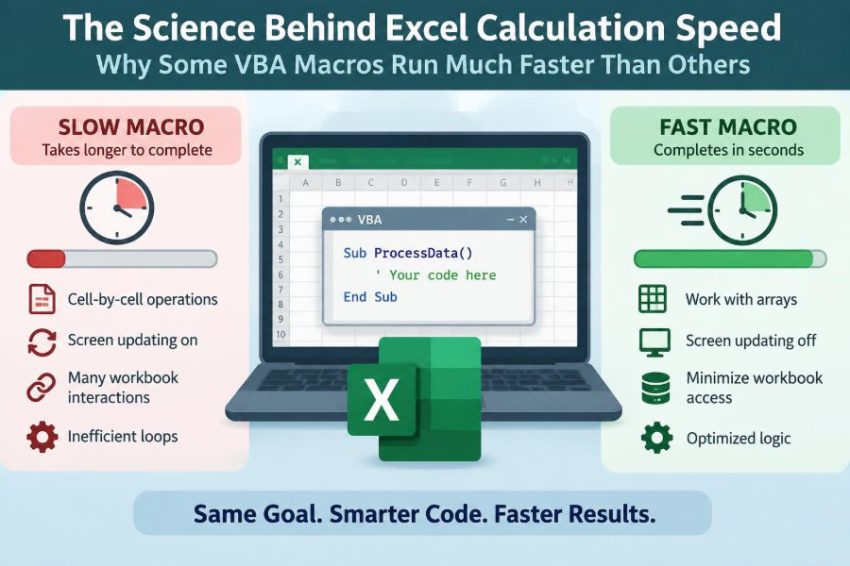

You press Run, expect a quick refresh, and watch Excel appear to freeze. The workbook is not necessarily broken. It may be recalculating thousands of formulas, repainting the screen, responding to worksheet events, and exchanging tiny pieces of information between VBA and the grid.
Then a colleague runs a macro that does what seems like the same job in seconds. The difference can feel mysterious, especially when both macros use simple loops and both produce the same final numbers.
Excel calculation speed is not determined by one trick. It emerges from the interaction between worksheet formulas, VBA code, workbook design, and the overhead of communicating with Excel itself.
Once you can see where the work is happening, performance becomes much less of a guessing game. You can measure the slow part, choose an appropriate fix, and keep the workbook correct while making it substantially more responsive.
🧠 A Macro Is Not the Same as a Calculation
VBA is a programming language that tells Excel what actions to perform. A worksheet formula is part of Excel’s calculation engine, which determines values based on dependencies between cells.
A macro may spend most of its time doing VBA work, such as building strings or checking records. Or it may spend most of its time asking Excel to write cells and then waiting while Excel recalculates formulas. These are different bottlenecks and require different solutions.
The first useful question is therefore not, “How do I make this loop faster?” It is “Which component is actually consuming time?”
⚙️ The Calculation Engine Builds a Dependency Map
Excel tracks which formulas depend on which precedent cells. If a formula in D10 uses B10 and C10, changing B10 tells Excel that D10 may need a new value. This network is often called a dependency tree or dependency graph.
With ordinary formulas, Excel can frequently recalculate only the affected branches. A well-designed model takes advantage of that selective work. A workbook with tangled references, unnecessarily broad ranges, or volatile functions gives the engine more to revisit.
This explains why changing one input can be instant in one workbook but slow in another, even when both have a similar number of visible sheets.
🔁 Automatic Calculation Can Interrupt Every Write
In automatic calculation mode, Excel decides when recalculation is needed as your macro changes cells. If a loop writes one value at a time into a formula-heavy sheet, Excel may repeatedly mark dependencies dirty and calculate during the process.
The cost is not merely the assignment itself. It is the repeated chain of consequences produced by that assignment. A loop of 20,000 writes can trigger far more than 20,000 units of work.
For controlled batch updates, use manual calculation temporarily:
Dim oldCalc As XlCalculation
oldCalc = Application.Calculation
Application.Calculation = xlCalculationManual

'Perform a batch of updates here.

Application.Calculation = oldCalc
Manual mode postpones calculation; it does not remove the need to calculate. Restore the setting reliably, including when an error occurs, and explicitly calculate at the appropriate point.
🛡️ Always Restore Application Settings
Speed settings affect the entire Excel application, not just one procedure. Leaving calculation in manual mode can cause someone to see stale results later and make decisions from values that have not refreshed.
A cleanup block protects the user and makes the code safer to reuse:
Dim oldCalc As XlCalculation
Dim oldScreenUpdating As Boolean

On Error GoTo CleanUp
oldCalc = Application.Calculation
oldScreenUpdating = Application.ScreenUpdating
Application.Calculation = xlCalculationManual
Application.ScreenUpdating = False

'Work goes here.

CleanUp:
Application.Calculation = oldCalc
Application.ScreenUpdating = oldScreenUpdating
If Err.Number <> 0 Then Err.Raise Err.Number
In production code, also restore events and any status-bar changes. Performance improvements should never trade away reliable workbook behavior.
📦 Crossing the VBA-to-Worksheet Boundary Is Expensive
VBA code runs in one environment, while cells, ranges, and worksheet objects belong to Excel’s object model. Every instruction such as Cells(r, 1).Value crosses that boundary to request or change an object property.
One request is trivial. Hundreds of thousands of requests are not. The common slow pattern is reading a cell, deciding something, then writing another cell—one row at a time.
Think of it as walking to a warehouse counter for every screw instead of collecting a box of screws once. The item may be small, but the repeated trip dominates the job.
📚 Read a Range into a VBA Array
The standard remedy is to transfer a rectangular range to memory in one operation. A Variant can hold the resulting two-dimensional array, allowing VBA to process values without repeatedly calling the worksheet object model.
Dim data As Variant
Dim lastRow As Long

lastRow = Cells(Rows.Count, "A").End(xlUp).Row
data = Range("A2:D" & lastRow).Value2
Array elements are addressed as data(rowIndex, columnIndex), starting at 1 for a normal range transfer. The array holds a snapshot, so changes made in it do not appear on the sheet until you write it back.
This approach is especially effective for imports, cleansing tasks, classifications, and report preparation.
✍️ Write Results Back in One Operation
Batch reading alone is only half the improvement. If the macro writes output one cell at a time, it still makes thousands of expensive calls.
Build an output array, then assign it to a destination range of the same dimensions:
Dim output() As Variant
ReDim output(1 To UBound(data, 1), 1 To 1)

'Fill output in a loop.
Range("E2").Resize(UBound(output, 1), 1).Value = output
A bulk assignment reduces object-model traffic and also gives Excel a clearer, more coherent batch of changes to process. It is usually easier to test because the transformation is separated from the final worksheet update.
🧮 Use Value2 When You Need Raw Values
.Value2 returns underlying values without the Currency and Date conversions that can occur with .Value. For routine data transfers, it is commonly the clearest and leanest choice.
This does not mean .Value is wrong. If a procedure depends on Excel’s Date or Currency subtype behavior, test the choice carefully. The useful principle is to avoid conversion work you do not need.
Neither property returns displayed formatting. A cell showing “10%” may transfer as its underlying numeric value, typically 0.1, which is often exactly what calculation logic needs.
🪟 Screen Updating Adds Visible Work
When Application.ScreenUpdating is True, Excel may repaint the interface as a macro selects sheets, changes cells, filters lists, or formats ranges. That visual feedback is useful during interactive work but unnecessary during a fast batch operation.
Application.ScreenUpdating = False
'Run batch work without repainting every intermediate state.
Application.ScreenUpdating = True
Turning it off can help noticeably when the macro changes many visible objects. It will not fix a slow calculation model or inefficient cell-by-cell access. It simply prevents Excel from spending time drawing temporary states that the user never needs to see.
🔔 Events Can Trigger Hidden Procedures
Excel events run VBA in response to actions: changing a cell, recalculating a sheet, opening a workbook, and more. A Worksheet_Change procedure may validate data or update formatting whenever the macro writes to a range.
That can create unexpected repeated work, and poorly guarded event code can even cause recursive changes. Disable events for a tightly controlled batch, then restore them:
Application.EnableEvents = False
'Update cells that would otherwise fire events.
Application.EnableEvents = True
Do not use this as a blanket fix. If events enforce important business rules, bypassing them means the macro must deliberately perform the required validation or update itself.
🧱 Formulas and VBA Have Different Strengths
Excel formulas are excellent for transparent, live calculations that users can inspect and that update when inputs change. VBA is useful for orchestrating tasks: importing data, applying a repeatable transformation, creating files, or taking a snapshot of results.
Replacing every formula with VBA does not automatically increase speed. A macro that recreates a calculation row by row can be less maintainable and may become slow through object-model calls.
Conversely, calculating a one-time import with formulas across an enormous range may create a workbook that must keep recalculating work that no longer needs to be live. Choose based on whether the result must remain dynamic.
🌋 Volatile Functions Recalculate More Often
Some worksheet functions are volatile, meaning Excel treats them as needing recalculation whenever the workbook calculates, even if their direct inputs did not change. Common examples include NOW, TODAY, RAND, OFFSET, INDIRECT, and CELL in certain uses.
Volatility is sometimes necessary. A timestamp based on the current date should update. But using a volatile function merely to create a flexible reference can make a large model do repeated work.
Where appropriate, direct references, Excel Tables, or nonvolatile alternatives such as INDEX can reduce needless recalculation. Test any replacement: flexibility and correctness matter more than eliminating volatility at all costs.
🔗 Whole-Column References Can Multiply Formula Work
A formula such as =SUMIF(A:A,E2,B:B) is concise, but it asks Excel to consider very large columns. Used occasionally, it may be acceptable. Repeated across thousands of formulas, it can impose a substantial calculation burden.
Use a bounded range when the data size is known, or use a structured Table reference that expands with actual data. Tables often make formulas more readable as well as easier to manage.
The goal is not to hard-code a fragile last row. It is to make the formula examine the range that contains meaningful data rather than a much larger theoretical grid.
🧭 Lookup Design Matters More Than Lookup Familiarity
Lookup formulas are a common source of delay in reporting workbooks. The issue is rarely that one function is inherently bad; it is the total number of comparisons and repeated searches being performed.
For example, a hypothetical report with thousands of rows may repeatedly look up the same customer code. A helper column, a precomputed mapping, or an in-memory dictionary in VBA can avoid doing the same search over and over.
Modern Excel functions can offer clearer exact-match lookups, while a sorted-data approximate match can be efficient when its assumptions are genuinely valid. Never switch to approximate matching simply for speed unless the data is sorted and the business meaning permits it.
🧹 Reuse Computed Values Instead of Repeating Them
Repeated calculation often hides inside long formulas. If the same expensive expression appears several times in one formula or in several columns, Excel may have to evaluate it repeatedly.
A helper column can make an intermediate value visible and reusable. In newer Excel versions, LET can name a repeated expression within one formula. In VBA, calculate a value once, store it in a variable, and reuse it.
There is a trade-off: more helper columns can make a sheet wider. But a well-named helper calculation is often easier to audit than a dense formula repeated throughout a model.
🧵 Excel Can Use Multiple Calculation Threads
Excel’s calculation engine can use multiple processor threads for many worksheet calculation tasks. VBA itself, however, normally runs on one main execution thread. A long VBA loop does not automatically spread across processor cores.
This distinction matters when diagnosing a slow workbook. If the delay comes from formula calculation, calculation design and Excel settings may be central. If the delay comes from procedural VBA work, reducing loop iterations and object calls is usually more productive.
Do not assume that adding more formulas always makes better use of hardware, or that VBA can simply be “made multithreaded” within a normal macro. The practical solution is usually better task design.
📊 Measure Before You Optimize
Human perception is unreliable when a macro has several phases. A formatting step may look slow because it is followed by recalculation. A loop may be blamed when a single workbook calculation is the real delay.
Use the Timer function to measure sections:
Dim started As Double
started = Timer

'Code being tested.

Debug.Print "Seconds: "; Timer - started
For operations that cross midnight, handle the wraparound or use a more robust timing approach. More importantly, test realistic data volumes and record each phase separately: read, transform, write, calculate, and format.
🧪 Build a Reproducible Performance Test
A fair comparison changes one thing at a time. Run the same workbook state, the same input size, and the same calculation setting. Avoid comparing a first run that loads external data with a later run that benefits from cached results.
A simple test plan might record:
- number of rows and columns processed,
- time to read source data,
- time spent in transformation logic,
- time to write results,
- time for final calculation, and
- whether events, screen updating, or external links were active.
This turns “it feels faster” into an observation you can investigate and repeat.
📐 Reduce Work Before Making Work Faster
The largest improvement often comes from doing less. If a macro processes every row in a sheet but only new records need attention, track the last processed row or use a stable identifier to select only the required records.
Likewise, do not clear and rebuild a report if only one section changed. Do not format blank rows “just in case.” Do not calculate duplicate summaries when a prior result can be reused safely.
Optimization at this level improves both runtime and workbook clarity because the code begins to reflect the actual business task.
🎯 Avoid Select, Activate, and ActiveSheet Dependencies
Recorded macros often contain code such as Range("A1").Select, followed by an action on Selection. Selecting cells changes the user interface and makes code depend on whichever workbook or sheet is active.
Direct references are faster and much safer:
Worksheets("Data").Range("A1:A100").ClearContentsThis is not just a micro-optimization. A macro that works on explicit objects is less likely to put results on the wrong sheet when a user clicks elsewhere while it runs.
🧾 Formatting Is Work Too
Formatting thousands of individual cells can be slow, particularly when each assignment is separate. Formatting can also increase workbook complexity, especially if a file accumulates many near-duplicate cell styles.
Apply formats to complete ranges where possible. Use a template range and copy only the needed formats when that matches the task. Prefer conditional formatting for rules that must remain dynamic, while recognizing that many complex conditional-format rules also need evaluation.
Keep data transformation and presentation separate in your thinking. A quick calculation can still feel slow if the macro spends most of its time painting the report.
🗃️ PivotTables, Queries, and External Connections Have Their Own Costs
Refreshing a PivotTable, Power Query output, data connection, or linked workbook is not the same as ordinary formula calculation. The time may be spent retrieving data, transforming it, refreshing a cache, or waiting for another file or service.
VBA can initiate these operations, but it cannot eliminate external latency. Design the workflow so refreshes happen deliberately rather than accidentally after every small change.
When diagnosing a refresh macro, measure the refresh phase separately from the VBA preparation work. That distinction prevents misleading conclusions about the code itself.
📄 Worksheet Structure Affects Performance
Used ranges that extend far beyond real data, excessive formulas copied into empty rows, and highly fragmented layouts can create extra work for users and code. They also make it harder to identify the true data region reliably.
Organize raw data as a consistent rectangular block or Excel Table. Keep headers distinct, avoid merged cells in data areas, and use one field per column. These are data-design practices, but they make array processing and formula references more predictable.
A tidy sheet does not guarantee speed. It does remove avoidable ambiguity that often leads to slow, defensive VBA.
🔢 Choose the Right Data Types in VBA
Variables help VBA store values efficiently and express intent. Use Long for worksheet row and column indexes, because modern worksheets exceed the range of the older Integer type.
Use Double for many numeric calculations, Date for dates, String for text, and Boolean for true-or-false flags. A Variant is flexible and necessary for values read from a mixed worksheet range, but indiscriminate use can obscure mistakes.
Data types rarely rescue an algorithm that repeatedly touches cells. Still, clear types improve correctness and can reduce unnecessary conversions in substantial in-memory processing.
🧠 Match the Algorithm to the Question
Some macros are slow because they use a poor search strategy. Consider matching each transaction row to a customer list. A nested loop that checks every customer for every transaction can grow rapidly as both lists grow.
For exact keys, a Scripting.Dictionary can store customer information once and retrieve it by key. Sorting data and processing it in order can also be effective for certain grouping tasks.
The key lesson is broader than one VBA object: avoid repeatedly scanning data when you can build an index or reuse an earlier result. This is an algorithmic improvement, not merely a syntax preference.
⚖️ A Practical Comparison of Common Approaches
| Approach | Typical strength | Common limitation |
|---|---|---|
| Cell-by-cell VBA loop | Simple for very small, interactive tasks | Many worksheet object calls at scale |
| Array processing | Fast bulk reads, transformations, and writes | Requires careful indexing and memory awareness |
| Worksheet formulas | Live, visible, auditable calculations | Can recalculate repeatedly in large models |
| Dictionary lookup | Efficient repeated exact-key matching in VBA | Needs deliberate key handling and setup |
| PivotTable or query refresh | Useful for structured summarization and data loading | Refresh time may depend on source and transformation steps |
The best option depends on the task, expected data volume, need for live updates, and need for users to inspect the intermediate logic.
🚧 Do Not Sacrifice Correctness for a Faster Run
Disabling calculation, events, or alerts can change workbook behavior. Writing values instead of formulas can remove live updates. Caching results can create stale data if the invalidation rules are unclear.
Every optimization should preserve a defined result. Test edge cases: blank cells, errors, duplicate keys, dates, filtered rows, and unexpected source sizes. A macro that completes quickly but silently produces incomplete output is not an improvement.
For important workbooks, retain a small test dataset with known expected results. It makes regression testing practical when the code or workbook evolves.
🛠️ A Sensible Optimization Sequence
There is little value in applying every performance setting to every macro. Work from evidence and address the largest cost first.
- Measure the major phases of the current process.
- Check whether Excel calculation, object-model traffic, formatting, events, or external refresh is dominant.
- Reduce unnecessary records, calculations, and refreshes.
- Batch worksheet reads and writes with arrays where appropriate.
- Use calculation, screen, and event settings safely for batch operations.
- Improve lookup and loop algorithms if repeated searching remains costly.
- Test correctness, then measure again with realistic data.
This sequence avoids spending hours polishing a tiny part of a process while a larger bottleneck remains untouched.
🏁 The Core Principle Behind Faster Excel Automation
Fast VBA macros usually do not rely on a single clever command. They minimize expensive transitions between VBA and the worksheet, avoid triggering calculation before a batch is ready, and prevent repeated work in formulas and algorithms.
Equally, fast workbooks are designed around clear dependencies and purposeful recalculation. A macro and its spreadsheet model should be considered one system: changing either side can move the bottleneck.
When performance becomes a problem, observe first, simplify the work, batch what remains, and protect correctness while using application settings with care.
The fastest Excel solution is usually the one that performs the fewest unnecessary calculations, worksheet interactions, and repeated searches—not the one with the most optimization tricks. ⚙️📈