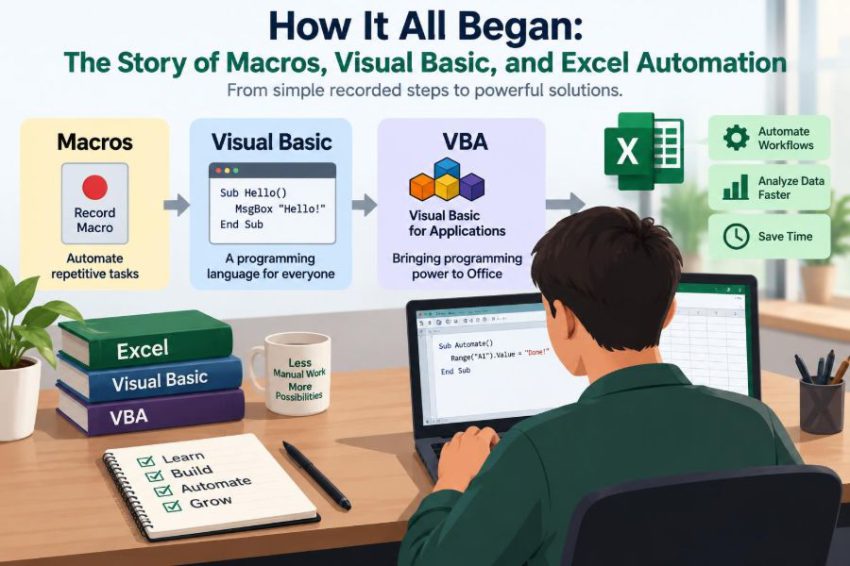

It is late in the afternoon, and a familiar spreadsheet task is still not finished. You have copied data from several reports, fixed inconsistent dates, applied the same formatting, and built a summary table—again. The work is not difficult, but it is repetitive, slow, and easy to get wrong.
That situation explains why macros and Excel automation matter. They emerged from a practical need: letting computers repeat dependable instructions while people focus on judgment, exceptions, and decisions.
For many office workers, VBA first appears as a mysterious code window behind an Excel file. Yet its history connects paper-era office routines, early personal-computer programming, Microsoft’s Visual Basic language, and the modern expectation that spreadsheets can do more than hold numbers.
Understanding that story makes VBA less intimidating. It also helps you decide when automation is a smart solution, when it is not, and why a small recorded macro can grow into an important business tool.
🗂️ Before Spreadsheets: Repetition Was Already the Problem
Long before Excel, offices depended on repeatable procedures. Clerks copied values into ledgers, recalculated totals, typed standard letters, and prepared recurring reports using paper forms, adding machines, and later mainframe terminals.
These tasks followed a pattern: the input changed, but the steps did not. That distinction is at the heart of automation. If a process can be described as a stable sequence of instructions, a machine may be able to perform it consistently.
Early business software often automated entire departments through specialized systems. What personal spreadsheets later changed was who could build the automation: individual analysts and office staff, not only professional programmers.
🔁 What a Macro Originally Meant
A macro is a shortcut that expands into a larger sequence of instructions. The word comes from the idea of something “large” or “extended”: one command can stand for many smaller commands.
In a text editor, a macro might insert a standard paragraph. In a spreadsheet, it might select a range, format it, calculate totals, and save a copy of the workbook. The underlying idea is broader than Excel and older than VBA.
Macros were appealing because they reduced the need to remember every keystroke. Instead of asking a user to repeat ten steps exactly, software could preserve a procedure and replay it.
⌨️ Recorded Keystrokes and Early Automation
Some early desktop applications let users record actions as a series of keystrokes. This was useful for simple, predictable workflows, such as applying a standard layout to a report.
But recorded keystrokes had a limitation: they usually assumed the screen and application state would remain exactly as expected. If a dialog box appeared in a different place or a user started from another cell, the replay could fail.
This revealed a key lesson that still applies: automation based only on user-interface actions is fragile. More reliable automation needs to work with meaningful objects—such as a workbook, worksheet, range, or chart—rather than merely simulating clicks.
📊 Why Spreadsheets Changed Office Computing
Spreadsheets gave non-programmers a direct way to model work. A formula could calculate a budget, forecast sales, reconcile balances, or test a scenario without requiring a custom application.
VisiCalc helped establish the electronic spreadsheet category on early personal computers, and Lotus 1-2-3 became a major business spreadsheet in the 1980s. These programs made personal computers valuable tools in finance, operations, and administration.
The spreadsheet grid was powerful because it combined data, calculations, and presentation in one place. Its weakness was equally clear: as a workbook became larger, manual maintenance could become repetitive and error-prone.
🧮 The Limits of Formulas Alone
Formulas are excellent for calculations that belong in cells. A formula can calculate tax, classify a value, retrieve a matching record, or aggregate a list. It recalculates when its inputs change.
However, formulas are not designed to manage every workflow. They do not naturally import files, create folders, send messages, rename sheets, control print settings, or loop through dozens of workbooks.
Macros filled that gap. They allowed spreadsheet users to automate actions around the calculations, not only calculations within cells.
🧩 Excel Macros Before VBA
Early versions of Excel included macro facilities before the modern VBA environment was established. Excel 4.0 macros, commonly called XLM macros, used a worksheet-like language and were often stored in special macro sheets.
XLM macros were influential because they made Excel programmable for many users. They could automate commands, navigate worksheets, and build procedures at a time when spreadsheet automation was still developing.
They are part of Excel’s history, but they are generally not the preferred choice for new work. Modern Excel automation typically uses VBA, Office Scripts in suitable cloud-based workflows, Power Query for data transformation, or other tools depending on the task.
🪟 The Arrival of Visual Basic
Microsoft introduced Visual Basic in 1991 as a programming environment aimed at making Windows application development more approachable. Its visual design tools let developers place controls such as buttons and text boxes on a form rather than constructing every interface detail from scratch.
Visual Basic also used a relatively readable syntax. Code could often be expressed in terms close to the task: assign a value, test a condition, repeat a set of instructions, or respond when a user clicks a button.
This did not make programming effortless. Good programs still require careful logic and testing. But Visual Basic lowered some of the barriers between an office user’s idea and a working program.
🧠 From Visual Basic to VBA
Visual Basic for Applications, or VBA, is a version of Visual Basic designed to run inside host applications rather than as a separate standalone program. Microsoft Office applications, including Excel, Word, PowerPoint, and Access, have used VBA to expose their features to code.
VBA gave Office users a consistent language for extending familiar applications. In Excel, a macro could inspect cells and build reports. In Word, it could generate documents. In Access, it could help coordinate database forms and reports.
The important point is that VBA is not “Excel itself.” It is a programming language and environment embedded within Excel and other Office applications.
🏠 The Host Application Is the Real Workspace
VBA code works through an application’s object model: a structured representation of the things the application contains and can control. In Excel, common objects include Application, Workbook, Worksheet, Range, and Chart.
Think of a workbook as a building. It contains rooms (worksheets), and each room contains locations (cells and ranges). VBA lets a procedure name those locations, read or change their contents, and tell Excel what to do with them.
This object-based approach is more robust than recording clicks because the code can state its intention directly: “write this value to cell B2,” not “move right twice and press Enter.”
🎥 The Macro Recorder as a Bridge
Excel’s Macro Recorder has introduced countless people to VBA. It observes many actions you perform and writes corresponding VBA code into a module.
For example, recording a formatting task may produce code that selects a range, changes font properties, applies borders, and adjusts column widths. The result can look verbose, but it exposes the names of Excel objects and properties.
The recorder is best treated as a learning aid and a quick starting point, not a code generator that always produces an ideal final solution. It records what you did, including unnecessary selections and steps, rather than understanding your broader goal.
📝 Reading a Simple VBA Procedure
A VBA macro is often a procedure beginning with Sub and ending with End Sub. The following hypothetical example writes a title into a worksheet:
Sub AddReportTitle()
    Worksheets("Summary").Range("A1").Value = "Monthly Report"
End Sub
Worksheets("Summary") identifies a sheet by name. Range("A1") identifies a cell, and .Value identifies the property being changed. This is a compact statement of an otherwise manual action.
Readable code makes maintenance safer. Someone reviewing it can see both the destination and the intended result without replaying a series of mouse movements.
🧱 The Building Blocks of VBA Logic
Most useful VBA programs rely on a small set of ideas: variables to hold values, conditions to make decisions, loops to repeat work, and procedures to organize steps.
- Variables store information, such as a row number or a customer name.
- Conditions use logic such as “if this cell is blank, show a warning.”
- Loops repeat instructions across rows, files, or sheets.
- Procedures divide a larger task into named, manageable parts.
These concepts are shared by many programming languages. Learning them in Excel can provide a useful foundation, even if you later work with Python, SQL, or another tool.
🔄 Automation Is More Than Repetition
A macro is not valuable merely because it is faster than clicking. Its greater value often comes from applying the same rule every time.
Imagine a weekly sales report where each region sends data in the same template. A well-designed macro can validate required columns, consolidate the data, refresh summaries, and apply consistent formatting. The analyst can then investigate unusual results rather than repeatedly prepare the report.
Automation does not replace judgment. It moves judgment toward the parts of work where context matters: interpreting a surprising trend, resolving a data conflict, or deciding whether a rule should change.
📥 A Practical Excel Automation Example
Consider a hypothetical team that receives a CSV export every Monday. Before automation, an employee opens the file, removes empty rows, converts date text, copies the relevant columns into a template, and produces a summary.
A VBA procedure could standardize much of that sequence. It might open the selected file, check whether expected headers exist, copy data into a staging sheet, convert values, and refresh a pivot table.
The macro should not silently assume every file is correct. A safer design stops with a clear message when a required column is missing. Automation is strongest when it detects broken assumptions rather than hiding them.
⚡ Why VBA Spread Through Offices
VBA benefited from Excel’s reach. Many organizations already used Office applications, so a built-in scripting environment was available without installing a separate development platform for every small task.
It also solved problems close to where they occurred. A finance analyst could automate month-end formatting; an administrator could generate letters from a list; an operations coordinator could combine recurring exports.
This accessibility created a large body of “end-user programming”: software created by people whose main job title was not programmer. That can be highly productive, but it introduces responsibilities around quality, ownership, and security.
🧑💼 The Rise of the Power User
A power user understands a business process deeply and can use advanced software features to improve it. VBA gave many power users a way to translate domain knowledge into tools.
That closeness to the process is an advantage. The person who knows why a report needs a particular exception may be best placed to define the rule accurately.
But a workbook can become critical faster than its author expects. If colleagues rely on it for decisions, the macro is no longer a personal shortcut; it is a small operational system and needs corresponding care.
🗃️ Macro-Enabled Workbooks and File Types
Excel generally uses .xlsx for standard workbooks and .xlsm for macro-enabled workbooks. The macro-enabled format is necessary when a workbook must retain VBA code.
Saving a VBA-containing workbook as .xlsx can remove the macros after Excel warns the user. This is a common source of accidental loss, especially when a file is copied or renamed without understanding its format.
A sensible naming convention and a clear folder structure help. For example, keep a tested template separate from generated reports, and avoid treating a macro-enabled workbook as an ordinary data export.
🛡️ Why Macro Security Became Necessary
Macros can automate helpful work, but code can also perform harmful actions. A malicious workbook may attempt to alter files, mislead users, or trigger other unsafe behavior if a person enables its macros without understanding the source.
Office security settings therefore commonly restrict macros from untrusted files, and organizations may apply additional rules. These safeguards are not an accusation against VBA; they are a response to the fact that executable code deserves more caution than ordinary cell values.
Never enable macros simply because a workbook asks you to. Confirm who sent it, why the code is needed, and whether your organization has an approved process for handling it.
🔐 Trust, Signing, and Controlled Distribution
In managed environments, teams may use trusted locations, controlled shared folders, or digitally signed VBA projects. A digital signature can help establish whether code comes from an expected publisher and whether it has been altered since signing.
These measures are useful, but they are not substitutes for review. A trusted source can still contain a logic error, and a signature does not explain whether the macro’s business rules are correct.
For a team tool, document the owner, purpose, inputs, outputs, and update process. This makes the workbook easier to support when the original author changes roles or leaves.
🐛 The Hidden Cost of Fragile Macros
Many VBA problems come from assumptions that were true on the day the code was written: a sheet has a particular name, data always starts in row 2, a file is always in one folder, or a user never inserts a new column.
Hard-coded assumptions can make a macro quick to create but expensive to maintain. A procedure may appear to work for months and then produce incorrect output after a harmless-looking template change.
Fragility is not unique to VBA. It is a general software problem. The remedy is to identify assumptions, validate them where practical, and make the code fail clearly rather than continue with questionable results.
🚫 Avoiding Select, Activate, and Screen Dependence
Recorded macros frequently use Select and Activate. These commands can be valid in specific situations, but they often make code depend on which workbook, sheet, or cell happens to be active.
Direct references are usually clearer and safer. Instead of selecting a range before writing to it, code can address it directly:
Worksheets("Summary").Range("B2").Value = "Complete"This reduces screen flicker and lowers the risk that a user’s click interrupts the macro. More importantly, it states exactly which object the procedure intends to change.
🧪 Testing Is Part of Automation
A macro that works once is not necessarily reliable. Test it with ordinary data, empty data, unexpected text, duplicate records, and the largest realistic file you expect it to handle.
Before a macro overwrites data, consider saving a backup or working on a copy. For a process that produces financial, compliance, or operational outputs, a human should review the result until the automation has earned appropriate trust.
Useful testing asks not only “Does it run?” but also “What happens when the input is wrong?” and “Can we tell that the output is wrong?”
🧯 Error Handling and Helpful Messages
Error handling is code that anticipates failures and responds in a controlled way. A missing worksheet, unavailable file, or invalid value should lead to a useful message, cleanup, or safe stop—not an unexplained crash.
VBA provides error-handling statements, but a good strategy begins before those statements. Validate file paths, check headers, and confirm that required ranges exist.
A message such as “Column ‘Invoice Date’ was not found in the selected file” gives a user something actionable. “Run-time error” gives far less help, even when the technical cause is accurate.
📚 Documentation Makes Small Tools Sustainable
Documentation does not need to be a lengthy manual. A short worksheet named “Read Me,” comments above key procedures, and clear button labels can prevent confusion.
At minimum, explain:
- what the macro does and does not do;
- which sheets, columns, or files it expects;
- where outputs are created;
- who maintains it; and
- what users should check before and after running it.
For code, meaningful procedure names and variables are documentation too. CreateMonthlySummary communicates more than Macro1.
👥 Collaboration and Version Control Challenges
Excel workbooks are convenient for collaboration, but VBA code stored inside binary workbook files can be harder to compare and merge than text-based source code. Simultaneous edits may lead to conflicting versions or overwritten improvements.
Teams can reduce risk by assigning a clear owner, keeping release copies separate from development copies, and recording changes in a simple log. More advanced teams may export VBA modules for version control, although that requires an agreed workflow.
The right level of process depends on the workbook’s impact. A personal formatting helper needs less governance than a macro used to prepare a company-wide report.
🧭 When VBA Is Still a Good Choice
VBA remains useful when work is strongly centered on desktop Excel and needs to manipulate workbooks, worksheets, charts, or Office documents. It is especially practical for established local processes where users already work in Excel and a modest automation can save repeated effort.
It can also be a sensible learning environment because the results are visible immediately. You write code, run it, and see cells change—useful feedback for a new programmer.
However, “available” does not always mean “best.” A process with many users, sensitive data, complex integration needs, or strict reliability requirements may need a more centrally managed solution.
🧰 Alternatives for Modern Workflows
Excel automation now has several options, each suited to different constraints. Power Query is often well suited to repeatable data import and transformation. Pivot tables and formulas can solve many reporting tasks without code at all.
Office Scripts can support certain Excel-on-the-web automation scenarios, while Power Automate can coordinate workflows among Microsoft 365 services. Python, databases, and dedicated applications may fit larger data pipelines or processes that must run outside a user’s desktop session.
| Need | Often worth considering |
|---|---|
| Clean and combine repeatable data exports | Power Query |
| Cell-based calculation and analysis | Formulas, tables, pivot tables |
| Control desktop Excel features and legacy workbook tasks | VBA |
| Cloud-connected approvals and notifications | Power Automate or related services |
| Large-scale or reusable data processing | Python, SQL, or a managed application |
The best tool is the one that fits the process, users, security requirements, and maintenance capacity—not simply the one you know first.
⚖️ VBA’s Strengths and Limitations
VBA’s strengths include direct access to familiar Office features, fast development for focused tasks, and a low barrier to experimenting with automation. Its limitations include dependence on Office environments, security restrictions, uneven maintainability in large projects, and challenges when work needs to run reliably without a user’s desktop.
It is also worth separating VBA from Excel itself. A poorly designed process does not become sound because it has code, and a well-designed spreadsheet does not necessarily need a macro.
Good technical decisions are contextual. VBA can be exactly right for a controlled workbook workflow and exactly wrong for a shared service that needs robust, always-on processing.
🎓 Learning VBA Through Real Problems
The most effective beginner projects are small and concrete. Automate a task you already understand: clear an input area, format a selected table, create one report sheet per department, or check for blank required cells.
Begin with a recorded macro if it helps you discover object names, then simplify it. Learn to use the Visual Basic Editor, step through code, inspect variables, and test on copied data.
As your confidence grows, focus less on clever one-line solutions and more on readable procedures, explicit references, and understandable error messages. Those habits matter more in workplace automation than writing the shortest possible code.
🌱 The Lasting Idea Behind Excel Automation
The history of macros, Visual Basic, and Excel automation is really a history of making computing more accessible. It brought programmable behavior closer to the people who understand everyday business work.
That accessibility remains powerful, but it carries a responsibility. A macro can preserve a useful process, expose a flawed one, or quietly multiply an error depending on how carefully it is designed and checked.
The core principle is simple: automate stable, well-understood steps so people can spend more attention on the decisions that require human understanding.
From recorded keystrokes to object models and modern workflow tools, the goal has remained remarkably consistent: reduce needless repetition without losing control of the work. VBA is one important chapter in that story—and still a practical tool when used thoughtfully. ⚙️📊💡