
It is late in the afternoon, a report is due tomorrow, and the workbook on screen contains five exports from different systems. Someone has already spent an hour deleting blank rows, fixing dates, matching customer names, and rebuilding the same summary table used last month.
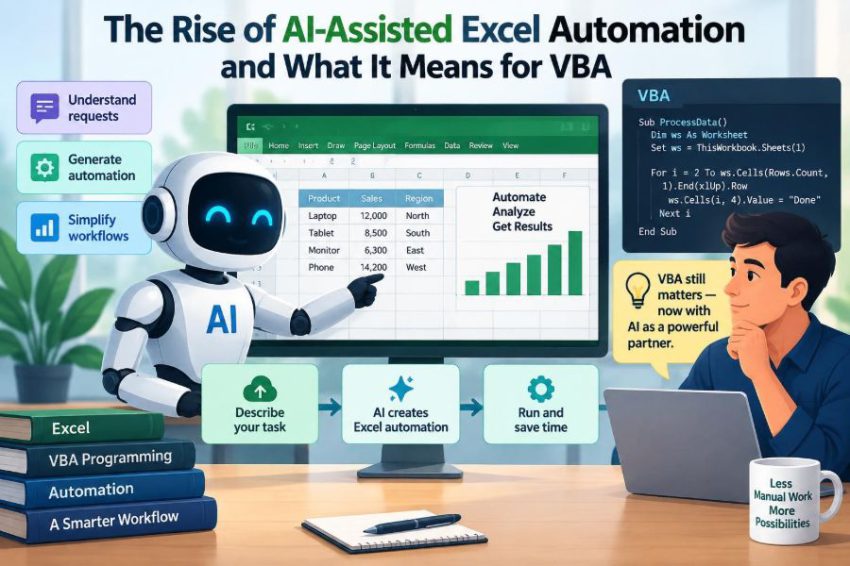
For many Excel users, this is the moment when automation stops feeling like a nice extra and starts feeling necessary. VBA macros have long handled these repetitive jobs. Now AI assistants can also suggest formulas, explain errors, draft code, and help turn a plain-language request into a starting solution.
That can feel like a major shift, especially for people who learned VBA by recording macros, searching forums, and gradually editing code until it worked. The useful question is not whether AI will “replace” VBA. It is what AI-assisted automation changes about the way we design, test, maintain, and trust Excel solutions.
The answer is more practical than dramatic: AI can reduce friction, but reliable automation still depends on spreadsheet knowledge, clear requirements, and careful human judgment.
📈 Why Excel Automation Is Changing
Excel remains a working tool for budgets, operations reports, reconciliations, forecasts, schedules, and ad hoc analysis. Its flexibility is a strength, but that same flexibility often creates manual processes that grow quietly from one-off tasks into weekly routines.
AI-assisted features lower the barrier to creating automation. A user can describe an outcome—such as “combine these monthly files and flag missing account codes”—rather than beginning with VBA syntax. That changes who can attempt automation and how quickly a prototype can appear.
🤖 What “AI-Assisted” Actually Means
AI-assisted automation is a broad label. In practice, it may mean a chat-based assistant generating a VBA procedure, a built-in Excel feature suggesting formulas, or a developer tool explaining why a macro fails.
It does not necessarily mean that Excel is independently running an entire business process. Most useful workflows still require a person to specify inputs, review assumptions, authorize actions, and decide whether the result is fit for use.
🧰 The Automation Tools in the Excel Ecosystem
VBA is only one part of Excel automation. Understanding the alternatives makes it easier to choose the right tool instead of treating every repeated task as a macro problem.
| Tool | Best suited to | Typical limitation |
|---|---|---|
| Formulas and dynamic arrays | Visible calculations and live worksheet logic | Can become difficult to audit when deeply nested |
| Power Query | Repeatable data import and transformation | Not ideal for every interactive workbook action |
| PivotTables and data models | Summaries and analysis | Need structured, dependable source data |
| VBA | Workbook control, custom workflows, and legacy processes | Requires macro security and maintainable code |
| Office Scripts and other cloud-oriented tools | Modern web-based and connected workflows | Capabilities and deployment differ from desktop VBA |
AI can help with any of these, but it cannot select the best architecture merely from a vague instruction. That choice depends on where data comes from, who uses the workbook, and what must happen next.
🧩 Where VBA Still Fits
VBA remains valuable when a workbook needs to respond to user actions, create custom reports, control formatting, interact with desktop Excel objects, or support an established macro-based process. Many organizations also have significant VBA workbooks that cannot simply be rewritten overnight.
A well-built macro can make a complicated sequence repeatable with one button. For example, it may import a CSV file, validate columns, update named ranges, create a PDF, and save a dated copy for review.
💬 Natural Language Changes the Starting Point
The traditional entry point to VBA is syntax: variables, loops, ranges, and objects. AI offers a different entry point: intent. A user might ask for code that copies rows marked “Approved” to a report sheet and emails a draft summary.
This is helpful because blank-page anxiety is real. But natural language is often incomplete. “Approved,” “report sheet,” and “draft summary” may each have several valid meanings inside a real workbook.
🗺️ A Prompt Is Not a Specification
A good prompt can produce a useful draft. A good specification defines the behavior the draft must have. The difference becomes critical when a macro affects data, reporting, or decisions.
Before accepting generated code, clarify items such as:
- Which workbook, worksheet, table, or named range is the source?
- What should happen when required data is blank, duplicated, or malformed?
- Should existing output be replaced, appended, or archived?
- What result confirms that the process succeeded?
- Which actions need human approval before they occur?
These questions are not bureaucracy. They are the logic that turns a convenient request into a dependable automation.
🧠 How AI Can Help VBA Learners
For learners, AI can act like an on-demand explainer. It can translate a block of VBA into plain language, compare For Each with indexed loops, or suggest why a type mismatch occurs.
Its greatest educational value appears when it supports understanding rather than replaces it. Asking “explain this procedure line by line and identify its assumptions” generally teaches more than asking only for a finished macro.
🪜 From Recorded Macro to Better Code
The macro recorder is still useful because it reveals Excel’s object model: workbooks contain worksheets, worksheets contain ranges, and actions become VBA statements. However, recorded code often contains unnecessary selections and hard-coded references.
AI can help refactor that first draft. It may replace Select and Activate patterns with direct references, add variables, or extract repeated steps into a procedure. The learner should compare the original and revised versions to see why the change improves reliability.
🔍 Reading Generated Code Before Running It
Generated code can look convincing while containing unsafe or incorrect assumptions. Before running it, identify what it reads, what it changes, and what it creates outside the workbook.
Look especially for file deletion, overwriting, email sending, external data connections, and broad references such as an entire worksheet or active workbook. A macro that uses ActiveWorkbook can act on the wrong file when several workbooks are open.
🧪 Test With Copies, Not Production Files
Testing is where an automation becomes trustworthy. Create a small test workbook or a safe copy that includes ordinary records and awkward cases: blank values, duplicates, unexpected text, dates, and no matching rows.
Do not test only the happy path. A macro that succeeds with clean sample data may fail at month-end when a source system changes a column heading or produces an empty export.
🛡️ Protecting Data and Undo Paths
Many workbook actions are easy to perform and difficult to reverse. VBA procedures can clear ranges, rename sheets, move files, or overwrite results faster than a user can notice.
Build safeguards into the design:
- Save an output copy instead of changing the original source file.
- Confirm the workbook and sheet names before destructive actions.
- Write a timestamped log of rows processed and exceptions found.
- Use clear messages when a required condition is missing.
- Keep backups and a manual recovery process for important workbooks.
AI may suggest these protections when asked, but the workbook owner must decide which risks matter in the actual process.
🔐 Privacy and Confidential Information
Prompts can contain sensitive material even when they do not include the whole workbook. Customer names, employee details, pricing logic, account numbers, and internal processes may be confidential.
Before pasting data or code into an external AI service, follow your organization’s policies and understand the tool’s approved use. When possible, describe the structure using fictional field names or a minimized example rather than sharing real records.
⚠️ Confident Errors Are Still Errors
AI-generated answers can be plausible but wrong. A response may use a method that does not apply to the Excel version in use, reference an object incorrectly, or quietly skip a business rule that was never stated.
This is not unique to AI; copied code from any source can fail in the same way. The difference is speed: rapid generation makes it easier to accumulate code that nobody fully understands.
🧾 The Excel Object Model Still Matters
VBA works through Excel’s object model, the hierarchy of objects that represent the application and its contents. Familiarity with Application, Workbook, Worksheet, Range, and ListObject helps you judge whether generated code makes sense.
A person who understands that hierarchy can ask sharper questions. Instead of “why does this not work?”, they can ask why a procedure is reading the active sheet rather than a named table in a specified workbook.
🏷️ Structured Tables Reduce Fragility
Many macros break because they assume data always begins in a particular cell or ends in a particular row. Excel Tables, represented in VBA as ListObject objects, provide stable names for data and columns.
A macro that refers to a table named SalesData and a column named Status is usually easier to understand than one built around Range("G2:G5000"). AI-generated code also becomes easier to review when the underlying workbook is structured clearly.
🚦 Error Handling Is Part of the Workflow
Error handling is not just a way to hide error messages. It is a plan for what the automation should do when something goes wrong.
For example, if an expected import file is missing, a useful macro should stop, explain the missing file, and avoid producing a misleading report. A blanket On Error Resume Next can conceal the failure and allow bad output to continue downstream.
🧮 Formula Suggestions Need Validation Too
AI is frequently used to generate formulas as well as macros. It can help construct XLOOKUP, FILTER, LET, or conditional aggregation formulas, particularly when the logic is described clearly.
Yet a formula can return a value while still being wrong. Check its lookup mode, criteria ranges, treatment of blanks, and behavior when no match exists. A correct-looking number is not evidence that the business rule was interpreted correctly.
🔄 Power Query May Beat a Macro
When the task is primarily “take recurring source files, clean columns, combine them, and load a result,” Power Query is often a strong option. Its transformation steps are visible and can be refreshed without writing VBA.
AI can help explain M expressions or plan a query, but the key choice is architectural. Use VBA when you need workbook interaction and custom orchestration; consider Power Query when repeatable data transformation is the core problem.
☁️ Desktop VBA and Cloud Workflows Differ
VBA is closely tied to desktop Office applications. Cloud-based collaboration, browser editing, and automated online workflows may call for different tools, including Office Scripts, Power Automate, or application programming interfaces.
This does not make VBA obsolete. It means the environment matters. A macro that works beautifully on one analyst’s desktop may not be the right solution for a team that works across browsers, shared files, and scheduled cloud processes.
🏗️ AI Is Better at Drafting Than Owning Architecture
AI can quickly produce a loop, a file picker, or a formatting routine. It is less dependable as the sole designer of a larger solution with permissions, source-system dependencies, audit requirements, and long-term support needs.
Architecture means deciding where logic belongs, how inputs are controlled, what happens on failure, and who can maintain the solution. Those decisions require organizational context that may not be present in a prompt.
📚 Documentation Becomes More Valuable
When code is generated quickly, documentation becomes a safeguard against mystery. Record the purpose of each macro, expected inputs, outputs, assumptions, owner, and last meaningful change.
Comments should explain decisions, not narrate obvious syntax. “Skip rows marked Archive because the monthly report excludes closed accounts” is more useful than “increment row counter.”
👥 The New Skill Is Review, Not Just Writing
AI-assisted work shifts some effort from typing code to reviewing it. That review requires domain knowledge, basic programming literacy, and a habit of asking what could go wrong.
Working professionals do not need to become software engineers to gain value from VBA. They do need enough understanding to distinguish a readable, limited macro from an opaque procedure that touches every open workbook and suppresses errors.
🤝 Collaboration Needs Clear Ownership
A shared workbook can become risky when several people add generated macros without a common standard. One person may change a sheet name while another macro depends on it, and neither knows the connection exists.
Teams benefit from simple conventions: stable table names, a designated owner, documented release copies, and a review before macros that send files or change source data are distributed.
📦 Small, Modular Macros Are Easier to Trust
A single macro that imports data, cleans it, calculates metrics, formats charts, saves a file, and emails recipients is hard to test. Splitting those responsibilities into smaller procedures makes failures easier to locate.
For example, separate ImportData, ValidateData, BuildReport, and SaveOutput procedures allow a reviewer to test each stage. AI is also more likely to generate useful code when the requested task is narrow and well defined.
⏱️ Measuring Value Beyond Time Saved
Time savings are an obvious reason to automate, but they are not the only measure. A good process may reduce inconsistent formatting, make exceptions visible, create an audit trail, or free people to investigate unusual results.
Automation is not worthwhile if it merely produces mistakes faster. Include quality checks and consider the cost of maintenance when deciding whether a task deserves a macro, a query, a formula redesign, or no automation at all.
🧯 Common AI-Assisted VBA Mistakes
Several patterns cause trouble repeatedly. They are avoidable when users treat generated output as a draft rather than a finished deliverable.
- Running code without reading its file, email, or deletion actions.
- Using hard-coded paths, sheet names, and row limits without documenting them.
- Allowing errors to be ignored instead of handled meaningfully.
- Testing only with clean, ideal data.
- Adding more macro code when a table, formula, or query would solve the root issue.
- Sharing a macro-enabled workbook without explaining security expectations and dependencies.
🧭 A Practical Build Process
A disciplined process does not have to be slow. It makes AI assistance safer because each request has a bounded purpose and each output has a clear check.
- Describe the business outcome and identify the source and destination data.
- Choose the simplest suitable tool: formula, query, VBA, or another workflow tool.
- Create a small sample and define expected results, including exceptions.
- Ask AI for a focused draft or explanation, with workbook structure specified.
- Read the code, test on copies, and verify results against known cases.
- Add validation, messages, documentation, and a recovery path before wider use.
🎓 What Students Should Learn First
Students can use AI without skipping fundamentals. Start by understanding variables, data types, conditional logic, loops, procedures, and the Excel object model. Then learn to debug with breakpoints, the Immediate Window, and careful inspection of values.
These skills make AI answers more useful because they turn generated code into something you can question and adapt. They also transfer beyond VBA to other automation and programming environments.
💼 What Working Professionals Should Prioritize
Professionals often need dependable results sooner than they need elegant code. Start with a process that is frequent, rules-based, and currently prone to manual errors. Keep the first version small enough that its inputs and outputs can be checked easily.
Where a workbook supports financial, operational, personnel, or regulatory decisions, involve the appropriate reviewers. Technical correctness is only one part of a responsible solution; governance and accountability matter too.
🔮 The Likely Future of VBA Work
AI assistance will probably make more users capable of creating small Excel automations and maintaining existing ones. That may increase the number of macros in circulation, including some that need stronger review.
At the same time, the durable VBA practitioner will be valued less for memorizing every method and more for understanding processes, designing reliable workflows, and recognizing when VBA is—or is not—the right tool.
🌟 The Core Principle: Augment Judgment, Do Not Outsource It
AI can shorten the path from an idea to a formula, a macro draft, or an explanation. VBA can turn repeatable Excel work into a controlled process. Neither removes the need to understand the data, define the rules, and verify the outcome.
The strongest approach combines them: use AI to accelerate learning and implementation, use VBA or another suitable tool to automate the right steps, and use human review to protect accuracy, privacy, and accountability.
AI-assisted Excel automation is most useful when it amplifies informed judgment rather than replacing it. Build small, test carefully, document what matters, and let automation earn trust through reliable results. ⚙️📊🤖