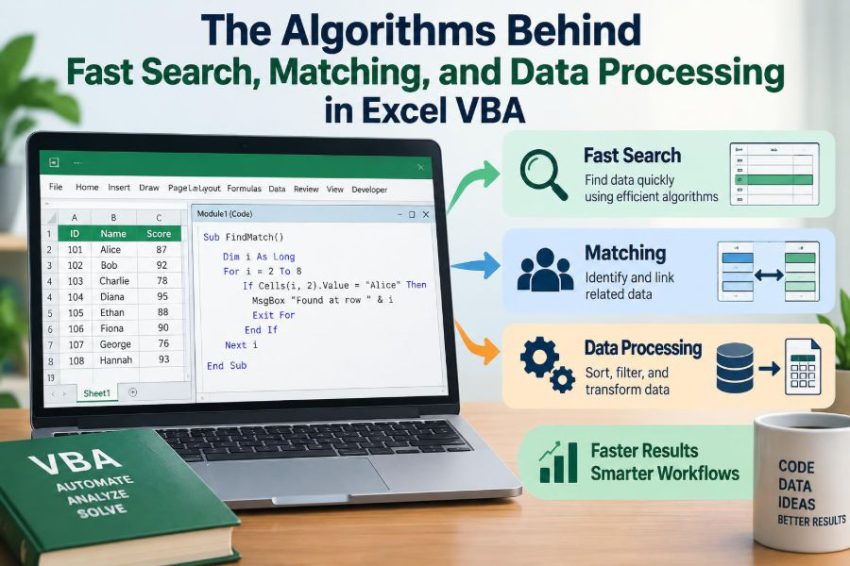

A monthly sales workbook arrives with 60,000 rows. You need to match each transaction to a customer list, identify missing product codes, remove duplicates, and produce a clean report before the meeting starts.
The first version of a VBA macro may work perfectly on a sample of 100 rows. Then it seems to freeze on the real file. Often, Excel is not the real problem: the macro is repeating a small piece of work far too many times.
That is where algorithms matter. An algorithm is simply a repeatable method for completing a task, but its choice determines whether your macro compares a few thousand values or several billion possible pairs.
You do not need a computer science degree to make better choices in VBA. You need to recognize the shape of your data, choose a suitable search or matching method, and avoid slow trips between VBA and the worksheet.
🧭 Start with the question, not the loop
Before writing For loops, state what the macro must decide. “Find the row for this invoice,” “detect duplicate emails,” and “join orders to products” sound similar, but they are different problems.
A search asks for one item. A matching task relates values from two collections. A processing task transforms every record. The best data structure and algorithm depend on that distinction.
📏 Why scale changes everything
A method that checks every order against every customer is tolerable when both lists contain 50 records. With 20,000 orders and 20,000 customers, it can attempt 400 million comparisons.
This growth pattern is called time complexity. It describes how work grows as input grows. It is not a stopwatch reading, but it is an excellent way to predict which macro will become painful first.
🔢 Read Big O as a growth pattern
Big O notation names common growth patterns. In VBA workbooks, the most useful ones are constant time, linear time, logarithmic time, and quadratic time.
| Pattern | Meaning | Typical VBA example |
|---|---|---|
O(1) |
Work stays roughly constant | Dictionary lookup by key |
O(n) |
Work grows with row count | Scan one column once |
O(log n) |
Each step discards much of a sorted range | Binary search |
O(n²) |
Every item may be compared with every other item | Nested matching loops |
Constants still matter. A linear macro that writes cells one at a time can lose to a quadratic-looking approach on a tiny sheet. But for large, repeated jobs, avoiding O(n²) work is usually the biggest win.
📥 Move worksheet data into arrays
Reading or writing a worksheet cell is comparatively expensive because VBA must communicate with Excel for each operation. A better pattern is to read a rectangular range once, process the resulting two-dimensional array in memory, then write the result once.
Dim data As Variant
data = Worksheets("Orders").Range("A2:D50001").Value2

'Process data(r, c) in VBA
Worksheets("Output").Range("A2").Resize(UBound(data, 1), 1).Value = results
Value2 avoids some automatic currency and date conversions. It is often a sensible default, though you should still handle dates deliberately when their meaning matters.
🧱 Understand array boundaries
Data read from a multi-cell range is normally a 1-based, two-dimensional array: rows are the first dimension and columns are the second. Use LBound and UBound rather than assuming a starting or ending row.
For r = LBound(data, 1) To UBound(data, 1)
    If data(r, 3) = "Open" Then
        'Handle this record
    End If
Next r
This makes routines safer when the range size changes. It also prevents the common error of mixing worksheet row numbers with array row positions.
🔍 Use linear search for one-off scans
Linear search checks items from beginning to end until it finds a match or reaches the end. It is O(n), simple to read, and often exactly right for a one-time lookup in an unsorted list.
Function FindCode(ByVal target As String, ByRef codes As Variant) As Long
    Dim i As Long
    For i = LBound(codes, 1) To UBound(codes, 1)
        If CStr(codes(i, 1)) = target Then
            FindCode = i
            Exit Function
        End If
    Next i
End Function
Returning zero here means “not found,” because a worksheet-derived array begins at one. Pick a clear convention and document it in the procedure name or comments.
🛑 Exit early when the answer is known
A search should stop as soon as its goal is met. Continuing after finding the first matching invoice wastes time and can accidentally overwrite the correct result with a later duplicate.
Exit For is useful when a loop has more work after it. Exit Function is even clearer when finding the answer completes the function. Early exit improves both speed and intent.
🧩 Decide what a “match” really means
Matching text is rarely just a programming detail. Should AC-100 equal ac-100? Should leading or trailing spaces be ignored? Is an invoice number stored as text allowed to match a number?
Normalize values before comparing them when business rules allow it. Typical normalization includes Trim$, UCase$, and explicit conversion with CStr. Do not casually remove punctuation or leading zeros from identifiers; those may be meaningful.
🧼 Clean keys before building an index
A key is the value used to identify a record, such as an employee ID or SKU. If one source contains invisible spaces or mixed case, an otherwise fast dictionary lookup will correctly report “not found” for inconsistent input.
Function CleanKey(ByVal value As Variant) As String
    CleanKey = UCase$(Trim$(CStr(value)))
End Function
Use one normalization rule consistently for both the source keys and lookup keys. If different systems have different identifier rules, preserve the original value alongside the normalized key for auditing.
⚡ Index repeated lookups with a Dictionary
When many values must be looked up repeatedly, use a hash table. In VBA, Scripting.Dictionary is a practical hash-table implementation. It stores a value under a key and usually retrieves it in approximately constant time.
Dim index As Object, r As Long
Set index = CreateObject("Scripting.Dictionary")
index.CompareMode = vbTextCompare

For r = LBound(customers, 1) To UBound(customers, 1)
    index(CStr(customers(r, 1))) = customers(r, 2)
Next r
The first pass builds the index. After that, each order can retrieve its customer information without rescanning the full customer list.
🔑 Test Dictionary keys safely
Never assume a lookup key exists. Calling dict(key) for a missing key can raise an error, while dict.Exists(key) lets the macro choose a useful outcome.
If index.Exists(orderKey) Then
    result(r, 1) = index(orderKey)
Else
    result(r, 1) = "Missing customer"
End If
“Not found” is often valuable data, not an exceptional crash condition. Mark it, log it, or place it on an exceptions sheet according to the workflow.
👥 Handle duplicate keys deliberately
A dictionary has one item per key. If you assign a second value using the same key, you replace the first value. That may be correct for a current-price table, but it is dangerous for customer records when duplicate IDs indicate a data-quality problem.
Choose a policy before loading data:
- Reject duplicates and report their rows.
- Keep the first occurrence.
- Keep the last occurrence.
- Store a collection or row list for one-to-many relationships.
Silent overwriting is fast, but it can hide the reason totals do not reconcile.
🗂️ Use dictionaries for grouping and counting
Hash tables do more than lookups. They are ideal for frequency counts, totals by region, and duplicate detection because each item is processed once.
If totals.Exists(region) Then
    totals(region) = totals(region) + amount
Else
    totals.Add region, amount
End If
This is a linear aggregation: each record updates one bucket. After the loop, write the dictionary keys and values to an output array instead of repeatedly adding worksheet rows.
🧬 Detect duplicates in one pass
Comparing every email address with every other address creates nested-loop work. A “seen” dictionary changes the task into a single pass: if a key already exists, the current row is a duplicate.
Decide whether blank values count as duplicates. In many datasets, repeated blanks mean missing information and should be flagged differently from repeated valid identifiers.
📚 Sort when order has value
Sorting costs work up front, typically around O(n log n), so it is not automatically better than a dictionary. It becomes worthwhile when sorted output is needed anyway, when many searches will be performed, or when adjacent values should be grouped.
Excel’s own range sorting can be appropriate when the worksheet is the working surface. For array-heavy pipelines, sorting in memory avoids worksheet interaction, but implementing a robust custom sort adds code and testing responsibility.
🎯 Use binary search on sorted data
Binary search finds a target in sorted data by inspecting the middle item. If the target is smaller, it discards the upper half; if larger, it discards the lower half. Each comparison sharply reduces the remaining search area.
Function BinaryFind(ByVal target As String, ByRef a As Variant) As Long
    Dim low As Long, high As Long, mid As Long
    low = LBound(a, 1): high = UBound(a, 1)
    Do While low <= high
        mid = (low + high) \ 2
        If CStr(a(mid, 1)) = target Then BinaryFind = mid: Exit Function
        If CStr(a(mid, 1)) < target Then low = mid + 1 Else high = mid - 1
    Loop
End Function
The ordering used for the sort and the comparison must agree. Case handling, numeric text, and locale-sensitive text order can otherwise produce incorrect results.
⚠️ Do not binary-search unsorted ranges
Binary search is not a clever replacement for ordinary scanning. It relies completely on sorted order. If one new row was appended out of order, the search may fail even though the value is present.
Use it only when the code controls or validates the sort condition. A dictionary is often less fragile when data arrives from unpredictable sources.
🔗 Turn two-list matching into a join
Matching orders to products is conceptually a join: combine information from two datasets using a shared key. Thinking in joins clarifies which records should appear in the result.
- An inner join keeps only rows with a matching key.
- A left join keeps every row from the primary list and marks missing matches.
- A one-to-many join returns several related records for one key.
A dictionary naturally supports many-to-one joins, such as many orders referring to one product. One-to-many relationships require storing more than one row per key.
🧺 Model one-to-many matches carefully
Suppose a customer can have several open invoices. A dictionary that stores only one invoice loses information. Instead, store a collection, a comma-separated summary only if that is truly sufficient, or an array/list of row numbers.
For reporting, it can be simpler to build a dictionary of aggregates, such as count and total balance per customer. For detail output, retain a structure that preserves every contributing record.
➕ Aggregate while you process
Many macros make several passes: first find qualifying records, then calculate totals, then count categories. Sometimes that is clearer, but when the same fields are needed, one well-structured pass can filter, validate, and aggregate together.
For example, while reading each order, validate its key, add its amount to a regional total, increment a count, and record exceptions. This reduces repeated traversal without making the routine unreadable.
🧪 Filter before expensive work
Cheap tests should usually come before expensive tests. If only “Open” orders need a complex product match, check the status first and skip closed orders immediately.
This principle is especially useful when a loop calls worksheet functions, regular expressions, file operations, or nested searches. Reducing the number of candidates is often easier than making the expensive operation marginally faster.
🧠 Precompute values used repeatedly
If a normalized key, month value, or conversion is used several times inside a loop, calculate it once and store it in a variable. Repeated conversions add overhead and make expressions harder to inspect.
Precomputation also supports clearer logic: a variable named customerKey tells the reader what is being compared, while repeated nested calls obscure the business rule.
🚦 Control Excel application settings responsibly
Screen redraws, automatic calculation, events, and status-bar updates can slow a macro that changes many cells. Temporarily disabling them can help, especially during bulk output.
On Error GoTo CleanUp
Application.ScreenUpdating = False
Application.EnableEvents = False
Application.Calculation = xlCalculationManual

'Run bulk work

CleanUp:
Application.Calculation = xlCalculationAutomatic
Application.EnableEvents = True
Application.ScreenUpdating = True
If Err.Number <> 0 Then Err.Raise Err.Number
Always restore settings even when an error occurs. In production code, you may also preserve the user’s original calculation mode rather than assuming automatic calculation.
🧯 Treat errors as data-quality signals
Broad On Error Resume Next can make a slow or incorrect macro appear successful. It may hide missing sheets, invalid conversions, and failed dictionary operations while output continues with blanks.
Validate expected problems explicitly: blank IDs, nonnumeric amounts, unknown codes, and duplicate keys. Reserve error handlers for genuinely unexpected failures, and include enough context to identify the problematic row.
📊 Measure before optimizing
Use Timer to compare meaningful blocks of work: loading data, building an index, matching, and writing output. Measure representative data, because a 50-row test rarely exposes the true bottleneck.
Dim started As Single
started = Timer
'Operation to test
Debug.Print "Seconds: " & Format$(Timer - started, "0.00")
Timer resets around midnight, so long-running timing needs extra care. The goal is not laboratory precision; it is locating the part worth improving.
🧱 Keep algorithm code separate from worksheet code
A maintainable macro often has three layers: read worksheet ranges, process arrays and dictionaries, then write results. The middle layer should ideally accept data and return data without selecting sheets or relying on the active workbook.
This separation makes logic easier to test with small hypothetical arrays. It also prevents bugs caused by ActiveSheet, changing selections, or a user clicking elsewhere while code runs.
🧾 Preserve row lineage for auditability
Fast processing must still be explainable. When filtering or joining data, retain a source row number or original ID so a user can trace an output record back to its origin.
For exception lists, include the key, source row, reason, and perhaps the original value. A macro that says “12 failures” is less useful than one that identifies exactly what needs correction.
🪜 Choose the simplest algorithm that fits
Do not build a complex index for a single lookup in a 30-row list. Conversely, do not defend nested loops merely because they are familiar when thousands of repeated lookups are required.
A practical rule is:
- Use a linear scan for small data or one-off searches.
- Use a dictionary for repeated exact-key lookups, grouping, and duplicate checks.
- Use sorting and binary search when ordered data is reliable and useful.
- Use a deliberately designed structure for one-to-many relationships.
🛠️ A practical matching workflow
For a typical order-to-customer reconciliation, begin by defining the required output and the matching rule. Read both source ranges into arrays, normalize the customer keys, and build a dictionary from the customer master list.
Then scan orders once. For each row, validate the key, use Exists to test the dictionary, write a result into an output array, and collect exceptions. Finally, output both arrays in bulk and restore any application settings changed during processing.
This workflow is fast because it avoids repeated worksheet calls and repeated scans of the master list. It is reliable because missing and duplicate data are treated as explicit outcomes.
🏁 The core principle: reduce repeated work
The central idea behind faster VBA data processing is not a particular object or clever syntax. It is reducing unnecessary repetition: load data once, normalize once, index once, and avoid revisiting records when a stored result can answer the question.
Algorithms provide the map, while arrays and dictionaries provide practical VBA tools. Combine them with clear matching rules, defensive checks, and bulk worksheet operations, and large Excel tasks become more predictable to build and maintain.
Fast VBA macros come from choosing a method that matches the data problem, then doing each piece of work only as often as necessary. ⚙️🔍📈