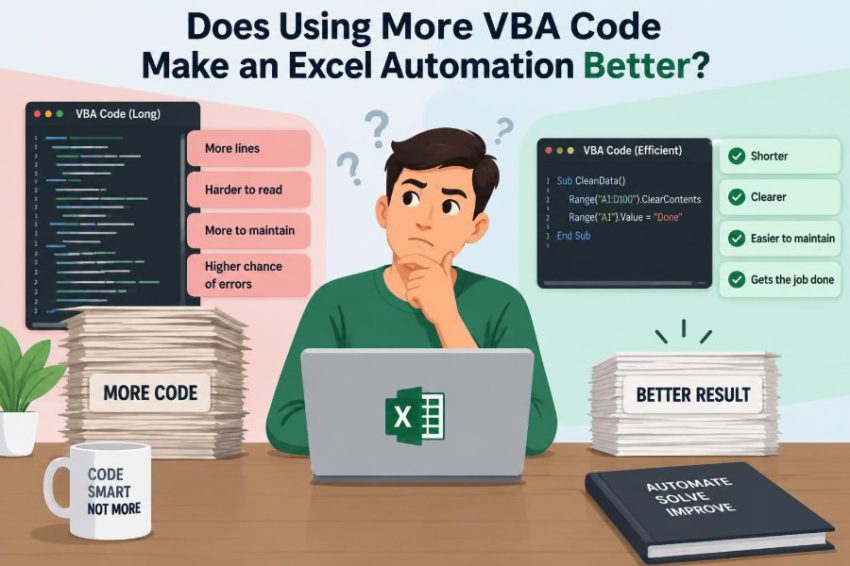

A monthly report arrives in the same folder, with the same columns, and the same familiar frustration. Someone opens it, filters rows, copies values into another workbook, formats a summary, and checks the totals before sending it on.
After doing that job a few times, automating it with VBA feels like an obvious upgrade. Then a tempting idea appears: if a short macro saves time, perhaps a much larger macro will make the process even better.
That assumption causes plenty of trouble. A long VBA procedure can look impressive while remaining slow, fragile, difficult to test, and risky for the next person who must maintain it.
The real question is not whether a workbook contains a lot of code. It is whether the automation solves a defined problem reliably, clearly, and at a sensible cost.
🧭 Start with the meaning of “better”
“Better” needs a job-specific definition. For one workbook, it may mean reducing a two-hour cleanup task to five minutes. For another, it may mean preventing a user from sending a report with missing data.
Useful measures include speed, accuracy, repeatability, clarity, maintainability, and ease of recovery when something goes wrong. More lines of VBA do not automatically improve any of these measures.
A macro that uses 30 lines to produce a correct result every time can be better than a 500-line macro that tries to anticipate every imaginable situation but regularly stops halfway through.
📏 Code length is a poor quality measure
Lines of code tell us that instructions exist; they do not tell us whether those instructions are necessary. Repeated formatting commands, copied blocks, and unnecessary worksheet selections can inflate a procedure without adding real capability.
Conversely, a small amount of well-chosen VBA can perform substantial work. Excel functions, pivot tables, Power Query, and structured tables may already handle parts of the task that would otherwise require many custom instructions.
Quality is about the outcome and the design, not the size of the module.
🎯 Define the automation’s actual job
Before adding code, write the workflow in plain language. For example: import one CSV file, validate required columns, remove blank records, update a summary sheet, and save a dated copy.
This step separates requirements from assumptions. “Format the report nicely” is vague; “apply the approved number format to columns D through G” is testable.
When the job is clear, each block of code has a reason to exist. Features that do not support the job become easier to question or remove.
🔁 Automate repetition, not every click
VBA is strongest when it removes consistent, rules-based repetition. Copying a known range, standardizing dates, creating one output file per region, or refreshing a defined report are good examples.
Not every manual action deserves automation. A rare decision requiring judgment, such as deciding whether an unusual expense is valid, may be safer when left to a person with clear information.
Trying to automate ambiguous decisions often produces sprawling exception logic: nested If statements that are difficult to verify and easy to misunderstand.
🧩 Prefer the simplest tool that fits
VBA is one option in Excel, not the answer to every problem. A worksheet formula is often easier to inspect than VBA for a calculation that should update instantly when source cells change.
| Need | Often suitable first choice | When VBA helps |
|---|---|---|
| Row-by-row calculation | Formula or Excel table | Applying a calculation across changing files |
| Cleaning imported data | Power Query | Controlling imports or post-processing results |
| Recurring summary | PivotTable | Refreshing, exporting, or distributing the summary |
| Multi-step user workflow | Structured workbook design | Validating inputs and coordinating steps |
A hybrid solution is frequently best: let Excel features do their native work, then use a small VBA procedure to coordinate the sequence.
🏗️ Break one giant macro into procedures
A procedure that imports files, cleans data, formats sheets, sends emails, and writes logs is hard to read because it mixes several responsibilities. Splitting it into focused procedures makes intent visible.
Sub BuildReport()
    ImportData
    ValidateData
    UpdateSummary
    ExportReport
End Sub
The names explain the workflow without revealing every implementation detail. Each procedure can be tested separately, and a later change to exporting is less likely to damage validation.
🧱 Give each procedure one responsibility
Small procedures are not automatically good. The goal is not to create dozens of tiny fragments; it is to keep a coherent task together.
A procedure named FindLastDataRow should find a row, not also change fonts and display a message box. Clear responsibilities reduce surprising side effects, where code changes something the caller did not expect.
This design also encourages reuse. A reliable validation procedure can serve several reports instead of being copied into each one.
🚫 Avoid recorder-style VBA
The Macro Recorder is useful for discovering Excel object names and basic syntax. Its output is rarely an ideal final solution because it records the exact interface actions, including many selections and screen movements.
Recorded code often contains patterns such as Select and Activate. Those commands make the result depend on which workbook, sheet, or cell happens to be active.
Direct references are clearer and usually more dependable:
Worksheets("Summary").Range("B2").Value = totalAmountThis says exactly where the value belongs, without asking Excel to change the user’s selection first.
⚡ Reduce unnecessary worksheet traffic
Reading or writing a cell one at a time can be slow when a workbook contains many rows. Each interaction crosses between VBA and the Excel worksheet environment.
Where appropriate, read a range into a VBA array, process values in memory, and write the completed array back in one operation. This is not needed for every small task, but it matters for large repetitive loops.
Speed improvements should follow measurement or observed delay. Premature optimization can make straightforward code harder to understand without producing a noticeable benefit.
📦 Use arrays and collections with purpose
An array stores a fixed set of values efficiently, which suits tabular range data. A Collection can store items that are added as the procedure runs. A dictionary, when available through appropriate setup, can be useful for quick lookups by key.
Choose the structure based on the data question. If you need to check whether an employee ID has already appeared, a key-based lookup is more natural than repeatedly scanning every earlier worksheet row.
More advanced structures are useful only when they make the logic simpler or noticeably improve performance.
🧮 Keep calculations where they belong
Some calculations belong in formulas because users need to see them, audit them, and have them update when inputs change. Others belong in VBA because they are part of a one-time import or a controlled processing step.
For example, a visible margin calculation in a report may be a formula. A temporary rule that converts imported text dates before loading the report may fit better in VBA.
Moving every formula into code can make a workbook less transparent. Leaving every transformation in formulas can make a workbook cumbersome. The best placement depends on how the result will be used.
🗺️ Make workbook references explicit
Excel workbooks frequently fail in subtle ways because unqualified references point at the active workbook rather than the intended one. A line such as Range("A1").ClearContents relies on context that may change.
Use variables for important objects:
Dim wsData As Worksheet
Set wsData = ThisWorkbook.Worksheets("Data")
wsData.Range("A1").ClearContents
ThisWorkbook means the workbook containing the VBA project, while ActiveWorkbook means the workbook currently active for the user. They are not interchangeable.
🪪 Use meaningful names and declarations
Names such as i and x are acceptable for a very short loop, but they become unhelpful in business logic. Names such as lastInvoiceRow, sourceFolder, and isValidRecord reveal purpose.
Using Option Explicit requires variables to be declared. This catches spelling mistakes that could otherwise create a new empty variable and produce confusing results.
Clear names add a few characters to code but remove much more uncertainty for readers and future maintainers.
✅ Validate inputs before processing
Reliable automation checks its assumptions before it changes data. Does the selected file exist? Are required worksheet names present? Does the imported table contain the expected headers?
Validation prevents a macro from treating the wrong column as “Amount” simply because the source layout changed. It also gives users an understandable explanation close to the real cause.
- Check that required files, sheets, and named ranges exist.
- Confirm expected column headers before mapping data.
- Check values for required blanks, invalid dates, or unexpected types.
- Stop safely when a condition makes the result unreliable.
These checks add code, but this is code with a direct reliability benefit.
🛑 Treat error handling as a design choice
VBA error handling does not mean hiding errors. A broad On Error Resume Next can allow a failed instruction to pass silently, leaving a workbook in an unknown state.
Use targeted handling around an operation that may reasonably fail, then restore normal error behavior. For broader procedures, a clear error-handling section can report the task that failed and clean up application settings.
A useful message tells the user what happened, what was not completed, and what action may help. “Run-time error” alone rarely meets that standard.
🧹 Clean up after an interruption
Macros sometimes disable screen updating, events, or automatic calculation to work faster. Those settings should be restored even when an error occurs.
Otherwise, users may be left with a workbook that appears frozen, formulas that do not recalculate as expected, or event-based automation that has silently stopped running.
Application.ScreenUpdating = False
On Error GoTo CleanUp
' Work happens here
CleanUp:
Application.ScreenUpdating = True
If Err.Number <> 0 Then MsgBox Err.Description
This pattern is only a starting point, but it demonstrates that cleanup belongs in the plan, not as an afterthought.
🧪 Test normal, empty, and messy cases
Testing only the file that inspired the macro gives false confidence. Real workbooks contain blank rows, duplicate records, unexpected text, protected sheets, and users who click buttons twice.
Create a small test set that includes ordinary input, valid edge cases, and invalid input. Verify not only the final output but also what changed, what did not change, and whether an error message is understandable.
A concise macro that is tested across realistic cases is more valuable than a feature-rich macro tested once.
🔍 Build traceability into important workflows
For reporting, finance, operations, and shared workbooks, users may need to know what the automation did. A simple log sheet can record the run time, source file name, record count, user name if appropriate, and outcome.
Logging is not always necessary for a personal one-off macro. It becomes valuable when outputs are distributed or when mistakes must be investigated later.
Do not log sensitive data casually. Record enough operational detail to diagnose the process while respecting the workbook’s confidentiality requirements.
🧑💻 Design for the person using the workbook
A technically correct macro can still be a poor automation if users cannot tell how to start it or what success looks like. Clear button labels, a short instruction area, and sensible confirmation messages reduce hesitation.
User-facing VBA should avoid unexplained pauses and vague prompts. If a macro needs a source file, say which type of file it expects and whether it will modify the original.
Good user experience often requires less code than elaborate custom forms. A well-designed sheet can be a simpler and more maintainable interface.
🔐 Respect macro security and trust boundaries
VBA macros can read, change, and save workbook content, so organizations may restrict them through security settings and policies. A workbook that works on one computer may not run elsewhere if macros are disabled or the file is not trusted.
Do not instruct users to lower security protections casually. Use approved distribution methods, explain what the macro does, and avoid actions that reach beyond the workbook’s legitimate purpose.
Security is also a maintainability issue: a solution that cannot be safely deployed is not a complete solution.
📁 Separate configuration from logic
Hard-coding a folder path, a reporting month, or a list of departments directly into procedures makes routine changes require editing VBA. That increases the chance of accidental damage.
Put changeable settings in a controlled configuration sheet, named ranges, or clearly defined constants. The code can read those settings while validating them before use.
This does not mean every cell should control program behavior. Keep configuration deliberate, documented, and protected where appropriate.
🧷 Avoid copy-and-paste logic
Suppose the same import sequence is copied for January, February, and March sheets, with only a sheet name changed. The code may work initially, but a later fix must be made in three places.
A parameter lets one procedure handle the variation:
Sub ClearReport(ByVal sheetName As String)
    ThisWorkbook.Worksheets(sheetName).UsedRange.ClearContents
End Sub
Abstraction should remain readable. A heavily generalized framework for two simple sheets can be harder to maintain than a little honest repetition.
📝 Comment the “why,” not the obvious
Comments such as ' Set row to 1 repeat what the code already says. Better comments explain a business rule, an unusual data condition, or a reason for a less obvious choice.
For example, a comment might explain why invoices dated before a particular cutoff follow a different mapping rule. That context may not be visible from VBA syntax alone.
Code should still be readable without a wall of comments. Clear procedure names and variables carry much of the explanation.
📚 Document assumptions outside the code too
A brief readme sheet or internal note can explain required source columns, supported Excel versions, where outputs are saved, and what users should do when validation fails.
This documentation protects both users and maintainers. It prevents someone from treating an automation as universally applicable when it was built for a specific template and process.
When requirements change, update the documentation along with the code. A reliable macro with misleading instructions is still a source of errors.
🔄 Plan for changing data layouts
Source files change: a column is renamed, a new header appears, or someone inserts a note above the table. Code based purely on fixed column positions can break or, worse, process the wrong values.
Where layouts may vary, find columns by expected header names and report missing headers. For stable internal templates, fixed positions may be perfectly reasonable and simpler.
The appropriate level of flexibility depends on the source. Building maximum flexibility for a tightly controlled worksheet can add complexity without practical gain.
⏱️ Know when performance really matters
For a macro that runs once on 100 rows, readability is usually more valuable than clever speed techniques. For an automation that processes tens of thousands of records every day, inefficient loops and repeated worksheet writes can become a genuine operational problem.
Measure a representative run before rewriting. Identify the slow stage, then improve that stage rather than guessing. Common improvements include limiting the processed range, avoiding repeated recalculation, and processing range values in batches.
Fast code is useful, but a fast macro that generates an incorrect report is not an improvement.
⚖️ Balance flexibility against complexity
Extra code often enters a project through “just in case” features: support for many unseen file formats, optional paths that no one uses, or customization panels for stable rules.
Some flexibility is valuable when the environment truly varies. Each option, however, adds paths to test, instructions to maintain, and opportunities for incompatible settings.
Ask a practical question: is this variation real, recurring, and valuable enough to support? If not, a clear limitation may be better engineering than a speculative feature.
🤝 Consider ownership and handover
A personal macro can rely on the author’s memory. A team workbook cannot. Someone else may need to correct it after the original creator changes roles or leaves.
Keep modules organized, avoid obscure dependencies, and identify the workbook’s entry points. If a macro depends on a specific reference, add-in, folder, or external system, make that dependency visible.
Maintainable VBA is not only easier for other people. It is easier for its original author six months later.
🧰 Refactor after the first working version
The first version of a macro is often a discovery tool. Once it works, review it: remove unused variables, replace repeated blocks, clarify names, and separate tasks that became entangled.
Refactoring means improving the internal design without deliberately changing the intended result. Retest afterward, because structural changes can introduce mistakes.
This is where code may become shorter, or it may become slightly longer because validation and cleanup are added. Either outcome can be an improvement if the automation becomes clearer and safer.
🚦Recognize when VBA is no longer the right platform
VBA remains practical for many desktop Excel workflows, particularly when it works with existing workbooks and knowledgeable users. It may be a poor fit for heavily shared processes, unattended server-style tasks, very large data pipelines, or workflows needing stronger collaboration and version control.
Depending on the environment, alternatives may include Power Query, Office Scripts, Power Automate, databases, or applications built with other languages. The right choice depends on organizational tools, governance, data volume, and maintenance skills.
Replacing VBA merely because another tool is newer is not automatically wise. Keeping VBA when its limits are blocking the work is not wise either.
🌟 The core principle: purposeful code wins
More VBA code is justified when it makes the automation more reliable, understandable, secure, testable, or genuinely capable of handling real requirements. Validation, error handling, logging, and clear structure may add lines while greatly improving the result.
More code is harmful when it duplicates work, hides simple logic behind unnecessary machinery, or adds unsupported possibilities that nobody needs. A short macro can be too simple; a long macro can be overbuilt.
The best Excel automation is appropriately sized for its problem. It does the required work correctly, makes its assumptions visible, fails safely when those assumptions are not met, and remains manageable as the workflow changes.
Better VBA is not more code; it is the right amount of well-designed code for a real, clearly defined task. Build for usefulness first, then let the size of the solution follow naturally. ⚙️📊✅